



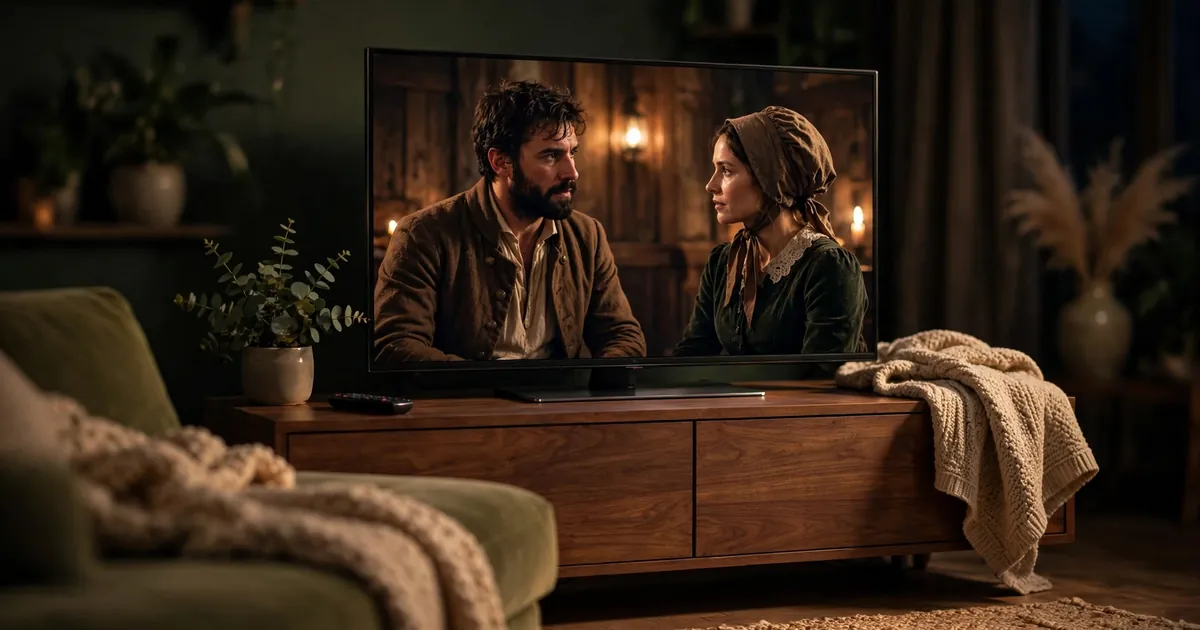
You bought a big new TV, put on a film, and something feels off. The actors move with a strange, too-smooth glide. The dim lighting of a night scene looks flat. It resembles less a movie and more a daytime soap — or a behind-the-scenes rehearsal caught on a phone camera. Your eyes aren’t playing tricks, and the TV isn’t broken. There’s a setting causing this, and almost every modern TV ships with it switched on.

It’s called the soap opera effect, and it has been annoying people since HD flatscreens took over living rooms. Here’s what it is, why TV makers turn it on by default, and how to switch it off in about two minutes.
What’s actually happening to the picture
Movies and TV dramas are filmed at 24 frames per second. Your new TV refreshes its screen at 60, 120, or even more times per second. To bridge that gap, the TV invents extra frames between the real ones — guessing what each moment in between should look like. That guessing is called motion interpolation, or motion smoothing.
Invented frames make movement look unnaturally fluid. Camera pans glide like video game cutscenes. Blurry background motion — the soft blur your eyes expect from cinema — sharpens into something that looks like a stage play filmed on cheap cameras. The “film look” is really just motion blur and judder at 24fps; smoothing removes exactly the imperfections that make movies feel like movies.
Why TVs ship with it turned on
There is a genuine reason: some people like it, especially for live sport and nature documentaries, where smoother motion shows more detail. But the main reason is the showroom. TV makers compete for your attention in stores, where the brightest, sharpest, most motion-pumped demo loop wins a glance from five metres away. Demo mode settings — vivid colours, high brightness, maximum smoothing — stay as defaults long after the TV leaves the shop floor.
So the factory settings are optimised for a fluorescent-lit warehouse, not your living room at nine in the evening. Motion smoothing is just the most noticeable of them.
How to turn it off (brand by brand)
The setting hides under different names on different TVs, but it’s always the same thing. Paths below are for recent models — names and menu layouts vary slightly by year:
Samsung: Settings → All Settings → Picture → Expert Settings → Picture Clarity Settings → LED Clear Motion / Motion Rate, set to Off. (Samsung support documents this path; older models list it under Auto Motion Plus.)
LG: Settings → All Settings → Picture → Picture Mode Settings → Picture Options → TruMotion, set to Off.
Sony: Settings → Display & Sound → Picture → Motion → Motionflow, set to Off.
Panasonic: Menu → Picture → Option Settings → Intelligent Frame Creation, set to Off.
Philips / TCL / Hisense: look in the Picture settings for anything with “motion”, “smoothing”, “interpolation” or a marketing name like MEMC — and turn it off.
While you’re in there, consider switching the picture mode itself. “Movie”, “Cinema” or “Filmmaker Mode” presets usually switch smoothing off automatically and set colours and brightness for a dim room — much closer to what the director intended than the showroom default.
When you might want to keep it on
Smoothing isn’t evil, just misapplied. Live sport genuinely benefits — a football gliding across the pitch at 120 interpolated frames is easier to follow than at 24. Fast-paced video games can feel more responsive with it on (though competitive gamers often prefer the lower input lag of Game Mode, which disables it). And some viewers simply prefer the hyper-real look for everything. There’s no law here; the point is that you should be choosing, not the factory.
Two minutes, better evenings
This is one of the highest-value tweaks in home entertainment: one setting, found once, that makes every film you watch from now on look the way it was made to look. If your new TV has ever felt strangely cheap despite the price tag, it wasn’t the panel — it was the setting. Switch the smoothing off, pick the Movie preset, and let the evening look like cinema again.
And if you’re already poking around in the TV’s menus, it’s worth checking what else the TV is doing without asking — your smart TV may be tracking what you watch, and you can turn that off too.












