


• About
  • Contact
  • Privacy Policy
  • Terms & Conditions
  • Disclaimer
  • Cookie Policy
Superdova.com
Advertisement
  • AI Tools
  • Internet Guides
  • Tech How-To
  • Apps & Software
  • Online Safety
No Result
View All Result
  • AI Tools
  • Internet Guides
  • Tech How-To
  • Apps & Software
  • Online Safety
No Result
View All Result
Superdova.com
No Result
View All Result
Home AI Tools

What to Put in ChatGPT’s Custom Instructions (With Examples Worth Copying)

Amit by Amit
September 22, 2026
in AI Tools
2
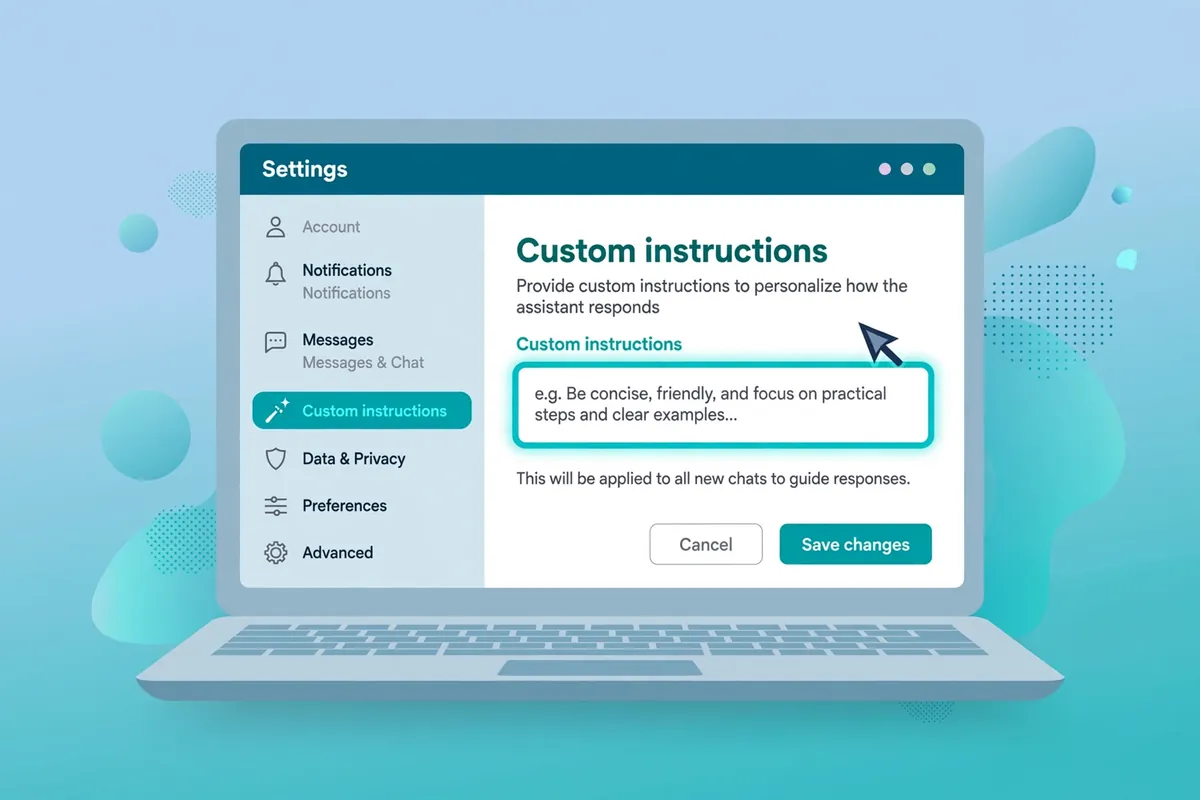
Illustration of a laptop showing ChatGPT's settings panel with the Custom instructions field highlighted
0
SHARES
12
VIEWS
Share on FacebookShare on Twitter

If you use ChatGPT regularly, you’ve probably caught yourself typing the same context over and over: “Keep it short.” “Explain it simply, I’m a beginner.” “Give me the code in Python.” It’s tedious — and it’s exactly the kind of repetition a computer is supposed to spare you. ChatGPT has a built-in setting that fixes it. It’s called custom instructions: you write your preferences once, and ChatGPT takes them into account in every chat.

Table of Contents

Toggle
  • The short version: one standing note, read before every reply
  • Where the setting actually lives
  • What to actually write in the box
  • A few things better left out
  • Don’t confuse this with Memory
  • The character limit is more generous than it looks
  • A quick check before you save

The short version: one standing note, read before every reply

Custom instructions are a note attached to your account that ChatGPT reads before it answers anything. Tell it who you are, what you’re usually working on, and how you like answers shaped — and you stop re-typing that context in every conversation. It doesn’t replace good prompting; it handles the parts of your prompting that never change.

OpenAI offers the feature on all plans, including the free one, on web, desktop, and mobile apps. That detail matters, because most “power user” ChatGPT features are paywalled. This one isn’t.

Where the setting actually lives

The location moved around over the years, so here’s the current path, straight from OpenAI’s help center:

On web or desktop: click your profile picture (bottom left) → Settings → Personalization → make sure “Enable customization” is switched on → type into the Custom Instructions field.

On iPhone or Android: open Settings → Customize ChatGPT → make sure “Enable customization” is switched on → type into the Custom Instructions field.

Changes apply to new chats immediately. If you change your mind later, the same toggle turns the whole thing off — and you can delete what’s in the box at any time.

What to actually write in the box

The mistake most people make is being vague. “Be helpful” changes nothing, because ChatGPT is already trying to be helpful. The instructions that work describe specifics: who you are, what you usually need, and how you want answers shaped.

Think in three parts:

  1. Who you are — your role, level, or situation.
  2. What you’re usually doing — the recurring task.
  3. How you want answers — length, format, tone, and what to skip.

Here are examples worth copying and adapting:

The student: “I’m a second-year biology undergraduate. Explain concepts in simple terms with everyday analogies, and end each answer with two or three quick questions so I can test myself.”

The developer: “I’m a Python developer working with Django. Give code examples in Python 3, keep explanations short, and always point out the common pitfall in whatever you’re showing me.”

The small-business owner: “I run a small bakery. Write in plain, simple English, keep marketing copy under 100 words, and avoid business jargon.”

The job seeker: “I’m applying for data analyst roles. When I share resume bullet points, suggest stronger verbs, cut filler, and be direct about what’s weak.”

The “just keep it short” person: “Keep answers under 150 words unless I ask for more detail. Use bullet points. Skip the pleasantries and get to the point.”

Notice what these have in common: each one would be annoying to retype, each is stable for months, and each is specific enough to actually change the output.

A few things better left out

Anything secret. No passwords, account numbers, API keys, or addresses. OpenAI says information from custom instructions may be used to improve its models — you can opt out in your data controls, but the safest rule is the one you’d apply to anything you type into a chat: if you wouldn’t say it out loud, don’t put it in the box.

Things that change every week. “I’m preparing the Q3 sales report” is useful context today and a confusing relic in November. Instructions are for the stable stuff; put the temporary context in the chat itself.

Contradictory pairs. “Always be brief” and “always explain in detail” can’t both win. Pick the default in the box, and override it in individual chats when the exception comes up — a single sentence in the chat beats the standing instruction for that conversation.

Don’t confuse this with Memory

ChatGPT has a separate feature called Memory (Settings → Personalization → Memory) that quietly picks up facts from your conversations on its own. Custom instructions are the opposite: rules you deliberately set. A useful way to think about it — instructions are the preferences you’d write down; memory is the context ChatGPT gathers. You can use both, and you can switch either off independently.

The character limit is more generous than it looks

Free and Go users get 1,500 characters; paid plans (Plus, Pro, Business, Education, and Enterprise) get 5,000. In practice, the best instructions fit in two or three sentences. If you’re running out of room, that’s usually a sign you’re writing too much, not that the limit is too small.

A quick check before you save

  • Would a stranger understand it without extra context?
  • Will it still be true three months from now?
  • Does it say what to avoid, not just what to do?
  • Would you be comfortable if it were used to improve the model?

If the answer to all four is yes, save it and move on. Five minutes in the settings panel buys back a little time in every chat after it — and the next time you open ChatGPT, notice what you didn’t have to type. That’s the whole point.

SuperDova is an independent technology publication — find more practical AI guides in our AI Tools section.


Next Post

Your Wi-Fi Speed and Your Internet Speed Are Not the Same Thing

Amit

Amit

Next Post
A home Wi-Fi router sending a glowing wireless signal toward a laptop on a couch, with a data cable running into the wall — illustrating the difference between Wi-Fi speed and internet speed

Your Wi-Fi Speed and Your Internet Speed Are Not the Same Thing

Comments 2

  1. Pingback: Your AI Chatbot Can Be Confidently Wrong — How to Check
  2. Pingback: AI Chatbot Privacy: What Happens to Your Chats

Leave a Reply Cancel reply

Your email address will not be published. Required fields are marked *

Stay Connected test

  • 24k Followers
  • 99 Subscribers
  • Trending
  • Comments
  • Latest
Photorealistic illustration of a laptop displaying an email inbox with a breach warning, with a cracked red padlock floating above the screen

Your Email Was in a Data Breach? Don’t Panic — Do These Five Things

September 23, 2026
Illustration of a laptop showing ChatGPT's settings panel with the Custom instructions field highlighted

What to Put in ChatGPT’s Custom Instructions (With Examples Worth Copying)

September 22, 2026
Illustration of a golden master key hovering over a glowing inbox icon on a laptop screen, surrounded by shields and padlocks

If Someone Gets Into Your Email, They Get Into Everything

September 22, 2026
Illustration of a smartphone showing an AI chat conversation with a magnifying glass examining the answers, symbolising fact-checking

AI Chatbots Sound Confident Even When They’re Wrong. Here’s How to Check Their Answers

September 23, 2026
Illustration of a smartphone showing an AI chat conversation with a magnifying glass examining the answers, symbolising fact-checking

AI Chatbots Sound Confident Even When They’re Wrong. Here’s How to Check Their Answers

9
Illustration of a golden master key hovering over a glowing inbox icon on a laptop screen, surrounded by shields and padlocks

If Someone Gets Into Your Email, They Get Into Everything

8
Photorealistic illustration of a laptop displaying an email inbox with a breach warning, with a cracked red padlock floating above the screen

Your Email Was in a Data Breach? Don’t Panic — Do These Five Things

6
A home Wi-Fi router sending a glowing wireless signal toward a laptop on a couch, with a data cable running into the wall — illustrating the difference between Wi-Fi speed and internet speed

Your Wi-Fi Speed and Your Internet Speed Are Not the Same Thing

5
Flat illustration of a laptop showing a logout symbol with a small brass key beside it, on a blue and grey background

Signed Out Again? Why Websites Keep Logging You Out

October 20, 2026
Woman with earbuds relaxing in an armchair while her phone reads an article aloud, tea on a side table, warm evening light

Too Tired to Read? Your Phone Can Read the Screen for You

October 19, 2026
Photograph of a smartphone lying on a wooden café table, its screen showing a map with a glowing blue location pin, a hand reaching toward it in the background

Lost Your Phone? Ring It, Lock It, or Find It From Any Computer

October 19, 2026
A laptop on a wooden desk displaying a battery charging indicator at 76 percent

Your Laptop Battery Barely Lasts Anymore? Check Its Health First

October 18, 2026

Recent News

Flat illustration of a laptop showing a logout symbol with a small brass key beside it, on a blue and grey background

Signed Out Again? Why Websites Keep Logging You Out

October 20, 2026
Woman with earbuds relaxing in an armchair while her phone reads an article aloud, tea on a side table, warm evening light

Too Tired to Read? Your Phone Can Read the Screen for You

October 19, 2026
Photograph of a smartphone lying on a wooden café table, its screen showing a map with a glowing blue location pin, a hand reaching toward it in the background

Lost Your Phone? Ring It, Lock It, or Find It From Any Computer

October 19, 2026
A laptop on a wooden desk displaying a battery charging indicator at 76 percent

Your Laptop Battery Barely Lasts Anymore? Check Its Health First

October 18, 2026
Superdova.com

SuperDova is an independent technology publication covering AI tools, software, internet guides, digital skills and online safety. Our goal is to make technology easier to understand and use.

Follow Us

Browse by Category

  • AI Tools
  • Apps & Software
  • Internet Guides
  • Online Safety
  • Tech How-To

Recent News

Flat illustration of a laptop showing a logout symbol with a small brass key beside it, on a blue and grey background

Signed Out Again? Why Websites Keep Logging You Out

October 20, 2026
Woman with earbuds relaxing in an armchair while her phone reads an article aloud, tea on a side table, warm evening light

Too Tired to Read? Your Phone Can Read the Screen for You

October 19, 2026
  • About
  • Contact
  • Privacy Policy
  • Terms & Conditions
  • Disclaimer
  • Cookie Policy

© 2026 SuperDova — Technology, AI & Digital Guides. All Rights Reserved.

No Result
View All Result
  • AI Tools
  • Internet Guides
  • Tech How-To
  • Apps & Software
  • Online Safety

© 2026 SuperDova — Technology, AI & Digital Guides. All Rights Reserved.









