



You know the drill. You need to check a work email, but you’re logged into your personal Gmail. So you log out, log in, do the thing, then log back out and log back in to your personal account. Or worse: you reply to a colleague from the wrong address, because the browser cheerfully kept you signed in as you. Somewhere in there, your bookmarks bar fills up with a mix of project dashboards and recipe sites, and your history is one long unsorted list.

There is a much cleaner way to run two lives in one browser, and it has been sitting in front of you for years. It’s called a browser profile — and once you set one up, the constant logging in and out simply stops.
What a browser profile actually is
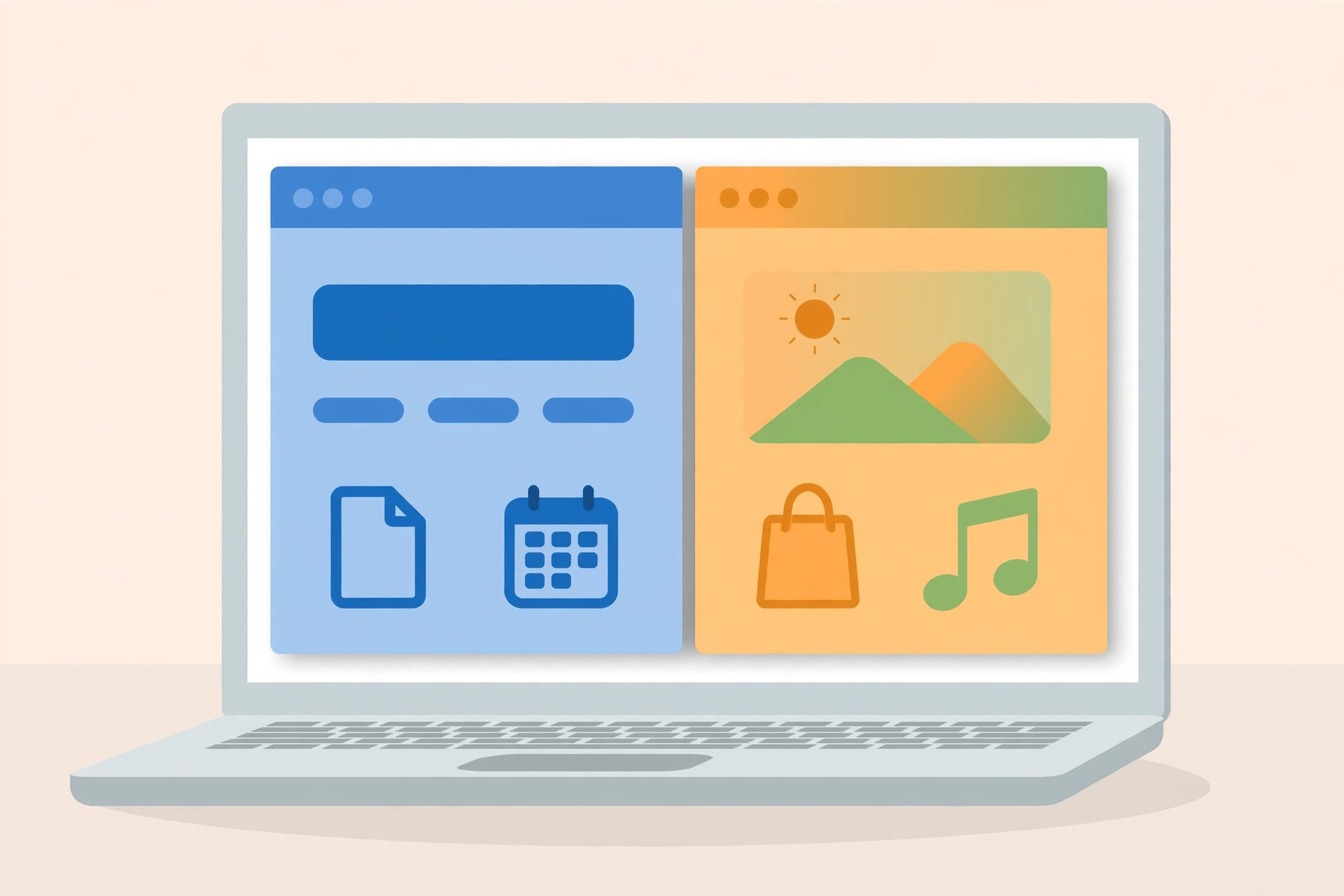
Think of a profile as a second browser living inside your browser. Each profile keeps its own separate set of logins and cookies, its own bookmarks, its own browsing history, its own extensions and saved passwords, and usually its own theme colour so you can tell the windows apart at a glance.
Switching between them takes one click. Everything in the “Work” profile stays in the Work profile: the work Google account, the company dashboards, the tabs you had open on Friday. Open your “Personal” profile and none of that is there — just your own stuff, exactly as you left it. You don’t need to install a second browser, and you never have to log in and out of anything again.
Every major browser has this now. Chrome, Edge, Firefox and Safari all do some version of it, and they all keep the same idea: separate browsing lives, one app.
This is not incognito mode
Worth clearing up, because people mix these up constantly. An incognito or private window is a forgetful window: close it, and the browsing history and cookies from that session are gone. A profile is the opposite — it remembers everything, it just keeps it separate. Incognito is for a one-off task you don’t want recorded. Profiles are for the accounts and habits you use every day, cleanly divided.
When a second profile earns its place
The work-and-personal split is the obvious one, especially if you work from home and one computer does everything. But profiles pay for themselves in a few other situations too.
Freelancers juggling clients can keep each client’s tools in their own profile instead of swapping accounts inside one window. People with two accounts on the same service — two Gmail accounts, two Microsoft accounts — can stay signed into both at once instead of picking one. On a shared family computer, a profile each keeps one person’s bookmarks, passwords and YouTube recommendations out of everyone else’s way.
And if you run any kind of side project — a shop, a newsletter, a small business page — a dedicated profile keeps that identity cleanly apart from your personal browsing. If you’ve ever posted something from the wrong account, you already know why this matters.
Setting it up in Chrome and Edge
In Chrome, click your profile icon in the top-right corner and choose Add. You can sign in with a Google account or continue without one — signing in is what carries your bookmarks and settings to your other devices. Give the profile a name and a colour, and it opens in its own window. Switching back is the same move: profile icon, pick the other profile. Each profile gets its own window, so a quick glance at the toolbar colour tells you which life you’re in.
Edge works almost the same way, which makes sense since it’s built on the same foundation. Click the profile icon in the top-right, choose Set up a new profile, and pick Personal or Work or school. You can sign in to sync your data or start fresh without it. The new profile opens in a separate window, and each keeps its own settings, bookmarks, extensions, themes and preferences. There’s also a guest profile option if someone needs your browser once and you don’t want them touching anything of yours.
The same idea in Firefox and Safari
Firefox hides the feature a little deeper. Type about:profiles into the address bar and press Enter. That opens the profile manager, where you can create a new profile and then launch it in a new browser window. Firefox keeps each profile’s bookmarks, passwords and settings in its own folder, so the separation is just as real — the setup just isn’t as discoverable.
Safari got proper profiles with Safari 17, on macOS Sonoma and later. Go to Safari → Settings → Profiles and add one: pick a name, an icon and a colour. Each profile keeps separate history, cookies, extensions, tab groups and favorites, and you switch between them from the profile button in the toolbar. Safari even lets you set certain websites to always open in a specific profile, so your company’s tools can land in the Work profile automatically.
A few things worth knowing before you split up
First, each profile needs its own sign-ins. A profile doesn’t log you in — it just gives each account its own private home. Sign into your work account in the Work profile, turn on sync there, and your work bookmarks follow you to your laptop and phone too.
Second, extensions are per-profile as well. Your ad blocker or password manager won’t magically appear in the new profile; install what you need in each. That’s a feature, really — your personal profile can stay lean while your work profile carries the heavy tooling.
Third, profiles are about organisation, not privacy from the people around you. Google’s own help page says it plainly: anyone with access to your device can switch between profiles. If you genuinely need to keep someone else out of your browsing, separate operating-system accounts are the answer, not profiles. Along the same lines, this is a good moment to remember that your email account is the master key to your online life — keeping that account signed in only in its own profile is a simple, practical layer of hygiene.
Finally, one honest limitation: this is really a desktop trick. On your phone, Chrome handles the work-personal split through the signed-in account rather than desktop-style profiles, so don’t go hunting for the same feature in the mobile menu.
Most people who try a second profile wonder why they didn’t do it years earlier. Two windows, two colours, two lives — and the era of logging in and out of yourself is over. We’ve got more of these small everyday software fixes in our Apps & Software section.













Comments 1