



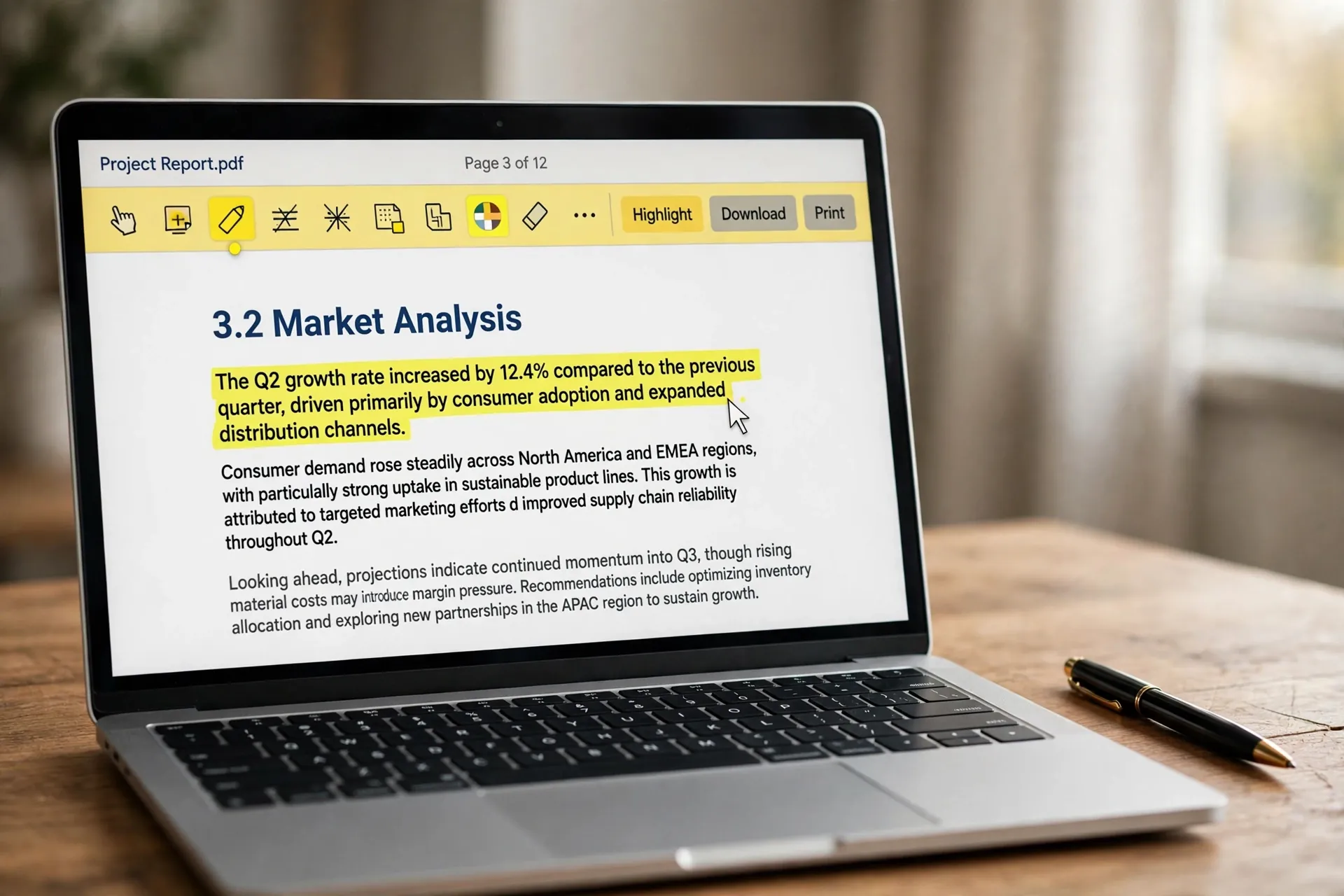
If you’ve just searched for a free PDF editor, there’s a good chance you’re already annoyed. The results are a wall of “free” tools that turn out to be trial-limited, task-limited, or watermarked — and behind them, the honest paid options start at a subscription price that feels absurd for signing one form a month. Here’s the part those search results rarely mention: for the things most people actually do with PDFs, the software on your computer already does the job.

Start with the job, not the app
It helps to get specific about what “editing a PDF” means in your case, because the answer decides everything. In most real life, it means one of these: filling in a form, signing your name, highlighting a paragraph, adding a comment, combining two PDFs into one, or deleting a page you don’t need. You do not need a dedicated editor for any of that.
The one job that genuinely needs a real PDF editor is rewriting the document’s existing text — changing sentences in the body as if it were a Word file. Almost nobody needs that, and the people who do usually know it. So before installing anything, match your job to the tool below. Odds are you’ll stop reading after the first two sections.
Your Windows PC ships with a decent PDF markup tool
On Windows, the tool is Microsoft Edge — the browser that comes with your computer. Open any PDF file with it (double-clicking a PDF usually does this already) and look at the toolbar at the top. You’ll find Draw for freehand writing with your mouse or a stylus, Highlight for marking text in several colours, and Add text for typing into empty areas like form fields. You can save your annotations straight into the file.
That covers the most common scenario on the planet: a form arrives by email, you fill it in, sign it with the Draw tool, save, and send it back. No download, no account, no watermark. Edge also handles basic reading tasks well — searching within long documents, jumping between pages, and printing specific pages. If your job is “fill, sign, mark up,” you are done here, and this is the simplest answer on Windows.
On a Mac, the answer is already in your dock
Mac users have it even better. Preview — the app that opens when you double-click a PDF — is a quietly capable PDF tool once you know where to look. Click the Markup toolbar button (the pen-tip icon) and you get text boxes, signature capture (draw with your trackpad or hold a signed piece of paper up to the camera), shapes, highlights, and notes.
Preview also handles the “page surgery” jobs that send Windows users hunting for tools. Show the thumbnails sidebar (View > Thumbnails), and you can drag pages to reorder them, select one and press Delete to remove it, or use Edit > Insert > Page from File to merge another PDF into the document. One honest limitation: Preview can add to a PDF but can’t rewrite the document’s original text. For form-filling, signing, merging, and page management, though, it’s genuinely all you need — and like everything else on this list, it costs nothing.
One free download that covers the gaps
If you occasionally need more — moving text around on a page, editing labels, inserting images into the document — there’s one free desktop option worth knowing: LibreOffice Draw, part of the free and open-source LibreOffice office suite from The Document Foundation.
Open your PDF in Draw (File > Open), and it imports the document so you can click on text blocks and edit them, add your own text boxes, insert images, and then export the result back to PDF from the File menu. It’s the closest thing to a real PDF editor that costs nothing. Two honest caveats: because Draw imports the PDF into its own format rather than editing it directly, complex layouts can shift slightly — always proofread the exported file before sending it on. And the learning curve is steeper than a browser toolbar. But for a one-off job like fixing text on a flyer or updating a price list, it works, and the original file stays untouched while you experiment. Download it from libreoffice.org, never from a site offering “free PDF software” alongside it.
Free PDF websites work — just don’t feed them your tax return
What about the online tools — the Smallpdfs and iLovePDFs of the world? They genuinely work, and for one-off conversions or compressions they’re convenient. But they come with two prices that aren’t measured in money. First, the free tiers ration you: a couple of tasks a day before the upsell appears, with the exact limits shifting over time. Second — and this is the real one — your file is uploaded to their servers to be processed, and you are trusting their deletion policy.
For a concert ticket or a school permission slip, that’s fine. For a tax return, a medical form, a contract, or anything with your passport number on it, think twice. If the document would embarrass or harm you in the wrong hands, keep it on your own device: use Edge, Preview, or LibreOffice instead. And as a general rule, never download a “free PDF editor” installer from a random download site — that’s one of the oldest malware delivery tricks there is. The official websites of the tools mentioned here are the only safe sources.
The few jobs worth paying for
Paying for a PDF tool is not a scam — it just has a specific audience. If you process documents all day, a proper editor like Adobe Acrobat pays for itself in saved time. Scanned documents that need searchable text (OCR) are another legitimate reason. So are batch conversions of hundreds of files, legally sound redaction that truly removes hidden data (a black box drawn over text is not redaction), and compliance features businesses require.
Notice that none of those are “sign a form twice a month.” For everyday users, the gap between free and paid is much smaller than the marketing suggests — and the tools already sitting on your computer cover almost all of it.
So next time a PDF needs attention, resist the search box for five minutes. Open the PDF in the app you already have, look for the markup toolbar, and see how far it gets you. We cover this kind of built-in software — the tools you own but never opened — regularly in our Apps & Software section, because the best free software is often the kind you never had to install.












