



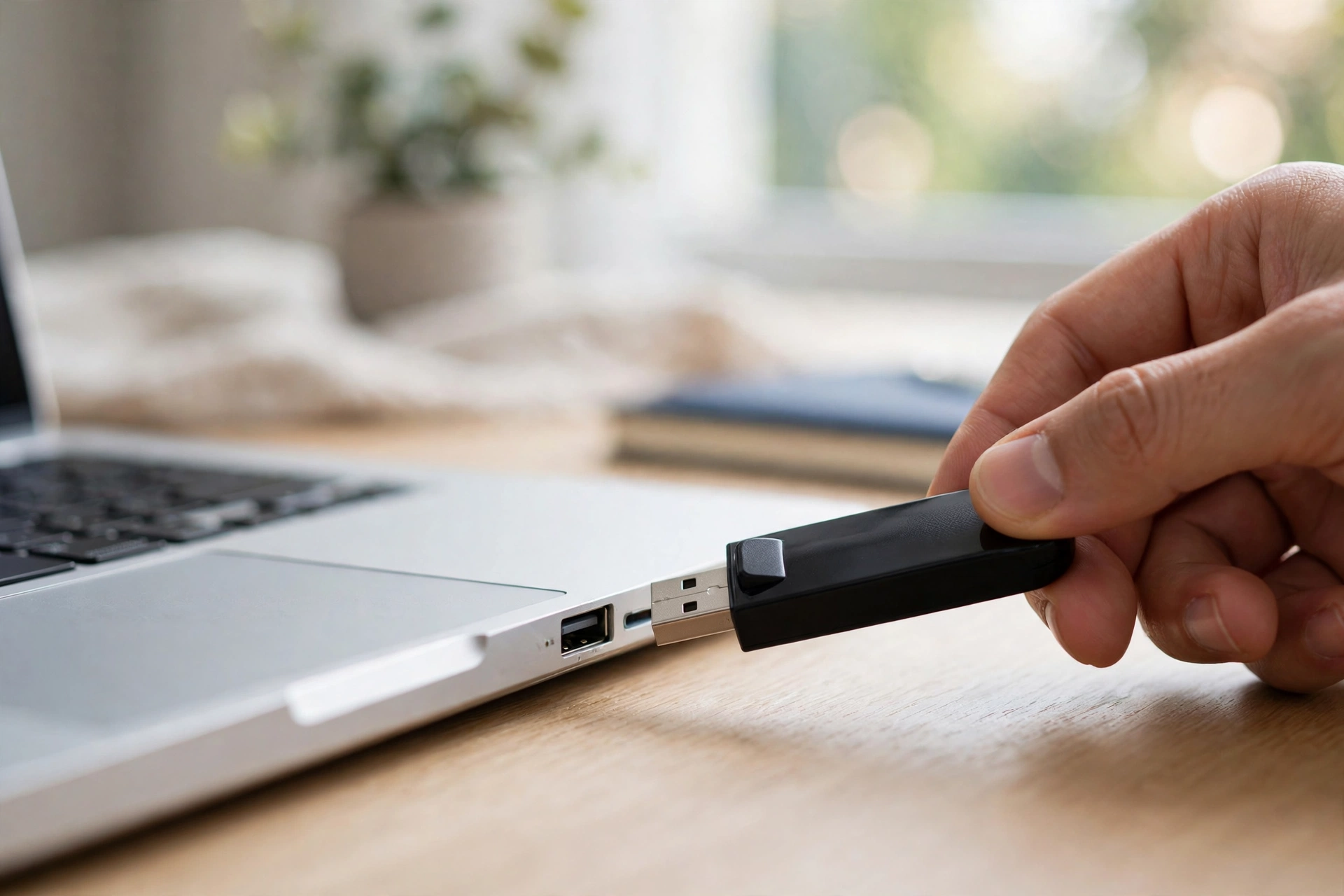
There is a small ritual that millions of computer users perform without thinking: finish copying files to a USB drive, click the little icon in the taskbar, wait for the “Safe to remove hardware” message, and only then pull the drive out. Some of us were taught it by an IT manager who looked very serious at the time. Others learned it the hard way, with a corrupted drive and a sinking feeling.

Here is the thing: on a modern Windows computer, that ritual is mostly history. Microsoft quietly changed the rules years ago. But — and this matters — the rulebook is different on a Mac, and different again on a phone. Pulling a drive out at the wrong moment can still wreck your files. So the real question is not whether the old rule still exists. It is when it still applies to you.
Why the “Safely Remove” Rule Exists in the First Place
To understand the answer, you need about thirty seconds of background. When you copy a file to a USB drive, your operating system does not always write the data immediately. To make things feel faster, it can hold the data in memory for a moment — a trick called write caching — and finish the actual writing in the background while you go back to work.
The problem is obvious: if you yank the drive out during that invisible background step, the file ends up half-written. Sometimes the file is just broken. Sometimes the drive’s file system — the index that keeps track of where everything is stored — gets damaged, and the whole drive becomes unreadable.
The “Safely Remove Hardware” button was never magic. It was a handshake. Clicking it told the computer: finish everything pending, flush the cache, and let go of the drive. Only after that confirmation was it truly safe to pull.
What Changed on Windows: Quick Removal Became the Default
In October 2018, with the Windows 10 October update (version 1809), Microsoft flipped the default behaviour for removable drives. Instead of “Better performance” mode — which enables write caching and requires the safe-remove handshake — USB drives now default to a policy called Quick removal. With Quick removal, Windows does not cache write operations, so the drive is kept ready to remove at any time. No taskbar icon needed.
This applies to Windows 11 too, which inherited the same default. Microsoft documented the two policies plainly: Quick removal means you can remove the device without using the Safely Remove Hardware process; Better performance means Windows may cache writes, and you must use the safe-removal process to protect your data.
The trade-off is small but real: without write caching, large file transfers can be a little slower. Microsoft decided most people would rather have convenience than that marginal speed. Honestly, most people did not even notice the change — which tells you how invisible the difference is for everyday files.
How to Check Which Policy Your Drive Uses
The default is per drive, and it is possible — though unusual — for a drive to still be set to Better performance, especially an older one that was configured years ago. Checking takes less than a minute:
- Plug the USB drive in.
- Press the Windows key, type Device Manager, and open it.
- Expand Disk drives, right-click your USB drive, and choose Properties.
- Open the Policies tab. If Quick removal is selected, you are fine to just pull the drive when nothing is copying.
You can also switch a drive back to Better performance here if you regularly move very large files and want the speed — just accept that you will need the safe-remove ritual again for that drive.
Three Times You Should Still Eject on Windows
Quick removal removes the need for the handshake, but it does not remove common sense. There are still moments when pulling a drive is genuinely risky:
1. A copy or save is still in progress. This is the big one. If Windows is visibly copying, saving, or moving files — progress bar on screen, drive light blinking — wait. Quick removal only helps once the write is actually finished.
2. The drive is set to Better performance. If you checked the Policies tab and found write caching enabled, treat that drive the old way: eject it through the taskbar icon every time.
3. It is an external hard drive or an encrypted drive. Portable HDDs and SSDs with spinning parts or large caches, and drives protected with BitLocker or similar encryption, deserve the handshake. For external hard drives especially, the eject step also lets the drive’s heads park properly instead of being surprised mid-spin.
Macs Didn’t Get the Memo — Always Eject
This is where platform differences bite. macOS still works the old way: it caches writes in the background and expects you to eject external drives before unplugging them. Yanking a drive from a Mac — even after a copy looks finished — risks leaving background writes incomplete and corrupting the file system.
The good news is that ejecting on a Mac is quicker than the Windows ritual ever was. Right-click the drive and choose Eject, select it in Finder and press Command+E, or click the little eject icon next to the drive’s name in the Finder sidebar. If the drive refuses to eject, it means something is still using it — check for open files or apps, and try again before resorting to force.
Android Phones: Unmount Before You Pull
Phones sit somewhere in between. If you have a USB drive connected through an OTG adapter or a USB-C hub, do not just pull it — Android mounts the drive into its storage system, and yanking it can corrupt files or confuse apps that were reading from it.
The safe way: open Settings → Storage, find your USB drive, and tap Eject or Unmount. Some phones show the option in the notification shade or in the Files app next to the drive’s name. In a pinch, powering the phone off fully before removing the drive works too — nothing can be mid-write if the phone is off.
The Bottom Line
The honest rule of thumb, updated for today: on a modern Windows PC, you can pull a USB drive once copying is done — no icon-clicking required. On a Mac, always eject. On a phone, unmount first. And everywhere, on every system, never pull during an active transfer. That one habit covers nearly all the risk the old ritual was protecting you from.
If you are moving files off your computer to free up space, by the way, it is worth checking where your C: drive space is actually going first — you may find gigabytes you can reclaim without the USB drive at all.












