



You plug the drive in. The little light blinks, you hear the familiar chime, and then … nothing. No drive in File Explorer, no icon on the desktop, no sign that the computer noticed at all. The fix Windows and macOS both seem to suggest, if you panic-search for two minutes, is to format the thing and start again.

Don’t. Formatting erases what’s on there, and in most cases the drive, the cable, and your files are all fine. The computer can usually see the drive perfectly well — it’s just not showing it to you. Working through the checks below, in this order, will surface it without destroying anything.
Start With the Cable, the Port, and the Power
It feels too obvious to mention, which is exactly why it gets skipped. Swap the USB cable for a different one if you have a spare, and plug the drive directly into the computer rather than through a hub or a dock. Try a second port while you’re at it — on a desktop, a rear port connects straight to the motherboard and often behaves better than a front-panel one.
If it’s a larger desktop drive with its own power brick, confirm the brick is plugged in and the drive is actually spinning up or lit. A drive that gets data but not enough power can appear and vanish, or never quite appear at all. This is the same start-with-the-cable logic that fixes a monitor Windows swears isn’t there: rule out the physical link before you touch a single setting.
Still nothing visible? Good — now you know it’s not the cable. The next question is whether the operating system can see the hardware at all.
On Windows, Check Whether the System Can See It at All
File Explorer only shows drives that are ready to use. Disk Management shows everything Windows has detected, ready or not, and that’s where the answer usually is.
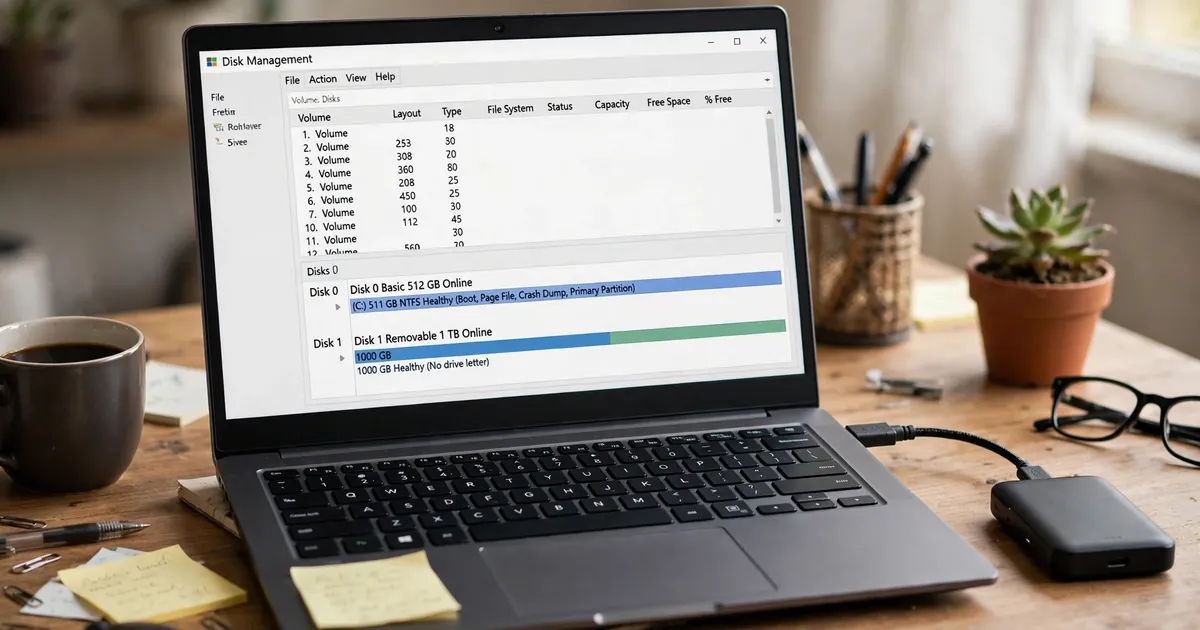
Right-click the Start button and choose Disk Management (or press Windows + R, type diskmgmt.msc, and press Enter). Look at the list of disks in the lower half of the window and find yours by its size. There are three things it might say, and each one points somewhere different:
- It appears with a name and a capacity, but no drive letter. This is the common one. Skip to the next section — you’re about thirty seconds from done.
- It says “Not Initialized” or the space shows as “Unallocated.” Either a brand-new drive that was never set up, or a partition table problem. See the section after next, and read the warning there first.
- It doesn’t appear in Disk Management at all. Open Device Manager (right-click Start) and expand Disk drives. If the drive shows there with a yellow warning mark, right-click it, choose Update driver and let Windows search automatically. If that changes nothing, right-click again, choose Uninstall device, unplug the drive, restart the PC, and plug it back in — Windows reinstalls the driver cleanly on reconnection. If the drive appears in neither Disk Management nor Device Manager, try it on another computer before concluding anything. That one test splits the problem in half: drive fault or computer fault.
The Missing Drive Letter Is the Quiet Fix
A drive without a letter is invisible in File Explorer, even though Windows knows it’s there. Assigning one doesn’t change anything on the drive itself — it just gives Windows a path to show you.
In Disk Management, right-click the volume on your external drive (the long bar, not the “Disk 1” label on the left) and choose Change Drive Letter and Paths. Click Add if no letter is listed, or Change if you want a different one, pick an unused letter, and click OK. You need an administrator account for this. The drive should appear in File Explorer immediately, files untouched.
If Change Drive Letter and Paths is greyed out, that tells you something too: the volume is usually unallocated and needs setting up first, or it’s a protected system partition like EFI or Recovery that was never meant to get a letter. Don’t force those.
While you’re here, it’s worth understanding how Windows actually handles USB drives when you unplug them — yanking a drive mid-write is one of the ways a perfectly good drive ends up needing the checks on this page.
A Brand-New Drive Showing as Unallocated Is Not Broken
New drives often ship completely blank: no partition, no file system, no letter. Windows reports that as “Not Initialized” and a long black bar labelled “Unallocated,” which looks alarming and is actually the normal starting state.
Right-click the disk label on the left and choose Initialize Disk. You’ll be asked to pick a partition style: GPT for a modern computer and any drive over 2 TB, MBR only for older hardware. Click OK, then right-click the Unallocated space and choose New Simple Volume. The wizard walks you through size (the default uses the whole drive), a drive letter, and a file system — NTFS is the usual choice for a Windows-only drive. Finish, and the drive appears like any other.
One warning that matters: initializing and formatting erase the drive. That’s fine for a genuinely new, empty disk. If this is a drive that used to work and already holds your files, do not initialize it and do not click Format just to see what happens. That path deletes the map to your data. Try the drive-letter fix above and another computer first.
On a Mac, Look in Disk Utility Before You Look in Finder
Finder only shows mounted drives, and it can also be told not to show them. Open Finder > Settings > General and make sure External disks is ticked under “Show these items on the desktop,” then check the Sidebar tab and tick External disks under Locations as well. A surprising number of “missing” drives were simply hidden there.
Then open Disk Utility (in Applications > Utilities, or search with Spotlight). Choose View > Show All Devices so you see physical drives and not just volumes. If your drive is listed but greyed out, select it and click Mount. If it mounts, you’re done — it should now appear in the Finder sidebar under Locations.
If the drive doesn’t appear in Disk Utility at all, go back to the physical checks: different cable, direct connection instead of a hub, a restart, and the drive on another Mac or a Windows PC if you can. A drive no computer can see in its disk tool is pointing at the cable or the drive hardware, not at a setting.
First Aid Is Worth Running Before Anything Drastic
If the drive shows up in Disk Utility but won’t mount, or mounts and then misbehaves, run First Aid on it. Disk Utility can check and fix errors in the formatting and directory structure — the kind of small corruption that stops a drive mounting cleanly.
Apple’s order is specific: with Show All Devices on, run First Aid on each volume first, then on each container, then on the storage device itself, working from the bottom of the sidebar upward. Select the item, click First Aid, then Run. If it reports success, try mounting again.
Take one result seriously: if Disk Utility tells you the disk is about to fail, stop troubleshooting and copy everything you can off it, then replace the drive. Apple is blunt that a failing disk can’t be repaired — and repeated repair attempts on dying hardware make recovery less likely, not more. The Windows equivalent is a drive that keeps appearing and disappearing, or shows in Device Manager but never holds a letter: back up first, replace second.
When Windows and Mac Disagree About the Same Drive
Sometimes the drive is healthy and both computers can see it — they just don’t speak the same file-system language. This catches out anyone who moves a drive between a PC and a Mac.
Windows’ usual format, NTFS, can be read by a Mac but not written to without extra software. A Mac-formatted APFS drive (the default since macOS 10.13) won’t show up usefully on Windows at all. If a drive works perfectly on one machine and looks empty, read-only, or missing on the other, format compatibility is the first suspect, not failure.
For a drive that genuinely needs to live on both, exFAT is the shared option: both Windows and macOS read and write it natively, and unlike the older FAT32 it doesn’t cap you at 4 GB per file, so large videos are fine. Reformatting to exFAT still means erasing the drive first — copy everything off, reformat, copy it back. Only do that once you’ve confirmed the drive itself is healthy using the checks above.
If It Still Won’t Appear Anywhere
By now you’ve changed the cable and port, checked Disk Management or Disk Utility with all devices shown, tried assigning a letter or mounting manually, and tested the drive on a second computer. If no machine can see it at the hardware level — not in Disk Management, not in Device Manager, not in Disk Utility — the problem is almost certainly the drive or its enclosure, not your settings.
Listen to it, if it’s a spinning hard drive: repeated clicking, grinding, or complete silence where a gentle spin-up hum should be are all bad signs, and none of them are fixed by software. At that point your options are a replacement drive, or a data-recovery service if what’s on it is irreplaceable — and the less you power-cycle a failing drive in the meantime, the better their chances.
And if it did come back? Use the reprieve. Copy the important files somewhere else today, not eventually — if a full internal drive is what pushed you to buy an external one in the first place, that external drive is probably now the only copy of something. A drive that has disappeared once has told you something. Believe it the first time.












