



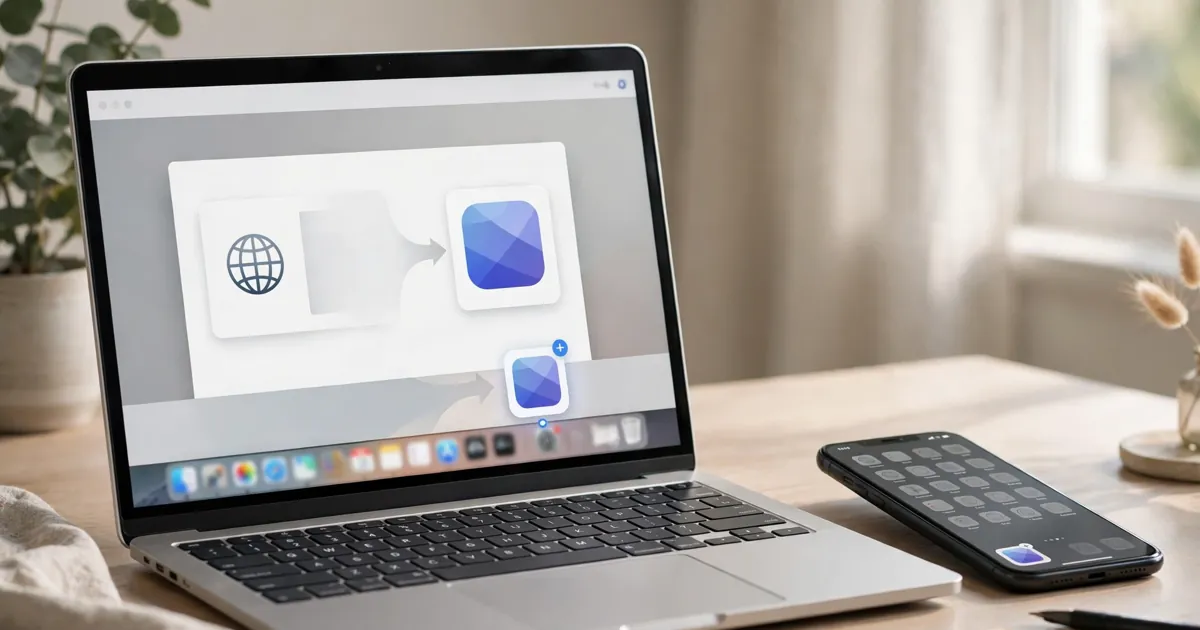
Some websites are good enough that you open them every day — and clunky enough that finding the tab each time gets old. Your browser can fix that. Chrome, Edge and Safari can all turn a website into something that behaves like an app: its own icon, its own window, no address bar full of other tabs. No app store, no download queue, nothing new to pay for.

It takes about twenty seconds, and removing it later is just as quick. The catch is that what you get depends on the site and the browser, so it helps to know which version you’re actually installing.
Two Different Things Are Hiding Behind the Word “Install”
The first kind is a site built to be installed. Google calls these web apps; Microsoft calls the same idea a Progressive Web App, or PWA. The site itself offers the install, usually through an icon in the address bar or a prompt on the page. These are the ones that may work partly offline, send notifications, or show a little badge on the icon — though Google is clear that even a web app may not work completely without an internet connection.
The second kind is simpler: the browser takes an ordinary website and gives it app-shaped packaging anyway. Microsoft literally separates the two in Edge — a PWA has the extra capabilities, while a “site as app” is a pinned website that opens in a dedicated window without them. Desktop Chrome and Edge can both do this with any website, whether or not the site was built for it. On a phone, adding a regular site to the Home Screen may only create a shortcut that opens in the browser. That’s still useful, but it’s not the same thing.
Knowing the difference stops the main disappointment with this feature: expecting offline access or notifications from what is really just a tidy bookmark with a nicer icon.
When This Is Worth Doing (and When the Store App Wins)
Install the website when you use it daily, when its mobile site is as good as its app, or when you’d rather not give another app storage space and a sign-in on your phone. Email, calendars, notes, music players in the browser, news sites, and work dashboards are the classic cases. You also skip the store entirely, which means no waiting for an update to clear review — the installed site updates itself whenever the website does.
Keep the store app when you need reliable offline files, heavy notifications, widgets, or features that lean on the phone’s hardware. A website installed through the browser lives inside that browser’s rules for storage, permissions and data clearing. It is a very good shortcut with app manners, not a full replacement for every native app.
If clutter is your real problem, this pairs well with the same tidy-up logic that applies to browser extensions: keep the handful of things you genuinely open, in the place you actually look for them.
On a Computer: Chrome First
Open the site in Chrome and look at the right-hand end of the address bar. If the site offers a web app, an install icon appears there; click it and confirm. The app then opens in its own window and can be launched from your launcher, Start menu or Dock like any other program.
If there’s no icon, the site may not offer an installable web app. You can still give it the app treatment as a shortcut: open Chrome’s menu and use the shortcut option for the page, choosing to open it as a window if your version offers that setting. Either way, type chrome://apps in the address bar afterwards to see what you’ve installed. From there you can create desktop shortcuts and, on Windows, Mac or Linux, set an app to launch when you sign in — handy for the one work tool you open before coffee, annoying for everything else, so use it sparingly.
On a Computer: Edge Makes It Easiest, Mac Safari Works Too
Edge is the most generous here: it will install any website, not just ones built for it. Open the site, then go to Settings and more … > More tools > Apps > Install this site as an app, name it, and confirm. Afterwards, open edge://apps to manage everything in one place — pin an app to the taskbar or Start, create a desktop shortcut, let one auto-start when you log in, review its permissions, or uninstall it from its Details card.
On a Mac, Safari does the same job with different words. Open the page, choose File > Add to Dock (or the Share button, then Add to Dock), give it a name, and click Add. The web app is saved into the Applications folder of your home folder, so it opens from the Dock, Launchpad or Spotlight. If you were signed in to the site in Safari, you’re usually signed in to the web app too — same account, same password. Its toolbar is simplified, and it can send notifications like a regular app. Open the app’s Settings later if you want to rename it, change its starting page or icon, or clear its website data from the Privacy tab.
On Android: Look for “Install”, Not Just a Shortcut
Open the site in Chrome, tap the three-dot menu beside the address bar, and look at what it offers. If the site is an installable web app, you’ll see an Install option (sometimes under Add to Home screen). Choose it and follow the prompt; the app lands on your Home Screen and in your app drawer, and opens in its own window rather than as another Chrome tab.
If the menu only offers to create a shortcut, that’s what you’ll get: an icon that opens the page in Chrome. Useful, but set your expectations accordingly — no separate app entry, no offline promises. Chrome may also show the site’s own on-page install button when one exists, which does the same job as the menu route.
On iPhone and iPad: It’s in the Share Sheet
Apple’s route runs through Safari. Open the website, tap the Page Menu button and then Share — or just the Share button if your tabs sit at the top or bottom — scroll down, and tap Add to Home Screen. If you don’t see it, scroll to the bottom of the list, tap Edit Actions, and add it from there.
Now the one choice that matters: if you see Open as Web App, leave it on to use the site as if it’s an app, in its own full-screen window. Turn it off and you get a plain bookmark icon that opens in Safari instead. Rename it to something short, tap Add, and remember the icon lives only on the device where you added it — your iPad doesn’t inherit it. Some sites will ask to send notifications afterwards; you can change your mind about that in notification settings at any time.
What You Gain, What You Don’t
The gains are mostly about friction. One tap or click, straight into the right page, signed in, without hunting through tabs or a store. The window is cleaner, which is why this trick suits reading and writing tools — for articles, it’s a permanent version of what Reader Mode strips an article down for reading, except it keeps the whole site working. Updates are automatic because there’s nothing separate to update, and on the desktop you can pin the result to the taskbar or Dock like a program you paid for.
The limits are real. Offline support is the site’s choice, not a browser guarantee. Storage is browser storage, so clearing site data signs you out and can remove the app’s local content. And the icon is only ever as good as the website behind it: install a slow, cluttered site and you’ve built a faster door into the same mess. If a site matters enough to live on your Home Screen, it’s also worth asking whether the automation app already on your phone should open it for you at the right time of day — but that’s polish, not a requirement.
Removing One Is a Thirty-Second Job
In Chrome, open chrome://apps, right-click the app, and uninstall it. Pay attention to the prompt about deleting browsing data: ticking that removes the site’s data from Chrome too, so you’ll sign in from scratch next time you visit in a normal tab. On a Chromebook, right-clicking the icon in the launcher offers the same choice.
In Edge, edge://apps is again the control room: open the app’s Details, choose Uninstall, and confirm whether its history and data should go with it. You can also remove Edge-installed apps from your system Settings’ installed-apps list on Windows.
On iPhone, deleting the Home Screen icon removes what you added on that device — a bookmark shortcut simply disappears, while deleting an installed web app removes the app entry as well. And in every browser, one security habit is worth keeping: if an installed site’s name or icon ever changes to imitate a different app, don’t investigate it. Uninstall it, then go to the real site yourself and install it again cleanly.
Start with one site — the one you typed into the address bar twice today. Give it a week on your Home Screen or taskbar. If you stop noticing the icon because opening it became thoughtless, the experiment worked, and your other daily sites can follow. If you never touch it, delete it and nothing was lost but twenty seconds.












