



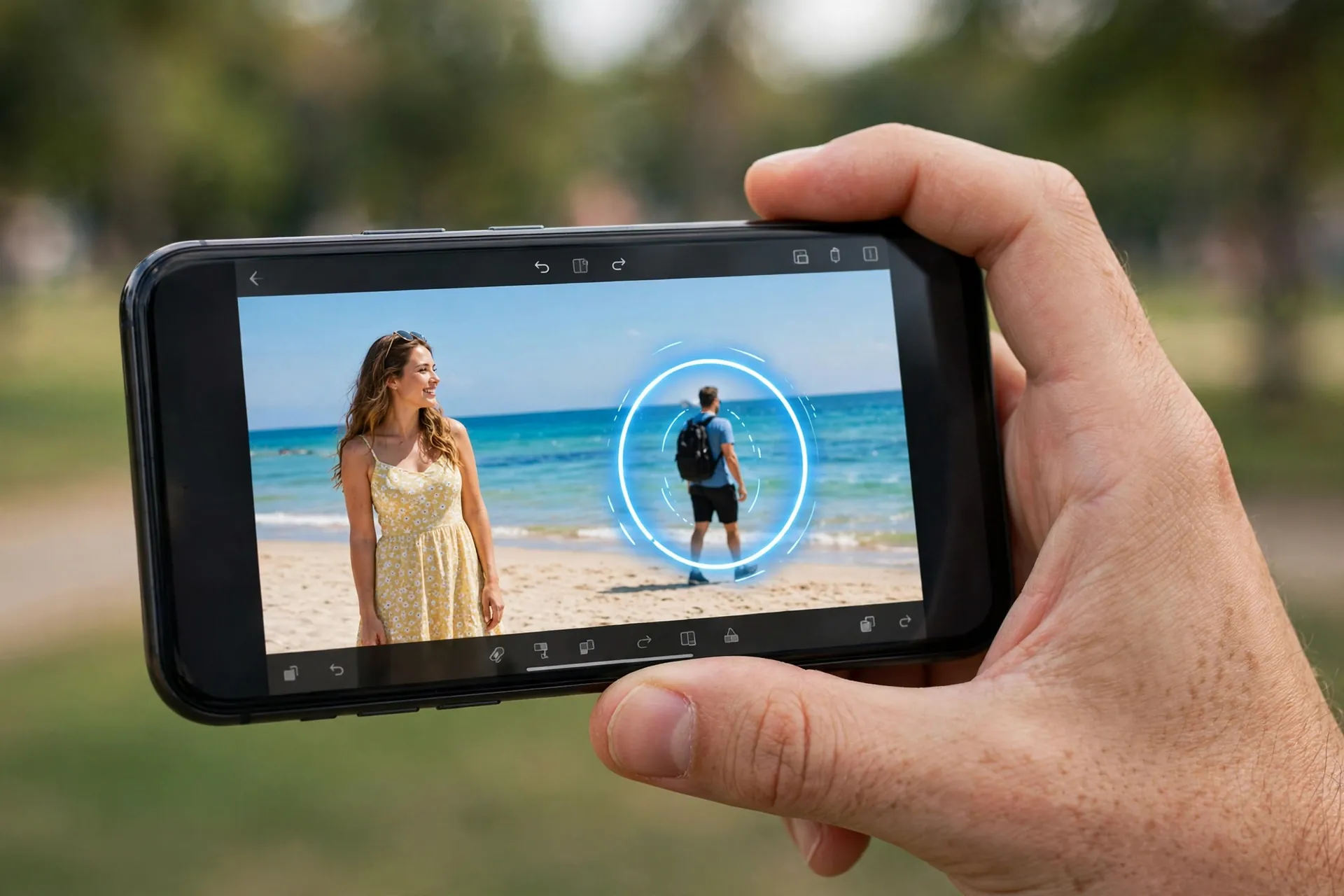
You know the photo. The beach looks perfect, the light is perfect, you are smiling — and there is a stranger in a backpack walking right through the background. Two years ago, fixing that meant downloading an editing app, watching an advert, and discovering the “remove object” button sits behind a paywall. These days, you can often fix it in the gallery app you already use, in about ten seconds.

Google, Samsung and Apple have all shipped generative AI photo editing directly into their photo apps. The tools have different names and different limits, but the idea is the same: tap the thing you don’t want, and the phone paints over it as if it was never there. Here is what is actually sitting on your phone, how each one works, and the honest limits nobody puts in the advert.
The quick version: what changed
Until recently these tools were selling points for flagship phones. Google opened Magic Editor and Magic Eraser to every Google Photos user in May 2024, including iPhone owners. Samsung’s Photo Assist arrived with One UI 6.1.1 on the Galaxy S24 series and has since spread to older Galaxy S, Z and A models. Apple added Clean Up to Photos with iOS 18.1 in October 2024. So if your phone is reasonably recent, you probably already own this.
Google Photos: Magic Eraser and Magic Editor
Google’s offering is the most widely available, because it works on almost any phone through the Google Photos app — Android or iPhone. There are two distinct tools, and the difference matters.
Magic Eraser is the simpler one. Open a photo, tap Edit, and you can brush over or circle an unwanted object — a stranger, a bin, a stray cable — and the app fills in the gap. Google also suggests distractions automatically, like people in the background. This one is free and unlimited for everyone, along with Photo Unblur.
Magic Editor is the more powerful sibling, recognisable by its sparkle icon in the editor. It does everything Magic Eraser does, plus lets you tap and move a person to a different spot in the frame, resize objects, and apply contextual presets like Sky, Golden hour or Stylised to reimagine the shot. It is more capable — and it is the one with a catch. Non-Pixel users without a Google One 2TB plan get 10 Magic Editor saves per month. Pixel owners and 2TB subscribers get unlimited use. Your device needs at least 3GB of RAM and Android 8.0 or iOS 15 to run it.
One practical tip: Magic Editor saves a new copy by default, which is exactly what you want. Never overwrite the original of a photo you care about.
Samsung Galaxy: Photo Assist
On a recent Galaxy phone, open any photo in the Gallery app, tap Edit, then the stars icon — that is Photo Assist. Its headline tool is Generative Edit: long-press an object to move, resize or delete it, drag a tilt slider if the horizon needs straightening, tap Generate, and the AI fills in the background and recreates the missing detail.
Samsung’s version goes further into creative territory than Google’s. Sketch to Image lets you draw a rough doodle over a photo and generates a photorealistic object that matches the scene. Portrait Studio restyles portrait shots into illustration styles. Both need to be switched on in Settings > Galaxy AI first.
Two things worth knowing. First, availability varies by model: Photo Assist runs on Galaxy devices on One UI 6.1.1 or later, covering the S24 and S25 series, recent Z Fold and Flip models, and newer A-series phones — check for a software update if the stars icon is missing. Second, Samsung is upfront that AI-generated edits carry a visible watermark. If you are sharing an edited photo anywhere it matters, look for it.
iPhone: Clean Up
Apple’s answer lives in the Photos app: open a photo, tap Edit, and choose Clean Up. Brush over the distraction and the tool removes it, similar to Magic Eraser. It handles reflections, small objects and background clutter, and you can zoom in to paint over precise areas.
The big limitation is reach. Clean Up is part of Apple Intelligence, so it only works on iPhone 15 Pro, iPhone 15 Pro Max and the iPhone 16 series onwards — and Apple Intelligence needs to be switched on in Settings. If you have an older iPhone, your built-in Photos app simply does not have it.
Honest assessment: Apple’s tool is the most conservative of the three. It is solid for small distractions — a bottle on a table, a sign in the background — but it visibly struggles with large foreground removals or complex patterns like cables and fences, where it can leave warped patches. For anything ambitious, the Google or Samsung tools tend to produce a cleaner fill.
What these tools still get wrong
All three tools share the same weaknesses, and knowing them saves you from sharing an edit that looks worse than the original.
Big removals leave traces. Erasing a person standing against a busy background can leave a soft, blurry patch or a weird texture repeat — it looks fine at thumbnail size and strange zoomed in. If the background is plain sky or sand, the fill is usually flawless. Hands, faces and anything with fine detail are the riskiest subjects to touch.
Generative fills invent things. When a tool extends a scene — straightening a tilted photo leaves empty corners to fill — it is guessing what should be there. Sometimes the guess is perfect; sometimes it invents an extra chair leg. Always zoom in on the filled area before sharing.
And there is a monthly budget to respect if you are on Google Photos without a Pixel or Google One plan: those 10 free Magic Editor saves go faster than you expect. Use Magic Eraser for simple removals and save Magic Editor for the edits that genuinely need it.
A sensible routine before you share
Most edited photos that embarrass people fail on one of three small things. First, keep the original — every tool above offers “Save copy”, so use it; it is worth checking that your photos are actually backing up somewhere before you start editing your camera roll. Second, view the result full-screen and zoom into the edited spot; what looks clean in a preview often is not. Third, if the edit is of a photo with other people in it — especially one you cleaned someone out of — give it a thought before posting: editing strangers out of a holiday snap is fine, but AI-editing photos of real people can mislead in ways that used to require Photoshop skills. The tools are powerful enough now that a little care is part of using them — what you share out of an AI app is often more public than it feels, and that applies to an altered photo just as much as a chat.
You don’t need to learn photo editing to get rid of the photobomber. But it helps to know which button your phone gave you, what it costs in monthly saves, and when to leave the original alone.












