



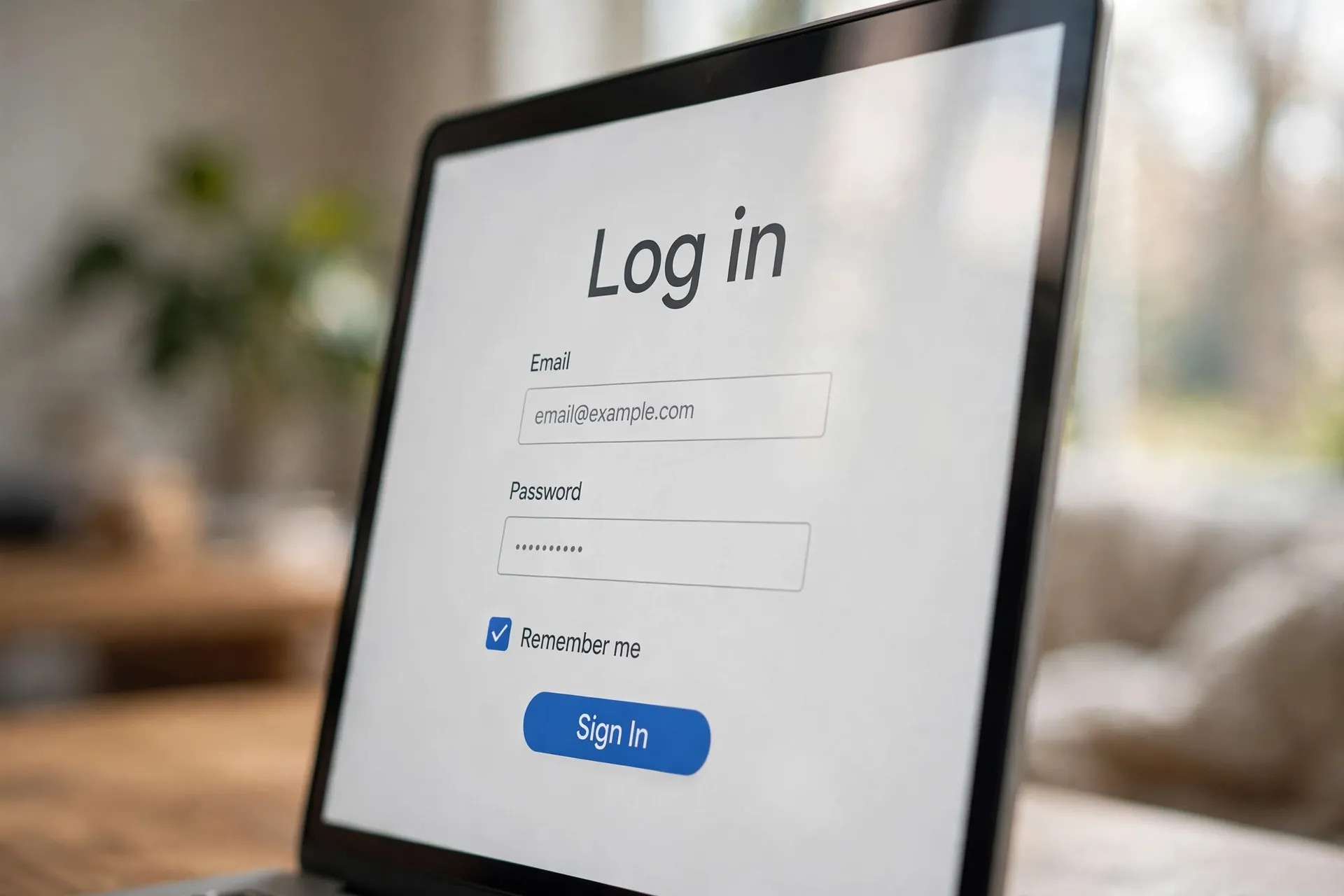
That little “Remember me” checkbox sits on almost every login screen, and most of us tick it without a second thought. It seems obvious what it does: the site remembers you, so you don’t have to type your password next time. But the actual mechanism behind it is a bit different from what most people picture — and that difference matters, especially when you’re signing in on a computer that isn’t yours.

The short version: “Remember me” doesn’t remember your password at all. It changes how long your login session lasts.
Checked or not, the browser gets a cookie either way
Whenever you log in to a website, the site hands your browser a small token — a cookie — that says “this person is logged in.” From then on, every page you visit sends that cookie back to the site, and the site lets you in without asking for your password again. This is why you can close the Gmail tab, open it later, and still be signed in.
The checkbox only decides how long that cookie is allowed to live. Leave it unticked, and you get a short-lived session cookie: it expires when you close the browser, so the next time you open it you have to log in again. Tick “Remember me,” and the site gives you a persistent cookie with an expiry date days or weeks in the future. Close the browser, shut down the laptop, come back on Friday — the cookie is still there, and the site still knows you.
So the checkbox is really a question the site is asking you: “Should your login survive the browser being closed?” Tick yes, and you’re choosing convenience. Leave it, and you’re choosing a session that tidies itself away.
It’s not the same as your browser saving the password
This is where a lot of confusion comes from, because two different features do similar-looking things. Your browser’s built-in password manager (or tools like the ones password managers provide) fill in your email and password on the login form — but you still have to press “Sign in,” and the site creates a fresh session each time. The “Remember me” checkbox, on the other hand, skips the login screen entirely: you land on the site already signed in, because the long-lived cookie is doing the work.
Think of it this way: a saved password is like keeping your house key by the door so you can grab it quickly. “Remember me” is like leaving the door unlocked between visits. Both are fine on your own devices. They have different implications on someone else’s.
The one situation where you should never tick it
If you remember one thing from this article, make it this: never tick “Remember me” on a computer you don’t own. A library computer, a hotel lobby machine, a friend’s laptop, a shared work terminal — if you check that box and forget to sign out, the next person who opens that browser is already logged into your account. Not the login screen. Your account.
This happens more often than people admit, usually in a hurry: you check email at the library, close the browser, walk away. Because the cookie outlived your visit, anyone who sits down afterwards gets straight into your inbox. The fix, if you’ve already done it, is to go back and sign out — or better, use your account’s remote sign-out. Google, for instance, lets you review every device and browser where you’re signed in from your account’s Security section and remove each one remotely. Most major services have an equivalent “sign out of all devices” option in their security settings.
And if you ever use a public computer at all, a private browsing window is the safer move: it deletes everything, including any remember-me cookie, the moment you close the window.
How to undo a remembered session
Maybe you ticked the box months ago on a laptop you no longer have, or you want to start fresh. A few options, from quickest to most thorough:
- Sign out properly. Clicking “Sign out” on the site tells the service to invalidate that cookie, not just close the tab. Closing the tab alone changes nothing — the persistent cookie is still there.
- Clear the site’s cookies. In Chrome, that’s Settings → Privacy and security → Third-party cookies → See all site data, then search for the site and delete its entries. Every browser has a similar path; this kills the remembered session on that browser.
- Sign out remotely. For accounts that matter — Google, Apple, Microsoft, Facebook — visit the account security page and end sessions you don’t recognize or no longer need. Google’s version lives under Security → Your devices → Manage all devices (also reachable at google.com/devices).
- Change your password as the last resort. Most services invalidate all existing login sessions when you change the password. If you’re worried an old remembered session is floating around somewhere you can’t reach, this wipes the slate clean. Afterward, make sure you still have a way back in — backup codes exist for exactly this kind of moment.
A few habits worth adopting
There’s no reason to fear the checkbox on your own devices. On your personal phone and laptop, ticking it is perfectly reasonable — that’s what it’s for, and re-typing passwords ten times a day helps nobody. A couple of habits make the trade-off even better:
- Reserve “Remember me” for devices that stay in your possession. For anything shared, borrowed or public, leave it unticked and sign out when you’re done.
- If staying signed in everywhere makes you uneasy, that’s what a password manager is for — one strong master password, and every site’s login is a couple of clicks away, without handing out long-lived sessions you lose track of.
- Every few months, take five minutes to review where your important accounts are signed in. It takes less time than you’d expect, and it’s where you’d spot a forgotten session on an old device — or a device that was never yours to begin with.
The checkbox itself is harmless. It doesn’t store your password, it doesn’t make you more trackable than any other login, and it doesn’t do anything a site’s developers didn’t intend. It just answers one question — should this login survive the browser closing? — and once you know that, you know exactly when to tick it and when to leave it alone. Which is the same question behind what “Sign in with Google” actually agrees to: small login conveniences, worth a few seconds of thought the first time and then never again.












