



Picture this: your phone is gone. Dropped in a lake, stolen on the bus, or just dead with a cracked screen and no backup of the thing that matters most. Annoying, but fixable — until you buy the replacement, try to sign in to your email, and the login asks for a verification code. The code that was supposed to arrive on the phone you no longer have.

That is the moment two-factor authentication — the very thing protecting your accounts — turns into the thing locking you out of them. And it’s exactly the situation backup codes exist for.
The weak point hiding inside two-factor authentication
Two-factor authentication is excellent advice, and you should keep using it. But look at where your second factor actually lives. A text message goes to the number on your SIM — which is in the missing phone. An authenticator app lives on that same phone. A push prompt pings, you guessed it, that phone.
Almost every second factor is tied to one device, which means losing the device and losing your account access can become the same event. The companies running these accounts know this failure mode exists. That is why Google, Apple, and Microsoft each give you a set of spare keys — codes you generate once, store somewhere safe, and use to get back in when your phone can’t help you.
Backup codes, in plain English
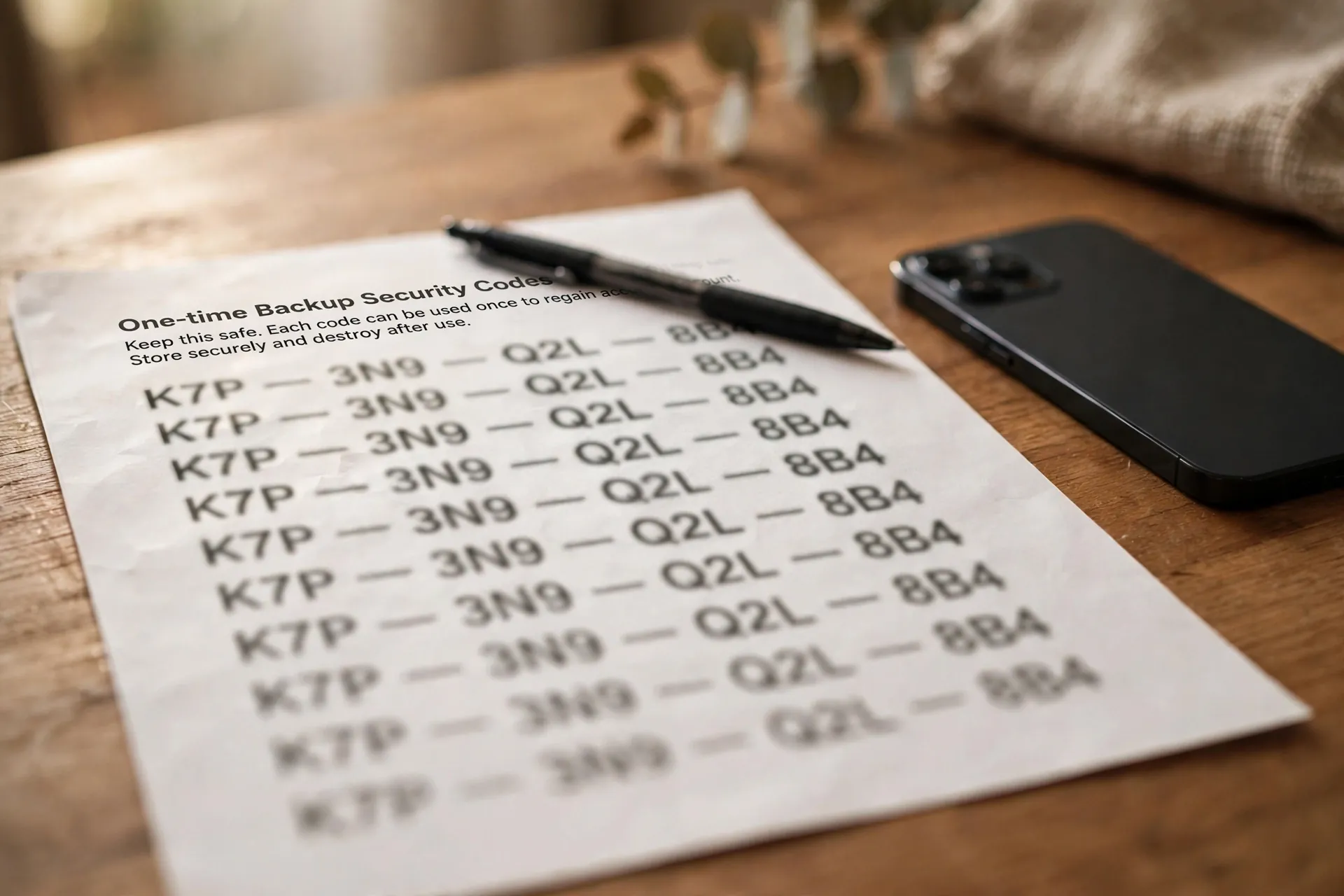
Backup codes are short, single-use codes generated specifically for your account. They don’t replace your password — you still enter that first. They replace the second step: instead of approving a prompt or typing a code from your phone, you enter one of your backup codes.
Each code works exactly once. Use it, and it’s gone. And if you ever generate a fresh set, the old set stops working immediately — which is exactly what you want if you misplace them.
Getting yours on a Google account
Google gives you a set of 10 backup codes, each 8 digits long. Generating them takes about a minute:
- Go to myaccount.google.com and sign in.
- Open the Security tab, then 2-Step Verification (you’ll be asked to sign in again).
- Scroll to Backup codes and choose Get backup codes.
- Google shows you the 10 codes. Download them as a text file or print them right from that page.
When you need one, sign in as normal, and at the verification step choose Try another way, then Enter one of your 8-digit backup codes. Type in one of the codes, and you’re in.
One thing Google won’t do for you: it won’t warn you when you’ve used up all ten codes. If you ever rely on them, generate a fresh set afterwards, while you still have access.
Apple and Microsoft do it differently — and Apple’s is unforgiving
Apple doesn’t call them backup codes. It offers a 28-character recovery key: on your iPhone, go to Settings > your name > Sign-In & Security > Account Recovery > Recovery Key and follow the prompts.
The important part: the key is shown to you once. You write it down or type it into a password manager right then. Apple cannot show it to you again — you can only replace it with a new one. And if you lose the key and lose access to your trusted devices, even Apple can’t get you back in. The key effectively becomes the only way back. Treat it with more care than anything else in this article.
Microsoft gives you a 25-digit recovery code. On your Microsoft account security page, open Manage how I sign in (account.live.com/proofs/manage/additional), scroll to the Recovery code section, and choose Generate a new code. Microsoft’s own advice is worth following here: print it and keep it somewhere safe — explicitly not on a device you use to sign in. Generating a new code cancels the old one.
If you’re ever locked out, Microsoft’s sign-in page offers Other ways to sign in → I don’t have any of these, where you can enter the recovery code.
Where to keep them, and where not to
The codes only help if you can reach them without the phone they’re meant to replace. That rules out the most common instinct: a screenshot sitting in the photo gallery of the phone you just lost.
What actually works:
- A printed copy somewhere safe at home. Paper survives dead batteries, broken screens, and stolen handbags. A desk drawer or a folder with your important papers is fine.
- A password manager you can open from more than one device. If your password manager lives only on your phone, it has the same single-device problem.
- With someone you trust, for the truly important accounts — a sealed envelope with a family member, the way you’d store a spare house key.
And treat the codes like passwords, because functionally they are. Anyone holding your password and your backup codes can walk straight into your account. Don’t email them to yourself, don’t leave the printout on your desk at work, and don’t photograph them into a cloud album.
Lost the codes but still have access to the account? Just generate a new set. The old ones stop working the moment you do, so there’s no cleanup needed.
Do this today, while everything still works
Account recovery is one of those tasks that takes ten minutes when nothing is wrong and weeks when something is. While you’re logged in and your phone is in your hand:
- Turn on two-step verification for your Google, Apple, and Microsoft accounts if it isn’t on already.
- Generate the backup codes or recovery key for each one.
- Print them, and put the printout somewhere a burglar wouldn’t look and a house fire wouldn’t reach alone — or better, store copies in two different safe places.
- While you’re at it, check that the recovery email and phone number on each account are current. An old number you no longer own is the other classic lockout.
Your email, in particular, deserves this treatment first: it’s the account that resets almost everything else, as our guide to email as your account master key explains.
Backup codes are the most boring security chore there is — a printed page you will probably never look at. But the day your phone goes missing is the day that page is worth more than the phone itself. If you’ve ever had to fight your way back into a compromised account, you know the alternative: the long road back after your details are exposed.
Ten minutes now. That’s the whole cost. More practical account protection like this lives in our Online Safety section.













Comments 4