


• About
  • Contact
  • Privacy Policy
  • Terms & Conditions
  • Disclaimer
  • Cookie Policy
Superdova.com
Advertisement
  • AI Tools
  • Internet Guides
  • Tech How-To
  • Apps & Software
  • Online Safety
No Result
View All Result
  • AI Tools
  • Internet Guides
  • Tech How-To
  • Apps & Software
  • Online Safety
No Result
View All Result
Superdova.com
No Result
View All Result
Home AI Tools

Auto, Fast or Thinking: What Your AI Chatbot’s Model Menu Actually Means

Amit by Amit
September 27, 2026
in AI Tools
0
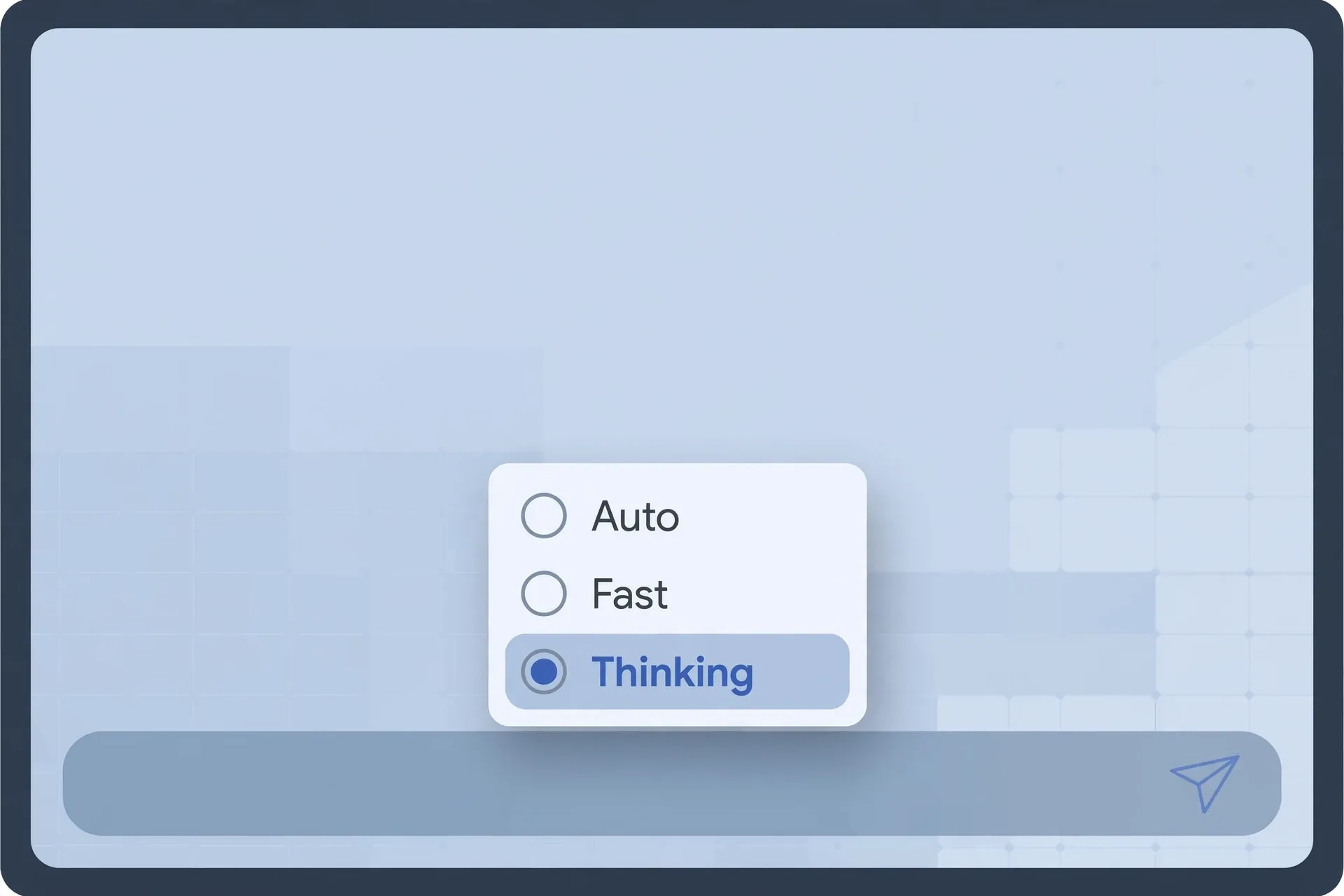
Illustration of an AI chatbot's model picker menu with Auto, Fast and Thinking options
0
SHARES
1
VIEWS
Share on FacebookShare on Twitter

There’s a small dropdown sitting near your chatbot’s message box that most people never touch. In ChatGPT it’s at the top of the chat. In Gemini it’s tucked next to the prompt box. The labels say things like Auto, Fast and Thinking, and if you’re like most people, you’ve glanced at it, decided it looked like something for developers, and gone back to typing.

It’s not for developers. It’s a choice between a quick answer and a careful one, and it quietly affects almost everything the bot gives you. Leave it on the wrong setting and you’ll wait twenty seconds for a reply to a simple question — or get a shallow, half-thought-through answer to something that actually mattered.

Table of Contents

Toggle
  • It’s a speed-versus-thinking trade-off, not a quality ladder
  • Where the menu actually hides in each app
  • A simple rule for which one to pick
  • Two things the menu can’t fix

It’s a speed-versus-thinking trade-off, not a quality ladder

Here’s the simple version of what’s going on. When you pick Fast, the chatbot answers the way a friend answers a casual question — quickly, from the top of its head, without stopping to work anything through. When you pick Thinking (or Pro, Opus, depending on the app), it pauses and reasons through the problem step by step before it writes the reply. That takes longer — sometimes noticeably longer — but the answer is usually more careful.

Auto sits between the two. It lets the app decide how much effort your question deserves. A simple “rephrase this sentence” gets the quick treatment; a tangled spreadsheet question gets the slow one.

The key thing to understand is that this isn’t a straight ladder from bad to good. The careful option isn’t better in every way — it’s slower, and on most paid plans the heavier options come with usage limits while the lighter ones don’t. Using the deepest reasoning mode for every trivial question is like hiring a structural engineer to hang a picture frame. You’ll get an answer, but you paid for it in waiting time you didn’t need to spend.

Where the menu actually hides in each app

Every app puts this control in a slightly different place, but it’s always near where you type:

ChatGPT: the model picker at the top of the conversation. Paid users can choose between GPT-5’s Auto, Fast and Thinking modes, and GPT-4o is also listed there — OpenAI brought it back after users asked for it. Free users get a default option without the same range of choices.

Gemini: a model dropdown near the prompt box on the web version, with Fast, Thinking and Pro options. On the web you can also type @ in the prompt box to bring up the model menu quickly.

Claude: a dropdown at the top of the conversation showing the current model. Haiku is the quick one, Sonnet is the everyday middle ground, and Opus is the heaviest reasoning option — which ones you see depends on your plan, with free accounts getting the lighter end of the range.

One honest caveat: the names and exact options change more often than you’d like. Companies rename models, shuffle plans and roll features out gradually. Don’t memorize the menu — understand the pattern. Nearly every chatbot now offers some version of quick, balanced and deep thinking, and that three-way split is the part worth learning.

A simple rule for which one to pick

You don’t need a flowchart. This covers nearly everything:

Leave it on Auto (or the default) for ordinary stuff. Casual questions, drafting an email, brainstorming names, explaining something you don’t understand — the app is perfectly capable of picking the right effort level here. This is where most of your chats should live.

Switch to Fast when speed matters and the stakes are low. Rewriting a sentence, getting a quick summary of something short, bouncing ideas around, checking a fact you mostly already know. If the answer comes back wrong, you’ll spot it instantly and just ask again — nothing was lost.

Switch to Thinking when accuracy matters more than speed. This is the one people underuse. Math and logic problems. Code you actually plan to run. A contract or a long document you need analyzed carefully. A decision with real consequences — money, health, legal stuff. A plan for something complicated. In these cases the extra seconds of waiting are the whole point: you’re buying deliberation, not decoration.

A useful test: ask yourself whether you’d want a smart friend to answer off the top of their head, or to sit quietly for a minute and think. If it’s the second, pick the thinking option. And if the question is about a long document, give the chatbot the file to read first, then choose the careful mode — it can only reason well about material it can actually see.

Two things the menu can’t fix

First: a deeper-thinking model is still a chatbot, and it can still be confidently wrong. Slower reasoning reduces mistakes; it doesn’t remove them. If the answer matters, check it against the source — we wrote a full guide on how to do that — regardless of which mode you used.

Second: don’t expect a model switch to rescue a chat that’s going stale. If you’ve been talking in one thread for weeks and the answers are getting vague or repetitive, that’s usually the conversation running out of working memory, not the wrong model setting. A fresh chat on the default setting will beat a tired chat on the smartest one.

And one small habit that pairs well with all of this: if you keep typing the same preferences into every chat — tone, format, context about you — stop retyping them and set them as standing instructions instead. The right mode plus standing instructions covers about ninety percent of what people fiddle with in settings.

Try it deliberately, just once. The next time you ask something genuinely hard, switch to the thinking option before you hit send. The next time you’re just chatting, use the fast one. Auto will handle everything in between — which, it turns out, is most of life.


Previous Post

Your Backup Codes Are the Spare Keys to Your Accounts

Next Post

Your ISP Sees More of Your Browsing Than You Think

Amit

Amit

Next Post
Editorial illustration of a laptop sending a stream of network data through a large eye-shaped observer node, with domain names visible in the open flow and page content shown as locked padlocks

Your ISP Sees More of Your Browsing Than You Think

Leave a Reply Cancel reply

Your email address will not be published. Required fields are marked *

Stay Connected test

  • 24k Followers
  • 99 Subscribers
  • Trending
  • Comments
  • Latest
Photorealistic illustration of a laptop displaying an email inbox with a breach warning, with a cracked red padlock floating above the screen

Your Email Was in a Data Breach? Don’t Panic — Do These Five Things

September 23, 2026
Illustration of a laptop showing ChatGPT's settings panel with the Custom instructions field highlighted

What to Put in ChatGPT’s Custom Instructions (With Examples Worth Copying)

September 22, 2026
Illustration of a golden master key hovering over a glowing inbox icon on a laptop screen, surrounded by shields and padlocks

If Someone Gets Into Your Email, They Get Into Everything

September 22, 2026
Illustration of a smartphone showing an AI chat conversation with a magnifying glass examining the answers, symbolising fact-checking

AI Chatbots Sound Confident Even When They’re Wrong. Here’s How to Check Their Answers

September 23, 2026
Illustration of a smartphone showing an AI chat conversation with a magnifying glass examining the answers, symbolising fact-checking

AI Chatbots Sound Confident Even When They’re Wrong. Here’s How to Check Their Answers

9
Illustration of a golden master key hovering over a glowing inbox icon on a laptop screen, surrounded by shields and padlocks

If Someone Gets Into Your Email, They Get Into Everything

8
Photorealistic illustration of a laptop displaying an email inbox with a breach warning, with a cracked red padlock floating above the screen

Your Email Was in a Data Breach? Don’t Panic — Do These Five Things

6
A home Wi-Fi router sending a glowing wireless signal toward a laptop on a couch, with a data cable running into the wall — illustrating the difference between Wi-Fi speed and internet speed

Your Wi-Fi Speed and Your Internet Speed Are Not the Same Thing

5
A hand holding a smartphone showing a chat screen with the word "online" under a contact's name

Your WhatsApp “Online” Status Isn’t as Private as You Think

October 20, 2026
Flat illustration of a laptop showing a logout symbol with a small brass key beside it, on a blue and grey background

Signed Out Again? Why Websites Keep Logging You Out

October 20, 2026
Woman with earbuds relaxing in an armchair while her phone reads an article aloud, tea on a side table, warm evening light

Too Tired to Read? Your Phone Can Read the Screen for You

October 19, 2026
Photograph of a smartphone lying on a wooden café table, its screen showing a map with a glowing blue location pin, a hand reaching toward it in the background

Lost Your Phone? Ring It, Lock It, or Find It From Any Computer

October 19, 2026

Recent News

A hand holding a smartphone showing a chat screen with the word "online" under a contact's name

Your WhatsApp “Online” Status Isn’t as Private as You Think

October 20, 2026
Flat illustration of a laptop showing a logout symbol with a small brass key beside it, on a blue and grey background

Signed Out Again? Why Websites Keep Logging You Out

October 20, 2026
Woman with earbuds relaxing in an armchair while her phone reads an article aloud, tea on a side table, warm evening light

Too Tired to Read? Your Phone Can Read the Screen for You

October 19, 2026
Photograph of a smartphone lying on a wooden café table, its screen showing a map with a glowing blue location pin, a hand reaching toward it in the background

Lost Your Phone? Ring It, Lock It, or Find It From Any Computer

October 19, 2026
Superdova.com

SuperDova is an independent technology publication covering AI tools, software, internet guides, digital skills and online safety. Our goal is to make technology easier to understand and use.

Follow Us

Browse by Category

  • AI Tools
  • Apps & Software
  • Internet Guides
  • Online Safety
  • Tech How-To

Recent News

A hand holding a smartphone showing a chat screen with the word "online" under a contact's name

Your WhatsApp “Online” Status Isn’t as Private as You Think

October 20, 2026
Flat illustration of a laptop showing a logout symbol with a small brass key beside it, on a blue and grey background

Signed Out Again? Why Websites Keep Logging You Out

October 20, 2026
  • About
  • Contact
  • Privacy Policy
  • Terms & Conditions
  • Disclaimer
  • Cookie Policy

© 2026 SuperDova — Technology, AI & Digital Guides. All Rights Reserved.

No Result
View All Result
  • AI Tools
  • Internet Guides
  • Tech How-To
  • Apps & Software
  • Online Safety

© 2026 SuperDova — Technology, AI & Digital Guides. All Rights Reserved.









