



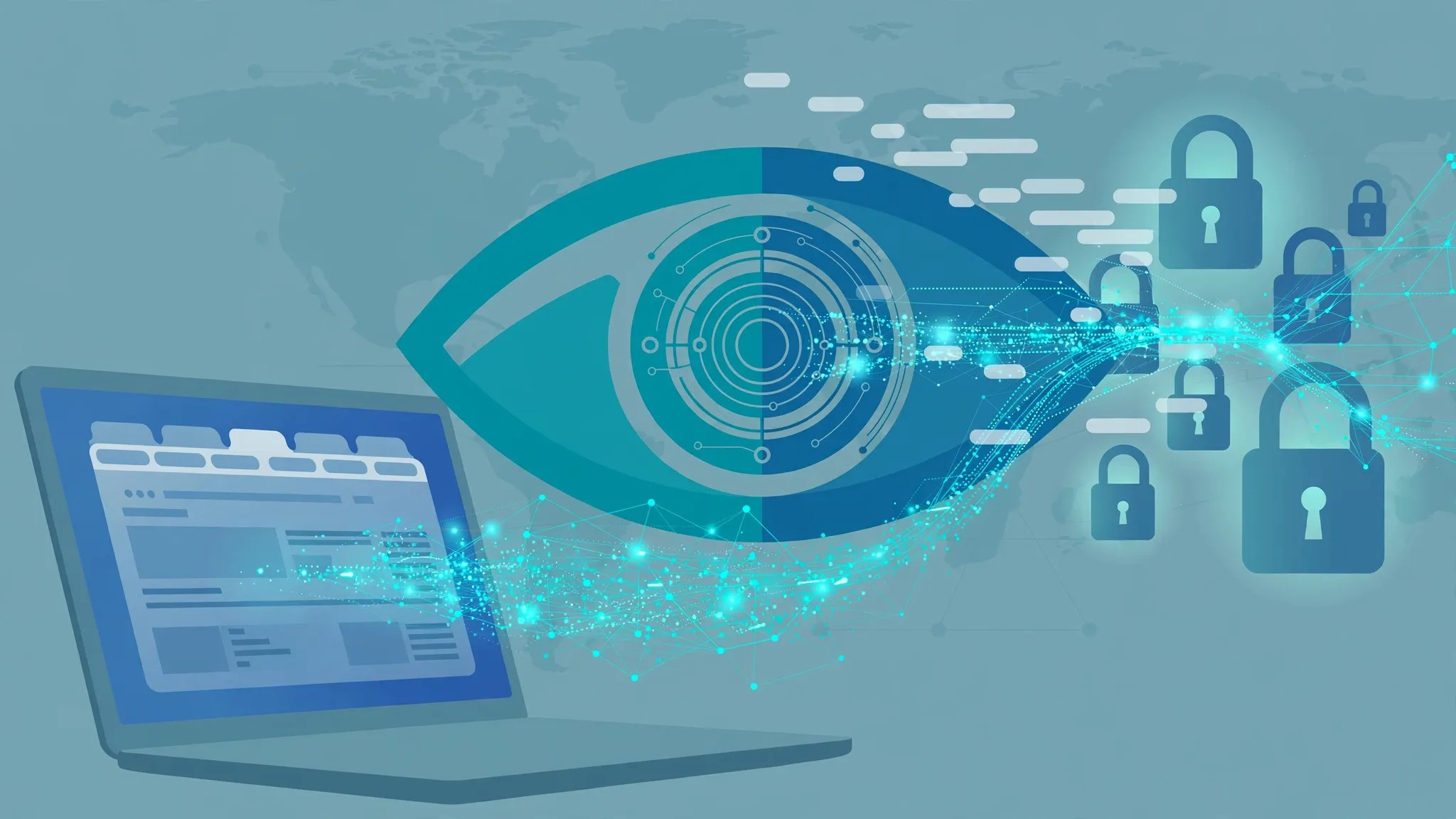
Every email you send, every site you open, every video you stream — all of it passes through one company before it reaches the rest of the internet: your internet service provider. That gives your ISP a vantage point nobody else has. Not your browser, not the websites you visit, not even the search engine you use. So the question is worth asking plainly: what does your ISP actually see when you browse?

The answer has two halves, and they’re both important. Your ISP can see a lot more than most people assume. But it also can’t see nearly as much as some scary headlines suggest. Both halves matter, because they tell you exactly which privacy tools actually help — and which ones don’t.
The short version: your ISP sees the envelopes, not the letters
Here’s the one-sentence summary: your ISP can see where you go online, but usually not what you do once you get there.
The “where” part is substantial. It includes the names of the websites you visit, the addresses your device connects to, when you connect, how long sessions last, and how much data moves in each direction. From that metadata, patterns are easy to read: late-night streaming sessions, a workday of video calls, the hours your house is online. Your ISP doesn’t need to see inside the traffic to learn a lot from the outside of it.
The “what” part is where encryption does its job. On the modern web — the vast majority of it now uses HTTPS, the padlock connection — the content of your traffic is scrambled between your browser and the website. Your ISP can’t read the messages you type, the pages you view on a site, the passwords you enter, or the contents of forms you submit. That protection is real, and it’s why the padlock matters even though it isn’t a trust badge.
How the site names leak: the internet’s unguarded address book
The main reason your ISP sees your browsing destinations is a step that happens before you connect to anything: your browser has to look up each website’s address.
Websites are known by names — example.com — but the internet routes traffic by numbers, called IP addresses. To translate a name into a number, your device sends a query to a DNS resolver. Think of it as asking the internet’s phone book for a number. By default, that phone book belongs to your ISP, and the question is asked in plain text.
So even before you visit a site, your ISP’s DNS server receives a readable log of every domain you look up. Turning on HTTPS doesn’t change this part. Your browser can be whispering to the website, but it shouted the address at the phone book first.
There’s a second, subtler leak. When your browser sets up the encrypted HTTPS connection, it briefly names the site it’s connecting to in the open — a field called SNI (Server Name Indication) in the handshake — so the server on the other end knows which certificate to present. A newer fix called Encrypted Client Hello is closing that gap; it has been standardized and is shipping in current Chrome and Firefox versions. But it only kicks in where both ends support it, and it doesn’t hide the IP address of the site you’re connecting to, which can itself give away the destination when a site has its own dedicated address.
What HTTPS genuinely hides from them
Once that encrypted connection is established, the details go dark. On a properly secured HTTPS site, your ISP cannot see:
Which pages you open on a website. If you visit a health information site, your ISP may see that you connected to that site’s domain. It cannot see which condition you looked up.
Anything you type. Login passwords, credit card numbers, messages, search terms entered on the site — all of this travels inside the encrypted channel. (Your search provider sees what you type into its own search box, of course. Your ISP doesn’t.)
Files and media. What you download or stream, the content of your emails, your video call — encrypted in transit.
This is why HTTPS is worth caring about, and why most of the scary stories about ISPs reading your personal messages don’t survive contact with how the modern web actually works. The envelope is open; the letter is sealed.
The realistic middle ground: metadata is revealing anyway
Don’t let the encryption half of this story make you complacent about the other half. Security researchers have long pointed out that metadata — domains, timing, data volume — can be surprisingly revealing on its own.
A steady two-hour stream of large downloads at 9pm looks like a movie night. Short, frequent connections to a job board over a week looks like someone looking for work. A pattern of connections to health-related domains, even without knowing the pages, can say a lot. Your ISP also knows your real IP address and, on a home connection, everyone in the household shares it — the records are per connection, not per person.
And records can live longer than the session. Providers keep logs of various kinds; how much they keep and for how long varies by company and by country, and those records can be requested by law enforcement or disclosed as part of legal proceedings. This is the part of the equation no setting on your laptop fully removes: the data exists on someone else’s computers, and you don’t control it.
What the common privacy tools actually change
This is where the picture gets practical, because now you can evaluate each tool against what your ISP actually sees.
Incognito or private browsing: nothing for your ISP. Private mode only controls what your own browser remembers — no local history, no cookies kept. Your ISP sees exactly the same traffic as before. Our incognito mode explainer walks through what private windows do and don’t hide, and to whom.
Encrypted DNS (DNS over HTTPS): this closes the biggest leak. When your browser sends DNS queries over an encrypted connection to a resolver like Cloudflare or Google Public DNS, your ISP sees only that you’re talking to the resolver — not the individual site names you’re looking up. In Chrome, go to Settings → Privacy and security → Security and enable Use secure DNS. In Firefox, it’s under Settings → Privacy & Security → DNS over HTTPS, where you can choose a protection level and provider. The caveat: this only covers what your browser looks up. Other apps on your phone or computer use the system DNS unless you’ve changed that too.
A VPN: this hides your destinations from your ISP almost entirely. All your traffic goes through an encrypted tunnel to the VPN server, so your ISP sees one connection — to the VPN — and nothing about which sites you visit through it. The tradeoff is honest and worth stating: the VPN provider now sits exactly where your ISP used to. You’re not eliminating the observer; you’re choosing a different one. If you’re weighing whether a paid VPN is worth it, our straight answer on VPNs covers when it makes sense and when it doesn’t.
HTTPS itself: the baseline, already on by default for nearly the entire web. It’s what keeps the letter sealed. You don’t need to configure it — you just need to know that this is the protection doing most of the work, not the VPN ad you saw.
When this matters most
Your home ISP isn’t the only observer in this story. The same visibility rules apply to whoever operates the network you’re on: the coffee shop’s Wi-Fi owner, the hotel, the airport network, and — importantly — your employer’s network if you use a work device or company Wi-Fi. On work devices, the picture can be worse: some employers install certificates that let them inspect even encrypted traffic, which is legal in many places on company-owned hardware. The practical rule is simple: treat any network you don’t control as visible to whoever controls it, and keep sensitive browsing on your own connection and your own device.
For most people, on their own home connection, the realistic setup is this: HTTPS protects your content, encrypted DNS hides most of your destinations from your ISP, and a VPN is optional rather than essential — worth considering if you don’t want your provider to hold a browsing log at all, not a magic shield you must buy to be safe.
Your ISP knows where you go online. What it knows about what you do there is up to you and your settings.













Comments 2