


• About
  • Contact
  • Privacy Policy
  • Terms & Conditions
  • Disclaimer
  • Cookie Policy
Superdova.com
Advertisement
  • AI Tools
  • Internet Guides
  • Tech How-To
  • Apps & Software
  • Online Safety
No Result
View All Result
  • AI Tools
  • Internet Guides
  • Tech How-To
  • Apps & Software
  • Online Safety
No Result
View All Result
Superdova.com
No Result
View All Result
Home Internet Guides

Hiding Your Wi-Fi Name Won’t Keep Anyone Out

Amit by Amit
September 27, 2026
in Internet Guides
0
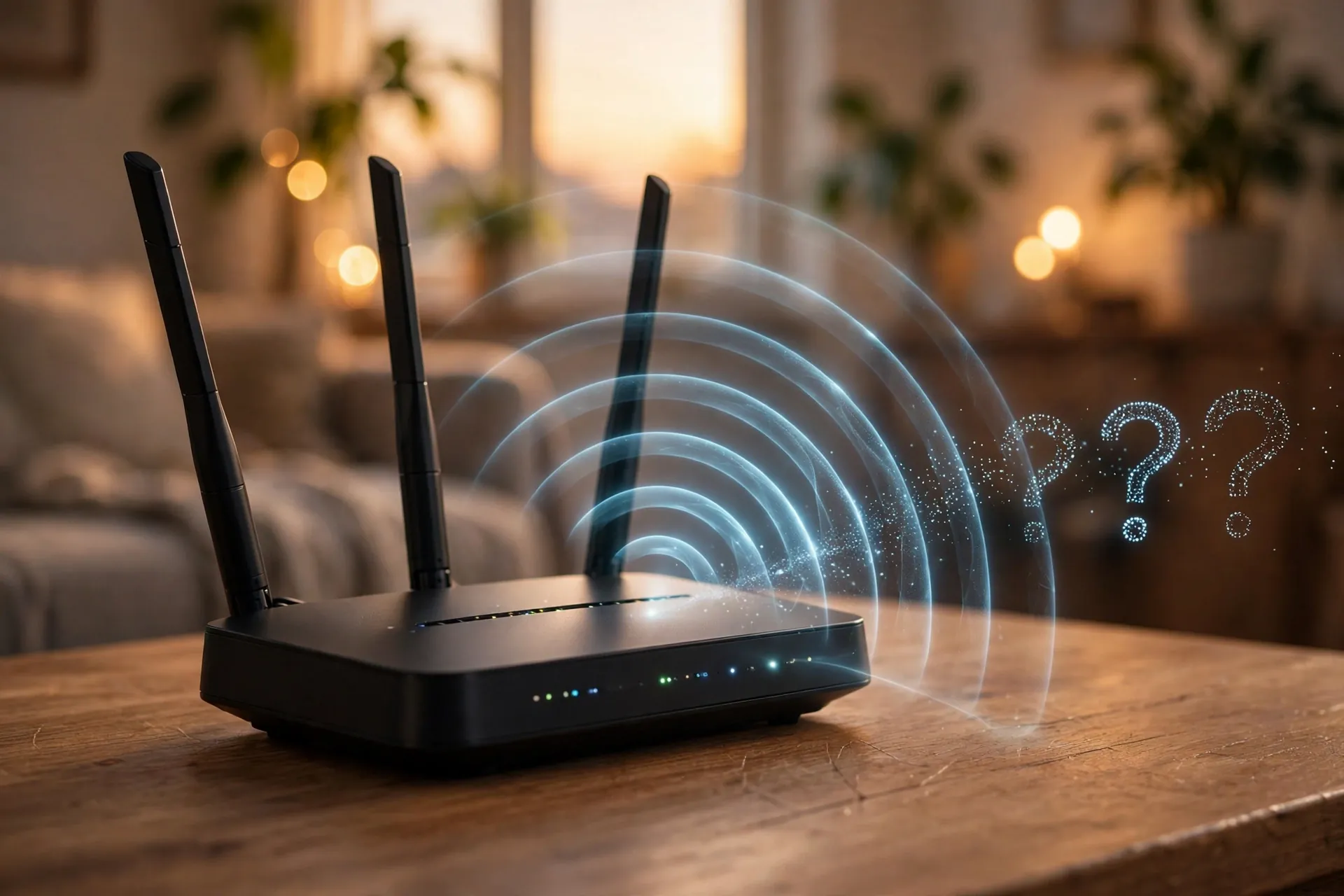
Photorealistic home Wi-Fi router glowing softly in a living room, with signal waves dissolving into question marks to suggest a hidden network name
0
SHARES
3
VIEWS
Share on FacebookShare on Twitter

Somewhere along the way, hiding your Wi-Fi network name became one of those “smart” tips that gets passed around like folk wisdom. Tick one box in the router settings and your network disappears from the list everyone sees when they tap Wi-Fi. It feels like drawing an invisibility cloak around your home network. There’s just one problem: it only works on the people who were never a threat in the first place.

Table of Contents

Toggle
  • What the “hide my network” switch actually does
  • The name has to travel anyway — so it isn’t really secret
  • The ironic part: hiding it can make things worse
  • What actually keeps strangers off your network

What the “hide my network” switch actually does

Your Wi-Fi network name has a technical name: the SSID. Routers announce it several times a second in short radio messages called beacon frames — that’s why networks appear in your phone’s list without you doing anything. The hide switch (usually labelled “Hide SSID” or “Disable SSID Broadcast”) simply tells the router to stop including its name in those announcements.

So the name drops off the casual list. Your own devices can still connect, but you have to type the exact name in manually the first time. That’s the whole trick. The network hasn’t gone quiet — it’s still chattering away on the airwaves exactly as before. It has just taken its name tag off.

The name has to travel anyway — so it isn’t really secret

Here’s the catch. A device can’t join a network it doesn’t know. Every time your phone or laptop reconnects, it has to identify the network by name — in connection requests sent out in the clear, and in the probe requests it sends while looking for the network. The name travels through the air whether or not it appears on anyone’s list.

Freely available Wi-Fi survey tools listen for exactly this traffic, and anyone nearby with one of them can recover a hidden network name in seconds. It isn’t even hard — the tools do it almost by accident. ASUS says as much on its own support page: a hidden name “is NO WAY to enhance your Wi-Fi security,” and hiding the SSID isn’t even a password.

So the hidden network is concealed from precisely one group of people: casual onlookers who were only ever going to glance at their phone’s Wi-Fi list. Anyone with even mild intent uses tools that don’t care about the list at all.

The ironic part: hiding it can make things worse

Because your devices can’t passively spot a hidden network, they have to actively call out its name to find it — over and over, everywhere you go. Instead of the router announcing itself inside your house, your phone is announcing your home network’s name on the street, at the office, in the café. That’s a small privacy leak, not a gain.

Then there are the practical headaches. Hidden networks can be fussy to join, especially for guests who have to type the exact name without a typo. Some Windows drivers deprioritise hidden networks even when auto-connect is set, so the laptop connects to something else first and you end up fighting it. Smart-home gadgets often struggle too. ASUS’s documentation confirms hidden SSIDs can cause connection problems that vary by platform — and the searching devices do in the background isn’t free for the battery either.

In short: you trade a convenience for nothing, and get a little extra hassle in return.

What actually keeps strangers off your network

Real Wi-Fi security was never about the name. It rests on a handful of things that actually work:

  • Strong encryption and a strong password. WPA2-AES at minimum, WPA3 if your router offers it, with a long, unique password. That is the lock on the door; everything else is decoration.
  • Change the router’s admin password. Not the Wi-Fi password — the one that opens the router’s settings page. Most routers ship with a default that’s printed in the manual, which everyone knows.
  • Keep the firmware updated. Router makers quietly patch security flaws in firmware updates, and most people never install them.
  • Use a guest network for visitors. It keeps guests on the internet but away from your devices and shared files — and you can change its password without reconnecting everything you own. If your router offers two bands, make sure you’re also joining the right one.
  • Turn off WPS if you don’t use it. It’s a convenience feature with a well-known weak spot.
  • Give the network a neutral name. Default names often reveal the router’s make and model, which tells an attacker exactly which weaknesses to try first. Something plain and uninformative is best.

And keep in mind what hiding never did anyway: it didn’t hide what you do online. If it’s your activity you’re worried about, that’s a question of who can see your traffic — and of tools like a VPN, which do a completely different job.

The next time someone suggests hiding your network name as a security upgrade, you can skip it with confidence. Keep the name visible, and put the effort where it actually counts: a long, unique password and modern encryption. That’s what separates your network from everyone else’s — not a blank space where the name used to be.


Previous Post

Too Much to Type? Your AI Chatbot Has a Voice Mode

Next Post

Data Dead but Signal Bars Are Full? The Ten-Second Fix Hiding in Your Quick Settings

Amit

Amit

Next Post
A smartphone on a desk with its control center open and the airplane-mode icon glowing, illustrating the ten-second airplane mode toggle that fixes stuck mobile data

Data Dead but Signal Bars Are Full? The Ten-Second Fix Hiding in Your Quick Settings

Leave a Reply Cancel reply

Your email address will not be published. Required fields are marked *

Stay Connected test

  • 24k Followers
  • 99 Subscribers
  • Trending
  • Comments
  • Latest
Photorealistic illustration of a laptop displaying an email inbox with a breach warning, with a cracked red padlock floating above the screen

Your Email Was in a Data Breach? Don’t Panic — Do These Five Things

September 23, 2026
Illustration of a laptop showing ChatGPT's settings panel with the Custom instructions field highlighted

What to Put in ChatGPT’s Custom Instructions (With Examples Worth Copying)

September 22, 2026
Illustration of a golden master key hovering over a glowing inbox icon on a laptop screen, surrounded by shields and padlocks

If Someone Gets Into Your Email, They Get Into Everything

September 22, 2026
Illustration of a smartphone showing an AI chat conversation with a magnifying glass examining the answers, symbolising fact-checking

AI Chatbots Sound Confident Even When They’re Wrong. Here’s How to Check Their Answers

September 23, 2026
Illustration of a smartphone showing an AI chat conversation with a magnifying glass examining the answers, symbolising fact-checking

AI Chatbots Sound Confident Even When They’re Wrong. Here’s How to Check Their Answers

9
Illustration of a golden master key hovering over a glowing inbox icon on a laptop screen, surrounded by shields and padlocks

If Someone Gets Into Your Email, They Get Into Everything

8
Photorealistic illustration of a laptop displaying an email inbox with a breach warning, with a cracked red padlock floating above the screen

Your Email Was in a Data Breach? Don’t Panic — Do These Five Things

6
A home Wi-Fi router sending a glowing wireless signal toward a laptop on a couch, with a data cable running into the wall — illustrating the difference between Wi-Fi speed and internet speed

Your Wi-Fi Speed and Your Internet Speed Are Not the Same Thing

5
Flat illustration of a laptop showing a logout symbol with a small brass key beside it, on a blue and grey background

Signed Out Again? Why Websites Keep Logging You Out

October 20, 2026
Woman with earbuds relaxing in an armchair while her phone reads an article aloud, tea on a side table, warm evening light

Too Tired to Read? Your Phone Can Read the Screen for You

October 19, 2026
Photograph of a smartphone lying on a wooden café table, its screen showing a map with a glowing blue location pin, a hand reaching toward it in the background

Lost Your Phone? Ring It, Lock It, or Find It From Any Computer

October 19, 2026
A laptop on a wooden desk displaying a battery charging indicator at 76 percent

Your Laptop Battery Barely Lasts Anymore? Check Its Health First

October 18, 2026

Recent News

Flat illustration of a laptop showing a logout symbol with a small brass key beside it, on a blue and grey background

Signed Out Again? Why Websites Keep Logging You Out

October 20, 2026
Woman with earbuds relaxing in an armchair while her phone reads an article aloud, tea on a side table, warm evening light

Too Tired to Read? Your Phone Can Read the Screen for You

October 19, 2026
Photograph of a smartphone lying on a wooden café table, its screen showing a map with a glowing blue location pin, a hand reaching toward it in the background

Lost Your Phone? Ring It, Lock It, or Find It From Any Computer

October 19, 2026
A laptop on a wooden desk displaying a battery charging indicator at 76 percent

Your Laptop Battery Barely Lasts Anymore? Check Its Health First

October 18, 2026
Superdova.com

SuperDova is an independent technology publication covering AI tools, software, internet guides, digital skills and online safety. Our goal is to make technology easier to understand and use.

Follow Us

Browse by Category

  • AI Tools
  • Apps & Software
  • Internet Guides
  • Online Safety
  • Tech How-To

Recent News

Flat illustration of a laptop showing a logout symbol with a small brass key beside it, on a blue and grey background

Signed Out Again? Why Websites Keep Logging You Out

October 20, 2026
Woman with earbuds relaxing in an armchair while her phone reads an article aloud, tea on a side table, warm evening light

Too Tired to Read? Your Phone Can Read the Screen for You

October 19, 2026
  • About
  • Contact
  • Privacy Policy
  • Terms & Conditions
  • Disclaimer
  • Cookie Policy

© 2026 SuperDova — Technology, AI & Digital Guides. All Rights Reserved.

No Result
View All Result
  • AI Tools
  • Internet Guides
  • Tech How-To
  • Apps & Software
  • Online Safety

© 2026 SuperDova — Technology, AI & Digital Guides. All Rights Reserved.









