



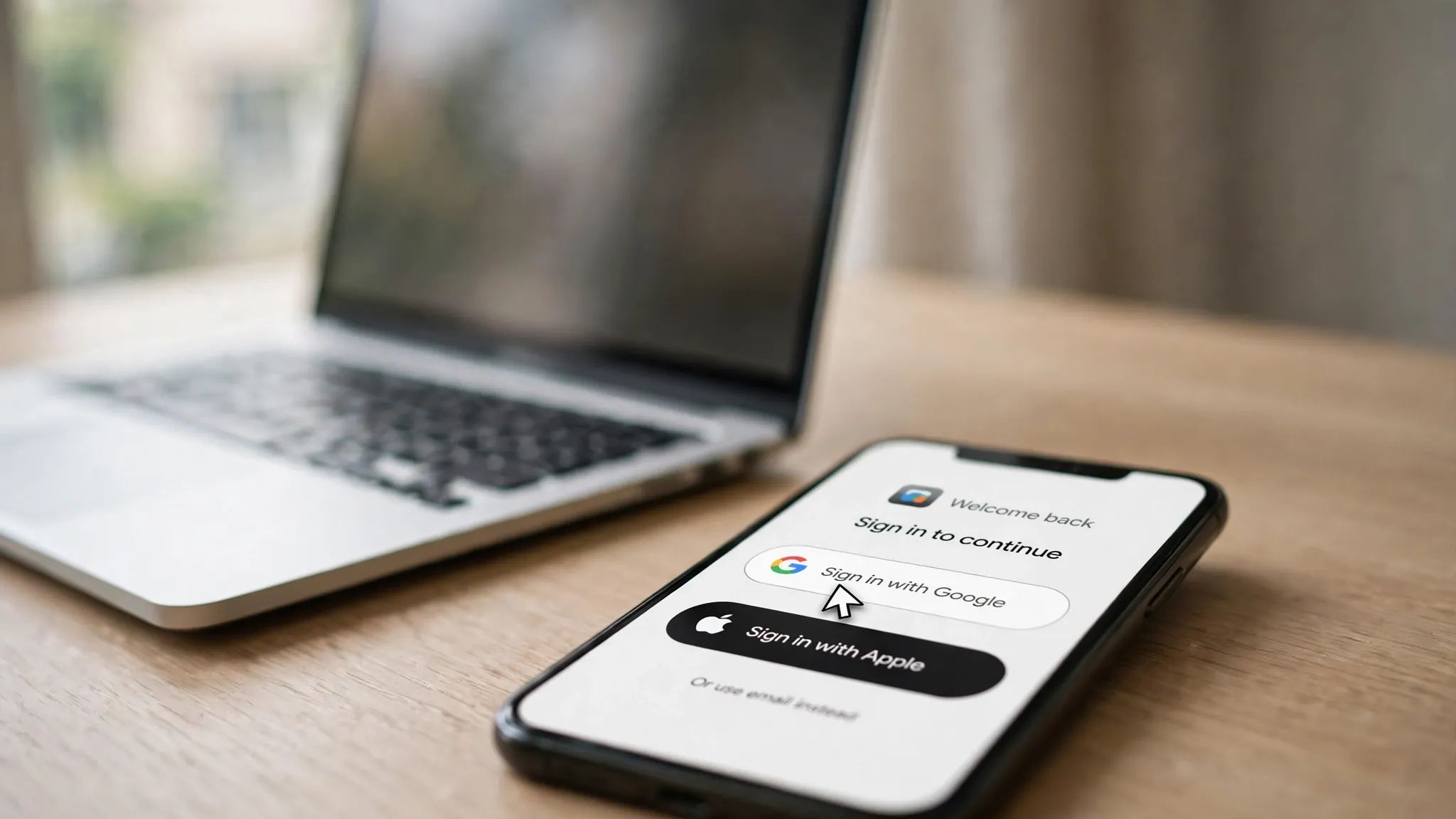
You’re signing up for something — a recipe site, a fitness tracker, a tool you found five minutes ago — and the registration page wants an email address, a password, and a phone number. Or, right above all that, a single friendly button: Sign in with Google. One tap. No new password to invent, no confirmation link to chase. You click it, pick your account, and you’re in.

Most of us have done this dozens, maybe hundreds of times, rarely pausing to think about what that one tap actually authorises. So let’s pause. Here’s what the button hands over, what it keeps to itself, and what you can still take back.
What actually changes hands when you click it
When you use Sign in with Google on a website or app that Google didn’t make, Google shares exactly three things from your account with that developer: your name, your email address, and your profile picture. That’s it, and that’s the whole list.
What’s never shared is just as important: your Google password never leaves Google. The third party never sees it, never stores it, never gets the chance to leak it. This is the single biggest security advantage of the whole arrangement — there is one fewer place holding a password that unlocks your email, and every password that isn’t floating around a random database is one that can’t be breached from that database.
There’s one catch in the fine print, and it’s a quiet one: those three items are all-or-nothing. Google’s own documentation states that you can’t use Sign in with Google while excluding any of the three. If an app’s button asks, the developer gets your name, your email, and your profile picture together. If that bothers you for a particular site, your honest alternative is the old-fashioned route — a separate email-and-password account.
The consent screen is the actual contract — give it one real read
Before the handoff happens, you’re shown a consent screen listing what the app wants. The name, email and picture are always there, but some apps ask for more — access to your contacts, your calendar, or your Google Drive files, for example. That extra access is what developers call “scopes,” and Google shows each one on the screen before anything is shared.
Here’s the habit worth building: when an app’s list stretches past the basics, ask yourself whether the app actually needs it. A calendar app asking for your calendar makes sense. A wallpaper app asking to read your contacts does not. Nothing stops you from closing the tab and finding an alternative that asks for less — the consent screen is the one moment where you have all the leverage, and it disappears the second you approve.
One more thing the screen doesn’t always make obvious: if you don’t already have an account with that service, the app can create one for you automatically from the three details it receives. That’s why the button sometimes feels like it signed you up for something rather than just signed you in — because it did.
Apple’s button has a trick Google’s doesn’t
If you use an iPhone, you’ve also seen “Sign in with Apple.” It works on the same principle — one tap, no new password, Apple vouches for your identity — but it offers one privacy option Google’s button never has.
On Apple’s consent screen, alongside “Share My Email,” you’ll see “Hide My Email.” Choose that, and instead of your real address, Apple generates a unique, random forwarding address for that specific app — a gibberish-looking address that routes mail to your real inbox without ever revealing it. The app gets a working email address to send your receipts and notifications to, and it never learns the address you actually read.
This is genuinely useful for try-before-you-trust situations: that newsletter you might unsubscribe from tomorrow, the shopping app you’ll use once, the game your kid begged for. If the service later leaks or sells the address it has on file, what’s out there is a forwarding address you can simply stop — not the inbox you care about.
Where all your sign-ins are hiding, and how to take them back
Here’s the part almost nobody does: audit the list. Over the years, those one-tap sign-ins pile up — apps you tried twice in 2022, websites that no longer exist, services you forgot you ever joined. Each one still holds your name, email and profile picture, and each one is a door you opened and never closed.
For Google, the list lives at myaccount.google.com under Security → “Your connections to third-party apps & services”. Open “See all connections,” and you’ll see everything linked to your account — not just Sign in with Google apps, but anything with broader access, like Drive or Calendar permissions. Select anything you don’t recognise or no longer use, and hit “Remove access.” It takes seconds.
For Apple, the equivalent is on your iPhone under Settings → [your name] → Sign in & Security → Apps Using Apple ID. Same idea: review, revoke, move on.
Two things to know before you go on a revoking spree. First, revoking stops future access. The developer keeps whatever it already collected — to have that deleted, you’ll need to contact the developer directly, since once shared, your data is their responsibility to manage. Second, if you revoke an app you still use, you’ll be logged out of it. If the app created its account from your Google or Apple sign-in, sign back in with the same button and everything reconnects.
And one practical note: Google says it doesn’t use the data from Sign in with Google for advertising or other non-security purposes. What the third party does with your name and email is governed by its privacy policy, not Google’s — which is exactly why a spring clean is worth doing.
The trade-off nobody mentions: all your keys, one keyring
So far this has sounded like a clean win, and mostly it is. Password reuse — the genuinely dangerous habit of using one password everywhere — dies the moment you stop inventing passwords. But there’s a real trade-off, and it deserves a paragraph.
When dozens of logins depend on one Google or Apple account, that account becomes the single point of failure for your entire digital life. If you lose access to it — a forgotten recovery, a locked account, a phone gone missing — you don’t lose one login, you lose the doorway to all of them. This doesn’t mean the button is unsafe; it means the account behind the button deserves your strongest protection: a unique password, two-factor authentication, and a set of printed backup codes stored somewhere offline, so you’re never one forgotten detail away from being locked out of everything.
There’s a second honest caveat. The button protects your password, but it doesn’t make you anonymous to the app. The app still gets your name and email, still sets its own cookies, still tracks what you do inside its own walls. If your goal is staying unknown to a service, signing in — with anything — isn’t the way to do that.
So, keep clicking it?
Mostly, yes — with your eyes open. For services you actually use and trust, the Google or Apple button is usually the safest way in: no reused password, no credential to leak, one dashboard where you can see and revoke every connection. Reach for Apple’s Hide My Email when you’re sampling something new and don’t want your real address in a database you may never visit again. And put the consent screen — that one quiet list of what’s being handed over — in the same category as a restaurant bill: glance at it before you pay.
You’ll spend five minutes this weekend checking your connected-apps list, and you’ll almost certainly find three or four you forgot existed. Revoke them, and congratulations: you just closed doors you didn’t know were open.
More from our Internet Guides: how the web’s hidden machinery actually works, explained without the jargon. And if you’d rather skip passwords entirely, read how passkeys are designed to replace logins like these — though the same single-account rule applies.












