



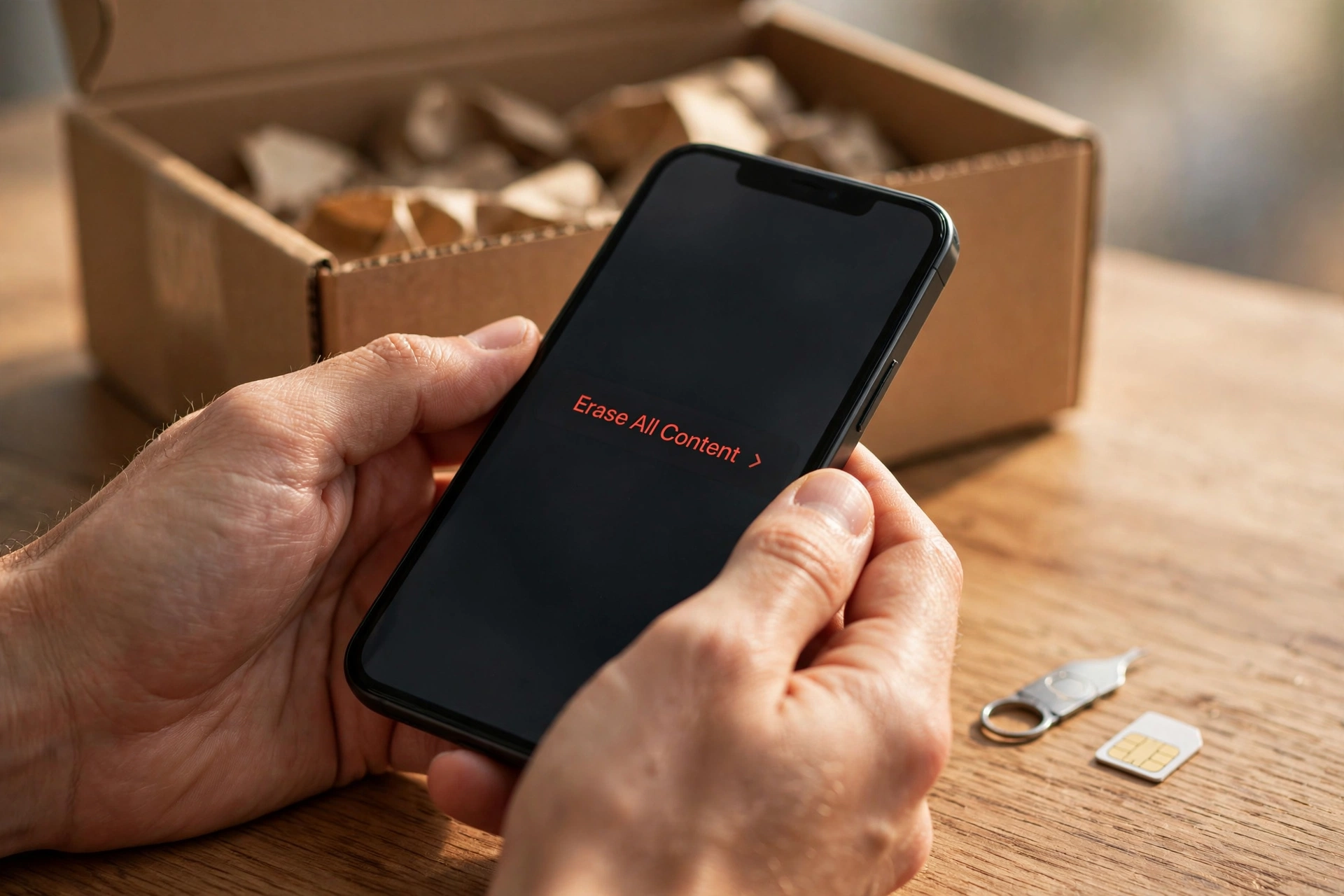
A factory reset is not the whole job. It’s the headline act, but the boring steps around it — signing out of accounts, removing the SIM, unpairing the watch — are what actually decide whether your photos, chats and logins end up in a stranger’s hands.

Phones don’t get thrown away like old laptops. They get sold, handed down to family, traded in, dropped at a recycling kiosk. And every one of those journeys starts with the same question: did you really get everything off it first?
The stakes are higher than they look. A modern phone holds your email, your banking apps, your two-factor codes, your location history, your private photos and the keys to every account you logged into over the years. Deleting things by hand — removing photos one folder at a time, uninstalling apps — feels thorough, but it’s the worst way to do this. It leaves data in caches, in app storage, in places you never think to look. There is a proper sequence for this, and it works. Here’s the whole thing.
Step Zero: Get Everything You Want to Keep, First
Nothing below is reversible. Before anything gets erased, make sure your stuff exists somewhere else. Back up your photos, your messages and your contacts — to iCloud or Google, or to a computer, whichever you trust. If you have an authenticator app on the phone, move your codes to the new device first; that’s the one people forget, and finding out afterwards is genuinely painful.
Also check for anything stored only on the phone itself: downloaded documents, voice memos, a folder of scanned receipts in a note-taking app. Backups don’t always grab every nook, so take five minutes and scroll through.
Sign Out of Your Accounts Before You Reset — Not After
This is the step most people skip, and it matters more than the reset itself.
On iPhone, sign out of your Apple ID before erasing. Go to Settings, tap your name at the top, scroll down and tap Sign Out. You’ll need your Apple ID password. This turns off Find My and releases the Activation Lock — the security feature that ties the phone to your account. Skip this, and the next owner gets a phone that asks for your password at setup and refuses to work without it. You’ll end up having to fix it remotely, which is an awkward conversation with a stranger.
On Android, the same principle applies with your Google account. Google’s own Play Store help page advises exactly this: if you plan to sell or give away the device, remove your account first, then factory reset. Head to Settings, look for Google (or Accounts on some phones), choose your account, and remove it. Doing it this way also tells Google’s services the device is no longer yours, so it stops showing up in your account’s device lists.
While you’re at it, sign out of anything else you were logged into that you wouldn’t want lingering: email apps, social apps, payment apps. The reset should handle them, but belt and braces costs you three minutes.
Unpair the Extras
If an Apple Watch is paired to an iPhone, unpair it from the Watch app on the phone before the reset. The same goes for any Bluetooth trackers, smart locks, or car integrations that treat the phone as a trusted device. These pairings sometimes survive in odd corners of your accounts, and it’s cleaner to break them while you still own the phone.
Take Out the SIM and the Memory Card
Remove your SIM card — even if you’re transferring your number to a new phone, the old card should come out. If the phone uses an eSIM, delete the eSIM profile when the reset asks you about it; the erase prompt on newer iPhones gives you this option. And if there’s a microSD card in the phone, decide whether it goes with the phone or stays with you. Memory cards often carry photos and music that the reset never touches.
Now Do the Actual Reset
On iPhone: Settings → General → Transfer or Reset iPhone → Erase All Content and Settings. Confirm with your passcode when asked. If you signed out of your Apple ID first, as above, this is the easy part.
On Android: Settings → System → Reset options → Erase all data (factory reset). The exact menu names move around between manufacturers — Samsung calls it Settings → General management → Reset — but it’s always a few taps away, and the Settings search bar will find “reset” for you. Confirm, let the phone reboot, and wait for the welcome screen.
Modern phones encrypt their storage by default, which means the reset also throws away the encryption key. That’s why a factory reset on a modern device is genuinely destructive: without the key, the leftover scrambled data underneath is unreadable. This is the one piece of good news in the whole process — the encryption does the heavy lifting for you.
Watch It Boot to the Welcome Screen
Don’t hand the phone over mid-process or on a loading screen. Wait until it restarts fully and shows the “Hello” setup screen (iPhone) or the welcome/setup wizard (Android). That screen is your proof: the phone is back to day-one state, waiting for a new owner. If it boots straight into your home screen instead, the reset didn’t complete and you need to do it again.
After It’s Gone: A Few Loose Ends
If you switched to a different platform — iPhone to Android, for instance — deregister iMessage so your texts stop getting routed to a phone you no longer own. You can do this in Settings → Messages before the reset, or later from Apple’s deregistration page.
Check your Google or Apple account’s device list a day or two later and confirm the old phone is gone. If you ever left it signed in somewhere, remove the device from your account remotely. And while you’re in account-cleanup mode, it’s a good moment to think about closing forgotten accounts you no longer need.
And if you already handed the phone over without doing all this? Don’t panic, but act quickly. Sign out of your accounts remotely, change your most important passwords, and remove the device from your account’s trusted devices. The erasure ship may have sailed, but closing the account doors still protects you.
Worth the Twenty Minutes
This whole routine takes about twenty minutes, and most of it is waiting for the phone to reboot. Compare that with the alternative: your photos, chats, banking apps and account logins in someone else’s hands, and weeks of changing passwords afterwards. The reset button is easy to find. The steps around it are what make it work.












