



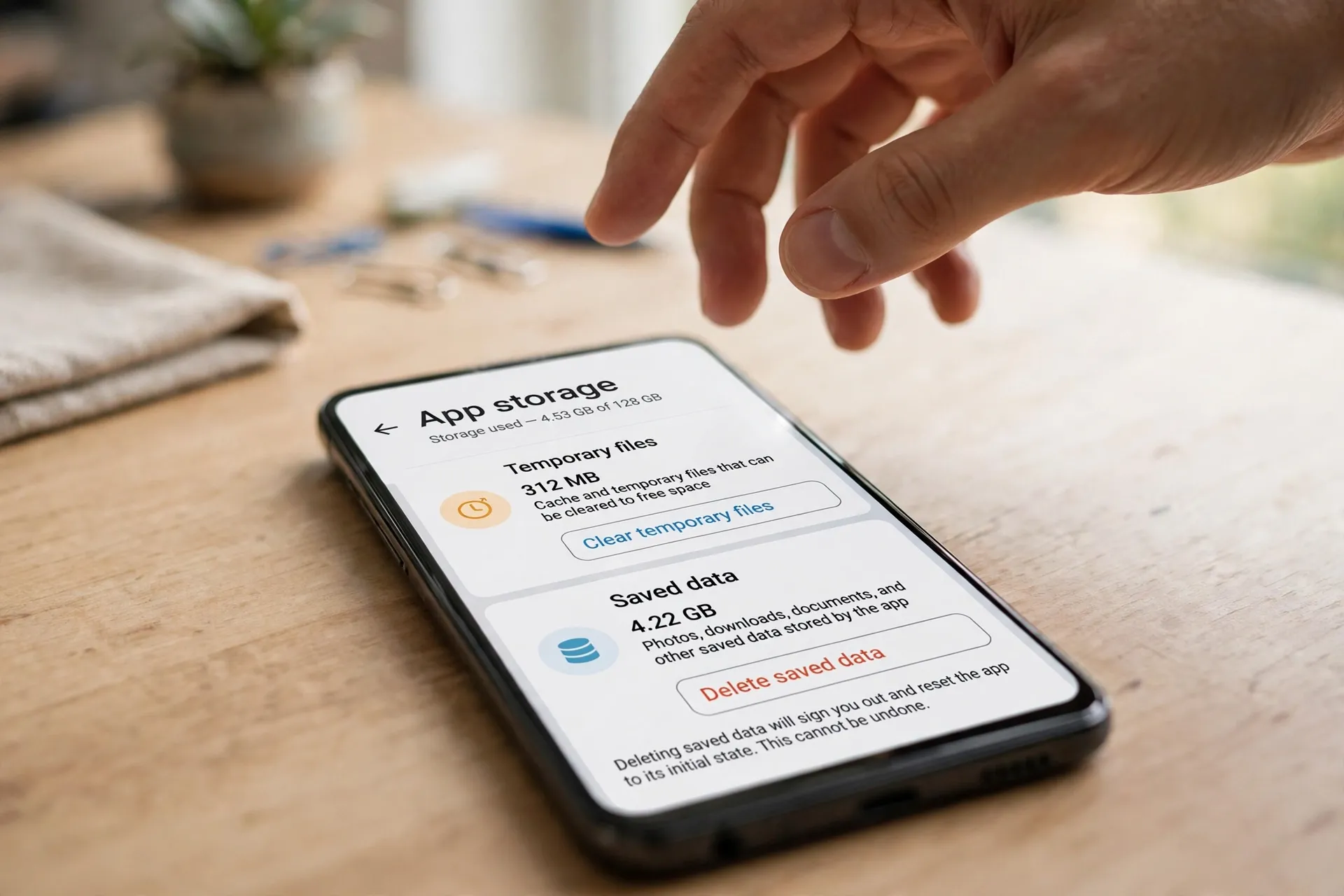
They sit right next to each other on the same screen, and they sound like they do almost the same thing. They don’t. One of them tidies up temporary files and leaves your life exactly as it was. The other wipes an app back to the day you installed it — signed out, settings reset, downloads gone.

On Android, those two buttons are Clear cache and Clear storage (older phones call the second one Clear data — it’s the same button with an older name). Tapping the wrong one rarely breaks anything permanently, but it can cost you a tedious half hour of signing back in and setting things up again. Here’s what each one actually removes, so you can pick on purpose.
The short version, before the detail
Google’s own help page puts it in two lines. Clear cache “deletes temporary data” — and some apps may open a little slowly the next time, while they rebuild what they need. Clear storage “permanently deletes all app data.”
That word permanently is doing the heavy lifting. Cache is the app’s scratch paper. Storage is everything the app remembers about you. Always try the scratch paper first.
What’s actually sitting in the cache
Every app keeps a private cache folder for things it would rather not fetch or create twice: thumbnail images for your photo grid, profile pictures in a social feed, chunks of a video it pre-loaded, images from pages you’ve already opened. Android’s developer documentation describes this space as being for data stored “only temporarily” — the system itself may remove those files sooner than you’d expect, especially when the phone is running low on space.
Because cache is rebuilt automatically, clearing it is reversible in practice. The app doesn’t lose anything it can’t recreate. Your sign-in stays. Your settings stay. Your downloaded songs, offline maps and saved documents stay, because none of those live in the cache. The only cost is a slightly slower first open while the app downloads or regenerates those temporary files again — exactly the trade-off Google warns about.
Cache can grow surprisingly large, though. Browsers, social apps and video apps are the usual heavyweights, and a cache that has ballooned to a gigabyte or more is often just months of thumbnails you will never look at again.
What’s sitting in storage — and why clearing it stings
App storage, sometimes labelled User data on that same screen, is the permanent side: your login session, the preferences you’ve changed, local databases, and — this is the part people miss — content you deliberately downloaded inside the app. Offline playlists. Downloaded episodes. Maps saved for offline use. Game progress that isn’t backed up to an account. Drafts that never left the phone.
Clear storage deletes all of it, cache included. You don’t need to tap both buttons; clearing storage already does the cache’s job on its way through. When you reopen the app afterwards, it behaves like a fresh install. It will usually ask you to sign in, walk you through its welcome screens again, and wait for you to re-download anything you want offline.
Google’s advice here is worth following literally: “Try to delete the data within the app first.” If what you actually want is to remove a few downloads, delete them from inside the app’s own Downloads section. That’s surgical. Clear storage is the blunt version that takes everything, wanted and unwanted alike.
How to clear either one
The path is the same up to the final tap, which is precisely why mistakes happen:
Open Settings → Apps → See all apps, tap the app that’s misbehaving, then tap Storage & cache. You’ll see how much space the app itself, its data and its cache each take up. Tap Clear cache for the gentle option. Tap Clear storage only if you’ve read the warning above and mean it — Android will ask you to confirm before it goes ahead.
Menu names shift slightly between brands. Samsung phones shorten it to Storage on the app page, but the two buttons inside are the same. If you can’t find the app list, searching Settings for the app’s name usually lands you one tap away from it.
When clearing the cache is enough
Most everyday app trouble is cache-shaped. An app that shows an old profile picture after you’ve changed it, a feed that won’t refresh properly, an app that’s become sluggish or starts glitching after an update, a storage warning where one app’s cache alone accounts for a big chunk — all of these are reasonable reasons to clear the cache and reopen the app.
It’s also the sensible first step when an app keeps crashing and you’ve already tried closing and reopening it. If the crash survives a cache clear, you’ve learned something useful: the problem probably isn’t temporary files, and you can move on to updating the app or, as a later step, clearing storage.
What cache-clearing is not is a routine chore. There’s no benefit to clearing every app’s cache on a schedule. Android manages this space itself, the files come straight back as you use the apps, and a permanently empty cache just means apps load a little slower and use a little more data re-fetching things. Clear it when there’s a reason — a glitch, an update that went oddly, a genuine space squeeze — not because a cleaner app told you to. You don’t need a cleaner app for this at all, incidentally; the button is already in Settings.
When clearing storage is actually the right call
Sometimes the fresh start is the point. An app that crashes instantly even after a cache clear and an update, an app stuck signed into the wrong account, settings so tangled that resetting them one by one would take longer than starting over — those are legitimate cases.
Before you tap it, run a quick check:
Can you sign back in? Be sure you know the password, or have it saved where you can reach it. Clearing storage signs you out, and an app you can’t get back into is worse than a glitchy one.
Is anything stored only in this app? Offline downloads can be fetched again, but not everything can. Check for drafts, voice recordings, locally saved files, and game progress that isn’t tied to an account. If the app offers an export, backup or sync option, use it first.
Have you tried deleting inside the app? Removing downloads from within the app, as Google suggests, often frees the same space without the full reset.
If all three checks pass, clear storage with a clear conscience. It’s a reset, not a disaster — it just shouldn’t be a surprise.
Browsers are a special case
Chrome and other browsers split things differently, and their wording catches people out. Inside Chrome’s Clear browsing data screen, “Cached images and files” is the gentle option — the equivalent of Clear cache. But “Cookies and site data” sits right beside it, and cookies are part of how websites remember that you’re signed in. Tick that box and you’ll be signing back into sites afterwards, even though you never touched anything called “storage.”
The rule transfers cleanly: cached files are safe to clear whenever you like; cookies and app data are the ones tied to your sign-ins. Read which boxes are ticked before you confirm, whichever app you’re in.
On an iPhone, neither button exists
If you’ve gone looking for Clear cache on iOS, you haven’t missed it — Apple doesn’t offer it. iPhone apps manage their own caches, and the storage screen at Settings → General → iPhone Storage gives you two different choices instead.
Offload App removes the app itself but keeps its documents and data on the phone. Reinstall it later and you pick up where you left off. Delete App removes the app and its related data — the closest iPhone equivalent to clearing storage and uninstalling in one move, and just as final for anything that was only stored locally.
A few individual iPhone apps offer their own in-app cache controls, and Safari’s website data can be cleared from its settings page, but as a general approach on iOS the lever you have is offload versus delete — which is exactly why our guide to reclaiming space from unused apps spends so much time on the difference. The underlying question is the same one Android asks: are you removing temporary clutter, or are you removing what the app knows about you?
The rule worth remembering
Cache first, storage last. Clear cache freely whenever an app misbehaves or its temporary files have grown out of proportion — the worst outcome is a slower first launch. Treat Clear storage like reinstalling the app, because that’s effectively what it is: do it deliberately, after you’ve checked your sign-in and anything stored only on the phone, and only when the gentler step hasn’t worked.
Two buttons, one screen — but now you know which one you’re tapping, and why. More guides like this live in the Apps & Software section.












