



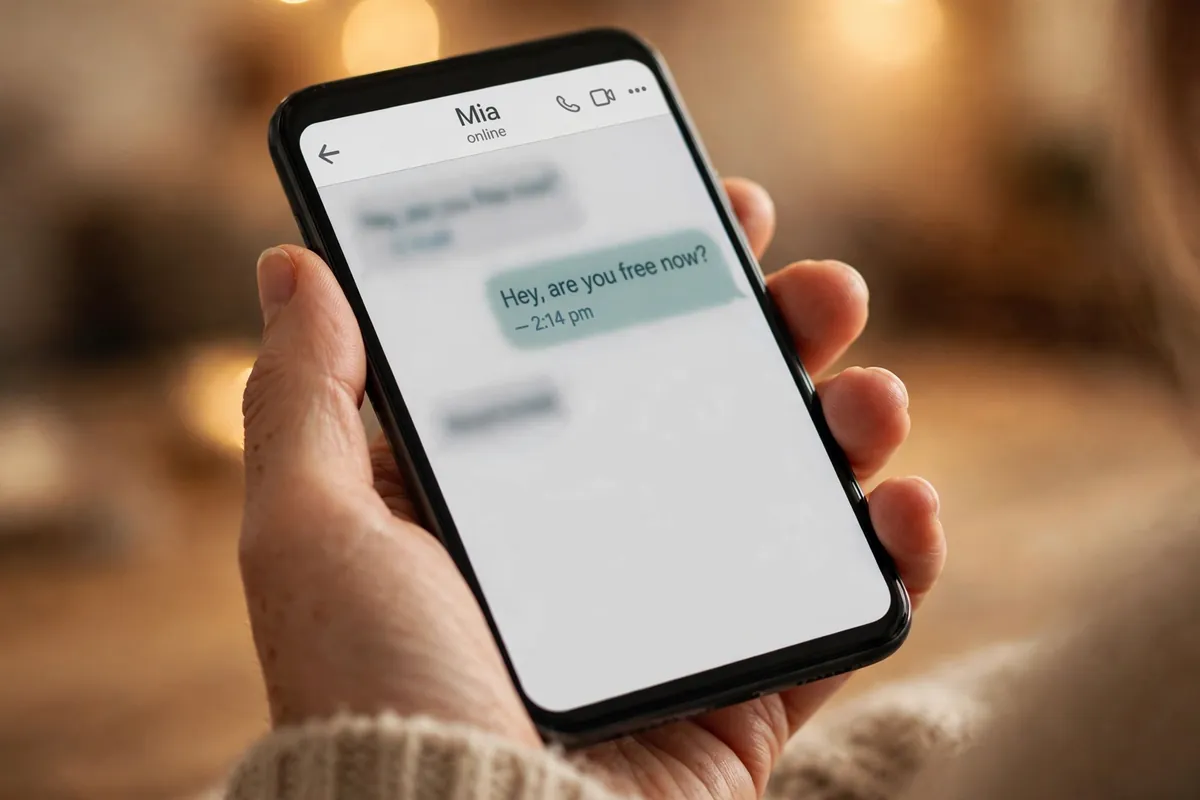
Open WhatsApp, tap any chat, and look under the contact’s name at the top of the screen. If that person has the app open right now, you’ll see it: one small word, online. It appears in a split second and vanishes just as quickly — and yet, collected over weeks, it quietly tells anyone who cares to look when you wake up, when you take your lunch break, and roughly when your phone goes quiet for the night.

Most people never think about this word because it feels harmless. It isn’t a message, it isn’t a photo, it isn’t location data. But “online” and its cousin “last seen” are among the most honest little diaries of your daily routine on the internet. The good news: WhatsApp gives you the controls to take them back. Here’s who can read them now, how to change it, and the one trade-off worth knowing before you do.
What “online” and “last seen” actually say about you
WhatsApp keeps two separate activity signals on your chat screen. Last seen is a timestamp of when you were most recently active. Online means you have WhatsApp open and connected to the internet at this very moment. WhatsApp itself points out that being online doesn’t mean you’ve read anyone’s message — only that the app is open.
One signal on its own means little. Put together over a few weeks, they sketch a surprisingly detailed picture: the hour you start your day, your evening scrolling window, the weekends you go quiet. For the people you trust, none of this matters. For a number you gave a marketplace seller, a one-time tradesperson, or a new acquaintance, it’s far more than they need.
Who gets to see them by default
Out of the box, WhatsApp is generous with these signals. Anyone who has your number and uses WhatsApp can see when you’re online, and your saved contacts can see your last seen time. There’s a small built-in limit even at the widest setting: strangers who’ve never messaged or called you, and who aren’t in your contacts, can’t see the signals — but anyone you’ve ever had a conversation with can.
That includes the delivery driver from six months ago, the colleague you left on read, and the person you met once at a wedding. Your activity feed is open to all of them unless you say otherwise.
The setting that puts you back in charge
Both signals are controlled from one screen, and getting there takes under a minute:
On Android: tap the three dots in the top corner, then Settings > Privacy > Last seen and online.
On iPhone: tap the Settings tab, then Privacy > Last seen and online.
You’ll see two rows. The first, “Who can see my last seen,” offers four options: Everyone, My contacts, My contacts except…, and Nobody. The second, “Who can see when I’m online,” offers Everyone or Same as last seen.
Which combination should you pick? It depends on what bothers you most:
- Want full quiet? Set last seen to Nobody and online to Same as last seen. Nobody — not even your closest contacts — will see either signal.
- Want a normal middle ground? Set last seen to My contacts with online following it. Strangers and unsaved numbers are cut out, and everyone you actually know sees things as usual.
- Is there one person (or a few) you want to keep in the dark? Choose My contacts except… and pick the names. Everything stays normal for everyone else — and nobody gets told they’ve been excluded.
The change applies everywhere you use WhatsApp — your phone, the desktop app, and WhatsApp Web — because the setting lives on your account, not your device.
The trade-off WhatsApp doesn’t advertise
Here’s the part worth deciding before you tap Nobody. WhatsApp applies these settings both ways: if you hide your last seen and online from other people, you lose the ability to see theirs too. The signals disappear in both directions.
For some people that’s a relief — mutual privacy, no awkwardness. For others it’s a real cost, especially if you check a parent’s last-seen time to know they’re up and about, or glance at a colleague’s status before calling. There’s no middle option that keeps your invisibility one-directional.
So think of it as a genuine choice rather than an obvious upgrade. If you’re only irritated by one or two specific people, My contacts except… gives you the quiet you want without losing the signals you use. If the whole thing feels like unnecessary surveillance, Nobody is the clean answer — and the peace is usually worth more than the information you give up.
Three things the switch can’t fix
The privacy screen solves most of the problem, but not all of it. A few activity signals work differently, and knowing the limits saves you false confidence:
1. Blue ticks and “typing…” have their own rules. Read receipts (the blue ticks) are a separate toggle under Settings > Privacy. Turning them off works the same two-way deal: nobody sees your blue ticks, but you stop seeing theirs. And in group chats, read receipts are always on for everyone — no setting changes that. The “typing…” and “recording audio…” indicators that appear while you’re mid-message can’t be hidden at all.
2. WhatsApp can’t tell you when someone comes online — so third parties do. There is no built-in feature, hidden menu, or notification that alerts you when a specific person opens WhatsApp. The apps and websites that promise “online alerts” work by watching your number from outside WhatsApp, and many ask for suspicious permissions or fees. They’re best treated as what they usually are: a privacy risk pointed at you, not a clever trick.
3. Your profile has its own audience. Your profile photo, your About line, and your Status updates each have separate visibility settings on the same Privacy screen. If you’ve tightened your online status, it’s worth a glance at these too — especially Status, where you can choose exactly who sees your updates.
While you’re in Privacy, two minutes well spent
Since you’re already on the Privacy screen, three nearby settings are worth a look. Silence unknown callers (under Privacy > Calls) stops calls from unsaved numbers ringing your phone — a small shield against spam and scam calls. Linked devices shows every computer and browser signed into your WhatsApp; if you spot one you don’t recognise — an old laptop, a browser from a trip — log it out on the spot. And under Settings > Account, two-step verification adds a six-digit PIN that WhatsApp will ask for if anyone tries to register your number on a new phone. If your account ever does get taken over, the recovery steps are worth knowing before you need them.
A final habit: while you’re tightening who can watch your activity, tighten what strangers can see without opening a chat. Hiding your message previews from the lock screen closes the other common leak — someone reading your texts over your shoulder while your phone sits on a table. And if a “friend” ever messages you out of nowhere asking for money or an urgent favour, check whether their account was taken over before you respond.
The little word under your name will never disappear from messaging entirely — it exists so conversations can feel alive. But whether it’s a public announcement or a private detail is now your call. One screen, two rows, and your daily routine stops being something anyone with your number can read.











