



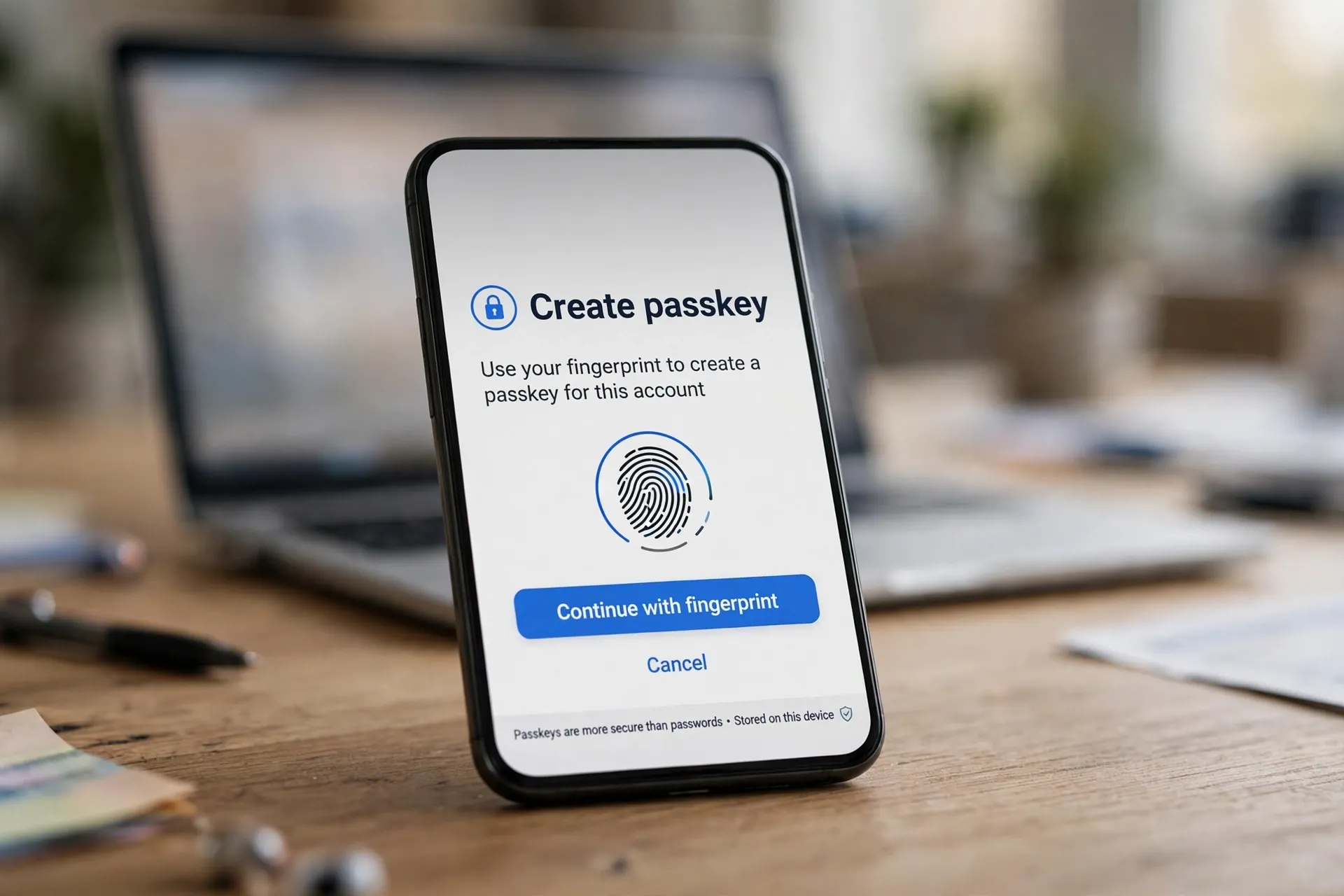
For decades, logging in meant one thing: a password — a secret you type, memorize, reuse, and eventually have stolen. Every year the same headlines repeat: millions of passwords leaked, phishing pages that look exactly like the real login, people locked out of their own accounts. What if the whole idea of the typed secret is the problem?

That’s the argument behind passkeys, a newer way to sign in that replaces the password with a cryptographic key pair — one half stored by the website, the other half locked inside your phone or computer. The key insight: there’s nothing to type, nothing to steal, and nothing to hand over to a fake website by mistake. Let’s unpack what that actually means in practice.
What a passkey actually is
A passkey is a pair of mathematically linked keys: a public key and a private key. When you create a passkey for a site, the public key goes to the site’s server. The private key stays on your device — inside the phone’s secure hardware chip, or in a password manager you trust. To log in, the site sends a challenge, your device signs it with the private key, and the site verifies the signature with the public key. At no point does the private key leave your device. There’s nothing to intercept, nothing to phish, and nothing to leak.
Think of it this way: the public key is like a padlock you hand out freely. Anyone can see it. The private key is the key to that padlock — and it never leaves your pocket. A website can check that your “padlock” opens with the signature your device produces, without ever seeing the key itself.
Why phishing can’t steal a passkey
Phishing works on passwords because a password is just text — it works the same whether you type it into the real site or a convincing fake. A passkey is fundamentally different because of something called origin binding: the credential is locked to the exact website domain it was created for.
Imagine a phishing page that looks exactly like your bank’s login. With a password, you’d type it in and the attacker wins. With a passkey, your device simply refuses — the fake domain doesn’t match the credential’s origin, so there’s no challenge to answer and no signature to produce. You can’t be tricked into handing over something that never crosses the network. This is why passkeys are called phishing-resistant authentication: the protection isn’t a warning you might ignore, it’s baked into the mechanism.
This also kills credential stuffing — the attack where stolen passwords are tried across many sites. A leaked database of public keys is useless to an attacker. Public keys were never secret.
Where your passkeys actually live (and sync)
This is the part most explanations skip, and it matters. Your passkeys need to follow you across devices, so they sync through a platform or password-manager ecosystem:
Apple: passkeys sync through iCloud Keychain and the Passwords app — create one on your iPhone and it’s on your Mac too.
Google: passkeys sync through Google Password Manager, available on Android and in Chrome.
Microsoft: passkeys work with Windows Hello or the Microsoft Authenticator app.
Third-party managers: 1Password, Bitwarden, Dashlane and others support passkeys and work across platforms — a good choice if you live in both the Apple and Google worlds.
The honest caveat: syncing means your private keys rest on someone’s servers, encrypted under keys the platform controls. That’s a trust decision — the same one you’ve already made by letting your passwords sync. And it makes ecosystem switching harder: passkeys in iCloud don’t travel to Android and vice versa, at least not smoothly today. If you mix ecosystems, a cross-platform password manager is the cleaner home for them.
Which accounts to convert first
You don’t need to convert everything on day one. Start with the accounts that unlock everything else:
Email first. Your email account is the key to every password reset on the internet — someone who gets into your email gets into everything. Making it phishing-proof is the single highest-value move.
Then the big identity accounts: Google, Apple, Microsoft — the accounts your passkeys sync through and that verify you everywhere else.
Then money: banks, payment apps, anywhere a login leads directly to your funds.
For everything else, convert opportunistically. Most sites that support passkeys will offer to create one the next time you sign in with your password — say yes and let the migration happen naturally. A data breach leaking a site’s passkey database is harmless compared to the password breaches that made headlines for years: the public keys in it are useless to attackers.
What to know before you go all-in
Passkeys are genuinely better than passwords, but a few honest caveats belong in the picture:
Keep a recovery method. Passkeys make losing your phone scarier, not safer — if every login depends on keys in one device’s secure chip, the fallback matters more. Keep backup codes stored somewhere offline, or a second device signed in, so one lost phone doesn’t mean a locked-out life.
Not every site supports them yet. Adoption is growing fast but uneven. Your bank might offer passkeys while your airline doesn’t. Keep the password manager running alongside — passkeys replace passwords gradually, not overnight.
Shared and public computers need care. Creating a passkey on a borrowed machine ties that machine’s credential to your account. Don’t create passkeys on computers you don’t control, and prefer your phone’s passkey (via QR-code sign-in) when logging in on someone else’s screen.
The typed password had a good run — roughly sixty years. Its replacement is quieter, faster, and immune to the oldest trick in the attacker’s book. When a site offers you a passkey, take it. More practical account protection lives in our Online Safety section.












