


• About
  • Contact
  • Privacy Policy
  • Terms & Conditions
  • Disclaimer
  • Cookie Policy
Superdova.com
Advertisement
  • AI Tools
  • Internet Guides
  • Tech How-To
  • Apps & Software
  • Online Safety
No Result
View All Result
  • AI Tools
  • Internet Guides
  • Tech How-To
  • Apps & Software
  • Online Safety
No Result
View All Result
Superdova.com
No Result
View All Result
Home Tech How-To

Your Webcam Doesn’t Have to Look This Bad

Amit by Amit
September 28, 2026
in Tech How-To
1
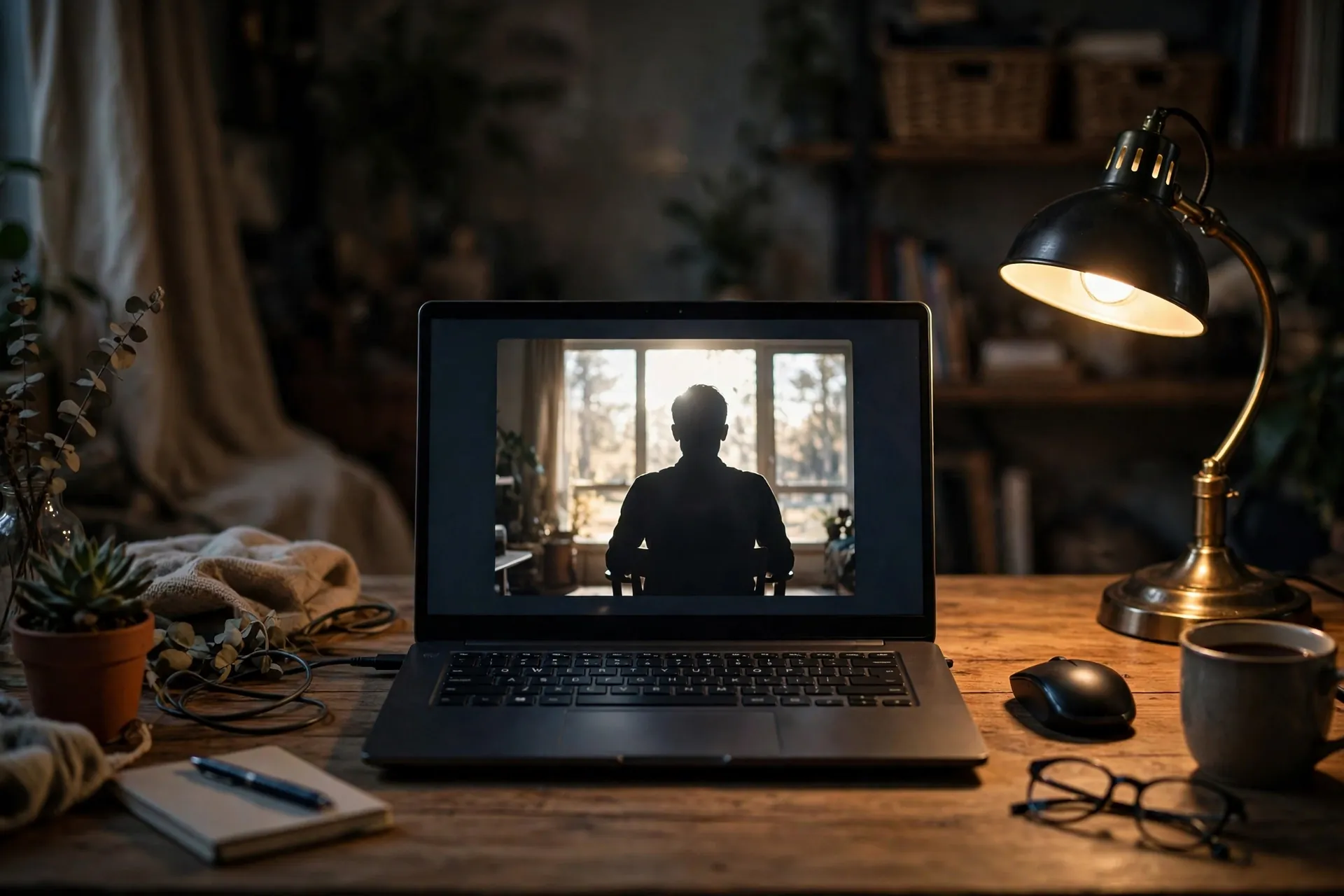
A laptop on a home office desk showing a video call where the participant is a dark silhouette against a bright window behind them — illustrating the backlighting mistake that ruins webcam quality
0
SHARES
3
VIEWS
Share on FacebookShare on Twitter

You have seen yourself on video calls: grainy, washed out, half your face lost in shadow while the window behind you glows like a spotlight. It is easy to assume the little camera in your laptop lid is simply terrible. Occasionally it is. But far more often the camera is doing its best with dreadful conditions — the light around you is the problem, and light is the one thing you can change for free in about a minute.

Table of Contents

Toggle
  • The window behind you is the main villain
  • Put a soft light in front of your face
  • Raise the camera to eye level
  • Wipe the lens — yes, really
  • Your connection may be quietly lowering the quality
  • Two Zoom settings that are actually worth turning on
  • Ditch the virtual background
  • When it genuinely is the hardware

The window behind you is the main villain

The single most common reason people look like silhouettes on calls is backlighting. When a bright window sits behind you, your webcam measures the scene, sees all that brightness, and adjusts its exposure for the window — which leaves you, the darker subject, nearly black. Your colleagues do not need a scenic view of your garden; they need to see your face.

Turn your chair or move your setup so the window is in front of you instead. The same rule applies to bright lamps, patio doors, and anything else glowing behind you. This one change fixes the silhouette problem more completely than any setting ever will.

Put a soft light in front of your face

With the window in front, you already have the best free light source there is: daylight. It is soft, even, and flattering. If you take calls in the evening, point a desk lamp at yourself — bouncing it off a light wall works even better, because the wall spreads the light and softens harsh shadows under your eyes.

Try not to mix very different light colours, like a warm orange lamp against cold blue daylight, since webcams struggle to get skin tones right when the light sources fight each other. And before every call, open your camera preview for five seconds and look at it the way your colleagues will. If your face looks harsh, move the lamp; if half of it is dark, you are still side-lit.

Raise the camera to eye level

A laptop sitting flat on a desk stares up at you from below — the least flattering angle available, usually paired with a lovely view of your ceiling fan. Put the laptop on a stack of books or a stand so the camera sits roughly at eye level and you look slightly down into it instead. The framing instantly looks more natural, and as a bonus your posture improves without you thinking about it.

If you use an external monitor, clip the webcam to its top edge rather than leaving it on the closed laptop below. The angle changes more than you would expect from a few inches of height.

Wipe the lens — yes, really

That tiny lens has been collecting fingerprints, dust, and the occasional sneeze for months, and all of it shows up as a permanent soft haze no setting can fix. A quick wipe with a microfibre cloth or the corner of your shirt takes five seconds and can make the picture noticeably crisper. Check it now, honestly, because almost nobody does.

Your connection may be quietly lowering the quality

If your video starts fine and turns blocky halfway through the meeting, that is usually not the camera at all. Video apps automatically drop the resolution when your bandwidth wobbles, to keep the call from freezing. Your Wi-Fi speed and your internet speed are not the same thing — the connection between your router and your laptop can be the weak link even when your broadband is fast.

For important calls, sit closer to the router, plug in an Ethernet cable if you have one nearby, and pause big downloads or cloud syncs running in the background. It costs nothing and often does more than any hardware upgrade.

Two Zoom settings that are actually worth turning on

If you use Zoom, open Settings → Video & effects and look at the Camera tab. Tick the HD box so Zoom stops sending a lower-resolution feed by default. Then, under Appearance, switch on Adjust for low light — Auto mode is fine — which brightens your video when the room lighting is poor. Both are buried in the settings for no good reason, and both are documented in Zoom’s own support pages.

The Touch up my appearance slider is a matter of taste; it softens the picture slightly. Use it sparingly if you like it. What matters is that HD and low-light adjustment are switched on at all.

Ditch the virtual background

Virtual backgrounds look fun, but they ask your computer to separate you from the room in real time, and cheap or busy backgrounds make the app work harder — sometimes at the cost of video quality. If you can, sit in front of a plain wall or a tidy corner of the room instead. A blurred background is a decent middle ground, but “off” gives you the sharpest picture.

When it genuinely is the hardware

After all of this, some built-in laptop cameras still look mediocre, especially older 720p ones in dim rooms. That is when an upgrade earns its keep. A basic 1080p USB webcam with a larger sensor handles poor light far better than a laptop lens, and you do not need an expensive one.

Alternatively, the camera you already own might be sitting in your pocket: a phone used as a webcam usually produces a sharper picture than a laptop camera, because phone cameras have better sensors and processing. It is a good fallback before you spend any money.

Most bad webcam video is not a camera problem at all. It is a chair facing the wrong way, a bright window behind you, and settings that shipped switched off. Fix the light, raise the camera, turn on HD — and save the new webcam money for something else.

More practical computer fixes like this live in the Tech How-To section.

Previous Post

Switching Off Your Router Every Night? You Can Probably Stop

Next Post

You Probably Don’t Need to Pay for a PDF Editor

Amit

Amit

Next Post
A laptop on a desk showing a PDF document open with a highlighter annotation toolbar, a pen beside it

You Probably Don't Need to Pay for a PDF Editor

Comments 1

  1. Pingback: Bluetooth Earbuds Keep Cutting Out? Why and How to Fix It

Leave a Reply Cancel reply

Your email address will not be published. Required fields are marked *

Stay Connected test

  • 24k Followers
  • 99 Subscribers
  • Trending
  • Comments
  • Latest
Photorealistic illustration of a laptop displaying an email inbox with a breach warning, with a cracked red padlock floating above the screen

Your Email Was in a Data Breach? Don’t Panic — Do These Five Things

September 23, 2026
Illustration of a laptop showing ChatGPT's settings panel with the Custom instructions field highlighted

What to Put in ChatGPT’s Custom Instructions (With Examples Worth Copying)

September 22, 2026
Illustration of a golden master key hovering over a glowing inbox icon on a laptop screen, surrounded by shields and padlocks

If Someone Gets Into Your Email, They Get Into Everything

September 22, 2026
Illustration of a smartphone showing an AI chat conversation with a magnifying glass examining the answers, symbolising fact-checking

AI Chatbots Sound Confident Even When They’re Wrong. Here’s How to Check Their Answers

September 23, 2026
Illustration of a smartphone showing an AI chat conversation with a magnifying glass examining the answers, symbolising fact-checking

AI Chatbots Sound Confident Even When They’re Wrong. Here’s How to Check Their Answers

9
Illustration of a golden master key hovering over a glowing inbox icon on a laptop screen, surrounded by shields and padlocks

If Someone Gets Into Your Email, They Get Into Everything

8
Photorealistic illustration of a laptop displaying an email inbox with a breach warning, with a cracked red padlock floating above the screen

Your Email Was in a Data Breach? Don’t Panic — Do These Five Things

6
A home Wi-Fi router sending a glowing wireless signal toward a laptop on a couch, with a data cable running into the wall — illustrating the difference between Wi-Fi speed and internet speed

Your Wi-Fi Speed and Your Internet Speed Are Not the Same Thing

5
A hand holding a smartphone showing a chat screen with the word "online" under a contact's name

Your WhatsApp “Online” Status Isn’t as Private as You Think

October 20, 2026
Flat illustration of a laptop showing a logout symbol with a small brass key beside it, on a blue and grey background

Signed Out Again? Why Websites Keep Logging You Out

October 20, 2026
Woman with earbuds relaxing in an armchair while her phone reads an article aloud, tea on a side table, warm evening light

Too Tired to Read? Your Phone Can Read the Screen for You

October 19, 2026
Photograph of a smartphone lying on a wooden café table, its screen showing a map with a glowing blue location pin, a hand reaching toward it in the background

Lost Your Phone? Ring It, Lock It, or Find It From Any Computer

October 19, 2026

Recent News

A hand holding a smartphone showing a chat screen with the word "online" under a contact's name

Your WhatsApp “Online” Status Isn’t as Private as You Think

October 20, 2026
Flat illustration of a laptop showing a logout symbol with a small brass key beside it, on a blue and grey background

Signed Out Again? Why Websites Keep Logging You Out

October 20, 2026
Woman with earbuds relaxing in an armchair while her phone reads an article aloud, tea on a side table, warm evening light

Too Tired to Read? Your Phone Can Read the Screen for You

October 19, 2026
Photograph of a smartphone lying on a wooden café table, its screen showing a map with a glowing blue location pin, a hand reaching toward it in the background

Lost Your Phone? Ring It, Lock It, or Find It From Any Computer

October 19, 2026
Superdova.com

SuperDova is an independent technology publication covering AI tools, software, internet guides, digital skills and online safety. Our goal is to make technology easier to understand and use.

Follow Us

Browse by Category

  • AI Tools
  • Apps & Software
  • Internet Guides
  • Online Safety
  • Tech How-To

Recent News

A hand holding a smartphone showing a chat screen with the word "online" under a contact's name

Your WhatsApp “Online” Status Isn’t as Private as You Think

October 20, 2026
Flat illustration of a laptop showing a logout symbol with a small brass key beside it, on a blue and grey background

Signed Out Again? Why Websites Keep Logging You Out

October 20, 2026
  • About
  • Contact
  • Privacy Policy
  • Terms & Conditions
  • Disclaimer
  • Cookie Policy

© 2026 SuperDova — Technology, AI & Digital Guides. All Rights Reserved.

No Result
View All Result
  • AI Tools
  • Internet Guides
  • Tech How-To
  • Apps & Software
  • Online Safety

© 2026 SuperDova — Technology, AI & Digital Guides. All Rights Reserved.










