



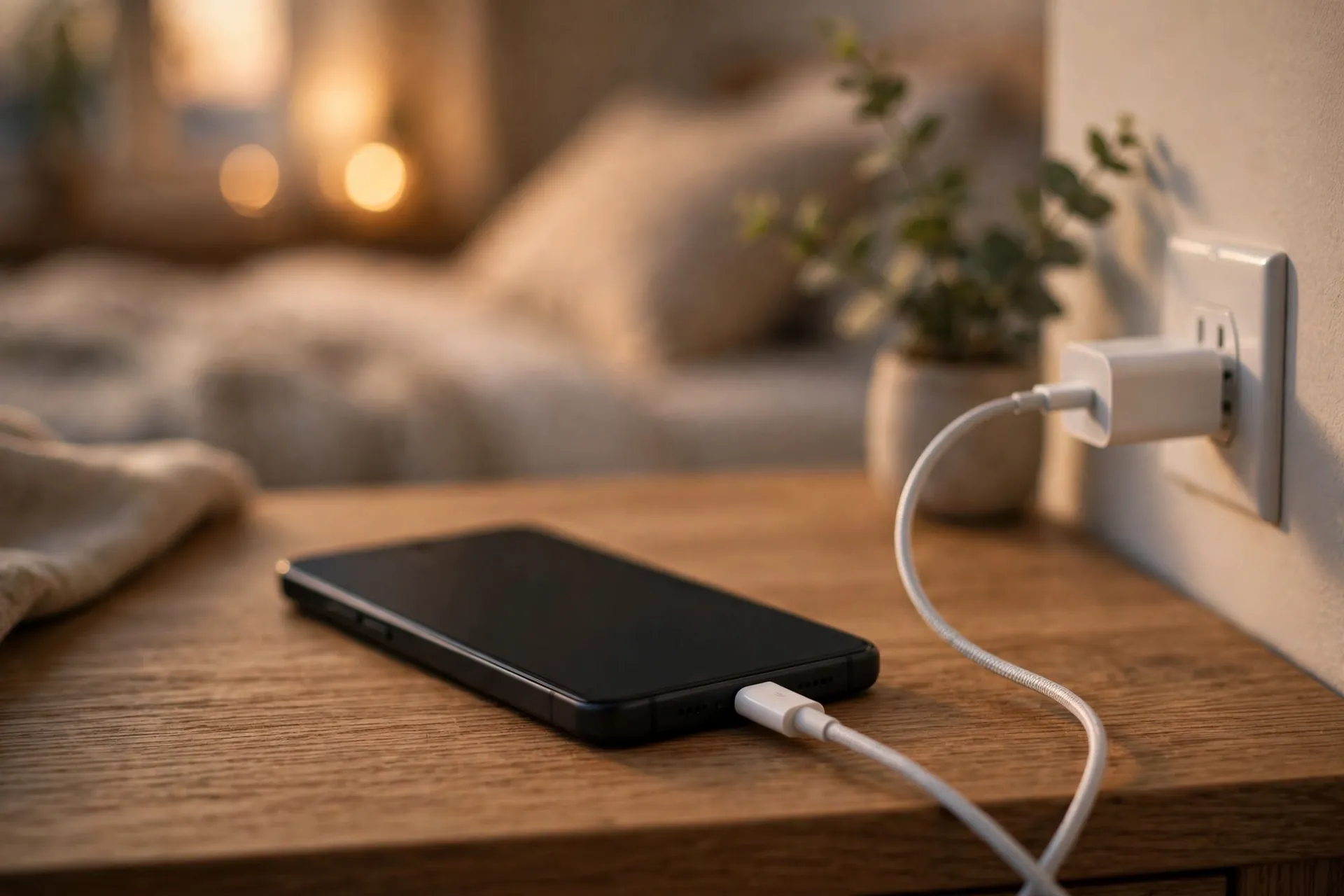
It is midnight, your phone is at 14 percent, and the charging icon is on. You go to sleep confident. Then the morning alarm goes off and it is at 41 percent. Something is wrong — and the first suspect most people blame is the battery. It almost never is.

Slow charging is a power-supply problem most of the time. Your phone can only take in as much power as the weakest link in the chain hands it: the wall adapter, the cable, and — if you charge wirelessly — the pad. Find the weak link and fix it, and the “dying battery” turns out to be perfectly healthy.
Start here: your iPhone will tell you the charger is too slow
If you have an iPhone running iOS 18 or later, there is a built-in verdict you may never have noticed. Go to Settings > Battery and look at the battery graph. Periods of slow charging show up in orange instead of green, and you may see a “Slow Charger” message under the graph, with an info button that explains more.
Apple says this simply means a higher-wattage charger could improve your charging — nothing is broken. But it is a useful diagnosis tool: plug in the setup you suspect, wait a bit, and check the graph. If it turns orange, that charger belongs in a drawer, not on your nightstand.
Apple’s threshold is blunt: anything delivering about 7.5W or less over a cable, or a wireless charger under 10W (a basic first-generation Qi pad, for instance), counts as slow. That covers a lot of old chargers people still use.
The brick in your drawer is weaker than you think
Chargers do not wear a badge showing their wattage, and most households have a drawer full of mixed bricks accumulated over the years. The most common slowdown culprit is embarrassingly simple: you are using an old, low-power adapter.
The classic offender is the tiny 5W cube Apple shipped with iPhones for years. It still works — it will charge any phone eventually — but on a modern iPhone it is roughly four times slower than what the phone is built for. An iPhone 8 or newer paired with an 18W or higher USB-C power adapter with Power Delivery support charges from empty to about 50 percent in around 30 minutes. On the old 5W cube, the same phone takes hours.
Other weak sources that catch people out: charging from a laptop’s USB port, a car USB port, or an old USB hub. These deliver far less power than a dedicated wall charger — Apple specifically warns that ports in USB hubs or cars may charge noticeably slower than a proper USB-C charger. A basic older laptop USB port supplies only about 2.5W, which is basically a trickle for a modern phone.
The fix is not exotic. You do not need the most expensive charger on the shelf — you need one whose wattage matches what your phone can accept. For recent iPhones, a 20W USB-C adapter is the sweet spot Apple itself sells; for newer Android flagships, check the manufacturer’s spec (Samsung’s 45W “Super Fast Charging 2.0”, for example, requires a USB Power Delivery 3.0-compatible adapter). Buying wattage you cannot use is harmless, but buying too little is the whole problem.
The cable matters more than it looks
Here is the part most people miss: the cable is not just a wire. It negotiates how much power flows, and a wrong or worn-out cable quietly caps your speed.
Three cable situations cause slow charging:
1. USB-A on one end, USB-C on the other. That older-style cable — the rectangular plug — is fine for syncing, but many of these cables (and the adapters they plug into) cannot carry the higher currents fast charging needs. If your phone supports fast charging and the cable has a USB-A end, that is a bottleneck worth replacing with a proper USB-C to USB-C cable.
2. A damaged or ultra-cheap cable. A cable that works fine for data can still underperform at power delivery if its internal wires are degraded or it was never rated for higher currents. Fraying near the connectors is the visible giveaway; inconsistent charging — fast one day, slow the next — is the invisible one.
3. The wrong rating for your phone’s fastest mode. Samsung, for one, explicitly recommends using the genuine cable from the original packaging to get its full Super Fast Charging speeds, because charging performance depends on cable quality. Some of its fastest charging profiles historically needed a cable rated for 5 amps to reach the top speed. The takeaway: for the absolute fastest charge your phone supports, use the cable that came in the box, or a reputable replacement rated for the same current.
Length plays a small role too — a very long cable loses a little efficiency — but this is a distant second to getting the right cable type and condition.
Wireless charging trades speed for convenience
If you charge wirelessly and it feels slow, that is not your imagination — wireless is simply slower than wired, by design. Apple puts standard Qi wireless pads under 10W firmly in the “slow” category. A MagSafe charger paired with a 20W adapter delivers up to 15W to an iPhone 12 or newer, which is a meaningful step up from a basic pad but still below the phone’s wired speed.
Two wireless gotchas from Apple’s own documentation are worth knowing. First, if you keep wired accessories — like headphones — plugged into the iPhone while it charges wirelessly, the phone limits wireless charging to 7.5W to meet regulatory standards. Unplug them and wireless charging speeds up. Second, wireless charging generates more heat, which leads us to the next culprit.
Heat and heavy use quietly throttle charging
Phones protect their batteries from heat by slowing or pausing charging when they get warm. A phone charging on a sunny windowsill, under a pillow, or in a thick case can decide to take its time — and Apple confirms that charging in a warm environment may cause the iPhone to temporarily pause charging until the temperature drops.
What you are doing while charging matters too. Running a demanding game, editing video, shooting long 4K clips, or streaming at full brightness while plugged in means the phone is burning power almost as fast as the charger supplies it. Apple lists graphics-intensive apps, games, and camera use as things that can visibly reduce charging speed. If you need a fast top-up before heading out, let the phone sit idle for twenty minutes. You will be surprised how much faster it goes.
Check the port for pocket lint
This one is almost comical until it happens to you. Months of pocket and bag life pack lint and dust into the charging port. The cable still plugs in — or seems to — but it does not seat fully, and the connection becomes flaky or slow.
Shine a flashlight into the port. If you see a grey felt-like layer at the bottom, that is your problem. Power the phone off, and gently tease the lint out with a wooden or plastic toothpick — never anything metal, and never force it. It is one of the most common and most satisfying fixes in all of phone troubleshooting.
The two-minute diagnosis
Put it all together and the slow-charging mystery solves itself fast:
1. Try a different adapter first. Borrow a known-good, higher-wattage USB-C charger — ideally the one that came with the phone or a reputable equivalent. If the speed jumps, you have found the culprit. Check your iPhone’s Battery graph for the orange slow-charging marker as confirmation.
2. Then swap the cable. Same charger, different cable. Use a short, undamaged USB-C to USB-C cable if your phone supports one.
3. Rule out heat and usage. Charge with the screen off, in a cool spot, with the case off if it runs warm.
4. Peek in the port. Thirty seconds with a flashlight rules out the lint theory.
If none of that changes anything, then it is worth suspecting the battery itself. On an iPhone, check Settings > Battery > Battery Health & Charging: if the maximum capacity has dropped well below its original figure, no charger on earth will fix that — a battery replacement will. But most of the time, the battery is innocent. The charger did it.
By the way, slow charging is not all bad. A gentler overnight charge is perfectly fine for a phone that will sit on the nightstand for eight hours — charging speed and battery health are separate questions, and overnight charging deserves its own explanation. If your battery is also draining faster than it used to, here is what actually saves battery on a modern phone. For everything else about keeping your phone running well, browse the Tech How-To section.












