



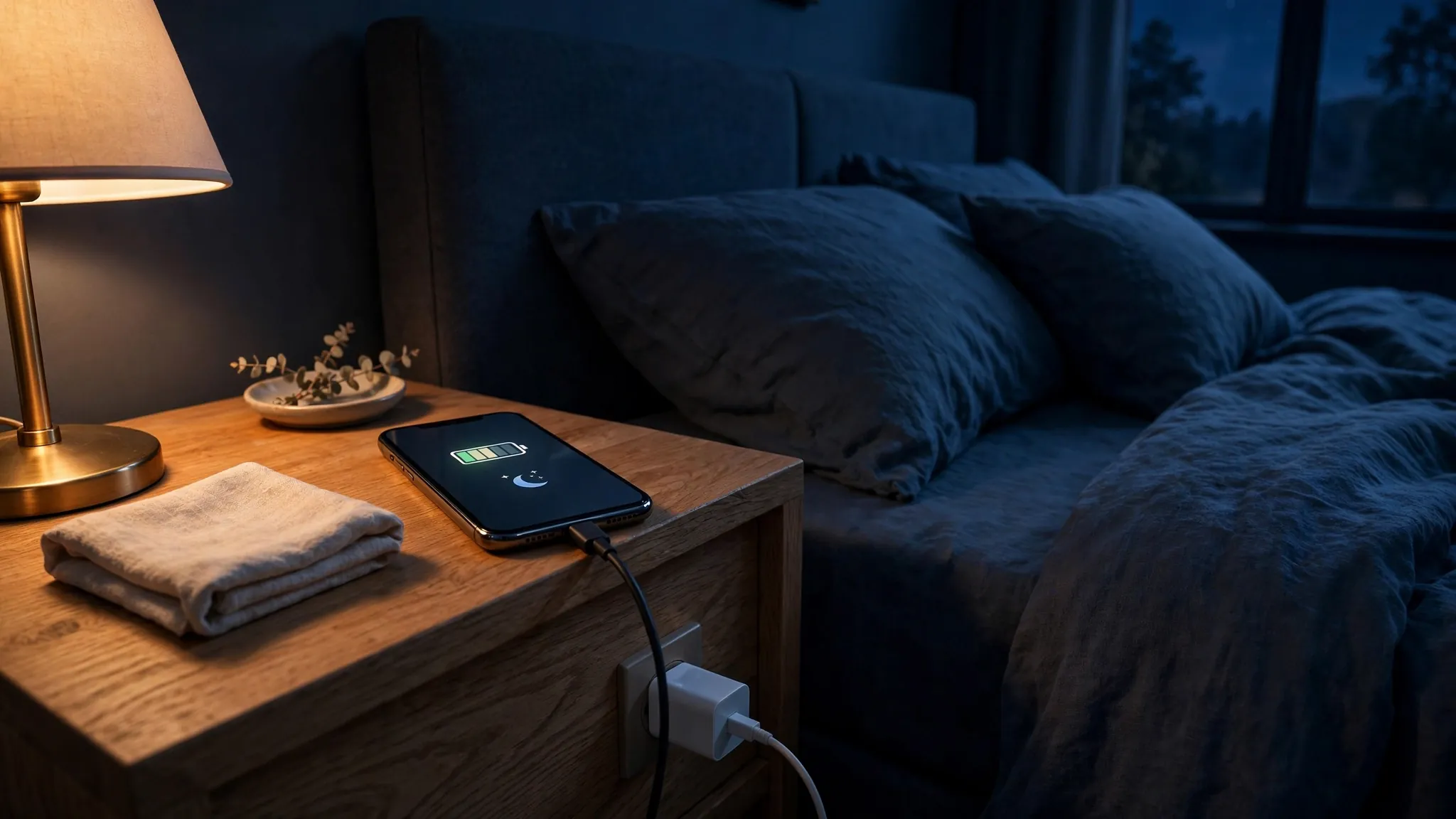
Somewhere between “never leave your phone plugged in overnight” and “modern phones handle it, stop worrying” lies the actual truth — and it’s worth knowing, because almost everyone charges the same way: plug in at bedtime, unplug at morning, every single day.

The good news is that the scary version of this story is mostly outdated. Your phone will not overcharge. But the boring version — the one where nothing dramatic happens — still costs you a little battery health every night. Not enough to panic about, but enough that two settings are worth your attention.
First, the reassuring part: your phone can’t overcharge
Every modern phone has charging circuitry that stops the flow of current when the battery reaches 100%. It doesn’t keep cramming power in like filling a water balloon past its limit. When people worry about “overcharging,” they’re usually picturing this — and it’s not how any phone made in the last decade works.
What actually happens after 100% is subtler. The phone lets the battery drop a tiny bit, then tops it back up, over and over. The battery isn’t being overfilled; it’s being kept at full. And a lithium-ion battery sitting at full charge, for hours, every night, is where the real wear comes from.
Why a battery at 100% ages faster than one at 80%
Think of your battery’s charge level as a kind of tension. At 100%, the chemical reactions inside the cells are running at their most intense — and the higher the charge and the hotter the phone, the faster the battery’s chemistry degrades. This isn’t a flaw or a brand problem; it’s just how lithium-ion chemistry behaves. A battery that spends most of its life hovering around 80% will typically hold its capacity better after two or three years than one that spends every night parked at 100%.
Heat multiplies the effect. Charging generates warmth, and a phone under a pillow or wrapped in a thick case can’t shed that heat. That’s why the advice isn’t really “don’t charge overnight” — it’s “don’t keep a hot battery at 100% for six hours.”
The fix is already in your phone (it’s probably on by default)
The phone makers figured this out years ago, and all three major platforms now have an answer for exactly this scenario: charge the phone to around 80% overnight, then finish the last bit just before you wake up.
On iPhone
Open Settings > Battery > Battery Health & Charging. The Optimised Battery Charging option is switched on by default on iPhones running iOS 13 or later. It learns your routine and holds the charge at 80%, finishing the last stretch shortly before your usual wake-up time. You’ll know it’s working when a lock-screen note says charging was paused. If you have an iPhone 15 or newer, the same screen also offers an 80% Limit — a hard cap the phone never charges past, every single charge.
On Google Pixel
Go to Settings > Battery > Battery health > Charging optimization and turn on Use charging optimization. You get two choices: Adaptive Charging, which finishes the charge right before you typically unplug (it takes roughly two weeks to learn your habits), or Limit to 80%, the hard cap. One quirk worth knowing: even with the limit on, Google says the phone needs a full charge roughly every tenth cycle to keep its battery readings accurate — so occasionally you’ll still wake up to 100%, and that’s by design.
On Samsung Galaxy
Head to Settings > Battery > Battery protection. Unlike the others, this one is not switched on by default — you have to enable it yourself. Once you do, you get three modes: Basic (stops at 100%, waits until 95%, repeats), Adaptive (holds at 80% overnight, finishes before you wake), and Maximum (caps charging at a level you choose, 80–95% on recent One UI versions). You’ll see a small “charging stopped to protect battery” note on the lock screen when it’s working.
Which option should you actually pick?
For most people, the adaptive/optimised option is the sweet spot: you wake up to a full phone, and the battery avoids its hardest hours at 100%. There’s almost no downside. It only misfires if your schedule is genuinely unpredictable — frequent travellers and shift workers sometimes find it guesses wrong, in which case the phone just charges normally.
The hard 80% limit is the stronger choice if you keep your phones for three or more years and can live with a bit less charge in the morning. You’ll trade roughly a fifth of your daily capacity for noticeably slower long-term degradation. Many people try it for a week and discover they rarely needed that last 20% anyway — but if you ever do have a long day ahead, just switch it off for that one charge.
Two things that matter more than overnight charging
If you only change two habits, make them these — they affect battery health more than anything about your overnight routine:
Keep it cool while it charges. Don’t charge under a pillow or buried in bedding, and take the case off if the phone feels warm while plugged in. Apple recommends keeping devices between 0°C and 35°C; sustained heat does more damage than any charging pattern.
Don’t run it to zero all the time. Regularly draining a lithium-ion battery to empty stresses it at the other end of the scale. Topping up at 20–30% is kinder than always charging from dead. (And if your phone is feeling sluggish as it ages, read our guide to speeding up a phone that’s slowing down — a dying battery and a dying-feeling phone aren’t the same problem.)
So, should you stop charging overnight?
Honestly? No — just check the setting first. Plug the phone in, let the adaptive charging do its quiet work, keep it somewhere it can breathe, and don’t overthink it. The people who’ll see the biggest benefit from the 80% limit are the ones who hold onto a phone for years. Everyone else just needs the default settings turned on — and on Samsung, that means turning them on yourself.
A battery that holds 90% of its original capacity after three years instead of 75% is the difference between a phone that still gets you through the day and one that sends you hunting for a charger by lunch. That’s a meaningful payoff for about thirty seconds in Settings. For more practical fixes in our Tech How-To section, that’s where this one lives.













Comments 1