



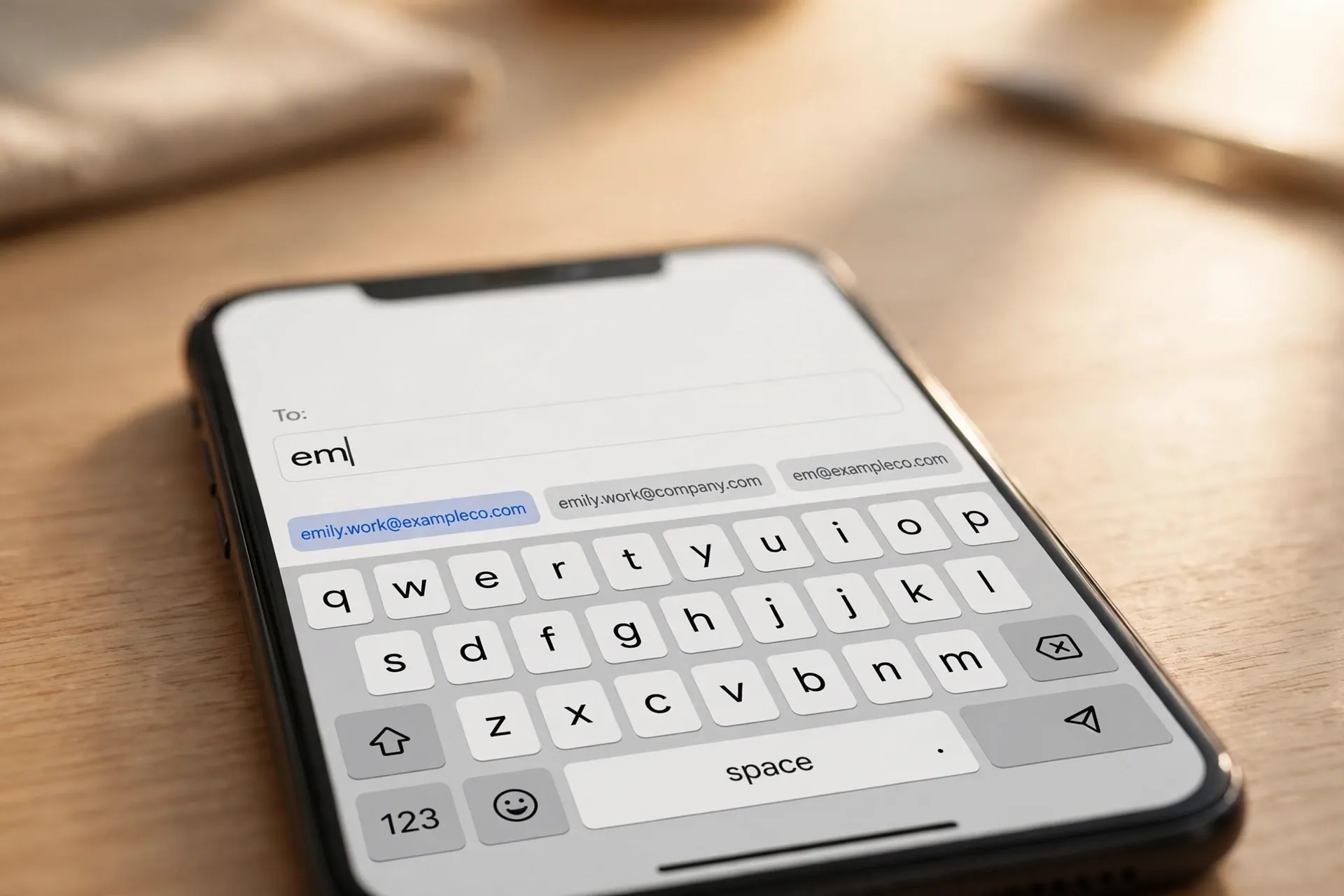
Count how many times you type your email address in a normal week. Checkout forms. New app sign-ups. That “can you send me your details?” message from someone you’ve never met. It’s one of the dullest typing jobs in your life — and it’s also one of the easiest to automate.

Your phone and your computer can turn a few typed letters into your full address, signature, or phone number. Type something like emw and the keyboard inserts your whole work email. Type sig and your sign-off appears. It’s called text replacement on iPhones and Macs, and a personal dictionary shortcut on Android. Almost nobody turns it on, which is a shame, because the setup takes about a minute and the time it saves you is permanent.
What text replacement actually does
The idea is simple: you teach your keyboard that a short trigger — a few letters you’d never type by accident — stands for a longer piece of text. Every time you type the trigger, the keyboard offers or inserts the full version. It works everywhere you type: messages, emails, web forms, notes apps, search boxes. It’s not autocorrect, and it’s not autofill — it’s your own private shorthand, defined once and usable everywhere.
Apple calls it Text Replacement. Google’s Gboard calls it a Personal Dictionary shortcut. The behaviour differs slightly between platforms, so here’s how each one works — start with the device you type on most.
On iPhone, it’s hiding in the keyboard settings
Open Settings → General → Keyboard → Text Replacement. Tap the + in the corner and you’ll see two fields: Phrase and Shortcut. Type the full text into Phrase — your email address, for example — and a short trigger like emw into Shortcut. Tap Save, and from now on, typing emw and a space expands it automatically.
A few things worth knowing. There’s already one preloaded on your phone: omw expands to “On my way!” Try it somewhere harmless to see the mechanism in action. Your replacements also sync to your iPad and Mac through your Apple ID, so you only set each one up once. And if you ever make a mistake, editing or deleting entries happens on the same screen — tap Edit at the bottom.
On Android with Gboard, it lives one level deeper
Open the keyboard anywhere, tap the gear icon, then go to Dictionary → Personal dictionary and choose your language. Tap the + in the corner: the top field is the full word or phrase, and the field below it is your shortcut. Save it and you’re done.
Gboard’s version behaves slightly differently from the iPhone’s, and honestly it’s the better design. Instead of replacing your shortcut automatically, Gboard shows the expanded text as a suggestion in the strip above the keyboard — you tap it when you want it, and ignore it when you don’t. That makes it safe to use short triggers without worrying about surprise replacements.
One more path to the same screen, in case your keyboard’s toolbar looks different: Settings → System → Languages & input → On-screen keyboard → Gboard → Dictionary → Personal dictionary. Samsung’s own keyboard has an equivalent feature in its settings, but Gboard is the default keyboard on most non-Samsung Android phones.
On a Mac, it’s the same list your iPhone uses
Go to System Settings → Keyboard and click Text Replacements. The + button adds an entry: the trigger goes in the Replace field, the full text in the With field. Because everything syncs through your Apple ID, anything you created on your iPhone is probably already sitting there.
The one honest caveat: text replacement on the Mac works in apps that support it — Apple’s own apps like Notes and Mail do, and many third-party apps do too, but some don’t. If a shortcut works in Notes but not in a particular app, that’s the app’s doing, not yours. In some apps you can enable it manually from Edit → Substitutions in the menu bar.
Windows has no system-wide version — but Office has one
Here’s the awkward truth: Windows doesn’t ship a built-in text expander that works everywhere. There’s no keyboard setting for it. But if you spend your typing life in Microsoft Word, Outlook, or OneNote, there’s an excellent substitute already waiting: AutoCorrect.
Open Word, type the text you want to expand, and select it with the mouse. Then go to File → Options → Proofing → AutoCorrect Options. Your selected text appears in the With field; type your trigger in the Replace field, make sure “Replace text as you type” is checked, and click Add. From then on, typing that trigger plus a space in Word (or Outlook, or OneNote) swaps in your full text.
The limitation is real: it works inside those Office apps, not in your browser or other programs. If you want true system-wide expansion on Windows, that means installing a dedicated text-expander utility — they exist and many are free, but give them a moment’s thought before installing. Anything that watches your keystrokes has enormous power over your typing, so it’s worth checking what an app actually collects before you tap install.
Shortcuts worth setting up on day one
Don’t try to build a library on the first sitting. Start with the three things you type most often under mild irritation:
Your email addresses. Work and personal get separate triggers — something like emw and emp. These alone will save you more time than everything else combined.
Your postal address and phone number. Delivery forms, account sign-ups, and anyone who asks “where should I send this?” become a four-keystroke job. A trigger like addr or hadd works well.
A signature or sign-off. If you end emails or messages with the same few lines, give them a trigger like sig1. Customer support agents, freelancers, and anyone who writes the same reply ten times a day live on this one.
After that, add shortcuts as the annoyance strikes you — the third time you type the same long technical term, the fifth time you paste the same meeting link. The best text-expansion library is the one built out of real irritation.
Three rules so your shortcuts don’t backfire
1. Never use a real word as a trigger. A shortcut like sig is fine; a shortcut like on is a disaster waiting to happen. Most people prefix triggers with a letter they’d never start a word with — an x at the front (like xem) makes collisions nearly impossible.
2. Test each one in a notes app first. Type the trigger, confirm the expansion, check the punctuation and capitalisation. A signature with a typo in it will faithfully reproduce that typo hundreds of times. You only want to discover that once.
3. Keep passwords out of it. It’s tempting to give your long password a shortcut, but text-replacement entries are stored in plain settings lists, synced to cloud accounts, and sometimes suggested to anyone glancing at your suggestion strip. Passwords belong in a password manager, never in a typing shortcut.
When the shortcut doesn’t fire
A few honest limitations. Some apps refuse to play along — banking apps and password fields often block keyboard features by design, and games or creative tools sometimes capture keystrokes before the keyboard ever sees them. On the Mac, a shortcut that works in Notes may silently do nothing in an unsupported app. And on the iPhone, replacements trigger on a space or punctuation mark; if you backspace mid-word or use swipe typing, the trigger may not register.
None of this makes the feature less useful — it just means you should give each new shortcut a quick test in the app where you’ll actually use it. And if you find yourself wanting to store longer reusable snippets, like whole paragraphs or addresses you also want easy access to, your clipboard history is the right place for those — shortcuts are for the things you type often enough that tapping two or three keys feels like the price of admission.
The whole thing takes less time than brewing a coffee: one settings screen, three or four shortcuts, and the dullest typing job of your week is gone for good. Check the Apps & Software section for more built-in features worth turning on.












