



You copy a link. Then you copy a tracking number. Then, when you go to paste the link, it’s gone — replaced by the tracking number, with no way to get the first thing back.

That one-slot amnesia is how the clipboard worked for decades. But on most of the devices people actually use today, it doesn’t work like that anymore. Windows and Android both keep a rolling list of everything you’ve copied recently, and you can reopen any of it with a keystroke or a tap. The catch: on many computers the feature is sitting there switched off, and on many phones it’s hiding inside the keyboard.
The clipboard used to forget. Now it keeps a short memory.
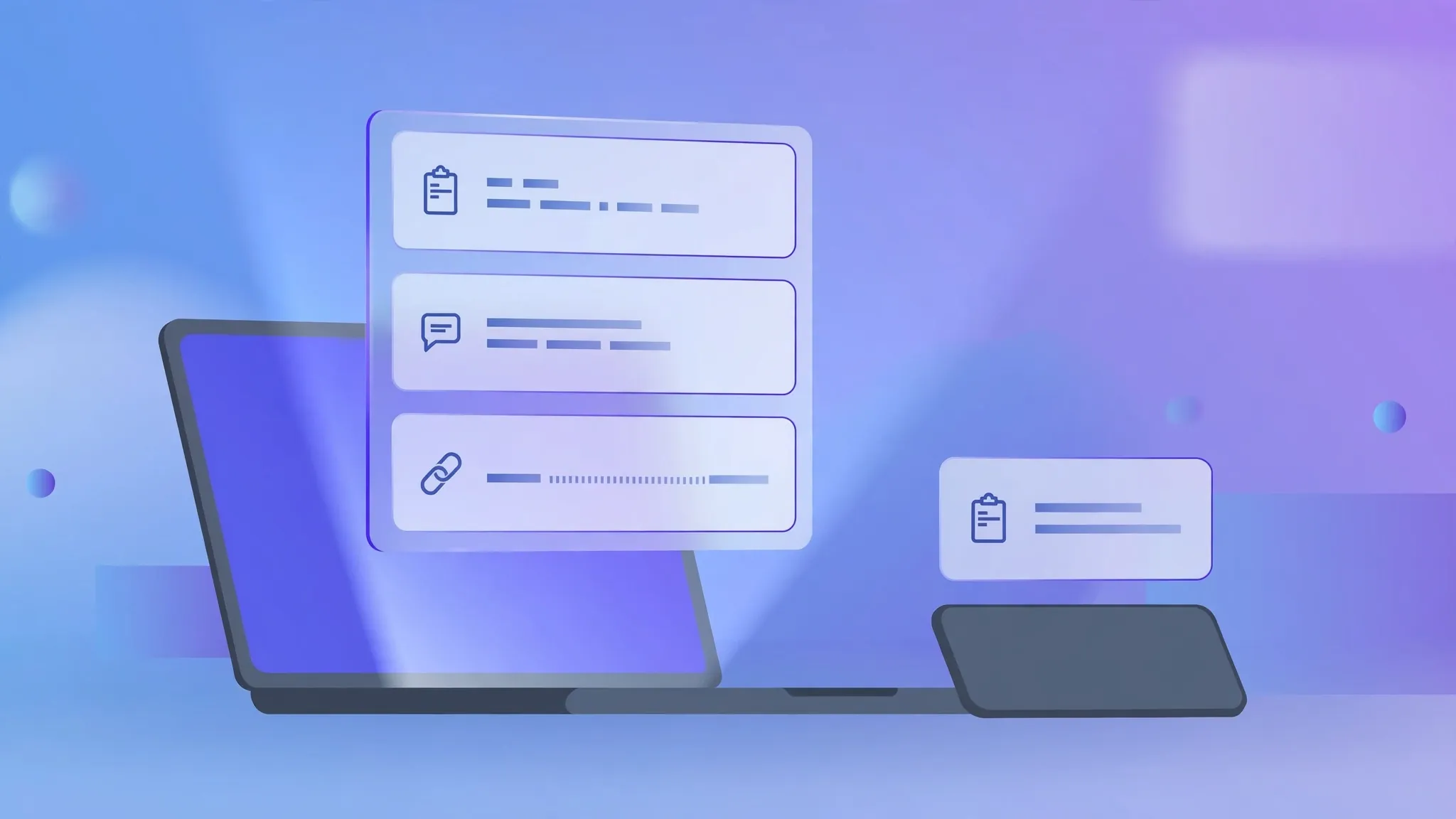
Clipboard history is exactly what it sounds like. Instead of holding only the last thing you copied, the device keeps a list of the last several things — text, images, links — and lets you pick which one to paste. It’s one of those rare features that changes a habit overnight: you stop treating every copy like a fragile object that must be pasted within seconds or be lost.
There’s a reason it never got much fanfare. It arrived quietly — in Windows 10 back in 2018, in Google’s keyboard not long after — and it never had a big launch moment. So most people carry on copying the old way: copy, switch apps, paste, go back, copy, switch, paste. The history feature turns that into: copy, copy, copy, switch, paste, paste, paste. If you regularly move several bits of text between apps — filling in forms, assembling a message from two sources, moving quotes into a document — that change is worth minutes a day.
On Windows, the whole trick is Windows key + V
Press Win + V right now. If clipboard history isn’t switched on, Windows will show you a small panel with a Turn on button. Click it once and you’re done — that’s the entire setup. From then on, every Win + V press opens the panel with your recent copies, and clicking any item pastes it into whatever you’re doing.
If the panel doesn’t appear, the switch also lives in Settings > System > Clipboard, under Clipboard history. Microsoft documents both routes on its Windows learning pages, and it works on Windows 10 and 11 alike.
Two details make it genuinely useful rather than just a longer memory:
Pin what you paste all the time. Hover over any item in the Win + V panel and you’ll see a pin icon. Pinned items stay put — they survive reboots, and they aren’t pushed out when newer copies arrive. Your home address, a standard email reply, a tracking link you paste all day: pin them once and they become a personal snippet shelf that opens in two keystrokes.
It handles more than text. Images and formatted content go into the history too, which means screenshots and copied pictures can be pasted back out of the panel the same way text can. And if you use more than one Windows PC on the same Microsoft account, the optional Sync across your devices toggle in the same settings page keeps your copied text travelling with you.
Clearing it is equally simple: open the panel with Win + V and hit Clear all (pinned items need unpinning first if you want them gone too).
On Android, your keyboard is already keeping the list
If you type with Gboard — Google’s keyboard, which ships as the default on Pixel phones and most others — the clipboard manager lives right in the keyboard toolbar. Tap the clipboard icon above the keys; the first time, you’ll be asked to switch the feature on. After that, everything you copy lands in that strip, and tapping a clip pastes it wherever you’re typing.
The mechanics mirror Windows closely. Touch and hold a clip to pin it — pinned clips stick around until you remove them, even through a restart. Unpinned clips are temporary by design: Google’s own in-app wording says they’re deleted after about an hour, which keeps the list from becoming a permanent archive of everything you’ve ever copied. You can also clear clips individually or wipe the whole thing.
One practical note: if your keyboard isn’t Gboard — Samsung phones ship with Samsung Keyboard by default, for instance — look for the same clipboard icon in the keyboard’s toolbar. Most major Android keyboards now carry their own version of this feature; it’s just that the toggle’s exact location moves around.
On iPhone, there is no history — so build your own
Apple is the odd one out. The iPhone has no built-in clipboard history anywhere. The system clipboard holds exactly one item, copying something new wipes the previous one, and a restart empties it. There is no clipboard app, no history screen, no Win + V equivalent — the only way to see what’s on the clipboard is to paste it somewhere.
The closest workaround is free and already on your phone: the Notes app. When you copy something you’ll need again, paste it into a dedicated note — a running “snippets” note works well. It’s manual, but for the handful of things people paste repeatedly (an address, a long email, a booking reference) it does the job, and it survives restarts and syncs through iCloud to your other Apple devices.
That cross-device angle is where Apple’s clipboard actually shines. Universal Clipboard lets you copy on one Apple device and paste on another — copy an address on your iPhone, paste it into a document on your Mac. It needs both devices on the same Apple ID with Wi-Fi, Bluetooth, and Handoff switched on, and the devices nearby. It’s not history, but it removes one of the main reasons people want history: moving text between devices. It’s also a cleaner alternative to emailing files and snippets to yourself just to get them onto the other screen.
The five things worth pinning
Clipboard history earns its keep through repetition. Most people paste the same small set of things over and over without noticing: their full name and address, their email address, a standard greeting or signature block, a recurring link (a portfolio, a booking page, a price list), and whatever boilerplate reply their job runs on. Pin those — on Windows with the pin icon, in Gboard with touch-and-hold — and the daily copy-paste dance shortens noticeably.
It also helps with the “I need three things from three places” jobs. Filling in a job application or a support form from scattered sources becomes a collection task: copy the reference number, copy the address, copy the order ID, then go to the form and paste all three from the history. No more bouncing between tabs one copy at a time.
One thing worth knowing before you start saving everything
A longer clipboard memory means a longer trail of what you’ve copied. Passwords, one-time codes, card numbers, private messages — anything you copy can sit in that list. The habits worth building: never pin credentials, clear the history (Win + V → Clear all, or clear clips in Gboard) after pasting something sensitive, and on the iPhone trick, copy a blank space or any junk character to overwrite the single clipboard slot after pasting a password.
The cross-device sync options deserve the same pause. Windows can sync your copied text across PCs tied to the same Microsoft account, and Gboard offers clipboard sync across devices on your Google account. Convenient — but it means a copied password could land on a second device too. If you turn these on, know what they carry.
None of this is a reason to avoid the feature. It’s a reason to use the pin and the clear button deliberately, the same way you’d lock a drawer that holds both receipts and bank statements.
The clipboard spent decades as the most forgetful part of a computer. It’s worth the two minutes to give it a memory — most people find, within a day, that they can’t remember how they worked without it. There’s more of this kind of practical fine-tuning in the Apps & Software archive.












