



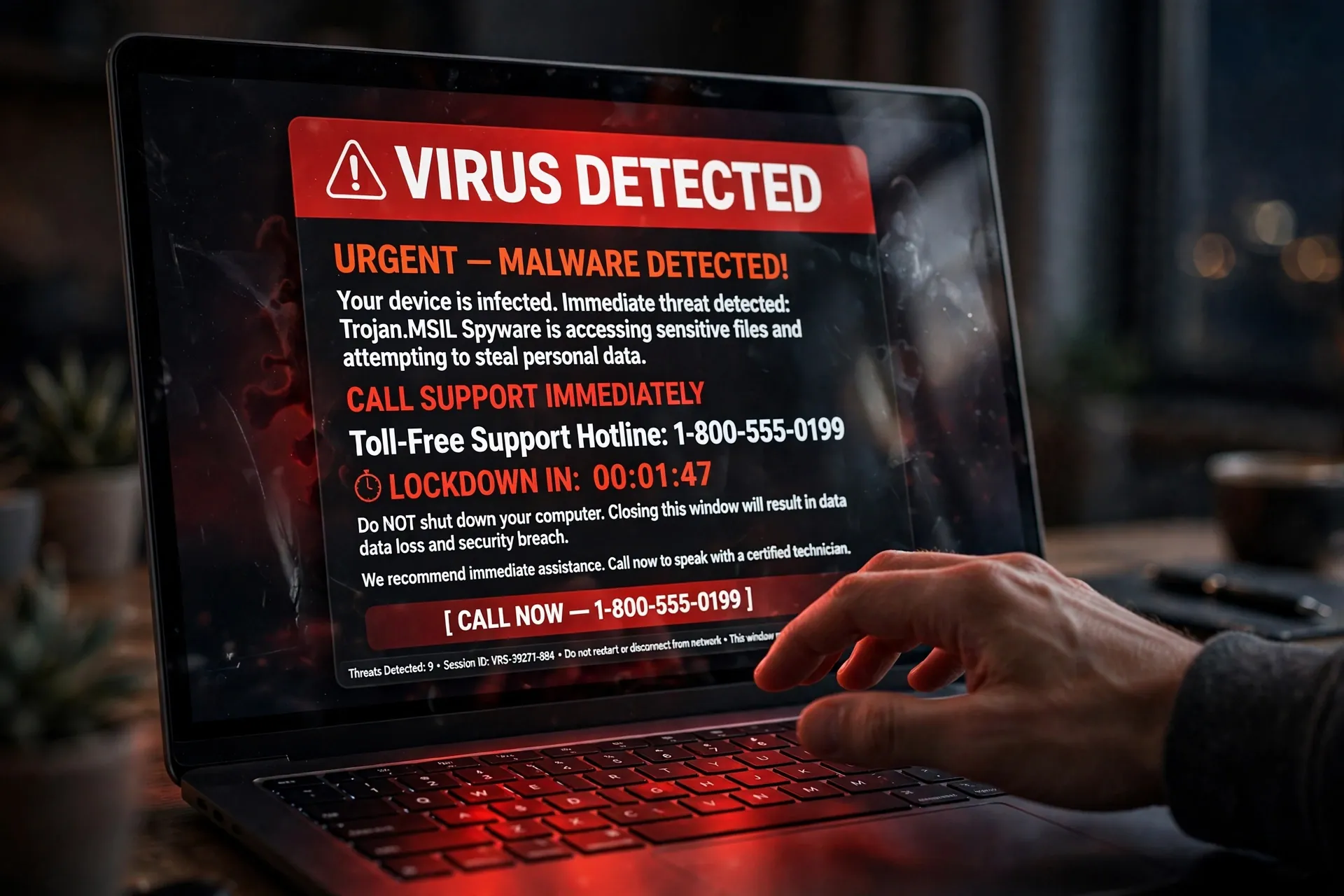
You’re reading the news, and suddenly your screen locks up. A full-screen warning in red says your computer is infected, your data is at risk, and you must call a toll-free number immediately — or your computer will be disabled in five minutes. Your heart rate spikes. Everything about the page screams official.

Here’s the thing no one tells you until it’s too late: the warning is the attack. Your computer is almost certainly fine. The pop-up is a trap designed to look like your rescue, and the phone number on it leads to a scammer.
How the scam actually works
It starts with a pop-up you can’t seem to close — often after clicking an ad, a misleading download link, or a typo’d website address. The page fills the screen with scary language: “VIRUS DETECTED,” “Security alert,” “Your computer has been blocked.” There’s always a phone number, and always urgency.
If you call, someone answers claiming to be from Microsoft, Windows Support, or some official-sounding security department. They’ll walk you through “diagnosing” your computer — which usually means opening perfectly normal system tools and pointing at routine entries as if they were proof of infection. Then comes the pitch: a one-time cleanup fee, or a security subscription. Then payment, often by credit card. And often, they’ll ask you to install remote-access software so they can “fix” the machine — at which point they can see everything on it, or install real malware while pretending to remove the fake kind.
Why it looks so convincing
These pages borrow the visual language of the companies you trust — Windows logos, blue-and-white layouts, lock icons, technical-sounding error codes. The countdown timer is the oldest trick in the book: it short-circuits your thinking by making you feel you have no time to think. When your screen appears “locked,” that’s usually just the web page going full-screen, not your computer being controlled.
Scammers also impersonate the companies behind your antivirus or browser. Microsoft has had to state the obvious repeatedly, because the scam keeps working: their name carries exactly the authority the scammer is borrowing. A random page in your browser has no idea what your antivirus thinks — but your brain sees the logo and assumes it does.
The one detail that gives it away
Microsoft’s guidance on this is refreshingly blunt: real error messages from Microsoft never include a phone number. Not sometimes — never. If a warning tells you to call a number, it is not from Microsoft, no matter how official it looks.
The same logic applies to everyone else. Real security warnings come from software already installed on your computer — your antivirus, your operating system — not from a web page you just landed on. A website cannot scan your computer for viruses, no matter what the pop-up claims. And no legitimate company will ever cold-call you to say they’ve detected a problem with your device. If you didn’t ask them for help first, they won’t call.
What to do in the moment
Don’t call the number, don’t click anything on the page, and don’t download whatever it suggests. The FTC’s advice for exactly this situation is simple: if you get a pop-up telling you to call a number to fix a virus, ignore it.
Just close the browser tab. If the page resists closing, press Alt + F4 on Windows (Microsoft recommends exactly this) to close the browser window outright — on a Mac, Command + Q quits the browser. If everything is truly frozen, restart the computer. When the browser reopens, decline the offer to restore the previous tabs; that just reloads the scam page.
Still worried something might actually be wrong? Check with your own security software — the antivirus you installed yourself — and run a scan. That software reports through its own window, not through a browser pop-up. If it says you’re clean, you are, and you can get on with your day.
If you already called or paid
First, uninstall anything they asked you to install — remote-access tools are the big one — and then run a full scan with your real antivirus to make sure nothing else came along for the ride. If the computer keeps showing fake warnings or behaves oddly, a full reset is worth considering; it’s tedious, but it guarantees a clean slate.
Change your passwords, especially for email and banking, since remote access may have exposed them. If you paid by card, call your card provider, explain what happened, and contest the charge — they’ll likely cancel and replace the card, which stops the scammer from charging it again. And it’s worth knowing the broader playbook for what to do after your details have been exposed, since the response steps are the same whether data leaks from a breach or a scammer’s screen.
Report it, too. Microsoft takes reports of these scams at microsoft.com/reportascam, and the FTC collects them at ReportFraud.ftc.gov. Reports are how the pages and numbers get taken down.
Watch out for the phone-call version
Not every version starts with a pop-up. Some begin with an unsolicited call: “We’re from Windows support, and we’ve detected a virus on your computer.” Same script, same goal. Hang up. Microsoft says it plainly — if you didn’t contact them first, they won’t be calling you about your device. This is the same family of trick as calls demanding your bank details or a one-time password; no legitimate caller pressures you into handing over sensitive information on the spot.
And a payment detail worth remembering: Microsoft says it will never ask you to pay for support in the form of gift cards or cryptocurrency. If anyone claiming to be tech support asks for either, that is the entire scam laid bare in a single sentence.
Share this one, not later
This scam works because it targets the moment you’re scared, not the moment you’re thinking. The people most at risk are the ones least likely to know that a browser pop-up can’t scan a hard drive — parents, grandparents, anyone who still assumes a phone number on an official-looking page is a real support line.
The fix is a thirty-second conversation: real warnings never include phone numbers, closing the tab kills the scare, and nobody from tech support will ever call you first. Pass it on to the person in your family who’d be most likely to call the number. More everyday protection like this lives in our Online Safety section.













Comments 1