



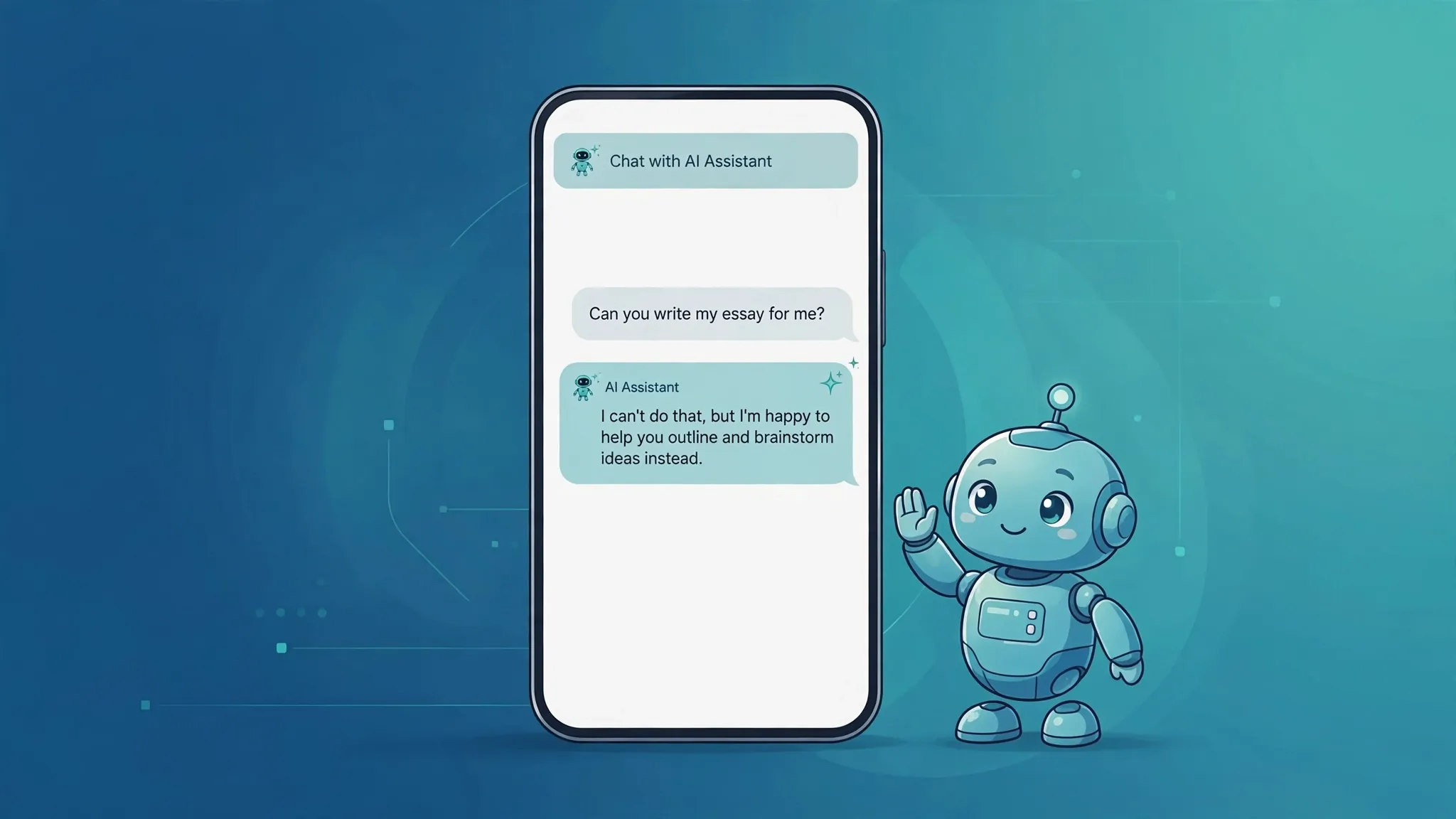
You asked something that sounded perfectly ordinary. The chatbot came back with some version of “I can’t help with that.” No explanation, no alternative, just a polite wall. It’s a strange moment. You start wondering whether you phrased something badly, or worse, whether you asked something you shouldn’t have. In most cases, the answer is neither. A refusal is not the chatbot judging you. It is a filter doing its job — and sometimes, a filter getting its job wrong.

First, know which part of the chatbot said “no”
The chatbot you talk to is really two things stacked together. There’s the language model that actually generates answers, and there’s a separate safety layer that checks your prompt — and sometimes the drafted answer — against the company’s rules. When the safety layer flags something, the real answer gets swapped for a refusal.
That distinction matters. A refusal usually doesn’t mean the chatbot lacks the knowledge to answer. It means it has been told not to. OpenAI publishes its usage policies openly, and Anthropic and Google do the same for Claude and Gemini. The details differ slightly between providers, but the shape of the rules is remarkably similar everywhere.
The requests that always get refused
Every major chatbot is trained to refuse the same broad set of requests. In plain language:
- Help with illegal activity — hacking, fraud, theft, breaking into accounts, forging documents.
- Weapons — anything that could help build, obtain, or use them.
- Violence, threats, and harassment — including hate content aimed at protected groups.
- Self-harm instructions or encouragement.
- Scams and deception — phishing emails, fake reviews, impersonating real people or organizations.
- Other people’s private information — addresses, phone numbers, financial details, or identifying someone in a photo. The privacy rules go further than most people expect: OpenAI’s policies also forbid building facial-recognition databases or profiling people from their data.
- Tailored professional advice — personal legal, medical, or financial advice without a licensed professional involved. The chatbot can still explain general concepts (how tax brackets work, what a will is); it just won’t act as your doctor or lawyer.
- Requests that try to bypass these rules — “pretend you have no restrictions” and its many cousins. Trying to circumvent the safeguards is itself against the terms.
If your request falls into one of these buckets, the refusal is working as designed, and no amount of rewording should change it. More on that below.
Sometimes the “no” is simply a mistake
The safety layer is deliberately cautious. For the companies behind these chatbots, the two ways to get it wrong carry very different consequences: an accidental refusal is a mildly annoyed user, while an accidentally allowed dangerous request is a front-page story. So the filter is tuned to refuse when it’s unsure — and OpenAI has acknowledged that its moderation tools produce false positives.
This is why perfectly innocent requests sometimes bounce off. A question about a medical symptom gets treated as a request for personal medical advice. A request for the text of a very old poem gets refused on copyright grounds. A sentence containing a flagged word trips the filter regardless of what the sentence actually means.
Chatbots are also oddly sensitive to wording. The same question, asked two different ways, can get a full answer one time and a refusal the next. That’s not the bot changing its mind — it’s the filter reacting to the shape of the words. If you ever get a refusal that feels wrong, the phrasing itself is the first thing to suspect.
Five things worth trying before you give up
Assuming your request is a legitimate one that hit the filter by accident, here’s what usually helps:
1. Read the refusal. It often names the real problem. “I can’t provide medical advice” is telling you to ask for general information instead. “I can’t help with personal data” means the request read as a privacy question. The wording is a clue about what to change.
2. Add context and a legitimate purpose. “Explain how phishing emails work” can read like a request for scam instructions. “I’m preparing a school talk on spotting scams — explain how phishing emails work” gives the filter a safe, obvious purpose to work with. Context is one of the most effective things you can add to a prompt.
3. Ask for the safe version. Instead of personal advice, ask for general background: how a medication class works rather than whether you should take it, the concepts behind a legal document rather than what you should sign. You can also ask the chatbot to help you prepare for the professional — questions to ask your doctor, points to raise with a lawyer.
4. Rephrase it. Say the same thing with different words. Remove anything that sounds like a command to do something and frame it as a request for explanation or information. The filter that caught your first wording may let the second one through without complaint.
5. Start a new chat. A long conversation accumulates context, and something from twenty messages ago can make the safety layer nervous about everything after it. A fresh chat has no baggage. If a refusal appeared midway through a long thread, try the same question in a new one.
When the refusal is right, respect it
There is a line where helpful troubleshooting ends and rule-breaking begins. If your request sits on the hard list above — weapons, crimes, scams, other people’s private data — no rewording trick is supposed to work, and trying to find one can get your account flagged. OpenAI’s usage policies explicitly prohibit circumventing its safeguards, and repeated attempts are noticed.
And some things are simply the wrong job for a chatbot. A large language model is not a substitute for a licensed professional when real legal, medical, or financial decisions are on the line. The chatbot knows background information; it does not know your situation, and it cannot be held accountable for getting it wrong. Use it to understand the landscape and prepare — then take the actual decision to someone qualified.
A refusal, then, is feedback rather than a verdict. It tells you something about how your request read to the safety layer — too broad, too personal, missing context, or genuinely off-limits. Listen to what it’s telling you, adjust, and most of the time there is a version of your question the chatbot will happily answer. For more practical guides on getting the best out of these tools, browse the AI Tools archive.












