



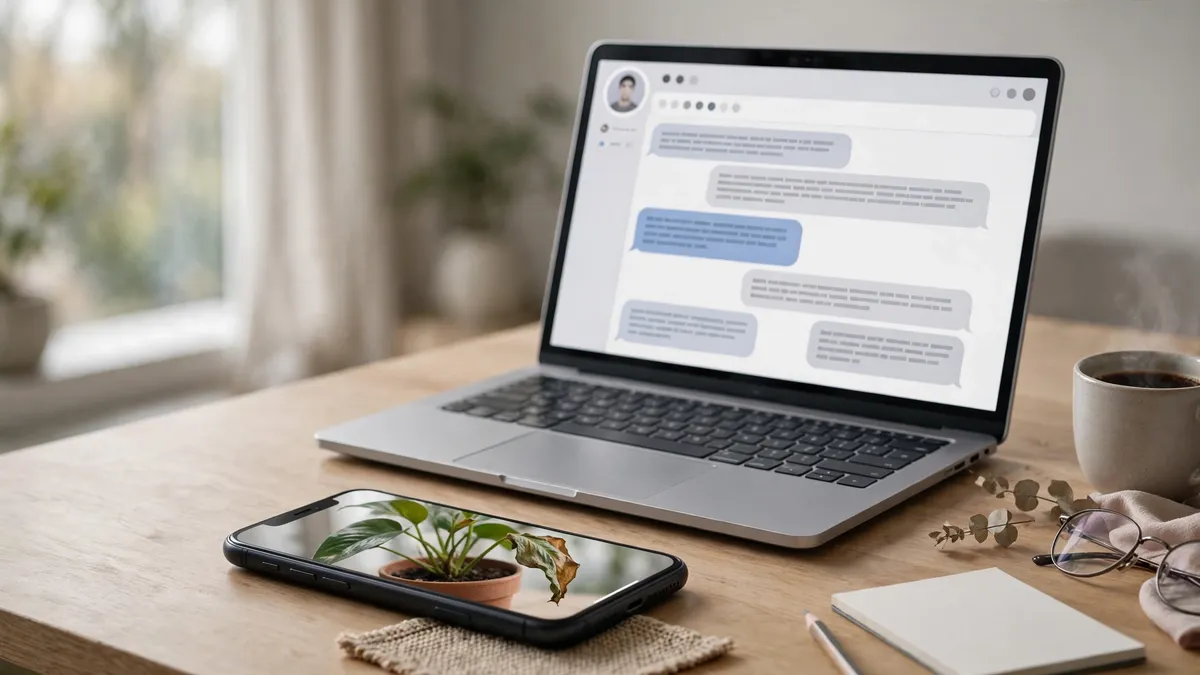
Some questions are painful to type. “There’s a warning light on my washing machine, it’s kind of a triangle with…” — by the third sentence you have described the thing badly and the chatbot has guessed confidently at the wrong problem. There is a shorter route: take a photo of the warning light and ask about that instead.

ChatGPT, Gemini and Claude can all look at images now, not just text. You attach a photo, a screenshot or a picture of a document, and ask your question about what is actually in front of you. It sounds like a small change, but it removes the weakest step in most chatbot conversations — you, trying to translate something visual into words.
Adding a photo takes about ten seconds
In ChatGPT, tap or click the + icon next to the message box and choose Add photos & files. You can also drag an image file straight into the chat window, or paste one you have copied. It works on the website and in the iOS and Android apps, and OpenAI says all of its current models accept image inputs. Supported files are PNG, JPEG and non-animated GIF, up to 20 MB per image.
Gemini works the same way through its Add files option. Google allows up to 10 files in a single prompt — photos alongside documents, spreadsheets or other files — with most file types accepted up to 100 MB. Claude likewise accepts images attached to a message and will discuss what it sees.
One boundary worth knowing: ChatGPT’s image input handles still pictures only, not video. If the thing you want explained is moving, take a clear still frame or a few screenshots instead.
The jobs a photo genuinely does better
Error messages and warning screens. A screenshot carries the exact wording, the error code and the button you are afraid to press — details people almost always leave out or mistype. Ask “what does this message mean and what should I click?” and the answer starts from the real screen, not your summary of it.
Labels, plates and instruction panels. The model plate on the back of an appliance, the wash symbols on a clothing label, the wiring diagram inside a fuse box cover. Photograph it and ask what a specific line or symbol means, instead of retyping tiny print.
Charts and documents on paper. A photo of a chart, a timetable or a printed letter can be read back, summarised or explained in plainer language. This is a close cousin of handing the chatbot a file directly — if you have the document as a PDF rather than on paper, uploading the document itself usually gets a cleaner result than photographing the page.
“What is this thing?” questions. A connector you found in a drawer, an unfamiliar tool, a plant with yellowing leaves, a part that fell off something. A photo plus “what is this and what is it for?” is a reasonable first step — as long as you treat the identification as a lead to check, not a verdict.
Comparing two things side by side. You can add more than one image to a conversation, and add further images later. Two product photos, a before-and-after, or the same room from two angles can all be discussed together, which is awkward to do in words alone.
Asking in a way that gets a better answer
The photo does half the work. The question does the rest.
Point at the part you mean. OpenAI itself suggests marking up the image before you upload it — circle the warning light, arrow the valve, highlight the row of the table. A circled detail gets a focused answer; an unmarked wide shot often gets a tour of everything except the bit you care about.
Make the text in the picture readable. Move closer, enlarge small print, and keep the image the right way up. OpenAI notes that rotated or upside-down text is easily misread, and Anthropic warns that low-quality or very small images produce mistakes. Cropping tightly helps readability — just do not crop away the context that tells the model what it is looking at.
Ask it to read first, interpret second. “First tell me exactly what text you can see in this screenshot. Then explain what it means.” That two-step request exposes misreadings before they turn into advice, because you can spot a wrong error code in the transcript even if you could not have typed it yourself.
Say what you will do with the answer. “I need to decide whether to call an engineer or try a reset first” produces a more useful reply than “explain this,” because the model can aim at a decision instead of writing an essay.
Where it still guesses — and guesses smoothly
Image understanding has sharp edges, and both OpenAI and Anthropic publish them openly.
Counting is approximate. Both companies say so in almost the same words. Ask how many screws, people or chairs are in a crowded photo and expect a plausible estimate, not a count — especially with lots of small objects.
Precise positions are shaky. Tasks that need exact spatial localisation — which square a chess piece sits on, exactly where two lines cross on a graph — are a known weakness. Graphs cause a related problem: OpenAI warns the model can struggle where solid, dashed and dotted lines or colour changes carry the meaning.
Some shapes and alphabets trip it up. Panoramic and fisheye photos may be misdescribed, and text in non-Latin alphabets, such as Japanese or Korean, is handled less reliably than English text. A translated menu is a fine starting point; a translated legal notice deserves a second check.
There are questions it will not — and should not — answer. Claude will not name people in photos. ChatGPT’s image feature is not suitable for interpreting specialised medical images such as CT scans, and Anthropic says the same of Claude for complex diagnostic scans. And no chatbot can reliably tell you whether an image is AI-generated: Anthropic states plainly that Claude cannot determine this, so do not use one as a fake-photo detector.
When an answer from a photo would be expensive or risky to get wrong, verify it the way you would any chatbot answer — check the claim against a source that did not come from the model before acting on it.
Before you upload a photo of your own life
A photo can carry more than you intended to share. Screenshots grab notification banners and open tabs at the edges. Photos of documents show addresses, account numbers and signatures. Pictures of your home can include letters on the table, faces, and location clues baked into the scene.
Crop to the part the question is actually about, and leave out anything the chatbot does not need — faces of other people, full addresses, complete account or card numbers, QR codes and barcodes you would not read aloud to a stranger. If a conversation would be sensitive as text, it is just as sensitive as a picture; the same thinking behind checking what happens to what you share with a chatbot applies to images too.
Used with those limits in mind, the photo button is one of the most practical upgrades chatbots have had. You stop being the translator between the thing in front of you and the tool trying to help — you just show it the thing.












