



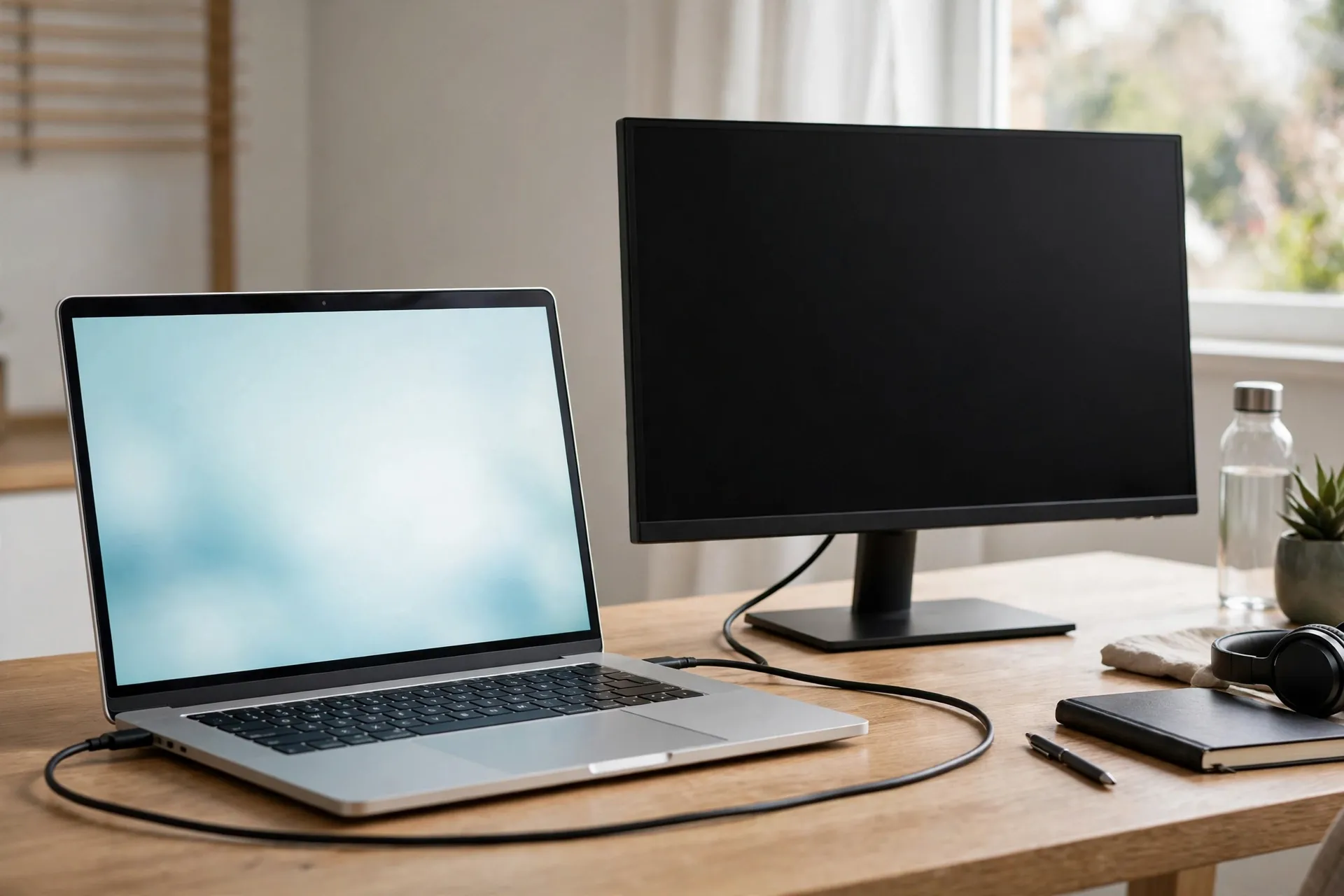
You plug the monitor in, wait for the familiar flicker, and get nothing. The second screen stays black, shows a brief “No signal” message, then sleeps — while your computer’s display settings insist there is only one screen in the room.

Resist the urge to start reinstalling things. In most cases this is not a broken monitor or a corrupted computer. It is one link in a short chain — monitor, input, cable, port, computer — quietly failing, and the fastest way to find it is to test the chain in order, cheapest check first.
First, work out which “not detected” you have
The monitor itself gives you the first clue, before you touch any settings.
If the screen shows “No signal” (or cycles through its inputs and gives up), the monitor is awake but nothing is arriving at the input it is watching. That points at the cable, the port, or the monitor being set to the wrong input.
If the monitor wakes, shows a picture briefly, or appears in your settings for a second and then vanishes, something is arriving — the connection is being made and then dropped. That points more at a loose or damaged cable, a dock in between, or a driver that keeps resetting.
And if the monitor never wakes at all — no message, no backlight — check its own power first: the power cable, the switch, and whether unplugging it from the wall for ten seconds and plugging it back in brings it to life. Microsoft suggests exactly that power reset for an external display that has stopped responding.
The monitor may be listening on the wrong input
Most monitors have several inputs — HDMI 1, HDMI 2, DisplayPort, sometimes USB-C — and not all of them switch automatically. If your cable is in HDMI 2 and the monitor is set to DisplayPort, you get a perfect black screen from a perfectly working setup.
Open the monitor’s own menu with its buttons or joystick and set the input manually to the port your cable actually uses. While you are in that menu, note the exact port name. It matters again in a minute when you check which port on the computer the other end is plugged into.
Strip the setup down to one cable
This is where Microsoft’s own troubleshooting starts, and it is worth doing literally rather than approximately: disconnect everything else.
Unplug docks, dongles, adapters and hubs, and connect the monitor directly to the computer with a single cable. Docks and adapters can cause conflicts, Microsoft notes, and every extra link is one more thing that can fail silently. If the monitor appears when connected directly, you have found the culprit — reconnect the dock afterwards and the problem will usually return with it, which tells you the dock, its cable, or its power supply needs attention, not the monitor.
With the direct connection in place, push each end of the cable firmly in. DisplayPort and USB-C in particular can look seated when they are a millimetre short. Then swap the cable for a different one if you have one. Cables fail more often than either of the devices they connect, and Microsoft’s guidance is blunt about the test: if the new cable works, the old one was faulty.
If the computer has more than one video output — HDMI and USB-C, for example, or two HDMI ports on a desktop — try the other port as well. Typical outputs include HDMI, DisplayPort, VGA and DVI, and a single dead port will produce exactly this symptom while everything else works.
On Windows: ask it to look again, in this order
Check the projection mode first. Press Windows logo key + P and make sure Extend (or Duplicate) is selected, not PC screen only. On PC screen only, Windows is deliberately ignoring the second display, and no amount of cable-swapping will change that.
Then use Detect. Go to Settings → System → Display, scroll to Multiple displays and select Detect. Windows will go looking for a display it may have missed when the cable went in.
Then restart the graphics driver. Press Windows logo key + Ctrl + Shift + B. The screen flickers and you may hear a beep — that is Windows resetting the graphics driver without a full restart. Microsoft recommends this shortcut for setups that were working and suddenly stopped.
If none of that helps, restart the computer properly (Start → Power → Restart), and if a restart changes nothing, shut it down completely, wait a few seconds, and switch it back on. Leave the monitor connected and switched on while you do it, so the computer meets it during start-up.
On a Mac: the Detect button is hiding
macOS has the same “look again” command, but it only appears when you ask for it the right way.
Open Apple menu → System Settings → Displays. Now press and hold the Option key: the Detect Displays button appears in place of the Night Shift button. Click it.
If the Mac still does not recognise the display, Apple works through the same physical list: unplug the display and plug it back in, make sure the display is turned on, make sure the cable is securely connected to the correct port, and make sure you are using the correct cable and, if you need one, the correct adapter. Putting the Mac to sleep and waking it again is also on Apple’s list — it forces a fresh handshake with everything attached.
The USB-C trap: a port that fits is not a port that carries video
If you are connecting over USB-C and nothing above has worked, this is the explanation nobody warns you about: not every USB-C port carries video, and not every USB-C cable does either.
USB-C is a shape, not a promise. For a monitor to light up over that connection, the port needs to support DisplayPort Alt Mode (Thunderbolt ports do), and the cable needs to support video as well — a thin charge-only cable will happily power a laptop all day and never carry a picture. If either end lacks that support, there is no signal to detect, and the setup fails in complete silence.
So check the specifications for your exact model rather than guessing from the shape of the socket. On a Mac, Apple points you to Apple menu → System Settings → Help → [your Mac’s name] Specifications, then Display Support or Video Support, which also tells you how many external displays that Mac can drive at all. On Windows laptops, the manufacturer’s spec page for your model will say whether the USB-C port lists DisplayPort or video output — if it lists only data and charging, use the HDMI or DisplayPort socket instead, or a proper dock designed for that machine.
If it stopped working after an update, suspect the driver
A setup that worked yesterday and stopped after a Windows update is a different problem from a setup that has never worked. For that one, Microsoft’s advice is to deal with the display driver — and to make sure Windows itself is up to date before you start.
To roll back to the previous driver: search for Device Manager on the taskbar and open it, expand Display adapters, right-click your adapter and choose Properties → Driver → Roll Back Driver. If there is no roll-back option, reinstall instead: in Device Manager, right-click the adapter, choose Uninstall device and Attempt to remove the driver for this device, then Uninstall. Restart if prompted, open Device Manager again, right-click the adapter and choose Update driver → Search automatically for updated driver software.
Write down any steps you still need before a restart that will blank your screens. It sounds obvious until you are staring at a black monitor trying to remember step four.
Limits that look exactly like faults
Two setups will never work no matter how good the cable is, and knowing them saves an afternoon.
A splitter is not a second output. If you are using a display splitter to feed two monitors, Microsoft is clear: the splitter duplicates the same signal instead of creating two independent signals. Both screens can light up, but they will always show the same picture — it cannot extend your desktop.
One video output means one external monitor by default. If your device has only one video output port, it supports a single external monitor unless you add a docking station or a suitable USB adapter. The same applies at the graphics end: some display adapters simply cannot support more than one external monitor, and on a Mac the limit is set by the model — which is why Apple’s specifications check above is worth doing before you buy a second screen, not after.
The swap test that ends the guessing
If you have worked through the chain and the screen is still dark, stop changing settings and start swapping parts, one at a time:
Connect the same monitor and cable to a different computer. Connect a different monitor (or a TV) to your computer with the same cable. Connect your monitor to your computer with a different cable.
Whichever combination fails tells you where the fault lives. A monitor that shows “No signal” on two computers is a monitor problem. A computer that cannot light two different monitors has a port, driver or video-output problem. A setup that works with one cable and not another has already given you its answer. Microsoft recommends the monitor-on-another-system test for exactly this reason: it isolates whether the issue is with the monitor or with the computer, instead of leaving you changing settings on both.
Once the second screen does appear, take thirty seconds to arrange it properly in the same display settings page — drag the two rectangles so they match where the screens actually sit on your desk, and choose which one is the main display. It stops the mouse vanishing off the wrong edge, and it pairs well with learning to move between the screens quickly — your trackpad’s multi-finger gestures were designed for exactly this kind of two-screen working. For more fixes in this vein, browse the rest of the Tech How-To section.












