



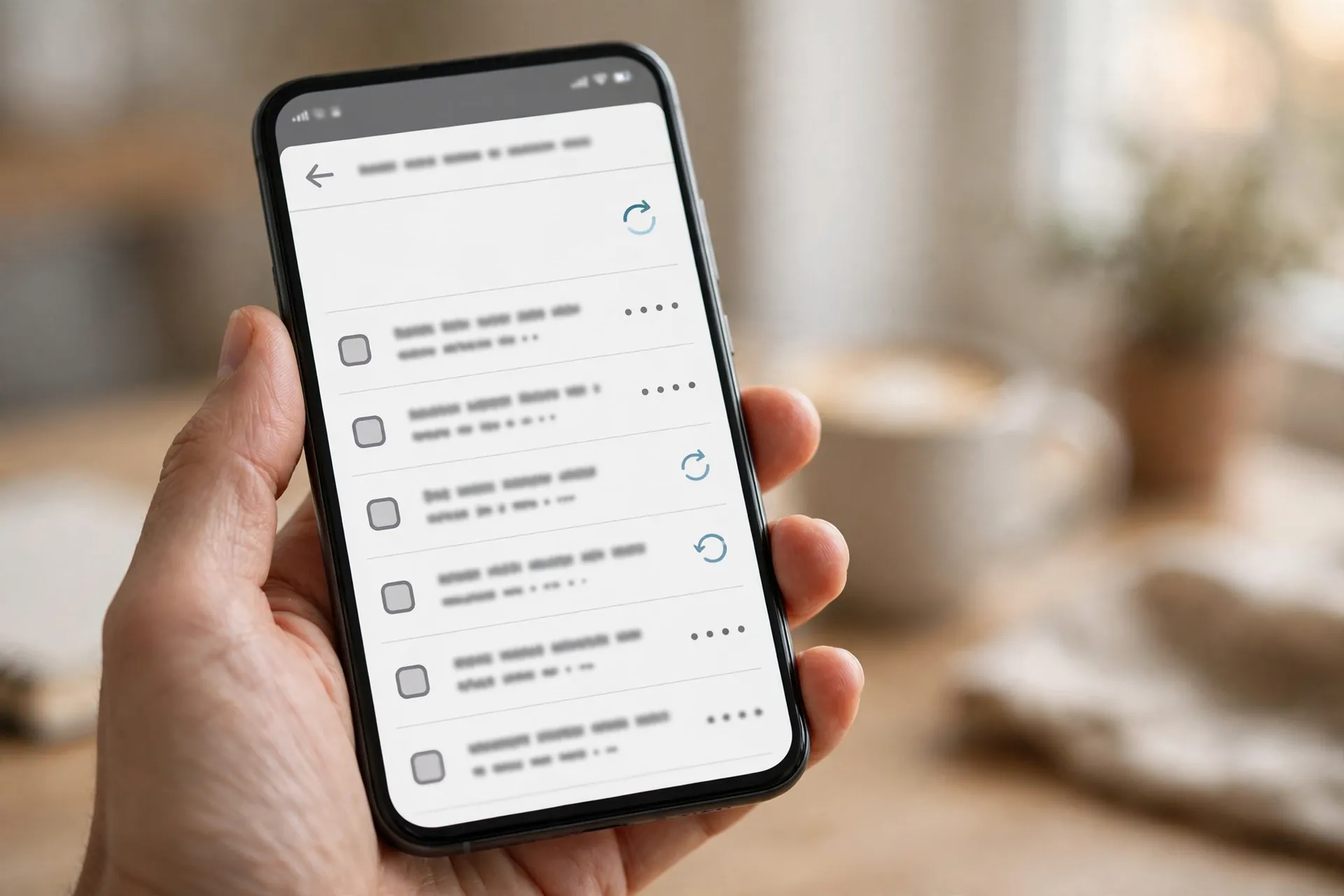
You tapped “buy” on the wrong app. Or a free trial you forgot about just charged you for a full year. Your first instinct is probably to write the money off — app store purchases feel final, like food you have already eaten. They are not. Both Apple and Google have proper refund processes, and if you act quickly, your odds are genuinely good.

Here is how it actually works, on both stores, and what to do when you are outside the easy window.
The first thing to know: it is the store’s decision, not the app’s
When you buy an app, your payment goes to Apple or Google first, not to the developer. That matters, because it means refunds for store purchases are handled by the store — not by whoever made the app. So do not start by emailing the developer or leaving an angry review. Go to the store that billed you.
The two stores handle this differently, though. Apple routes everything through its own refund system, no matter how long ago the purchase was. Google gives itself a clear 48-hour window — inside it, Google decides; outside it, the developer does. Knowing which lane you are in saves you from arguing with the wrong party.
On iPhone or iPad: one website handles all of it
Apple’s entire refund process lives at reportaproblem.apple.com. It works in any browser, on your phone or your computer:
- Go to reportaproblem.apple.com and sign in with the Apple ID that made the purchase.
- Find the charge in your purchase history.
- Click Report a Problem (or Request a Refund) next to it.
- Pick the reason that honestly matches your situation — options include “I didn’t mean to buy this” and a purchase made by a child without permission.
- Add a short, honest explanation and hit Submit.
Apple usually gives you a decision within 48 hours, and an approved refund goes back to your original payment method. A few honest caveats: Apple reviews every request case by case, and there is no published guarantee. Requests made within a day or two of the charge, explained plainly, do far better than ones filed weeks later or padded with exaggeration. And be honest about the reason you pick — claiming a purchase was unauthorised when you simply forgot to cancel a trial is the kind of thing that gets future requests denied.
On Android: Google gives you 48 hours — do not waste them
Google’s policy is refreshingly explicit. For apps, games and in-app purchases, you can request a refund through Google itself within 48 hours of the purchase. Here is the route:
- Open the Play Store app and tap your profile picture.
- Go to Payments & subscriptions, then Budget and order history.
- Find the purchase and tap Request a refund (or Report a problem).
- Pick a reason from the dropdown, add a brief explanation, and submit.
Google usually decides within a few days, and the money typically appears back in your account within 3 to 5 business days, depending on your bank. One quirk worth knowing: if you uninstall a paid app very soon after buying it — within a couple of hours — Google can refund it automatically, no form needed.
Once the 48 hours pass, though, Google steps back. Refund requests go to the app’s developer, who decides under their own policy. You will find the developer’s contact details on the app’s Play Store listing under “Developer contact” — include your order number (it starts with GPA and sits in your email receipt) and keep the message short and polite.
When the official window has closed
Do not give up at the first “no” — you have more options than the headline policy suggests.
On the App Store, there is no published cutoff at all. Apple’s refund page lets you file requests for older purchases too, and each one is judged on its own merits. A genuine mistake explained honestly still stands a chance weeks later; it just stands less of one.
On Google Play, an older purchase means writing to the developer. Many developers would rather refund you than fight a chargeback or a one-star review — give them the order number, say what happened, and ask plainly.
One case both stores take more seriously: a purchase that was genuinely unauthorised — someone used your account without your permission. Google has a dedicated unauthorised-charge form, and Apple lists “I didn’t authorise this purchase” as a refund reason. That is a different, stronger lane than “I changed my mind.”
And if you are in the UK or EU, one more thing the stores do not advertise loudly: consumer law can give you up to 14 days to cancel digital purchases you have not started using. It does not apply to everything, and the stores will not volunteer it — but it is real, and it is worth knowing.
A refund is not the same thing as cancelling
This is the mistake people make most often. Getting your money back for this month’s charge does not stop next month’s charge. A refund request and a cancellation are two separate actions, and for subscriptions you need both.
So after — or before — filing the refund, cancel the subscription itself. On iPhone: Settings, tap your name, then Subscriptions. On Android: Play Store, tap your profile, then Payments & subscriptions, then Subscriptions. If you have lost track of what you are even subscribed to, this walkthrough of finding and cancelling forgotten app subscriptions covers both platforms step by step.
Make this a once-in-a-while problem, not a habit
Nobody plans to buy the wrong app. But four small habits make the whole category of problem rarer:
Act within a day or two. Speed is the single biggest factor in whether a refund is approved. If you spot a bad charge, file the request now, not “later this week.”
Check before you buy. A surprising number of refund requests start with an app that never did what the buyer expected. Thirty seconds on the listing — including the app’s privacy label, which tells you what data it collects before you install — prevents a surprising number of regrets.
If you have kids, switch on Ask to Buy. Apple’s Family Sharing feature routes every purchase or download a child starts to your phone for approval. It is the single most effective cure for the “my child bought £300 of game gems” story, and it takes a minute to enable in Settings under Family.
Set a reminder when a free trial starts. The single most common refund request in existence is “I forgot to cancel the trial.” The trial email, the calendar alert, the note on the fridge — pick whichever you will actually notice, and set it for two days before the trial ends.
The refund button exists because everyone does this eventually — the stores know it better than anyone. So the next time your thumb outruns your brain, do not write the money off. Go and ask for it back.












