



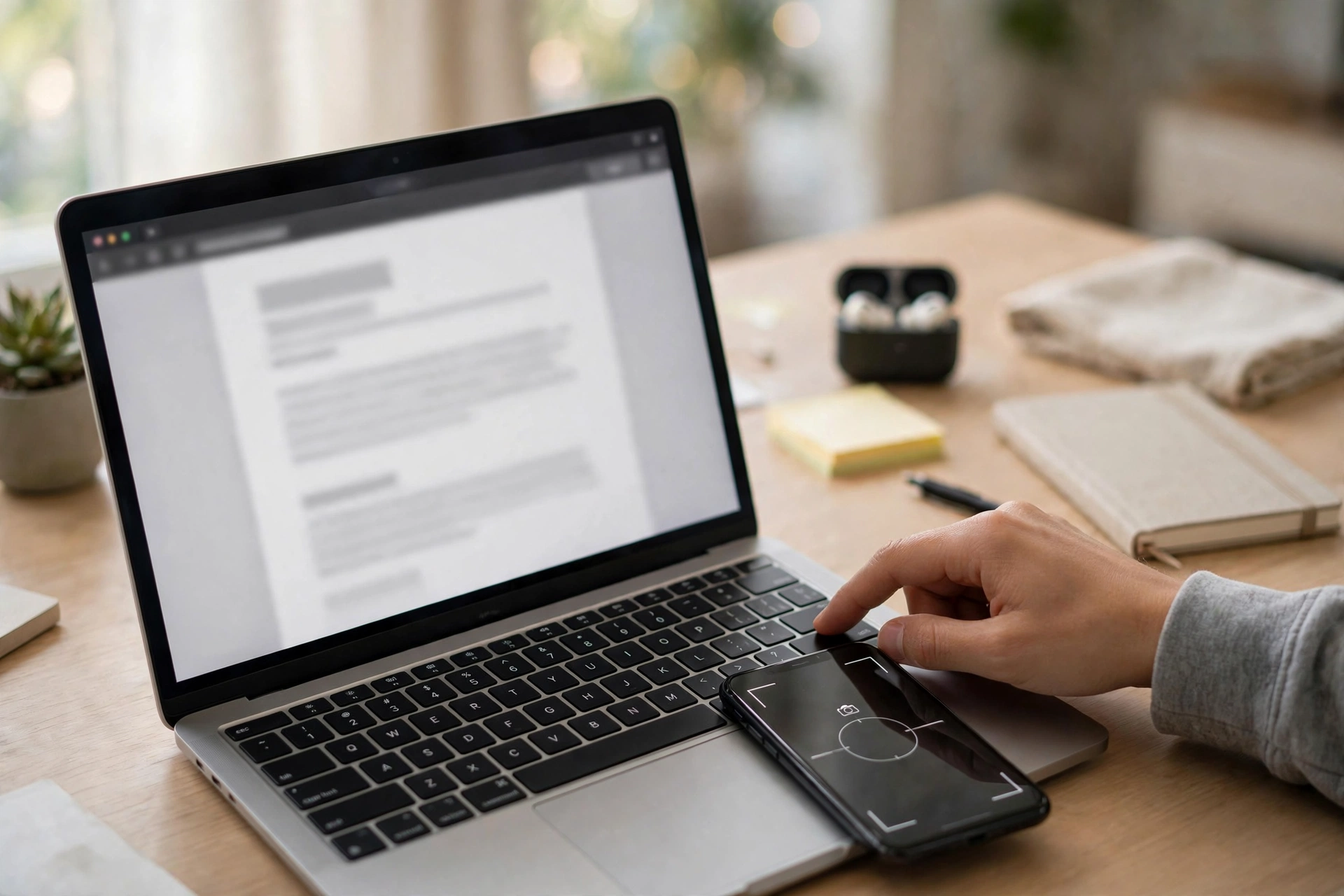
If you’ve ever held your phone up to your monitor to “capture” something on screen, you already know how bad the result looks — glare, moiré lines, crooked framing, half the text unreadable. And yet people do it every day, because the alternative feels like something only tech support knows.

It isn’t. Every device you own — Windows laptop, Mac, iPhone, Android phone — has a built-in way to capture its own screen cleanly, in one or two key presses. No apps to install, no subscriptions. Here’s the shortcut for each device, plus the tricks most people never discover: full-page captures, window-only shots, and where the files actually end up.
On Windows: Win + Shift + S is the one to remember
Hold the Windows key, Shift, and S together. Your screen dims, and a small toolbar appears at the top with four options: rectangle (draw a box), freeform (draw a shape), window (click an app window), and full-screen.
The capture goes straight to your clipboard, and a notification appears in the bottom-right corner. That’s the part people misunderstand: the screenshot is not saved as a file yet. It’s sitting on your clipboard, ready to paste into an email, chat, or document with Ctrl + V.
If you actually need a file, click that notification. It opens the image in the Snipping Tool editor, where you can crop and annotate, then save it with Ctrl + S. Ignore the notification and you’ll lose the easy route to a file — the clipboard forgets.
Three more Windows tricks worth knowing:
- Win + PrtScn captures the whole screen and saves it automatically as a PNG in Pictures > Screenshots. Watch for the brief screen flicker — that’s your confirmation.
- Alt + PrtScn captures only the active window, straight to the clipboard. Handy when a screen full of tabs isn’t what you want to share.
- Need to capture a menu before it disappears? Open the Snipping Tool, set the delay (3, 5 or 10 seconds), then open the menu and wait — the tool captures after the timer ends.
And if you press the PrtScn key on its own, recent Windows 11 builds open the Snipping Tool overlay directly. You can change that mapping under Settings > Bluetooth & devices > Keyboard (“Use the Print screen key to open screen capture”).
On Mac: 3 for everything, 4 for a selection, 5 for the works
Mac screenshots follow a tidy pattern — Command + Shift + 3, 4, or 5:
- Cmd + Shift + 3 — captures the entire screen and saves it as a PNG on your Desktop.
- Cmd + Shift + 4 — the cursor becomes a crosshair; drag to capture any area. Press the Space bar instead and the cursor becomes a camera: click any window to capture just that window. Hold Option while clicking and macOS drops the usual drop shadow.
- Cmd + Shift + 5 — opens the Screenshot toolbar with all of the above plus a timer and a choice of where to save the file (Desktop, Documents, Clipboard, or another folder).
Two details people miss. First, a thumbnail appears briefly in the bottom-right corner after every capture — click it to crop, annotate, or share before the file is saved. Second, adding Control to any shortcut copies the screenshot to the clipboard instead of saving it. So Ctrl + Cmd + Shift + 4 lets you drag a selection and paste it straight into a message, no file cluttering the Desktop.
For a whole webpage, macOS’s tools stop at the visible screen — they don’t scroll. Safari can export a page as a PDF (File > Export as PDF) when you need the full length instead.
On iPhone: two buttons, then tap the thumbnail
On iPhones with Face ID: press the Side button and Volume Up together, then release quickly. On models with a Home button: press Home and the Side (or Top) button together.
A thumbnail slides in at the bottom-left. Tap it before it vanishes and you get Markup — crop, draw, add text, or blur out anything sensitive. Swipe it away and the screenshot simply saves to Photos. Everything ends up in Photos > Albums > Screenshots.
The iPhone’s hidden gem is full-page capture. Take a screenshot while viewing a webpage in Safari, a long note, or a PDF, tap the thumbnail, and switch to the Full Page tab. It captures the entire scrollable length as a PDF — one reason a single-screenshot habit is worth breaking.
If button gymnastics aren’t your thing, two alternatives exist: assign a screenshot to Back Tap (Settings > Accessibility > Touch > Back Tap, then set double- or triple-tap), or just ask Siri to take one.
On Android: power and volume, plus the scroll trick
On nearly every modern Android phone, press Power + Volume Down at the same time and release. A confirmation animation appears, and the screenshot is saved — usually into a Screenshots album in Google Photos or your gallery app. (Some older Samsung models use Home + Volume Down instead.)
Android’s best-kept secret is scroll capture. After taking a screenshot of a long chat, article, or receipt, look for a “Scroll” button on the preview toolbar — on Samsung phones it’s labeled “Scroll capture.” Tap it and the phone stitches the page downward, letting you capture the whole thing in one tall image. On Pixels the button appears in the screenshot toolbar the same way.
Not every app cooperates: banking apps and some streaming apps show a black screen in screenshots, by design. That’s the app’s security policy, not a bug.
When the screenshot has vanished
The most common screenshot complaint isn’t the capture — it’s “I took it, where did it go?” The answer depends on the device:
- Windows Snipping Tool: Win + Shift + S puts it on the clipboard, not in a folder. Paste it somewhere immediately, or click the notification to save it. Win + PrtScn is the one that creates a real file in Pictures > Screenshots. If screenshots are just one of many things piling up on your machine, knowing where your downloads go helps too — files have a habit of landing anywhere.
- Mac: check the Desktop first. If you’ve ever changed the save location with Cmd + Shift + 5, the files are wherever you told them to go.
- iPhone and Android: open Photos, then the Screenshots album. It’s the one place every screenshot ends up, even ones you meant to delete.
A side note on that last point: screenshot albums accumulate fast — order confirmations, QR codes, memes, random snaps. On Android, before screenshots start quietly eating your storage, it’s worth checking what’s hogging space.
Before you share one, clean it up
Screenshots are evidence — of your open tabs, your contacts, your bank balance. Before sending one anywhere, crop out everything that isn’t the point of the image. On iPhone the Markup thumbnail does this in seconds; in the Snipping Tool editor on Windows, crop first and save second.
Blurred isn’t always safe either: a half-redacted card number or a visible address bar can still identify you. When in doubt, crop wider than you think necessary. And remember that your screenshot library is sensitive — before you sell or hand over an old phone, screenshots of logins, QR codes and banking apps are part of what needs wiping, not just photos and contacts.
The camera stays in your pocket from now on. Two keys — or two buttons — and the screen captures itself perfectly. Learn the one for the device you use most, try the scroll capture on the next long page, and set a save location you can actually find again.












