



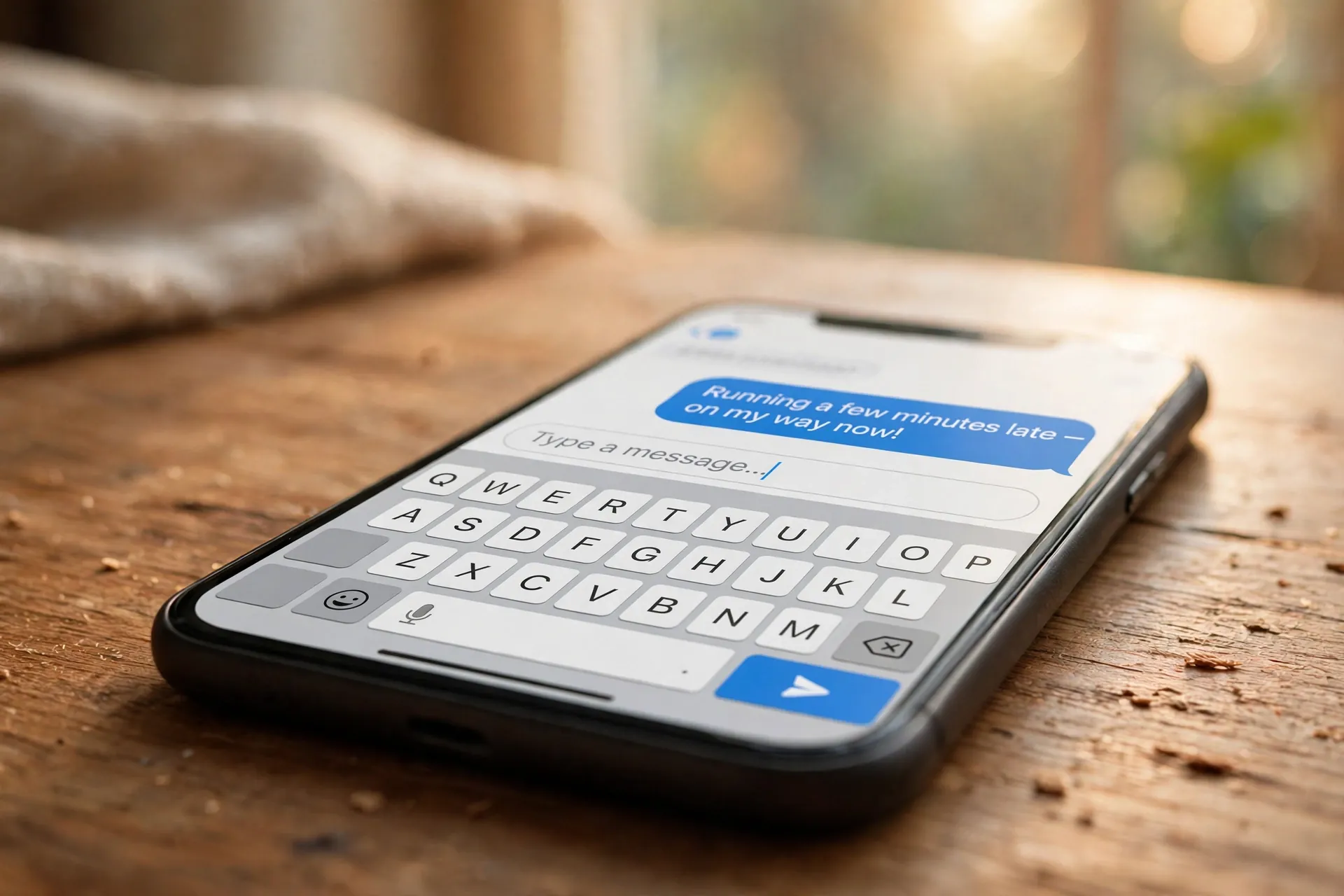
Picture the scene: you’re halfway through cooking dinner, hands covered in flour, when a message arrives that needs a real reply. Or you’re walking to the bus stop and need to send a two-paragraph email before you forget what you wanted to say. Thumb-typing on a phone screen in those moments is miserable — slow, full of typos, and somehow always autocorrected at the worst possible moment.

There is a button that fixes all of this, and it has been sitting on your devices for years. A microphone icon, right on your keyboard or one keyboard shortcut away, that turns everything you say into written text. Most people have seen it, many have tapped it by accident, and almost nobody uses it on purpose. That’s a shame, because voice typing — or dictation, as Apple calls it — is one of the most genuinely useful features your phone and computer already have.
The microphone button is already on every device you own
Before we get into the details, here’s the short version of where to look:
- iPhone: a microphone icon on the on-screen keyboard (once you switch one setting on)
- Android: a microphone at the top of the Gboard keyboard
- Windows: the Win + H shortcut, pressed while your cursor is in a text box
- Mac: the Microphone key in the function row, or Edit > Start Dictation in any app
It works in almost any app with a text field — messages, email, notes, documents, search bars. You tap the button, speak normally, and your words appear as text. Here’s how to set it up properly on each one.
iPhone: one toggle adds the mic button
On an iPhone, open Settings > General > Keyboard and make sure Enable Dictation is turned on. That’s the entire setup. From now on, a microphone icon appears on your keyboard in any app where you can type.
To use it, tap inside a text field, tap the microphone, and start talking. Tap the microphone again — or just stop talking for a while — when you’re done. Since iOS 16, the keyboard stays on screen while you dictate, so you can tap and correct a word mid-sentence without stopping the dictation. There’s also an Auto-Punctuation toggle on that same Keyboard settings screen, which inserts commas and full stops for you when it’s on; leave it off and you’ll need to speak your punctuation out loud (more on that in a moment).
Android: it’s on the keyboard you already have
If you use Gboard, Google’s keyboard, the microphone sits at the top of the keyboard. Open any app where you can type, tap the text field, then tap the microphone icon. When you see “Speak now,” say what you want written. Tapping the microphone again stops it.
If your keyboard doesn’t have a microphone icon, you may be using your phone manufacturer’s own keyboard — installing Gboard from the Play Store is the quickest fix, and Google’s own help pages walk through exactly these steps.
One bonus worth knowing: on a Pixel 6 or newer, Gboard’s voice typing is smarter than average. Punctuation gets added automatically as you speak, and you can use spoken commands like “delete last word,” “send,” or “stop” without lifting a finger. Google says the text you speak stays on your device unless you use its “fix it” editing features.
Windows: the shortcut nobody told you about
This one surprises people the most. On Windows 10 or 11, click anywhere you can type — a Word document, an email, a browser search bar — and press Win + H. A small voice-typing bar appears at the top of your screen. Wait for it to say “Listening…” (speaking before that alert means your first words get dropped), then just talk.
Two things to know: you’ll need a working microphone and an internet connection, because Microsoft’s support pages confirm voice typing uses online speech recognition to convert your words. To stop, say “Stop listening” or click the microphone button on the bar. And don’t miss the settings gear on the bar itself — switching on Auto punctuation means you can speak naturally without dictating every comma, and there’s a launcher option that opens the voice-typing bar automatically whenever you click into a text box. Keyboard shortcuts like this one are easy to forget, so add it to the small collection of genuinely useful ones.
Mac: press a key, talk, done
On a Mac, first make sure Dictation is switched on in System Settings > Keyboard > Dictation. Then, in any app, click where you want the text to go and press the Microphone key in your function row. No Microphone key? Use whatever dictation keyboard shortcut you’ve set instead, or go to Edit > Start Dictation in the menu bar.
You’ll hear a tone or see the cursor start pulsing — that’s your signal to speak. On a Mac with Apple silicon, you can keep using the keyboard while you dictate, fixing typos as they appear without stopping. Press the shortcut again or hit Escape to finish. Apple’s own support documentation confirms you can say punctuation and formatting commands out loud, just like on the iPhone.
Five spoken words worth learning
Whichever device you use, voice typing gets dramatically better the moment you learn the punctuation commands. Say these words and they turn into punctuation instead of being typed out:
- “Period” or “full stop” — .
- “Comma” — ,
- “Question mark” — ?
- “New line” — drops to the next line
- “New paragraph” — starts a fresh paragraph
Try dictating this sentence: “Sounds good comma see you at seven question mark new paragraph don’t be late period.” You’ll get: “Sounds good, see you at seven?” followed by a new paragraph starting “Don’t be late.” It feels odd the first two times, then becomes second nature.
Where talking beats typing — and where it doesn’t
Voice typing earns its place in a few specific situations: replying to messages while your hands are busy, drafting long emails faster than you can type them, taking notes during a walk, or any time the thought in your head is fully formed but your thumbs can’t keep up. Some people simply think in spoken sentences, and for them it’s the most natural input method there is.
But it has honest limits. It mishears proper nouns, unusual names, and lookalike words — always read back anything important before you send it. It’s a poor choice in a noisy room, and an even poorer one on a quiet train, where the whole carriage becomes your audience. And it can’t read your mind about formatting: a carefully structured document still needs your fingers.
One more thing worth knowing: if the app you’re talking to is an AI chatbot rather than a regular text field, most AI chatbots now have their own voice mode — that’s a different feature from dictation, one that holds a spoken conversation instead of simply transcribing your words.
A quick word on privacy
It’s worth knowing what happens to your voice. On Windows, voice typing uses online speech recognition, which means audio goes to Microsoft’s servers to be converted into text — the company says it doesn’t store or listen to recordings without your permission, and there’s a separate opt-in for contributing voice clips to improve the service. On iPhone, the Keyboard settings screen has an About Dictation & Privacy link that spells out Apple’s approach in plain language. Google’s advanced voice typing on Pixel keeps what you say on the device. The practical rule of thumb: don’t dictate passwords, card numbers, or anything else you’d be uncomfortable saying out loud in the room you’re sitting in.
The microphone button on your keyboard is one of those features that quietly waits for the day you actually need it — and once you try it for a real message instead of a test sentence, it tends to stick. If you’re the kind of person who saves time with keyboard tricks, setting up text shortcuts for the phrases you type over and over pairs nicely with it: dictate the long message, let the shortcut handle the repetitive bits. Your thumbs will thank you.












