



Most people do not have a password problem. They have a memory problem. There are dozens of accounts, each one asking for something long and complicated, so the same familiar password gets used again and again — maybe with a number changed at the end. It feels harmless because it works. The trouble starts the day one of those sites loses its password list.

When a site is breached, the leaked usernames and passwords do not stay with that site. They get tried, automatically and at scale, against email, banking and shopping accounts. Security teams call this credential stuffing, but the plain version is simpler: one leak becomes the key to every other account that shares the password. That is why a password manager matters. It is not really about having stronger passwords. It is about having a different one everywhere, without having to remember any of them.
What a password manager actually does all day
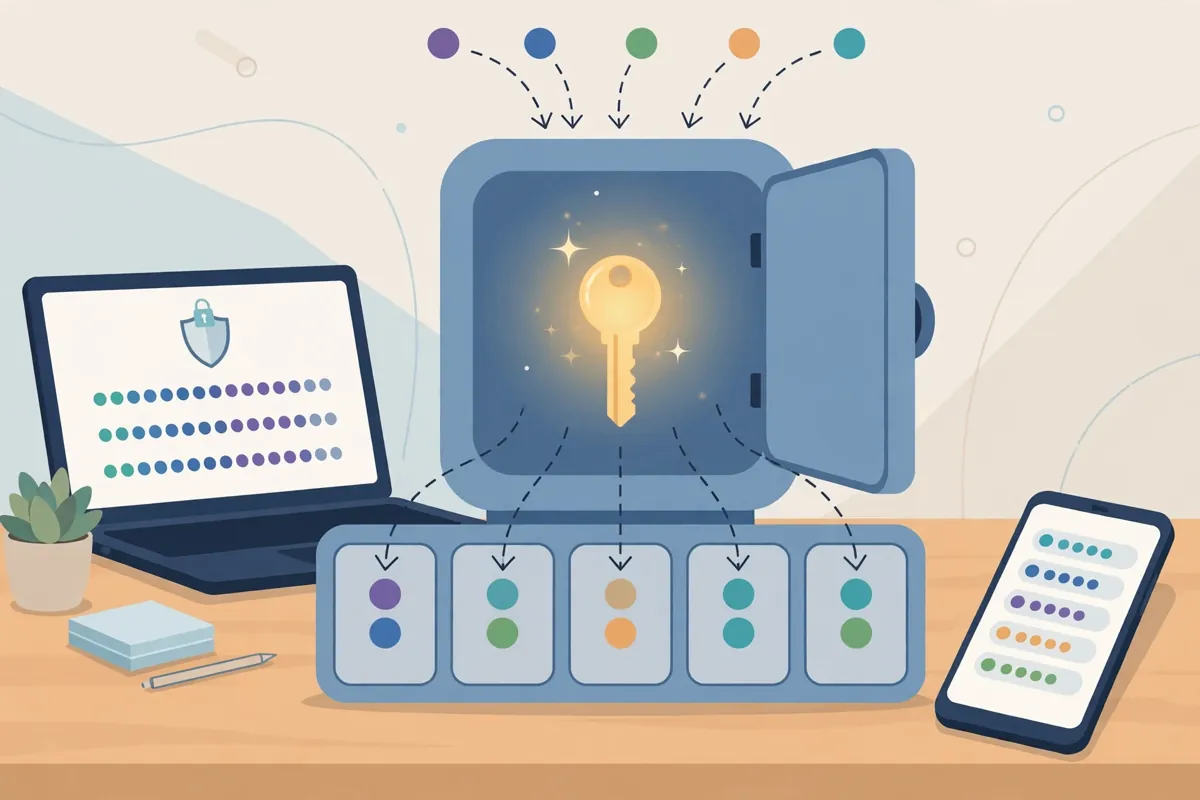
A password manager is a small, locked store for your logins. It creates a new, random password when you sign up somewhere, saves it, and fills it in for you next time you visit. You never need to see most of these passwords, let alone type them.
The United States Cybersecurity and Infrastructure Security Agency (CISA) puts the benefit plainly in its guidance for the public: because remembering a long, random and unique password for every account is not realistic, a manager does the generating, storing and filling instead. It also warns you when a saved password is weak or has been reused across sites. In return, there is exactly one password you still have to remember properly — the one that unlocks the manager itself.
That trade is the whole point. Instead of fifty weak variations of the same idea, you end up with fifty unrelated passwords and one strong passphrase of your own.
The good news: you probably already have one
There is no need to go shopping first. The phone and browser you use every day almost certainly include a password manager already:
- Google Password Manager is built into Chrome and Android and tied to your Google Account. It saves logins, suggests strong ones, and can fill them across signed-in devices.
- Apple’s Passwords app and iCloud Keychain do the same job across iPhone, iPad and Mac. Apple notes that Keychain can autofill usernames, passwords, passkeys and security codes on devices you approve, and that the data is protected with end-to-end encryption. Turn it on under Settings, tap your name, then iCloud, then Passwords, and switch on sync for the device. Two-factor authentication needs to be on for your Apple Account first.
- Microsoft Edge includes a password manager with a feature called Password Monitor, which checks your saved passwords against a database of known leaked passwords and flags any that are no longer safe to use.
A dedicated password manager app can suit people who mix phones, computers and browsers from different makers, or who want to share selected logins with family. But for most readers, the built-in manager is the right place to start. CISA makes the same point: some managers are free, including the ones built into browsers, and the important step is using one at all.
Start with the checkup, not with changing everything
Before changing a single password, ask the manager what state things are in. Both Google and Microsoft will sort your saved logins into useful piles.
In Google Password Manager, open Chrome, go to More, then Passwords and autofill, then Google Password Manager, and choose Checkup. Without Chrome, go to passwords.google.com and select Go to Password Checkup. Google groups the results into passwords that have been exposed in known breaches, passwords that are weak, and passwords used on more than one account.
In Edge, the equivalent lives under Settings, then Passwords and autofill, then Microsoft Password Manager, then Password security check. On an iPhone, open the Passwords app and look at its security recommendations, which surface the same kinds of problems.
Do not try to fix the whole list in one sitting. That is how this job usually gets abandoned. Work through it in a sensible order instead.
Fix the important accounts first, in this order
Start with email. Your inbox is the reset button for nearly everything else, so it gets the first unique password. If you have not already, work through the thinking in our guide to what to do after a data breach for any account the checkup marks as exposed — those jump the queue.
Next, banking and payment accounts. Give each one the manager’s suggested random password and let the manager remember it.
Then the everyday accounts — shopping, social media, forums, the lot. Change a few at a time, whenever you next sign in to each one. Within a few weeks, without a single heroic weekend of admin, the reused password quietly disappears from your life.
One habit makes all of this stick: when a site offers to let the manager generate the new password, accept it. A generated password you never have to type can be as long and random as the site allows, which is exactly what you want.
The one password you still have to remember
The manager itself needs a master password, and this one deserves real care. Make it a passphrase: four or five unrelated words strung together, something you can picture but nobody could guess. Length does most of the work here. It should be a password you use for the manager and absolutely nowhere else.
Write it down on paper and keep that paper somewhere sensible at home while it settles into memory. That sounds old-fashioned, but a sheet of paper in a drawer cannot be phished, breached or guessed by a programme trying millions of combinations. Once you know it by heart, the paper can go.
Protect the manager the way you would protect email. Turn on two-factor authentication for the account behind it — your Google Account, Apple Account or Microsoft account — and save the recovery options it offers. This is where backup codes are the spare keys to your accounts: generate them, store them offline, and a lost phone stops being a lockout.
Where passkeys fit into this
You may have noticed sites offering a passkey instead of a password. A passkey is a newer kind of login that lives in the same managers discussed above, unlocks with your face, fingerprint or device PIN, and cannot be phished or reused elsewhere. We explain the details in our piece on passkeys, the login phishing can’t steal.
When a site you trust offers a passkey, take it. It is one fewer password to worry about. For everything that still asks for a password, the manager remains the safety net — and the two sit happily side by side in the same app.
A calmer way to think about all of this
Nobody’s accounts become secure in an afternoon, and they do not need to. The reused password is the risk; removing it account by account is the fix. Begin with the checkup you already have, give email and banking their own passwords today, and let the rest follow as you sign in over the coming weeks. The manager remembers everything. You remember one good passphrase. That is a fair division of labour.












