


• About
  • Contact
  • Privacy Policy
  • Terms & Conditions
  • Disclaimer
  • Cookie Policy
Superdova.com
Advertisement
  • AI Tools
  • Internet Guides
  • Tech How-To
  • Apps & Software
  • Online Safety
No Result
View All Result
  • AI Tools
  • Internet Guides
  • Tech How-To
  • Apps & Software
  • Online Safety
No Result
View All Result
Superdova.com
No Result
View All Result
Home AI Tools

Does Your AI Chatbot Remember You? Here’s How AI Memory Actually Works

Amit by Amit
September 23, 2026
in AI Tools
3
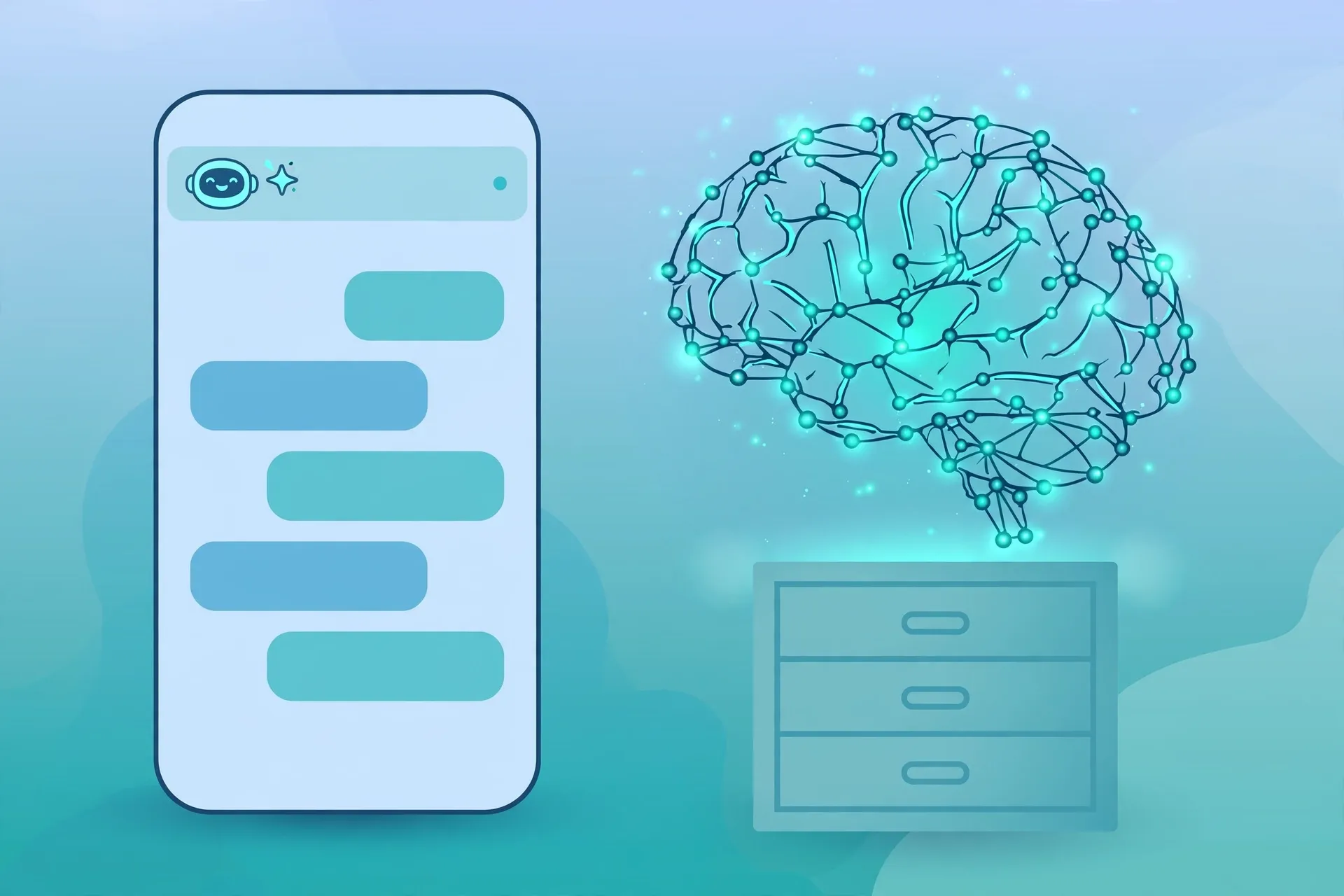
Illustration of a smartphone showing an AI chat conversation beside a glowing brain-shaped network of nodes over a filing drawer, symbolising how chatbots remember
0
SHARES
4
VIEWS
Share on FacebookShare on Twitter

It happens like this: you open ChatGPT one evening to ask for dinner ideas, and it suggests something vegetarian — because you mentioned, weeks ago, that you were cutting back on meat. You never asked it to file that detail away. It simply did.

That slightly uncanny moment is AI memory at work, and it is worth understanding properly. Because “memory” in a chatbot is not one thing. It is three different things, each with its own rules — and you are in control of all of them.

Table of Contents

Toggle
  • First, the memory inside a single conversation
  • Then there is what it keeps between conversations
  • How to see what’s stored — and take charge of it
  • When you want a genuinely clean slate: temporary chats
  • What it won’t remember — and what it gets wrong

First, the memory inside a single conversation

Start with the simplest kind. Everything you type in one chat stays visible to the chatbot for the rest of that chat. That is why you can say “make it shorter” or “now do the same thing for Tuesday” and it knows what you mean. It is reading back over the whole conversation each time it answers.

This memory ends at the edge of the chat. Open a brand-new conversation and, as far as this layer is concerned, it is a blank slate: it does not pull in what you discussed yesterday. (The other two layers can — that is where the confusion starts.)

One honest limitation: in a very long conversation, the chatbot can start losing the thread of things said near the beginning. If a long chat starts giving answers that ignore earlier details, starting a fresh chat often fixes it.

Then there is what it keeps between conversations

This is the part most people bump into without realising it. ChatGPT, for example, has a memory system that carries certain details across chats, and it works in two distinct ways.

The first is saved memories. If you tell ChatGPT “remember that I prefer short answers,” it will usually reply with a small “Memory updated” note, and that detail gets stored separately from your chat history. From then on, new conversations can use it. Importantly, deleting the original chat does not delete the saved memory — the two are stored apart, so a memory survives even when the conversation it came from is gone.

The second is referencing your chat history. With this switched on, ChatGPT can pull useful details out of your past conversations — the way the Thai-food example works in OpenAI’s own documentation. Unlike a saved memory, which sticks around until you delete it, details drawn from chat history are treated as flexible: they can shift over time as the system updates what it thinks is useful to remember.

How to see what’s stored — and take charge of it

The memory controls live in Settings, under Personalization, then Memory. From there you can review what is stored and change how the whole thing behaves.

The simplest audit takes ten seconds: open a chat and ask, “What do you remember about me?” The answer tells you what it is working with. If something is wrong or out of date — and it can be, just like any other chatbot answer, which is why our guide to checking a chatbot’s answers applies here too — you can ask it to forget that specific detail, or delete it yourself in the Memory settings.

You have three levels of control. You can delete individual memories while keeping the feature on. You can switch off the chat-history referencing while keeping saved memories. Or you can turn memory off entirely. One detail worth knowing: if you switch off the chat-history part, the information it drew from past chats is scheduled to be deleted from OpenAI’s systems within 30 days. And deleting a saved memory stops it being used in future chats — but it does not scrub mentions of that detail out of your old conversations.

When you want a genuinely clean slate: temporary chats

Sometimes you want to ask something without it being remembered at all — a gift idea for your partner, a question about a medical symptom, anything you would rather not have filed away. That is what temporary chats are for.

A temporary chat stays out of your history, does not create or update memories, and is not used to train OpenAI’s models. You can choose whether it still uses your existing memories and ChatGPT’s custom instructions for that conversation, or starts completely unpersonalised. One caveat: a copy may be kept for up to 30 days for safety purposes, so “temporary” means it is not stored in your account — not that it vanishes from every server the instant you close it.

What it won’t remember — and what it gets wrong

There are a few guardrails built in. ChatGPT is trained not to proactively remember sensitive information, such as health details, unless you explicitly ask it to. It can still discuss a health question with you in the moment; it just will not file the details away on its own.

And memories, like answers, are not always right. A detail saved months ago can go stale — a dietary preference that changed, a job you left, a project that finished. Because the chatbot treats its memories as facts, a wrong memory can quietly skew answers for weeks. That is the strongest argument for the occasional ten-second audit.

One last distinction that clears up a lot of confusion: memory is not the same as model training. The “Improve the model for everyone” data control decides whether your chats can be used to improve OpenAI’s models. Memory decides what the chatbot carries into your next conversation. They are separate settings, and changing one does not change the other.

None of this is a reason to be afraid of the memory features — they are genuinely useful when they remember the right things. But they work best when you treat them the way you would a filing cabinet someone else is maintaining for you: check what is in the drawers now and then, throw out what no longer applies, and use a temporary chat for the things you never wanted filed in the first place. You’ll find more practical AI guides in our AI Tools section.


Previous Post

Your Email Was in a Data Breach? Don’t Panic — Do These Five Things

Next Post

WhatsApp Is Eating Your Phone Storage. Here’s How to Take Control of It

Amit

Amit

Next Post
Flat illustration of a smartphone with a green messaging app screen as photos and video clips pile up inside it, with file and folder icons floating around and a storage gauge bar at the top, symbolising WhatsApp filling up phone storage

WhatsApp Is Eating Your Phone Storage. Here's How to Take Control of It

Comments 3

  1. Pingback: AI Chatbot Privacy: What Happens to Your Chats
  2. Pingback: Why AI Chatbots Get Worse in Long Chats (and What to Do)
  3. Pingback: Too Much to Type? Try Your AI Chatbot's Voice Mode

Leave a Reply Cancel reply

Your email address will not be published. Required fields are marked *

Stay Connected test

  • 24k Followers
  • 99 Subscribers
  • Trending
  • Comments
  • Latest
Photorealistic illustration of a laptop displaying an email inbox with a breach warning, with a cracked red padlock floating above the screen

Your Email Was in a Data Breach? Don’t Panic — Do These Five Things

September 23, 2026
Illustration of a laptop showing ChatGPT's settings panel with the Custom instructions field highlighted

What to Put in ChatGPT’s Custom Instructions (With Examples Worth Copying)

September 22, 2026
Illustration of a golden master key hovering over a glowing inbox icon on a laptop screen, surrounded by shields and padlocks

If Someone Gets Into Your Email, They Get Into Everything

September 22, 2026
Illustration of a smartphone showing an AI chat conversation with a magnifying glass examining the answers, symbolising fact-checking

AI Chatbots Sound Confident Even When They’re Wrong. Here’s How to Check Their Answers

September 23, 2026
Illustration of a smartphone showing an AI chat conversation with a magnifying glass examining the answers, symbolising fact-checking

AI Chatbots Sound Confident Even When They’re Wrong. Here’s How to Check Their Answers

9
Illustration of a golden master key hovering over a glowing inbox icon on a laptop screen, surrounded by shields and padlocks

If Someone Gets Into Your Email, They Get Into Everything

8
Photorealistic illustration of a laptop displaying an email inbox with a breach warning, with a cracked red padlock floating above the screen

Your Email Was in a Data Breach? Don’t Panic — Do These Five Things

6
A home Wi-Fi router sending a glowing wireless signal toward a laptop on a couch, with a data cable running into the wall — illustrating the difference between Wi-Fi speed and internet speed

Your Wi-Fi Speed and Your Internet Speed Are Not the Same Thing

5
Flat illustration of a laptop showing a logout symbol with a small brass key beside it, on a blue and grey background

Signed Out Again? Why Websites Keep Logging You Out

October 20, 2026
Woman with earbuds relaxing in an armchair while her phone reads an article aloud, tea on a side table, warm evening light

Too Tired to Read? Your Phone Can Read the Screen for You

October 19, 2026
Photograph of a smartphone lying on a wooden café table, its screen showing a map with a glowing blue location pin, a hand reaching toward it in the background

Lost Your Phone? Ring It, Lock It, or Find It From Any Computer

October 19, 2026
A laptop on a wooden desk displaying a battery charging indicator at 76 percent

Your Laptop Battery Barely Lasts Anymore? Check Its Health First

October 18, 2026

Recent News

Flat illustration of a laptop showing a logout symbol with a small brass key beside it, on a blue and grey background

Signed Out Again? Why Websites Keep Logging You Out

October 20, 2026
Woman with earbuds relaxing in an armchair while her phone reads an article aloud, tea on a side table, warm evening light

Too Tired to Read? Your Phone Can Read the Screen for You

October 19, 2026
Photograph of a smartphone lying on a wooden café table, its screen showing a map with a glowing blue location pin, a hand reaching toward it in the background

Lost Your Phone? Ring It, Lock It, or Find It From Any Computer

October 19, 2026
A laptop on a wooden desk displaying a battery charging indicator at 76 percent

Your Laptop Battery Barely Lasts Anymore? Check Its Health First

October 18, 2026
Superdova.com

SuperDova is an independent technology publication covering AI tools, software, internet guides, digital skills and online safety. Our goal is to make technology easier to understand and use.

Follow Us

Browse by Category

  • AI Tools
  • Apps & Software
  • Internet Guides
  • Online Safety
  • Tech How-To

Recent News

Flat illustration of a laptop showing a logout symbol with a small brass key beside it, on a blue and grey background

Signed Out Again? Why Websites Keep Logging You Out

October 20, 2026
Woman with earbuds relaxing in an armchair while her phone reads an article aloud, tea on a side table, warm evening light

Too Tired to Read? Your Phone Can Read the Screen for You

October 19, 2026
  • About
  • Contact
  • Privacy Policy
  • Terms & Conditions
  • Disclaimer
  • Cookie Policy

© 2026 SuperDova — Technology, AI & Digital Guides. All Rights Reserved.

No Result
View All Result
  • AI Tools
  • Internet Guides
  • Tech How-To
  • Apps & Software
  • Online Safety

© 2026 SuperDova — Technology, AI & Digital Guides. All Rights Reserved.









