



You typed “a cozy coffee shop” into an AI image generator and got back something that looks vaguely like a café, except the chairs are melting into the floor and the barista appears to have four arms. Meanwhile, someone else posts a picture-perfect latte-art close-up and casually mentions it came from the same tool. The difference is not a better tool, a paid plan, or secret talent. It is the words you put in.

Most image prompts fail for the same boring reason: they ask the generator to guess everything. “A cozy coffee shop” gives the model almost nothing to work with, so it fills in the blanks with its own defaults — and its defaults are not your taste. Every detail you leave out becomes a coin flip. A good prompt removes the coin flips, one specific choice at a time.
A working prompt answers five small questions
Think of a prompt as a brief you would hand to a photographer. If you told a photographer “a cozy coffee shop” and walked away, you would not expect great results either. You would tell them the subject, the style, the light, the framing, and what to avoid.
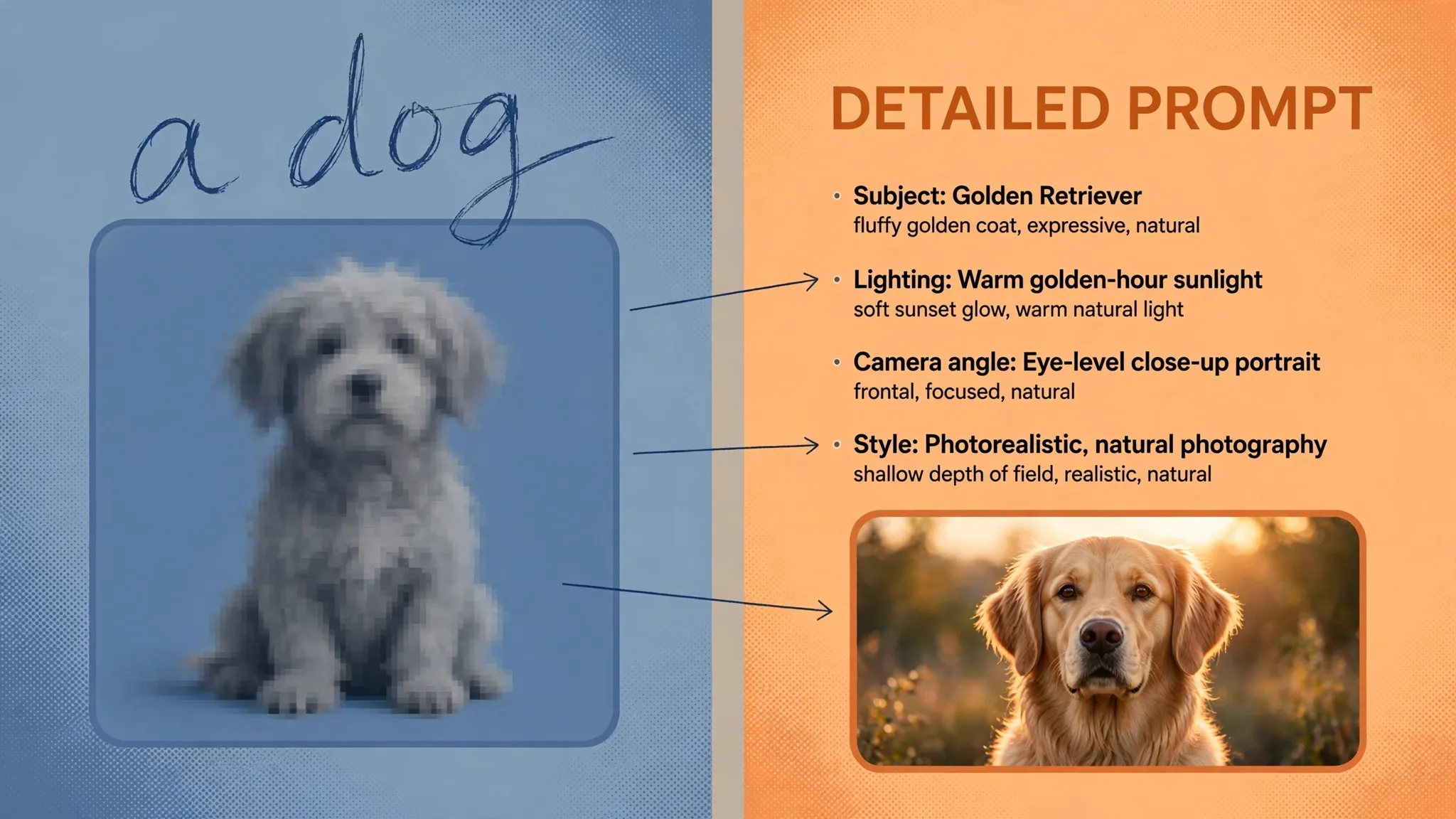
Subject, described like you can see it. Not “a dog” but “a golden retriever puppy asleep on a faded blue armchair, one ear flopped over its eyes.” Concrete nouns beat adjectives. If there is a specific person, animal, or object you have in mind, name it and place it.
Style or medium. “Photorealistic,” “watercolor illustration,” “flat vector art,” “cinematic film still” — these are not decoration, they are the single biggest lever on the result. A prompt without a style gets the model’s house default, which is whatever look was most common in its training data.
Lighting. “Soft morning window light,” “neon glow,” “golden hour,” “harsh overhead office fluorescents.” Lighting sets the mood more than almost anything else, and it is the detail beginners skip most often.
Framing and composition. “Close-up portrait,” “wide establishing shot,” “low angle looking up,” “plenty of empty space on the left.” Without framing guidance, the model centers everything at medium distance, every time.
What to leave out. A short “avoid” line at the end — no text, no logos, no watermarks, no distorted hands — catches the common failure modes. Keep it brief; it works best as a footnote, not half the prompt.
Write sentences, not keyword piles
Older image tools responded well to comma-separated tag soup: “cat, photorealistic, 8k, bokeh, sunset.” Modern generators — including Google’s Gemini image models and OpenAI’s current generation tools — are built on strong language understanding, and one widely-used prompt guide drawn from Google’s official guidance puts it plainly: describe the scene; don’t list keywords. A natural sentence like “A close-up portrait of a black cat on a windowsill at golden hour, soft blurred background” consistently beats a keyword chain.
There is also no need to write in telegraph style. Full, simple sentences are fine, even preferable. If it reads like a caption a human would write, the model understands it better than a grab bag of tags.
Tell it what you want, not what you don’t
Image models respond better to positive instructions than to negative ones. “Razor-sharp focus, clean studio background” produces better results than “no blur, no clutter, no noise.” The negative version makes the model think about blur and clutter; the positive version tells it where to go.
This applies to corrections too. If a generated image comes out too dark, do not write “don’t make it so dark.” Say “bright daylight, evenly lit, high key.” You are steering, not scolding.
Fix one thing at a time
The biggest beginner habit is rewriting the entire prompt after every generation. The generated image changed in five ways, you have no idea which of your twenty edits caused which change, and the cycle repeats. Treat it like editing a photo: change one thing, regenerate, compare.
This is where conversational image tools earn their keep. OpenAI’s official documentation notes that image generation works best when you phrase requests with words like “draw” or “edit,” and that you can iteratively refine an image across conversation turns — “edit this image to make the background a city street at night” rather than starting over. Most current tools (ChatGPT, Gemini, Copilot) work the same way: the follow-up message can build on what you already have instead of rolling the dice from scratch.
Two mistakes that keep showing up
The 100-word wall of text. More words do not mean more control. One developer reference guide puts the practical sweet spot at roughly 30–60 words — enough to cover subject, style, lighting, and framing. Past that point, extra detail starts fighting with itself, and the model quietly ignores part of your prompt. If your prompt reads like a paragraph from a novel, trim it to the visual facts.
Asking for exact text in the image. Generators still struggle with precise lettering, and long or unusual words often come out garbled. If you need a poster with a specific slogan, generate the image without text and add the lettering afterward in a design tool. Short words and common phrases work sometimes; anything important should be added by you. Also worth remembering: if you are generating images of real people — yourself included — upload a reference photo for accuracy and make sure you have permission to use someone’s likeness, a point OpenAI’s own image-creation guide calls out explicitly.
Start with the picture, end with the words
The useful habit is simple: before you type anything, look at the picture in your head and narrate it out loud. What is in the frame? What kind of image is it — photo, painting, poster? Where is the light coming from? Where is the camera standing? Whatever you just said is your prompt. Write it down, generate, then change one thing at a time until it matches.
And once you have prompts you like, save them. If you have never attached a file to an AI chatbot before, our guide to uploading documents and files to AI chatbots covers how attachments work across the major tools — the same principle applies when you upload a reference image to an image generator. For the other side of the question, what happens to the things you upload to AI chatbots is worth reading before you hand a generator your own photos.












