


• About
  • Contact
  • Privacy Policy
  • Terms & Conditions
  • Disclaimer
  • Cookie Policy
Superdova.com
Advertisement
  • AI Tools
  • Internet Guides
  • Tech How-To
  • Apps & Software
  • Online Safety
No Result
View All Result
  • AI Tools
  • Internet Guides
  • Tech How-To
  • Apps & Software
  • Online Safety
No Result
View All Result
Superdova.com
No Result
View All Result
Home AI Tools

Vague Answers From Your AI Chatbot? Let It Ask You Questions First

Amit by Amit
October 1, 2026
in AI Tools
0
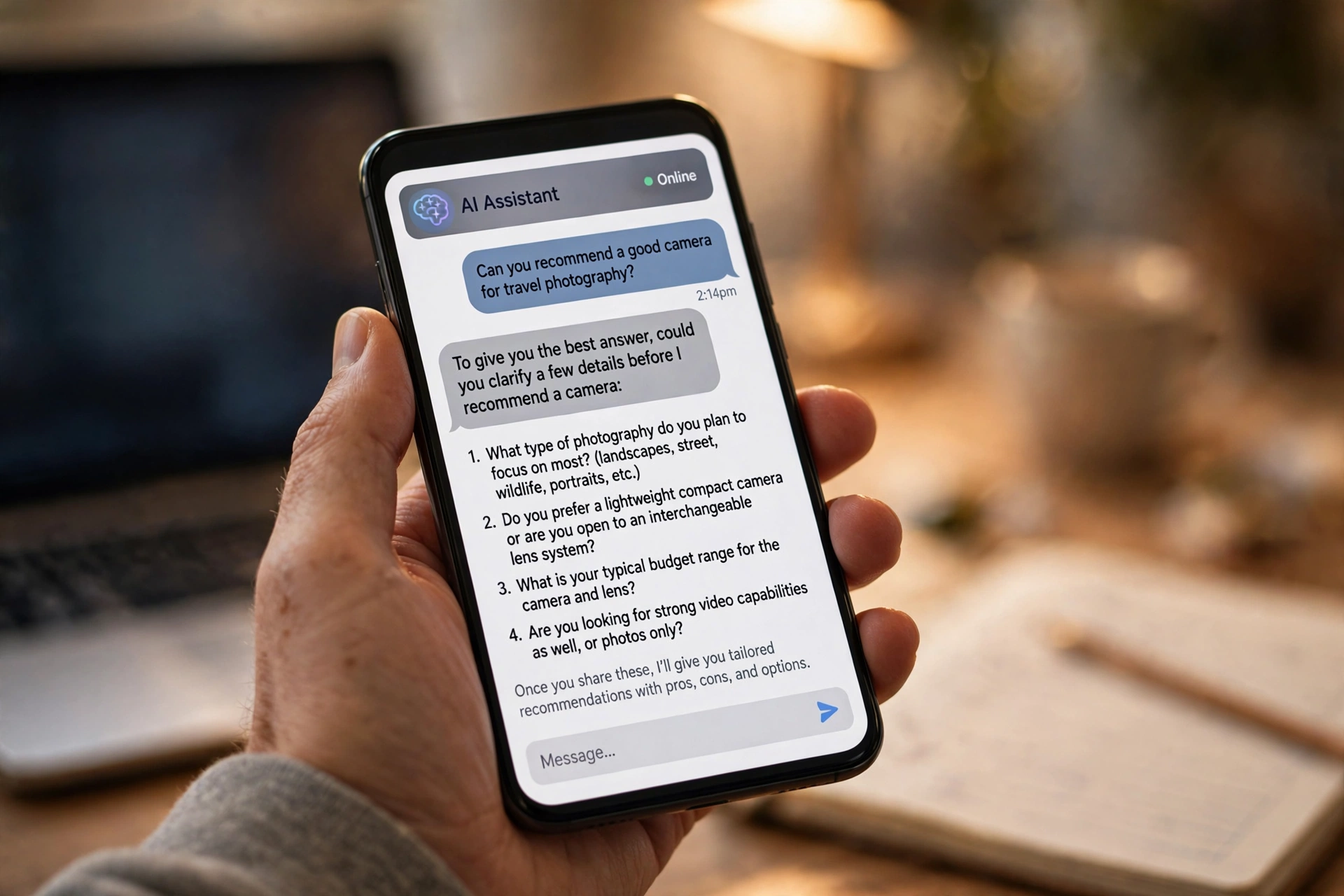
A hand holding a smartphone showing an AI chatbot asking numbered clarifying questions before answering a camera recommendation request.
0
SHARES
2
VIEWS
Share on FacebookShare on Twitter

Ask ChatGPT to plan a weekend trip for you and the result is almost always the same: a tidy list of famous sights, a couple of generic restaurants, and the vague sense that the itinerary could have been written for literally anyone. You scroll, correct half of it, and start again.

The answer wasn’t bad because the chatbot is bad. It was bad because your question was missing half the information it needed — budget, dates, how you like to travel — and the chatbot filled in the blanks with guesses instead of asking you. There is a small habit that fixes this, and it takes one sentence: tell the chatbot to ask you questions first.

Table of Contents

Toggle
  • The real problem is the gaps in your question, not the question itself
  • The fix: make the chatbot interview you first
  • What it looks like in practice
  • When this trick earns its keep — and when it’s pointless
  • One workflow tweak, if the back-and-forth annoys you

The real problem is the gaps in your question, not the question itself

Most prompts are full of things you know and never say. “Plan a weekend trip” means something very different if you’re travelling with a toddler, a £200 budget, or a bad knee. A human travel agent would ask. A chatbot, by default, does not. It picks the most likely interpretation, answers confidently, and leaves you to spot the mismatch.

This isn’t a bug you need to work around with clever phrasing. Chatbots are trained to be helpful immediately, so guessing feels like good service to them — even when the guess is wrong. If you’ve ever wondered why an AI answer sounds confident while missing the point, that confident-but-wrong habit is worth understanding. Asking for questions first simply redirects the instinct: instead of guessing, the chatbot investigates.

The fix: make the chatbot interview you first

Before the chatbot answers, add one line to your request:

“Before you answer, ask me the clarifying questions you need to give a useful answer.”

That’s it. The wording isn’t magic — “ask me questions first”, “what do you need to know before you answer?” all work. What matters is that you’re explicitly giving the chatbot permission to do what it normally avoids: admit it doesn’t have enough information yet.

This works on ChatGPT, Claude and Gemini alike. None of them has a built-in “interview mode” switch for regular chats, but all three follow a direct instruction like this reliably. It also works in the free versions — there’s no paid feature hiding behind it.

What it looks like in practice

Take the trip-planning example. Instead of the generic itinerary, the chatbot comes back with something like: “What city are you travelling from? What’s your budget? Are you travelling with children? Do you prefer museums, outdoors, or food?” You answer in plain sentences — “London, about £300, just me and my partner, mostly food and walking” — and then the answer arrives, built around your actual situation.

The difference is most dramatic on requests with lots of hidden variables: trip plans, buying advice, job applications, lesson plans, business ideas, event planning. A vague request plus clarifying questions consistently beats a vague request alone, because the chatbot stops designing for the average person and starts designing for you.

A practical detail: you can limit the interrogation. “Ask me up to three questions, then answer” keeps things moving when you’re in a hurry. Without a limit, some chatbots get enthusiastic and fire off ten.

When this trick earns its keep — and when it’s pointless

It helps most when:

  • The request is open-ended. “Help me redecorate my living room” has dozens of valid answers; “what’s the capital of Peru” has one.
  • Your situation is unusual. The more your case differs from average, the more the chatbot’s default guesses miss.
  • You’d accept corrections anyway. If you’d normally fix the answer in two or three follow-ups, answering three questions upfront gets you there faster.

It’s not worth it when:

  • The question is simple and factual. Asking for questions before “what year was the Eiffel Tower built” just adds a pointless round trip.
  • You’re using Deep Research mode. ChatGPT’s research mode already asks clarifying questions automatically before it starts — that research mode is worth knowing about — so adding the instruction there is redundant.
  • You already gave all the context. If your prompt is long and specific, there may be nothing left to ask.

One workflow tweak, if the back-and-forth annoys you

Some people find answering questions in the chat messy, especially on long projects: your answers scatter down the conversation and later replies can lose track of them. There’s a cleaner alternative — let the chatbot ask its questions, then go back and edit your original message to include the answers, and resubmit. The whole conversation then proceeds from one complete, well-formed request.

And if you find yourself typing “ask me clarifying questions first” every single day, you can stop: put it in ChatGPT’s custom instructions instead, so it becomes the default behaviour for every new chat. Here’s how custom instructions work, with examples worth copying.

The broader lesson is a simple one. Chatbots are strongest not as answer machines but as collaborators — and collaboration starts with questions. The next time an answer comes back suspiciously generic, resist the urge to rewrite your prompt from scratch. Just add the sentence, answer what it asks, and watch the second answer do what the first one only pretended to.


Previous Post

Stop Your Lock Screen From Showing Your Messages to Strangers

Next Post

Video Calls Freeze but Downloads Are Fast? Blame Your Upload Speed

Amit

Amit

Next Post
Laptop showing a video call with one participant's video frozen and pixelated, illustrating upload-speed problems during video calls

Video Calls Freeze but Downloads Are Fast? Blame Your Upload Speed

Leave a Reply Cancel reply

Your email address will not be published. Required fields are marked *

Stay Connected test

  • 24k Followers
  • 99 Subscribers
  • Trending
  • Comments
  • Latest
Photorealistic illustration of a laptop displaying an email inbox with a breach warning, with a cracked red padlock floating above the screen

Your Email Was in a Data Breach? Don’t Panic — Do These Five Things

September 23, 2026
Illustration of a laptop showing ChatGPT's settings panel with the Custom instructions field highlighted

What to Put in ChatGPT’s Custom Instructions (With Examples Worth Copying)

September 22, 2026
Illustration of a golden master key hovering over a glowing inbox icon on a laptop screen, surrounded by shields and padlocks

If Someone Gets Into Your Email, They Get Into Everything

September 22, 2026
Illustration of a smartphone showing an AI chat conversation with a magnifying glass examining the answers, symbolising fact-checking

AI Chatbots Sound Confident Even When They’re Wrong. Here’s How to Check Their Answers

September 23, 2026
Illustration of a smartphone showing an AI chat conversation with a magnifying glass examining the answers, symbolising fact-checking

AI Chatbots Sound Confident Even When They’re Wrong. Here’s How to Check Their Answers

9
Illustration of a golden master key hovering over a glowing inbox icon on a laptop screen, surrounded by shields and padlocks

If Someone Gets Into Your Email, They Get Into Everything

8
Photorealistic illustration of a laptop displaying an email inbox with a breach warning, with a cracked red padlock floating above the screen

Your Email Was in a Data Breach? Don’t Panic — Do These Five Things

6
A home Wi-Fi router sending a glowing wireless signal toward a laptop on a couch, with a data cable running into the wall — illustrating the difference between Wi-Fi speed and internet speed

Your Wi-Fi Speed and Your Internet Speed Are Not the Same Thing

5
A hand holding a smartphone showing a chat screen with the word "online" under a contact's name

Your WhatsApp “Online” Status Isn’t as Private as You Think

October 20, 2026
Flat illustration of a laptop showing a logout symbol with a small brass key beside it, on a blue and grey background

Signed Out Again? Why Websites Keep Logging You Out

October 20, 2026
Woman with earbuds relaxing in an armchair while her phone reads an article aloud, tea on a side table, warm evening light

Too Tired to Read? Your Phone Can Read the Screen for You

October 19, 2026
Photograph of a smartphone lying on a wooden café table, its screen showing a map with a glowing blue location pin, a hand reaching toward it in the background

Lost Your Phone? Ring It, Lock It, or Find It From Any Computer

October 19, 2026

Recent News

A hand holding a smartphone showing a chat screen with the word "online" under a contact's name

Your WhatsApp “Online” Status Isn’t as Private as You Think

October 20, 2026
Flat illustration of a laptop showing a logout symbol with a small brass key beside it, on a blue and grey background

Signed Out Again? Why Websites Keep Logging You Out

October 20, 2026
Woman with earbuds relaxing in an armchair while her phone reads an article aloud, tea on a side table, warm evening light

Too Tired to Read? Your Phone Can Read the Screen for You

October 19, 2026
Photograph of a smartphone lying on a wooden café table, its screen showing a map with a glowing blue location pin, a hand reaching toward it in the background

Lost Your Phone? Ring It, Lock It, or Find It From Any Computer

October 19, 2026
Superdova.com

SuperDova is an independent technology publication covering AI tools, software, internet guides, digital skills and online safety. Our goal is to make technology easier to understand and use.

Follow Us

Browse by Category

  • AI Tools
  • Apps & Software
  • Internet Guides
  • Online Safety
  • Tech How-To

Recent News

A hand holding a smartphone showing a chat screen with the word "online" under a contact's name

Your WhatsApp “Online” Status Isn’t as Private as You Think

October 20, 2026
Flat illustration of a laptop showing a logout symbol with a small brass key beside it, on a blue and grey background

Signed Out Again? Why Websites Keep Logging You Out

October 20, 2026
  • About
  • Contact
  • Privacy Policy
  • Terms & Conditions
  • Disclaimer
  • Cookie Policy

© 2026 SuperDova — Technology, AI & Digital Guides. All Rights Reserved.

No Result
View All Result
  • AI Tools
  • Internet Guides
  • Tech How-To
  • Apps & Software
  • Online Safety

© 2026 SuperDova — Technology, AI & Digital Guides. All Rights Reserved.









