


• About
  • Contact
  • Privacy Policy
  • Terms & Conditions
  • Disclaimer
  • Cookie Policy
Superdova.com
Advertisement
  • AI Tools
  • Internet Guides
  • Tech How-To
  • Apps & Software
  • Online Safety
No Result
View All Result
  • AI Tools
  • Internet Guides
  • Tech How-To
  • Apps & Software
  • Online Safety
No Result
View All Result
Superdova.com
No Result
View All Result
Home Tech How-To

Dropped Your Phone in Water? Skip the Rice — Do This Instead

Amit by Amit
October 13, 2026
in Tech How-To
0
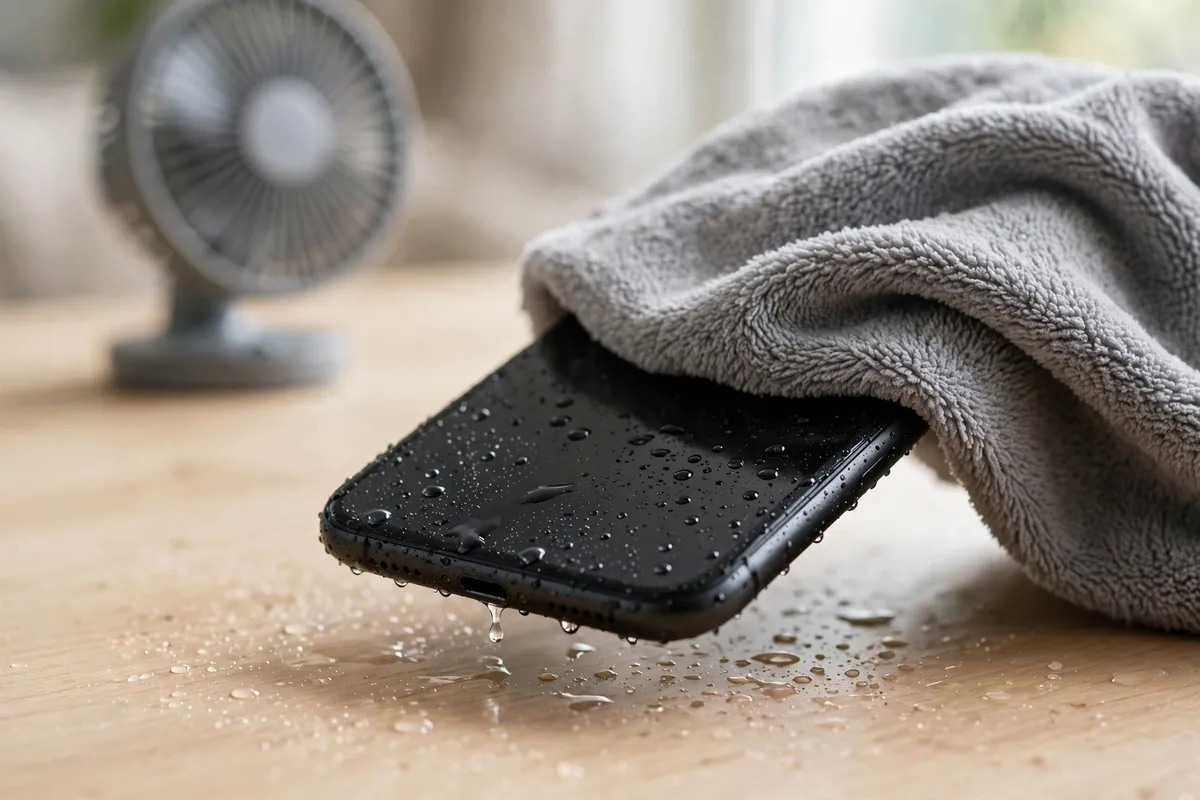
A wet smartphone tilted so its charging port faces down, water dripping away, being patted dry with a grey microfiber cloth, with a desk fan in the background
0
SHARES
2
VIEWS
Share on FacebookShare on Twitter

The phone slips, the sink is full of water, and for two seconds your brain empties of everything except the cost of a replacement. Almost everyone has lived some version of this. The next few minutes matter more than you might think — but probably not for the reason you’re expecting.

They matter because the most popular advice — the bowl of rice — is the one thing the phone makers themselves tell you not to do.

Table of Contents

Toggle
  • The rice trick is a myth — and Apple says so directly
  • Get it out, switch it off, take the case off
  • Dry it the way the manufacturers recommend
  • Don’t charge it while it’s damp — the phone may refuse anyway
  • If patience doesn’t pay off
  • “Water resistant” is a safety net, not a swimming pass

The rice trick is a myth — and Apple says so directly

In 2024 Apple updated its support guidance for wet iPhones, and one line stood out: don’t put your iPhone in a bag of rice. The reason isn’t that rice can’t absorb moisture — it’s that the grains leave behind tiny particles that can get into the charging port and damage the phone. Independent tests over the years have also found that rice is simply not a particularly effective drying agent. Airflow does the job better and carries no risk.

Apple isn’t the only maker with an opinion. Samsung’s support guidance for Galaxy phones that show a moisture warning covers much the same ground: dry the port gently, don’t charge until everything is properly dry, and never aim a hairdryer at the phone. So before we go further: forget the rice, forget the hairdryer, forget the cotton swabs. Here’s what to do instead.

Get it out, switch it off, take the case off

The first minute is about stopping things from getting worse. A wet phone with electricity running through it is a recipe for corrosion, so everything here is about removing power and trapped liquid:

  • Fish it out quickly — but don’t press any buttons. Pressing buttons can force water deeper inside.
  • Power it off. Don’t keep checking whether it still works. A phone that lights up isn’t necessarily fine inside; current flowing through wet circuitry is exactly how permanent damage happens.
  • Unplug everything attached to it — charging cable, headphones, any accessories. If the cable is connected to a powered socket, pull it out of the phone carefully.
  • Take the case off and dry it separately. Cases trap liquid against the phone’s body and slow everything down.
  • Pop the SIM tray out, if it slides out easily. It gives air one more way in. Don’t force it.

Dry it the way the manufacturers recommend

The official routine is boring, and that’s the point.

  1. If the liquid wasn’t water — coffee, juice, seawater — rinse the affected area with clean tap water first. Fresh water washes away the sugars and salts that would otherwise corrode the phone’s insides over weeks.
  2. Wipe the phone down with a soft, lint-free cloth. A glasses cloth is ideal.
  3. Tap the phone gently against your hand with the charging port facing down, to shake loose the water sitting in the connector.
  4. Leave it somewhere dry with air moving around it. A desk fan blowing cool air toward the phone is fine and genuinely helps. A hairdryer is not, on any setting — heat can warp the adhesives holding the phone together and cook components.
  5. Don’t poke anything into the port — no cotton swabs, no rolled-up paper towel. You’ll only bend the pins or push debris deeper.

Then wait. Apple says to try charging after at least 30 minutes; if the liquid-detection warning comes back, leave it for up to a day — a phone can take up to 24 hours to dry out fully. The waiting is the treatment.

Don’t charge it while it’s damp — the phone may refuse anyway

A wet charging port plus electricity is how corrosion starts, so both iPhones and Samsung phones now refuse to cooperate: you’ll see a “liquid detected” or “moisture detected” alert, and wired charging simply won’t start. Treat the warning as information, not a fault — it’s the phone protecting itself.

Two things worth knowing while you wait. On a Samsung that keeps showing the warning even when the port looks dry, Samsung’s own fix is to clear a settings cache: Settings → Apps, switch on show system apps, find USBSettings, Storage, then Clear cache. And wireless charging can be a workaround once the outside of the phone is dry — it doesn’t touch the damp port — but only if the phone wasn’t soaked badly enough to need the full waiting period anyway.

If patience doesn’t pay off

If the screen stays dark after a full day of drying, or the charging warning never clears, it’s time for a repair shop rather than more home remedies. One thing before you hand it over or give up on it: the photos and chats are usually what people grieve, not the hardware. If the phone won’t come back and you’re setting up a replacement, move your authenticator codes before the old phone is wiped — they’re the one thing that doesn’t follow you automatically.

And while your phone sits drying on the table, there’s one genuinely useful job to do from another device: check that a lost phone wouldn’t lock you out of your accounts. A password manager fixes the reused-password habit that turns one dead phone into five locked accounts.

“Water resistant” is a safety net, not a swimming pass

Most modern phones carry a water-resistance rating — those IP68 marks you see on spec sheets. It means the phone survived a lab test: still water, limited depth, limited time, with brand-new seals. It does not mean waterproof, and the seals degrade with drops, repairs, heat and ordinary ageing. Both Apple and Samsung exclude liquid damage from their standard warranties, which tells you everything about how much faith the industry puts in those ratings once the phone has been living in your pocket for two years.

So treat water resistance as what it is: a second chance when the inevitable dunk happens, not a reason to take the phone into the pool.

The fastest way to save a wet phone is to resist the urge to do clever things. No rice, no hairdryer, no cotton swabs, no “just let me check if it turns on”. Fish it out, power it down, shake the port dry, and let air and time do the rest. Boring saves phones; folk remedies don’t.


Previous Post

Websites Can Guess Your City From Your IP — But Not Much Else

Next Post

Before Your Laptop Goes in for Repair, Do These Six Things

Amit

Amit

Next Post
A laptop on a repair workbench beside a screwdriver set, USB drive and a handwritten preparation checklist

Before Your Laptop Goes in for Repair, Do These Six Things

Stay Connected test

  • 24k Followers
  • 99 Subscribers
  • Trending
  • Comments
  • Latest
Photorealistic illustration of a laptop displaying an email inbox with a breach warning, with a cracked red padlock floating above the screen

Your Email Was in a Data Breach? Don’t Panic — Do These Five Things

September 23, 2026
Illustration of a laptop showing ChatGPT's settings panel with the Custom instructions field highlighted

What to Put in ChatGPT’s Custom Instructions (With Examples Worth Copying)

September 22, 2026
Illustration of a golden master key hovering over a glowing inbox icon on a laptop screen, surrounded by shields and padlocks

If Someone Gets Into Your Email, They Get Into Everything

September 22, 2026
Illustration of a smartphone showing an AI chat conversation with a magnifying glass examining the answers, symbolising fact-checking

AI Chatbots Sound Confident Even When They’re Wrong. Here’s How to Check Their Answers

September 23, 2026
Illustration of a smartphone showing an AI chat conversation with a magnifying glass examining the answers, symbolising fact-checking

AI Chatbots Sound Confident Even When They’re Wrong. Here’s How to Check Their Answers

9
Illustration of a golden master key hovering over a glowing inbox icon on a laptop screen, surrounded by shields and padlocks

If Someone Gets Into Your Email, They Get Into Everything

8
Photorealistic illustration of a laptop displaying an email inbox with a breach warning, with a cracked red padlock floating above the screen

Your Email Was in a Data Breach? Don’t Panic — Do These Five Things

6
A home Wi-Fi router sending a glowing wireless signal toward a laptop on a couch, with a data cable running into the wall — illustrating the difference between Wi-Fi speed and internet speed

Your Wi-Fi Speed and Your Internet Speed Are Not the Same Thing

5
Flat illustration of a laptop showing a logout symbol with a small brass key beside it, on a blue and grey background

Signed Out Again? Why Websites Keep Logging You Out

October 20, 2026
Woman with earbuds relaxing in an armchair while her phone reads an article aloud, tea on a side table, warm evening light

Too Tired to Read? Your Phone Can Read the Screen for You

October 19, 2026
Photograph of a smartphone lying on a wooden café table, its screen showing a map with a glowing blue location pin, a hand reaching toward it in the background

Lost Your Phone? Ring It, Lock It, or Find It From Any Computer

October 19, 2026
A laptop on a wooden desk displaying a battery charging indicator at 76 percent

Your Laptop Battery Barely Lasts Anymore? Check Its Health First

October 18, 2026

Recent News

Flat illustration of a laptop showing a logout symbol with a small brass key beside it, on a blue and grey background

Signed Out Again? Why Websites Keep Logging You Out

October 20, 2026
Woman with earbuds relaxing in an armchair while her phone reads an article aloud, tea on a side table, warm evening light

Too Tired to Read? Your Phone Can Read the Screen for You

October 19, 2026
Photograph of a smartphone lying on a wooden café table, its screen showing a map with a glowing blue location pin, a hand reaching toward it in the background

Lost Your Phone? Ring It, Lock It, or Find It From Any Computer

October 19, 2026
A laptop on a wooden desk displaying a battery charging indicator at 76 percent

Your Laptop Battery Barely Lasts Anymore? Check Its Health First

October 18, 2026
Superdova.com

SuperDova is an independent technology publication covering AI tools, software, internet guides, digital skills and online safety. Our goal is to make technology easier to understand and use.

Follow Us

Browse by Category

  • AI Tools
  • Apps & Software
  • Internet Guides
  • Online Safety
  • Tech How-To

Recent News

Flat illustration of a laptop showing a logout symbol with a small brass key beside it, on a blue and grey background

Signed Out Again? Why Websites Keep Logging You Out

October 20, 2026
Woman with earbuds relaxing in an armchair while her phone reads an article aloud, tea on a side table, warm evening light

Too Tired to Read? Your Phone Can Read the Screen for You

October 19, 2026
  • About
  • Contact
  • Privacy Policy
  • Terms & Conditions
  • Disclaimer
  • Cookie Policy

© 2026 SuperDova — Technology, AI & Digital Guides. All Rights Reserved.

No Result
View All Result
  • AI Tools
  • Internet Guides
  • Tech How-To
  • Apps & Software
  • Online Safety

© 2026 SuperDova — Technology, AI & Digital Guides. All Rights Reserved.









