


• About
  • Contact
  • Privacy Policy
  • Terms & Conditions
  • Disclaimer
  • Cookie Policy
Superdova.com
Advertisement
  • AI Tools
  • Internet Guides
  • Tech How-To
  • Apps & Software
  • Online Safety
No Result
View All Result
  • AI Tools
  • Internet Guides
  • Tech How-To
  • Apps & Software
  • Online Safety
No Result
View All Result
Superdova.com
No Result
View All Result
Home Online Safety

Stop Answering Security Questions Honestly

Amit by Amit
September 24, 2026
in Online Safety
0
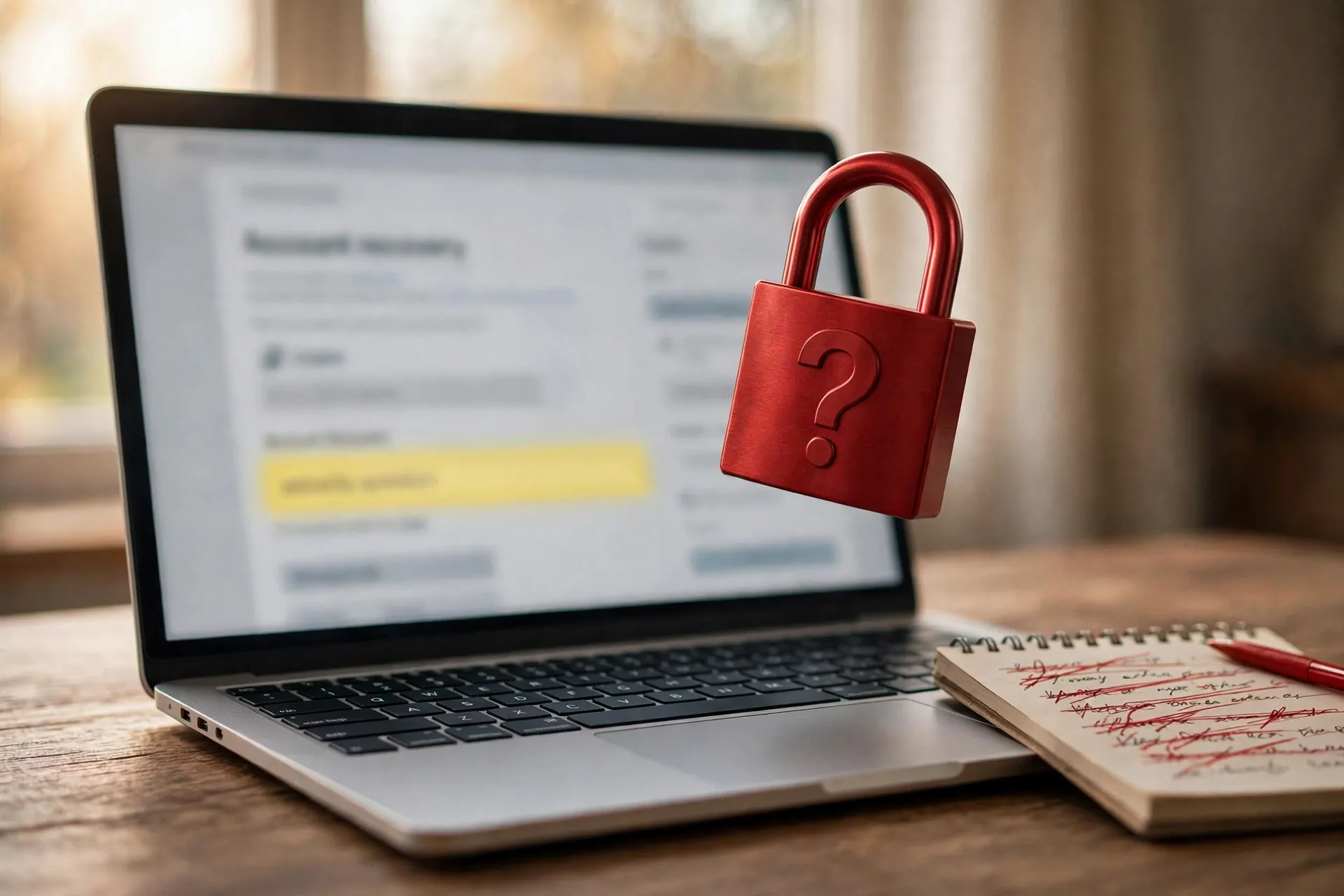
Photorealistic image of a laptop showing an account recovery page with a highlighted security question field, a red padlock embossed with a question mark above the keyboard, and a notepad with crossed-out answers beside it
0
SHARES
2
VIEWS
Share on FacebookShare on Twitter

“What was the name of your first pet?” It usually shows up when you’re already stressed — locked out of an account, clicking through recovery steps — and it feels like the easy question. The answer is sitting right there in your memory. You type it in, move on, and forget it ever happened.

But that innocent-looking question is a password wearing a costume. And answering it honestly is what makes it weak.

Table of Contents

Toggle
  • Your answers aren’t secrets. They’re facts about you.
  • The fix: treat the answer box like a second password
  • Now go back and fix the answers you already gave
  • The same trap is sitting in your social media feed

Your answers aren’t secrets. They’re facts about you.

A security question asks for something only you should know. The trouble is that the standard questions — your first pet’s name, the street you grew up on, your mother’s maiden name, your first school — aren’t things only you know. They’re facts, and facts leave a trail.

Some of that trail is on social media, where you’ve probably posted photos of that pet, mentioned your hometown, or tagged family members. Some of it sits in public records and data-broker databases. And a great deal of it is in the same breached databases that have been leaking personal details for years. An attacker who wants to reset your password doesn’t have to guess blind — they can assemble your answers the way a journalist would.

This isn’t a theoretical problem. Microsoft Research measured how guessable secret questions were back in 2009, and Google’s own research team later documented that secret questions were both easier to guess than users expected and harder for users themselves to recall reliably. The US National Institute of Standards and Technology has gone further still: its digital identity guidelines (SP 800-63B) tell organizations not to use knowledge-based questions at all. A lock that strangers can pick and owners can forget is a lock in name only.

This is also why security questions show up in real attack playbooks. Social engineers — the people who call helpdesks pretending to be you — gather these answers from social media and public data before they ever pick up the phone, because many helpdesks still accept them as proof of identity. Every honest answer you publish about yourself is one less hurdle for them.

The fix: treat the answer box like a second password

Once you see a security question for what it is — a second, weaker password that most people make guessable — the fix becomes obvious. Give it a wrong answer.

For “What was the name of your first pet?”, type something like blue piano umbrella — a phrase with no connection to your life, as random as you can make it. Anyone researching you will find your actual pet’s name everywhere; it will never lead them to your answer. Your answer is now functionally another password: worthless to an attacker, and something you store in your password manager alongside that site’s login.

Two details matter. First, the answer usually has to match exactly — spaces, capitals and all — so don’t trust your memory. Write the fake answer down in your password manager, right next to that site’s password. Second, keep it unique per site, the same way you keep passwords unique. One reused answer is one reused key.

If a site lets you write your own custom question, that’s better raw material — but only if the answer isn’t discoverable anywhere. “What was the name of the first restaurant you ate at alone?” is fine if the answer exists nowhere online. Even then, the safest play remains a random answer stored in the manager.

Now go back and fix the answers you already gave

Most people have accounts set up years ago with honest answers baked in — old banking portals, tax sites, older email providers, government services. It’s worth spending one sitting to revisit the important ones: sign in, find the security settings, and replace the honest answers with random ones. A few minutes per account, and each one becomes meaningfully harder to break into.

Where you can’t change the questions, add something stronger instead. A second factor — an authenticator app, a security key, even SMS codes — protects the account far better than any answer tweak. And where an account’s only recovery path is a set of questions you can’t change, make sure the recovery email and phone number on the account are yours and current. That’s where the reset actually lands — which is why your email account is the master key to your online life and deserves two-factor authentication of its own.

The same trap is sitting in your social media feed

There’s one more place this habit hurts you: the viral quiz posts. “Your pirate name is your first pet’s name + the street you grew up on.” “Your spy name is your mother’s maiden name + your birth city.” They look like harmless fun, but they harvest exactly the answers people feed to security questions — and they farm out your friends’ answers at the same time.

You don’t need to lecture anyone. But quietly skipping them, and mentioning it once to the family members most likely to fill them out — parents and grandparents use security questions more than anyone — closes a surprisingly common leak.

Security questions feel personal, so people treat them personally. But to a stranger with a search engine, they’re just another thing to look up. Answer them the way you’d answer anything an attacker could read over your shoulder: with something that isn’t true, that you store safely, and that nobody could ever guess. Five minutes per account turns one of the weakest locks on your digital life into one that’s actually worth something. More in our Online Safety section.


Previous Post

Your Files Keep Opening in the Wrong App? Here’s How to Take Back Control

Next Post

Before You Paste Personal Details Into an AI Chatbot, Read This

Amit

Amit

Next Post
Illustration of an AI chat window with conversation bubbles flowing into document icons gathered under a privacy shield and padlock

Before You Paste Personal Details Into an AI Chatbot, Read This

Leave a Reply Cancel reply

Your email address will not be published. Required fields are marked *

Stay Connected test

  • 24k Followers
  • 99 Subscribers
  • Trending
  • Comments
  • Latest
Photorealistic illustration of a laptop displaying an email inbox with a breach warning, with a cracked red padlock floating above the screen

Your Email Was in a Data Breach? Don’t Panic — Do These Five Things

September 23, 2026
Illustration of a laptop showing ChatGPT's settings panel with the Custom instructions field highlighted

What to Put in ChatGPT’s Custom Instructions (With Examples Worth Copying)

September 22, 2026
Illustration of a golden master key hovering over a glowing inbox icon on a laptop screen, surrounded by shields and padlocks

If Someone Gets Into Your Email, They Get Into Everything

September 22, 2026
Illustration of a smartphone showing an AI chat conversation with a magnifying glass examining the answers, symbolising fact-checking

AI Chatbots Sound Confident Even When They’re Wrong. Here’s How to Check Their Answers

September 23, 2026
Illustration of a smartphone showing an AI chat conversation with a magnifying glass examining the answers, symbolising fact-checking

AI Chatbots Sound Confident Even When They’re Wrong. Here’s How to Check Their Answers

9
Illustration of a golden master key hovering over a glowing inbox icon on a laptop screen, surrounded by shields and padlocks

If Someone Gets Into Your Email, They Get Into Everything

8
Photorealistic illustration of a laptop displaying an email inbox with a breach warning, with a cracked red padlock floating above the screen

Your Email Was in a Data Breach? Don’t Panic — Do These Five Things

6
A home Wi-Fi router sending a glowing wireless signal toward a laptop on a couch, with a data cable running into the wall — illustrating the difference between Wi-Fi speed and internet speed

Your Wi-Fi Speed and Your Internet Speed Are Not the Same Thing

5
Flat illustration of a laptop showing a logout symbol with a small brass key beside it, on a blue and grey background

Signed Out Again? Why Websites Keep Logging You Out

October 20, 2026
Woman with earbuds relaxing in an armchair while her phone reads an article aloud, tea on a side table, warm evening light

Too Tired to Read? Your Phone Can Read the Screen for You

October 19, 2026
Photograph of a smartphone lying on a wooden café table, its screen showing a map with a glowing blue location pin, a hand reaching toward it in the background

Lost Your Phone? Ring It, Lock It, or Find It From Any Computer

October 19, 2026
A laptop on a wooden desk displaying a battery charging indicator at 76 percent

Your Laptop Battery Barely Lasts Anymore? Check Its Health First

October 18, 2026

Recent News

Flat illustration of a laptop showing a logout symbol with a small brass key beside it, on a blue and grey background

Signed Out Again? Why Websites Keep Logging You Out

October 20, 2026
Woman with earbuds relaxing in an armchair while her phone reads an article aloud, tea on a side table, warm evening light

Too Tired to Read? Your Phone Can Read the Screen for You

October 19, 2026
Photograph of a smartphone lying on a wooden café table, its screen showing a map with a glowing blue location pin, a hand reaching toward it in the background

Lost Your Phone? Ring It, Lock It, or Find It From Any Computer

October 19, 2026
A laptop on a wooden desk displaying a battery charging indicator at 76 percent

Your Laptop Battery Barely Lasts Anymore? Check Its Health First

October 18, 2026
Superdova.com

SuperDova is an independent technology publication covering AI tools, software, internet guides, digital skills and online safety. Our goal is to make technology easier to understand and use.

Follow Us

Browse by Category

  • AI Tools
  • Apps & Software
  • Internet Guides
  • Online Safety
  • Tech How-To

Recent News

Flat illustration of a laptop showing a logout symbol with a small brass key beside it, on a blue and grey background

Signed Out Again? Why Websites Keep Logging You Out

October 20, 2026
Woman with earbuds relaxing in an armchair while her phone reads an article aloud, tea on a side table, warm evening light

Too Tired to Read? Your Phone Can Read the Screen for You

October 19, 2026
  • About
  • Contact
  • Privacy Policy
  • Terms & Conditions
  • Disclaimer
  • Cookie Policy

© 2026 SuperDova — Technology, AI & Digital Guides. All Rights Reserved.

No Result
View All Result
  • AI Tools
  • Internet Guides
  • Tech How-To
  • Apps & Software
  • Online Safety

© 2026 SuperDova — Technology, AI & Digital Guides. All Rights Reserved.









