


• About
  • Contact
  • Privacy Policy
  • Terms & Conditions
  • Disclaimer
  • Cookie Policy
Superdova.com
Advertisement
  • AI Tools
  • Internet Guides
  • Tech How-To
  • Apps & Software
  • Online Safety
No Result
View All Result
  • AI Tools
  • Internet Guides
  • Tech How-To
  • Apps & Software
  • Online Safety
No Result
View All Result
Superdova.com
No Result
View All Result
Home Apps & Software

Slow Startup? Check Which Apps Are Launching With Your Computer

Amit by Amit
September 22, 2026
in Apps & Software
1
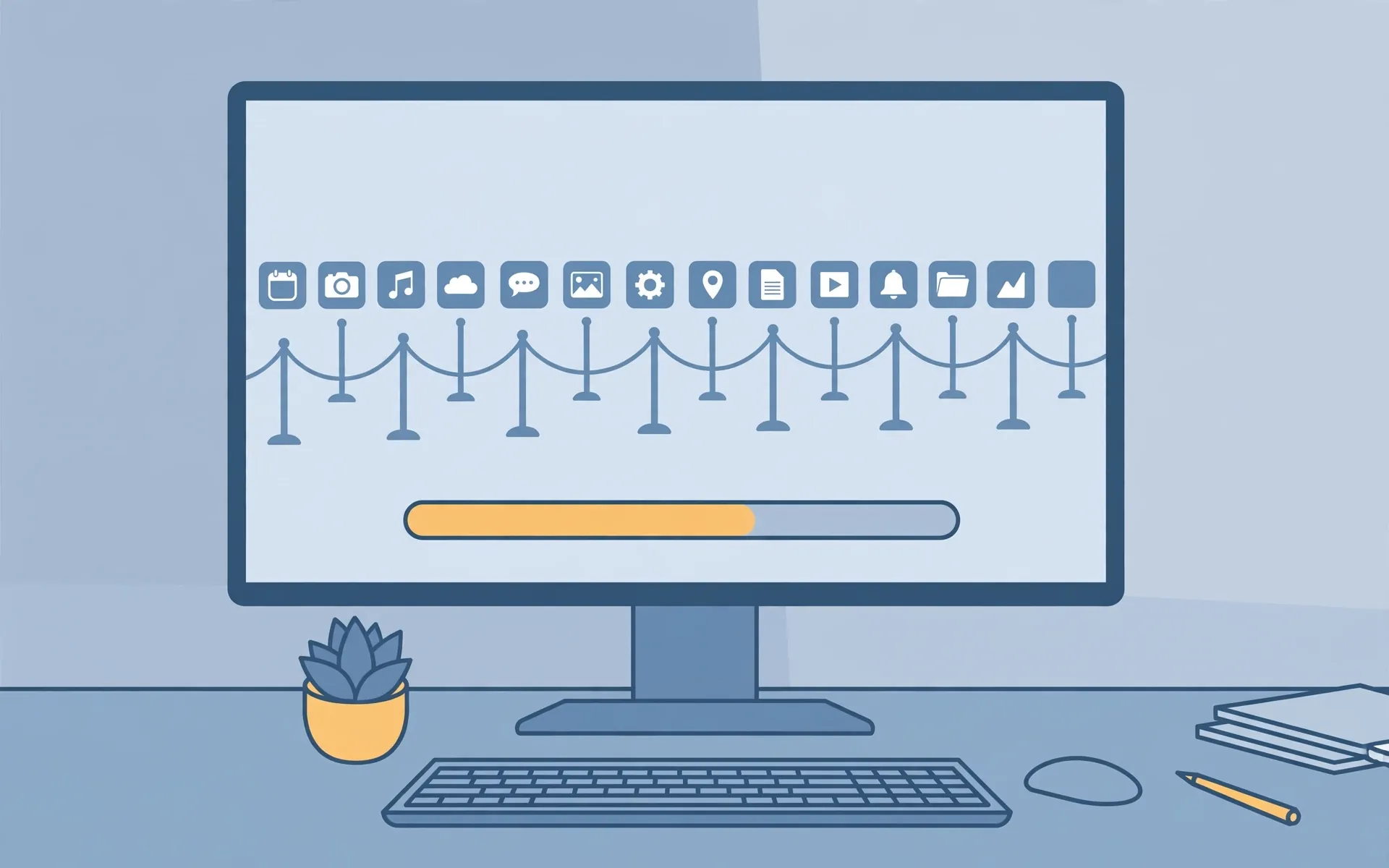
Illustration of a computer booting up while a queue of app icons waits behind a loading bar
0
SHARES
2
VIEWS
Share on FacebookShare on Twitter

You press the power button, walk away to make tea, and come back to a computer that is somehow still busy. Half a dozen programs you never opened are sitting in the taskbar, each one quietly checking for updates, syncing files, or just waiting around. You didn’t ask for any of this. Your computer starts the day with a full schedule before you’ve even touched the keyboard.

That’s the startup queue: the list of apps your operating system launches automatically every time you sign in. Most of them got there without you making a conscious decision — a checkbox you skipped during installation, a default that switched itself on after an update, a program that assumed you wanted it around. The good news is the list is yours to edit, and trimming it is one of the simplest performance wins on a computer that feels sluggish out of the gate.

Table of Contents

Toggle
  • Why your computer is busy before you touch anything
  • Seeing the full lineup on Windows
  • Deciding who stays and who goes
  • The same cleanup on a Mac
  • A few quiet ways apps sneak back on

Why your computer is busy before you touch anything

Programs have perfectly good reasons for wanting to start with your computer. A chat app wants to catch your messages the moment you log in. Cloud storage wants to start syncing. A printer utility wants to be ready when you hit Print. Individually, each one is reasonable. Collectively, on a machine that’s been used for a year or two, they turn booting up into a long, competitive queue — and every entry in that queue is reading from your disk and using memory at exactly the moment your system is trying to get itself running.

The queue also grows silently. Many installers tuck in a “launch when my computer starts” option that is switched on by default. Updates sometimes re-enable an entry you previously switched off. So even if you trimmed the list once, it’s worth a fresh look every few months.

Seeing the full lineup on Windows

Windows gives you two views of the same list. The quickest is Task Manager: press Ctrl + Shift + Esc, then open Startup apps from the sidebar. You’ll see every program set to launch at sign-in, each with a status (Enabled or Disabled) and a Startup impact rating — High, Medium, or Low — which is the operating system’s own estimate of how much that app slows down booting. Sort by that column and the worst offenders float to the top.

The friendlier view lives in Settings: press Windows key + I, go to Apps > Startup, and you get the same list with simple on/off toggles and the same impact ratings. Either route does the same job; Settings is easier to read, Task Manager is faster.

To stop an app from launching automatically, flip its toggle or right-click it and choose Disable. That’s it — nothing is uninstalled, nothing is deleted. The app still works perfectly when you open it yourself; it just no longer gets a head start.

Deciding who stays and who goes

This is the part people worry about, so here’s the reassuring bit: disabling a startup entry cannot break your computer. The app itself is untouched — only its automatic launch is switched off. If you miss it, turning it back on is one click in the same place.

That said, a little judgment helps. Safe to switch off: chat and video-call apps you only open for meetings, game launchers, media players, cloud storage you use occasionally, printer utilities for a printer you rarely use, and anything from software you don’t remember installing. Leave alone: your security software, anything related to your graphics card, audio drivers, or fingerprint reader, and entries whose publisher is Microsoft or your computer’s manufacturer. Those tend to be doing something the system expects.

When in doubt, pick one app, switch it off, restart, and see. The worst-case scenario is discovering you wanted it — and the fix takes ten seconds. If you want to add something to the list instead — say, a note-taking app you genuinely open every day — press Windows key + R, type shell:startup, and drop a shortcut for the program into the folder that opens.

The same cleanup on a Mac

Macs keep two related lists. Open System Settings, go to General, then Login Items & Extensions. Under Open at Login you’ll see the apps that appear when you sign in — select one and click the – button to remove it. Below that, Allow in the Background lists the helper processes apps have registered: updaters, sync engines, menu-bar utilities. Toggle off the ones you don’t need.

One useful trick Apple keeps quiet: at the login window, hold Shift while you click Log In, and keep holding until the desktop appears. That skips everything on the login list for that session only — handy when something in the queue is misbehaving and you want to see if the list is the culprit. (On older Macs running macOS Monterey or earlier, the same list lives under System Preferences > Users & Groups > Login Items.)

A few quiet ways apps sneak back on

Sometimes you switch an app off and it returns a week later, and it’s worth knowing the three usual routes back in. First, many apps have their own “open at login” or “launch at startup” setting inside their preferences — the system-level switch and the app’s own switch can disagree, and the app’s own setting often wins on updates. Second, reinstalling or updating a program can restore its startup entry, so a quick glance at the list after big updates is a decent habit. Third, some utilities register background helpers rather than full apps, which is why the Mac’s “Allow in the Background” section and Windows’ background app permissions are worth a look too.

None of this is malicious. It’s software competing for your attention the same way it competes for everything else. But attention is yours to budget, and a computer that greets you with a clean desktop instead of a traffic jam is one of the cheaper upgrades you’ll ever make — it costs about five minutes and changes nothing you actually use. Find more practical software guides in our Apps & Software section.

SuperDova is an independent technology publication — every guide is carefully researched and written for real readers.


Previous Post

C: Drive Almost Full? Here’s Where the Space Actually Goes

Next Post

If Someone Gets Into Your Email, They Get Into Everything

Amit

Amit

Next Post
Illustration of a golden master key hovering over a glowing inbox icon on a laptop screen, surrounded by shields and padlocks

If Someone Gets Into Your Email, They Get Into Everything

Comments 1

  1. Pingback: Laptop Overheating? Fixes That Actually Cool It Down

Leave a Reply Cancel reply

Your email address will not be published. Required fields are marked *

Stay Connected test

  • 24k Followers
  • 99 Subscribers
  • Trending
  • Comments
  • Latest
Photorealistic illustration of a laptop displaying an email inbox with a breach warning, with a cracked red padlock floating above the screen

Your Email Was in a Data Breach? Don’t Panic — Do These Five Things

September 23, 2026
Illustration of a laptop showing ChatGPT's settings panel with the Custom instructions field highlighted

What to Put in ChatGPT’s Custom Instructions (With Examples Worth Copying)

September 22, 2026
Illustration of a golden master key hovering over a glowing inbox icon on a laptop screen, surrounded by shields and padlocks

If Someone Gets Into Your Email, They Get Into Everything

September 22, 2026
Illustration of a smartphone showing an AI chat conversation with a magnifying glass examining the answers, symbolising fact-checking

AI Chatbots Sound Confident Even When They’re Wrong. Here’s How to Check Their Answers

September 23, 2026
Illustration of a smartphone showing an AI chat conversation with a magnifying glass examining the answers, symbolising fact-checking

AI Chatbots Sound Confident Even When They’re Wrong. Here’s How to Check Their Answers

9
Illustration of a golden master key hovering over a glowing inbox icon on a laptop screen, surrounded by shields and padlocks

If Someone Gets Into Your Email, They Get Into Everything

8
Photorealistic illustration of a laptop displaying an email inbox with a breach warning, with a cracked red padlock floating above the screen

Your Email Was in a Data Breach? Don’t Panic — Do These Five Things

6
A home Wi-Fi router sending a glowing wireless signal toward a laptop on a couch, with a data cable running into the wall — illustrating the difference between Wi-Fi speed and internet speed

Your Wi-Fi Speed and Your Internet Speed Are Not the Same Thing

5
Flat illustration of a laptop showing a logout symbol with a small brass key beside it, on a blue and grey background

Signed Out Again? Why Websites Keep Logging You Out

October 20, 2026
Woman with earbuds relaxing in an armchair while her phone reads an article aloud, tea on a side table, warm evening light

Too Tired to Read? Your Phone Can Read the Screen for You

October 19, 2026
Photograph of a smartphone lying on a wooden café table, its screen showing a map with a glowing blue location pin, a hand reaching toward it in the background

Lost Your Phone? Ring It, Lock It, or Find It From Any Computer

October 19, 2026
A laptop on a wooden desk displaying a battery charging indicator at 76 percent

Your Laptop Battery Barely Lasts Anymore? Check Its Health First

October 18, 2026

Recent News

Flat illustration of a laptop showing a logout symbol with a small brass key beside it, on a blue and grey background

Signed Out Again? Why Websites Keep Logging You Out

October 20, 2026
Woman with earbuds relaxing in an armchair while her phone reads an article aloud, tea on a side table, warm evening light

Too Tired to Read? Your Phone Can Read the Screen for You

October 19, 2026
Photograph of a smartphone lying on a wooden café table, its screen showing a map with a glowing blue location pin, a hand reaching toward it in the background

Lost Your Phone? Ring It, Lock It, or Find It From Any Computer

October 19, 2026
A laptop on a wooden desk displaying a battery charging indicator at 76 percent

Your Laptop Battery Barely Lasts Anymore? Check Its Health First

October 18, 2026
Superdova.com

SuperDova is an independent technology publication covering AI tools, software, internet guides, digital skills and online safety. Our goal is to make technology easier to understand and use.

Follow Us

Browse by Category

  • AI Tools
  • Apps & Software
  • Internet Guides
  • Online Safety
  • Tech How-To

Recent News

Flat illustration of a laptop showing a logout symbol with a small brass key beside it, on a blue and grey background

Signed Out Again? Why Websites Keep Logging You Out

October 20, 2026
Woman with earbuds relaxing in an armchair while her phone reads an article aloud, tea on a side table, warm evening light

Too Tired to Read? Your Phone Can Read the Screen for You

October 19, 2026
  • About
  • Contact
  • Privacy Policy
  • Terms & Conditions
  • Disclaimer
  • Cookie Policy

© 2026 SuperDova — Technology, AI & Digital Guides. All Rights Reserved.

No Result
View All Result
  • AI Tools
  • Internet Guides
  • Tech How-To
  • Apps & Software
  • Online Safety

© 2026 SuperDova — Technology, AI & Digital Guides. All Rights Reserved.









