



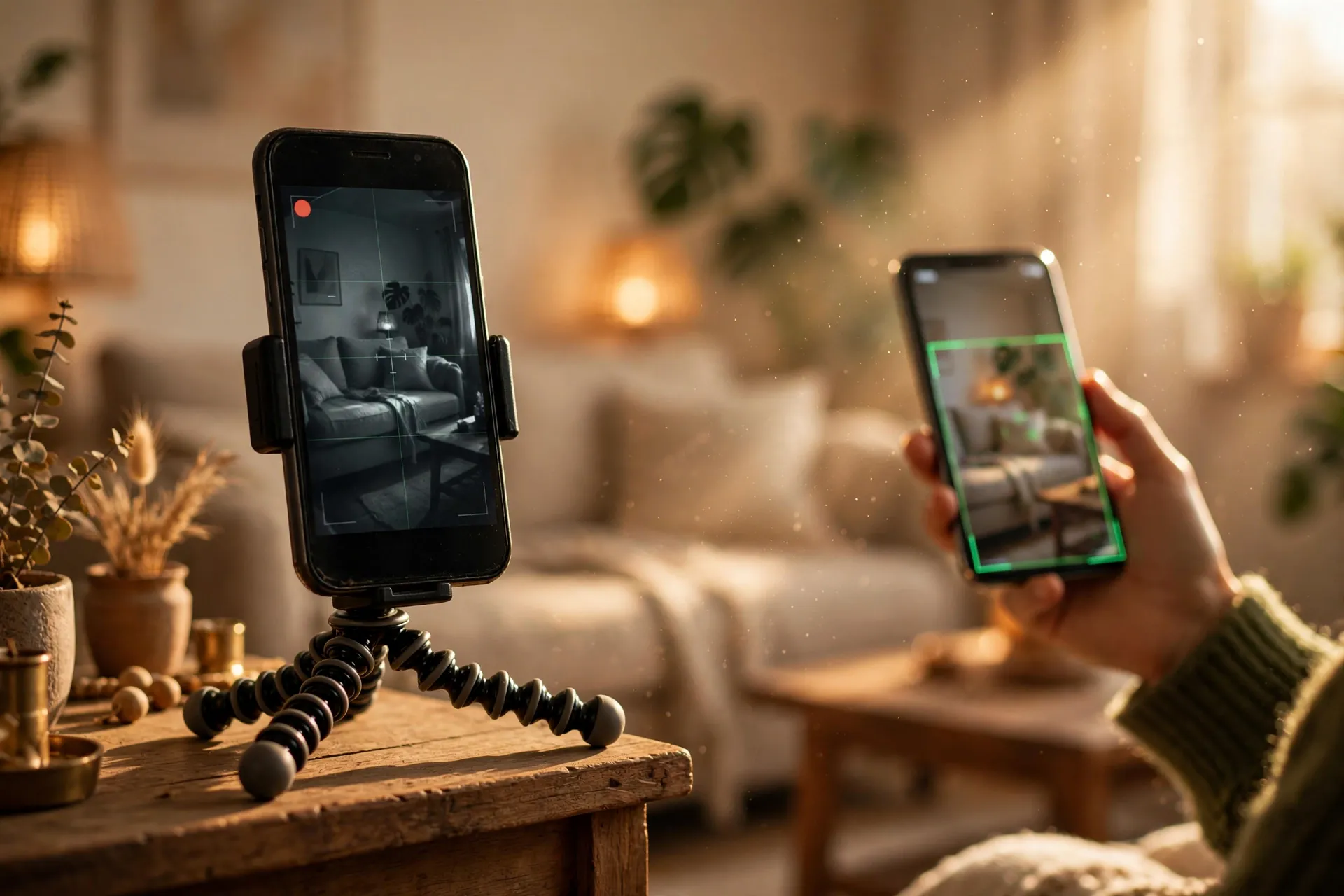
Somewhere in your house — a drawer, a shoebox, the back of a shelf — sits a phone you stopped using two or three upgrades ago. Its battery still charges, its camera still works, and the screen is probably still fine. A dedicated home security camera with motion alerts and remote viewing costs money, and the good ones come with monthly subscriptions attached. That old phone already in your house can do the same job for nothing.

One free app turns a retired Android or iPhone into a live security camera you watch from your current phone — from the next room or the other side of town. The whole setup takes about ten minutes, and it works well enough that plenty of people use it as their main camera, not just a toy. Here’s how to do it properly, and where the honest limits are.
What you actually need
Two phones: the old one (the camera) and the one you use now (the viewer). They don’t need to match brands — an old iPhone can stream to a current Android, or the other way round. You’ll also need the app’s free account on both, a charger for the camera phone, a solid Wi-Fi signal where the camera sits, and something to prop the phone up — a cheap tripod, a phone mount, or honestly just leaning it against something stable.
The app I’d start with is AlfredCamera, made by Alfred Labs. It’s free, it’s on both the App Store and Google Play, and it’s specifically built for this: over 70 million downloads and a rating near five stars suggest it’s doing something right. There are rival apps that do similar things, but Alfred’s free tier covers everything a first-timer needs.
Setting it up takes ten minutes
Install AlfredCamera on both phones. On your current phone, open the app, sign in with your Google or Apple account, and choose Viewer. On the old phone, sign in to the same account and choose Camera. Alfred can also pair the two by scanning a QR code instead, if you’d rather not sign in on the old phone at all.
Once both phones are in, the camera phone’s screen shows the live view and your current phone shows it too, in near real time. You can also open the feed in a desktop browser via Alfred’s web viewer. That’s genuinely the whole setup. Everything else is positioning and settings.
Put it somewhere it can actually see
Plug the camera phone into a charger and leave it there — live streaming drains a battery in a few hours. Pick a spot with a clear view of what matters: the front door, the hallway, the back door, the garage entrance, or wherever the dog spends the afternoon alone. A small tripod works best because it aims the phone precisely and leaves room for the charging cable, but a phone mount stuck to a shelf does fine too.
Two things worth getting right at this stage: first, the Wi-Fi. Run a quick speed check near the camera’s spot — or just open a video on the phone there. If the connection stutters, the stream will too. Second, pull the SIM card out of the old phone (if it still has one). You don’t want a spam call freezing your camera feed at 2 a.m. over nothing.
Turn on the features that matter
The free tier is more generous than the word “free” usually implies. In the app’s settings you’ll find motion detection with alerts — your viewer phone buzzes when the camera phone sees movement. There’s two-way talk, so you can speak to whoever’s at the door through the old phone’s speaker. Low-light mode cleans up night-time footage, and there’s a siren you can trigger from your viewer phone if something looks wrong. On Android you can also set a passcode lock so nobody can fiddle with the camera phone’s settings.
The free plan limits you to two cameras and the basics: live streaming, motion detection, and recordings stored on the device itself. Cloud storage, HD streaming, longer recording loops, and smart detection that tells people apart from pets and cars are behind the paid plans, which start at about $5.99 a month. For most people watching a front door or a pet, the free tier is plenty.
The honest limits
A phone is not a purpose-built security camera, and pretending otherwise does nobody favours. It’s not weatherproof, so it lives indoors — window views work for the driveway, but check for glare. It depends entirely on your Wi-Fi; if your internet goes down, so does your feed. The battery will degrade faster with the phone plugged in around the clock, and very old phones may not run the latest version of the app.
One more honest note: this footage passes through a third party’s servers. Alfred is a real company with real security practices, but anything cloud-connected deserves a strong, unique password on the account — the same way your email does. And if you share the feed with a partner or housemate through the app’s Trust Circle, that person’s login deserves the same care.
A few ways to actually use it
Most people start with the front door or the room the pets live in, then think of a second use. A camera phone on a bookshelf is a cheap baby monitor on a trip away. One pointed at the garage catches the moment you wonder whether you left the door open. Renters like it because nothing gets drilled into a wall and everything moves with you.
If you do save any clips off the camera phone, don’t email them to yourself — our guide to moving files between your phone and computer covers the faster options. And if the account-security part of this made you think about your other logins, what to do after a data breach walks through the five steps that actually matter.
The best camera for the job is often the one you already own. Give that drawer phone ten minutes, and it stops being clutter — it becomes the cheapest security upgrade you’ll make this year.












