



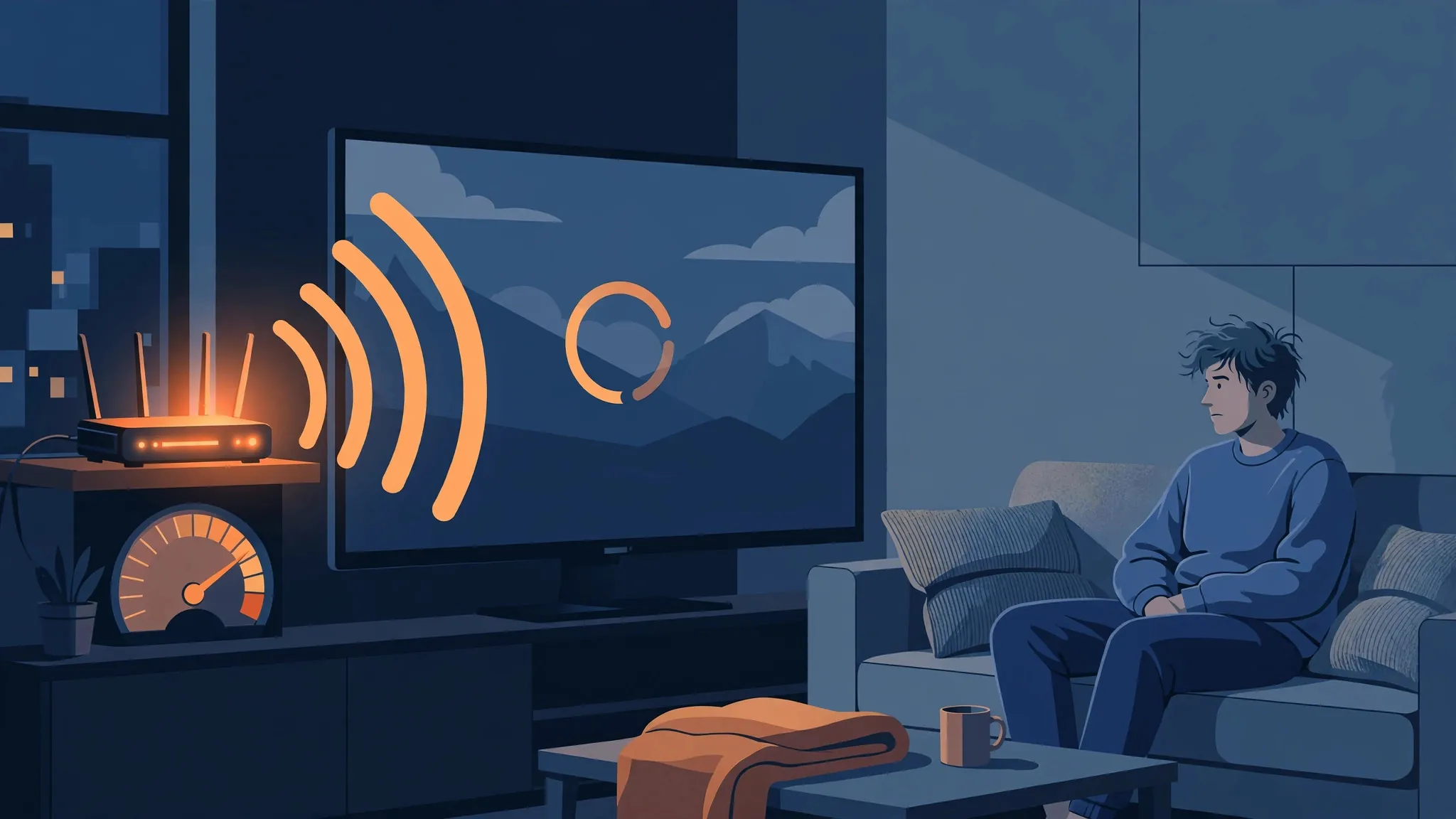
You run a speed test, and it says 200 Mbps. You open YouTube, press play, and thirty seconds later the video freezes on the little spinning circle anyway. The speed test is not lying exactly — but it is answering a different question from the one YouTube cares about.

That mismatch is the single most useful thing to understand about buffering. Your connection can be genuinely fast and still fail to deliver a smooth video, because “fast” and “able to keep a video fed” are two different measurements. Once you know which one YouTube needs, fixing buffering gets a lot less mysterious.
Your speed test and YouTube are measuring two different things
A speed test measures how much data your connection can move to the test company’s nearest server, usually as one big burst. It’s like timing your car on an empty straight road. YouTube, on the other hand, needs a steady, uninterrupted delivery of small chunks over minutes — more like keeping a constant speed in stop-start city traffic.
Google’s own help page for fixing YouTube playback issues makes this explicit: the speed your device actually receives can be very different from the number on a speed test, because of Wi-Fi performance, the time of day, and how your internet provider connects to YouTube. If other devices in the house are using the connection, that number gets split between them.
And here’s the part that surprises people: the speeds YouTube itself recommends are modest. According to Google’s table, a steady 2.5 Mbps is enough for 720p, about 5 Mbps for 1080p, and 20 Mbps for 4K. The keyword is steady — sustained delivery, not a burst score from a speed test.
What “buffering” actually is
YouTube doesn’t send you a video as one file. Every video is chopped into short segments a few seconds long, and your player downloads each one just before it needs it — building a small cushion of video ahead of where you’re watching. That cushion is the buffer.
The spinning wheel means the cushion ran out. Your player played everything it had downloaded and is now sitting there waiting for the next chunk to arrive. Buffering is almost never about the total size of your connection; it’s about data not arriving steadily enough, moment to moment, to keep the cushion filled.
YouTube is already trying to save you from the spin
Before YouTube stalls, it quietly lowers your video quality. The player measures how fast each segment is arriving and steps down from 1080p to 720p to 480p if the connection dips, switching back up when things recover. You usually don’t even notice the switch happening between segments.
This is worth knowing for one reason: if you’re seeing the quality drop to blurry but the video keeps playing, YouTube has already diagnosed a slow connection for you. If you’re seeing the spinning wheel instead, the connection at that moment isn’t even keeping up with the lowest quality the player is willing to go.
The usual suspects, in order of likelihood
Your Wi-Fi is the weakest link in the house. The 200 Mbps arrives at your router; what reaches the sofa is another matter. Walls, distance, and interference slow it down, and Wi-Fi speeds can swing wildly from minute to minute — exactly the kind of uneven delivery that drains the buffer. Our explainer on Wi-Fi speed versus internet speed goes deeper into this gap. If your router broadcasts two networks, being on the right one matters too — the faster, shorter-range one usually wins for video.
Someone else is drinking from the same pipe. A video call in one room, a game download in another, a cloud photo backup quietly running — each takes a slice of the connection. Your speed test measures the pipe when you’re standing alone; YouTube has to share it with the household.
It’s the busy hour. Evenings are when the most people in your neighbourhood are streaming at once, and YouTube’s own guidance names the time of day as a factor. If buffering is strictly an 8pm-to-10pm problem and the connection is fine at noon, congestion — yours, your provider’s, or somewhere between — is the likeliest cause.
Your device is struggling, not your connection. Old phones, old TVs, and overworked browsers can fail to decode video fast enough even when the data arrives on time. A video can stutter on a device that a speed test says is “fast” because decoding is a different job from downloading.
YouTube itself, rarely. It happens — a widespread outage, a problem with a particular upload. It’s the least common cause, so check it last, not first.
Use YouTube’s built-in diagnostics instead of guessing
There’s a hidden tool that tells you exactly what’s happening, and most people never open it. On a computer, right-click directly on the playing video and choose Stats for nerds. (On the mobile app, it’s available from the player menu.) A small overlay of live technical readouts appears.
You don’t need to understand every line. Three of them tell the story:
- Buffer Health — how much video is banked ahead of you, in seconds. If this number is low or keeps hitting zero, the network can’t keep the cushion filled, and that’s your problem.
- Connection Speed — what YouTube thinks your connection can currently support. If this is far below your speed-test number, the gap between your router and YouTube’s servers is where the trouble is.
- Dropped Frames — frames your device couldn’t render in time. A few dropped frames are normal. If the count is climbing fast while Buffer Health looks fine, your device is the bottleneck, not the connection.
Also glance at Current / Optimal Res: it shows the resolution you’re actually watching versus the one YouTube thinks your setup should manage. If Current is well below Optimal and Buffer Health is healthy, the player is just being cautious about your connection — manually picking a higher quality in the gear menu sometimes holds fine.
Fixes that actually work, in order
1. Drop the quality and see what happens. Click the gear icon, pick 720p manually, and watch for a minute. If the spinning stops, you’ve confirmed it’s a delivery problem, not a YouTube problem — and 720p on a phone screen looks perfectly decent while you sort the rest.
2. Restart your router. It’s the cliché because it works. Ten seconds off, back on, wait two minutes. Routers accumulate stale states, and a restart is the fastest way to clear them.
3. Get closer to the router, or plug in. If the video plays fine on the same device sitting next to the router, your Wi-Fi is the problem and everything else is fine. For a TV or desktop that buffers regularly, a cable is the single most reliable fix there is.
4. Clear the household load. Pause the cloud backup, the game download, the other room’s 4K stream. If buffering vanishes, you were simply oversubscribed — no amount of speed-test boasting survives three people streaming at once on a small plan.
5. Update the browser or app. An outdated YouTube app or browser can miss playback improvements. It’s a two-minute check and occasionally the entire answer.
6. Try a different device. Phone fine, TV buffering? The TV’s Wi-Fi or its aging processor is suspect. TV fine, laptop buffering? The laptop’s browser or extensions are. Swapping the device isolates the problem faster than any amount of theorizing.
7. Note the time. If it’s only ever bad in the evening, that’s congestion, and the fixes above can only do so much. Worth knowing before you spend a weekend troubleshooting something outside your control.
The number to watch
The speed test gives you a headline number. YouTube gives you a live one: open Stats for nerds, watch Buffer Health, and you’ll know in thirty seconds whether your connection is actually keeping up. Buffering isn’t really a speed problem most of the time — it’s a steadiness problem, and once you can see it happening live, you stop guessing and start fixing the right thing.












