



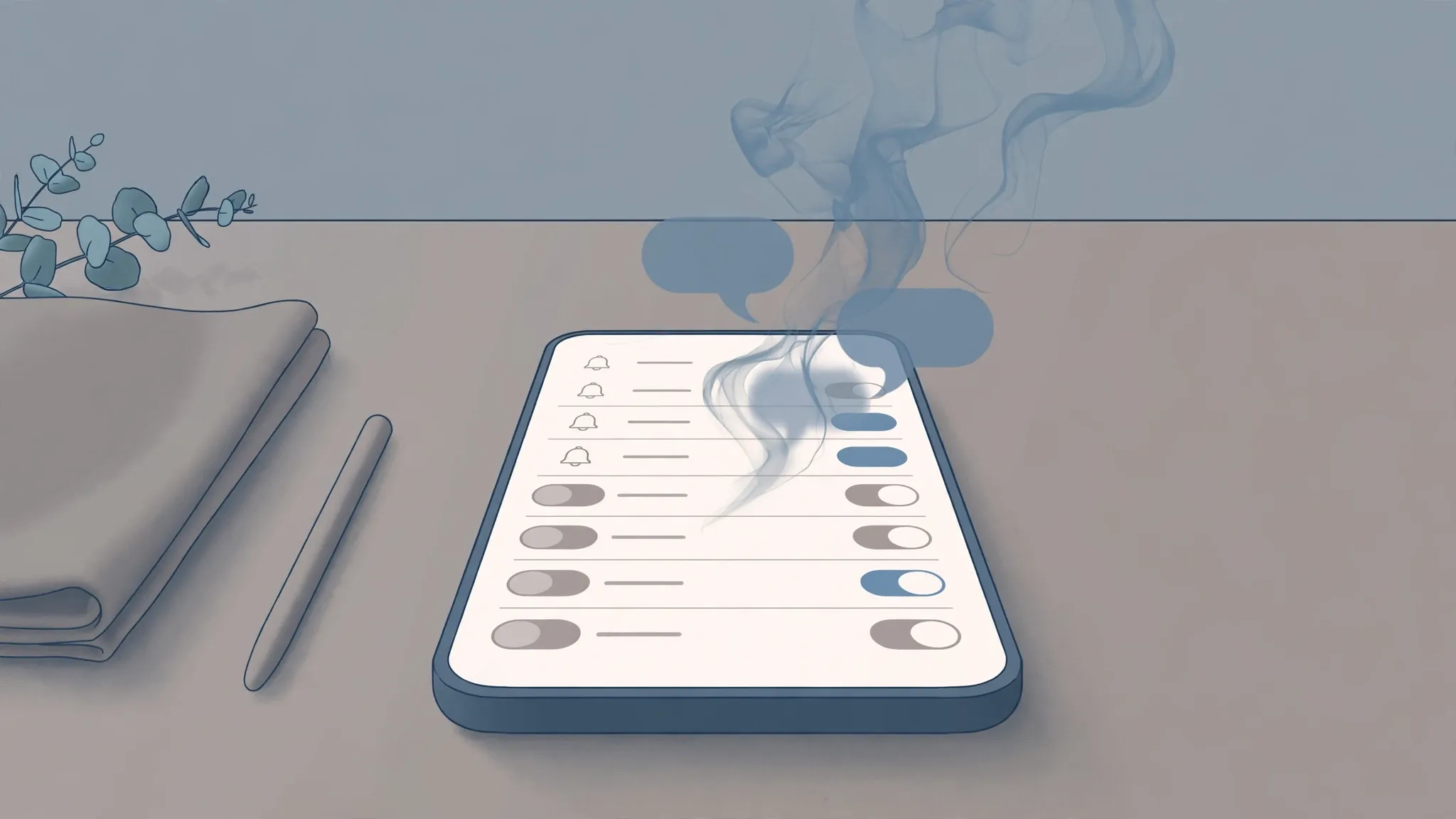
Most phone notifications are not for you. Not really. They’re for the app — a reminder that it exists, a nudge to open it, a “we miss you” dressed up as news. The handful that actually matter — a message from a real person, a two-factor code, your alarm — get buried under the rest, which is exactly backwards from how it should be.

The fix isn’t to silence your phone entirely. It’s to sort your notifications the way you’d sort your mail: junk in the bin, bills on the desk, everything else filed away for later. Your phone already has the tools for this. They’re just scattered across a few settings screens nobody ever opens. Here are the six worth finding.
1. Say no the first time an app asks
On phones running Android 13 or newer, apps are required to ask your permission before they can send a single notification. That’s a relatively recent change — Google only introduced the opt-in rule with Android 13, following Apple’s lead — and it turns every new app install into a small decision worth making deliberately.
The habit to build is simple: if an app’s whole job doesn’t depend on alerting you, say no. Messaging apps, banking apps, and anything with deliveries or reminders get a yes. The shopping app, the random game, the restaurant app you used once? No. You can always change your mind later in that app’s notification settings — granting permission takes five seconds, but most people never bother taking it away.
iPhone owners already live in this world: iOS has always asked before an app can buzz you. The same discipline applies. When the prompt appears, ask yourself one question: “Would I notice if this app never notified me again?” If the answer is no, tap Don’t Allow without guilt.
2. Silence the noisy parts of an app, not the whole app
Some apps are two-faced about notifications: genuinely useful for one thing and relentless about another. Your food delivery app’s order updates matter; its “20% off tonight only!” messages don’t. Your email app needs to tell you about new messages; it doesn’t need to announce every newsletter arrival.
Android handles this with notification categories (also called channels), a feature that’s been around since Android 8. Open Settings > Apps, tap the app, then tap Notifications, and you’ll often see a list of categories — things like “Messages,” “Promotions,” or “Updates.” Tap the name of a category, not just the toggle next to it, and you get fine-grained controls: sound, vibration, lock-screen visibility, or switching it off entirely. On Samsung phones, you may first need to turn on Settings > Notifications > Advanced settings > Manage notification categories for each app before these lists appear.
Here’s the fastest way to use it: the next time a junk notification arrives, long-press it. Android will offer to turn off that exact category right there, no settings hunt required. It’s the digital equivalent of unsubscribing from a mailing list at the moment it annoys you — which, as it turns out, is when you’re most motivated to do it.
On iPhone, the granularity is coarser — notifications are mostly all-or-nothing per app — but the same principle works through the Scheduled Summary trick in point three.
3. Bundle everything unimportant into a scheduled digest
This is the single biggest calm-you-can-buy on an iPhone. Scheduled Summary, found at Settings > Notifications > Scheduled Summary, gathers up notifications from the apps you choose and delivers them in batches at times you pick — morning, midday, evening, up to twelve summaries a day if you like. Instead of fifty interruptions, you get two or three tidy bundles.
Setup is straightforward: turn the feature on, pick your delivery times, then choose which apps go into the summary. Social media, news, shopping, games — anything that can wait. Apple even shows you roughly how many notifications each app sends on an average day, which makes the choice embarrassingly easy. And the safety net is built in: genuinely time-sensitive notifications — direct messages, calls, alarms — still come through immediately, even from apps in your summary.
A practical detail worth knowing: when a summary notification arrives, you can swipe left on any individual item inside it and choose Deliver Immediately to pull that app back out. The system learns toward what you actually want instead of punishing you for experimenting.
4. Put quiet hours on a schedule
Do Not Disturb is the most underused feature on modern phones, mostly because people treat it as a manual switch they flip when they remember. It works far better as a schedule.
On Android, go to Settings > Sound (on some phones it’s under Notifications) and tap Do Not Disturb, then Schedules. There’s a ready-made Sleeping schedule you can switch on and adjust, plus options tied to calendar events, gaming, or driving — or you can build your own, like a “deep work” block on weekday mornings. Alarms still ring through, and you can allow calls and messages from specific people if you like.
On iPhone, the same idea lives under Focus in Settings. The Do Not Disturb focus can be set to switch on automatically at bedtime, and you can add Work or Sleep focuses with their own schedules and their own shortlists of people and apps allowed through. The two rules that matter: schedule it, and decide who counts as an exception. Everything else is optional polish.
5. Decide what your lock screen is allowed to show
Notifications don’t need to be visible to everyone who glances at your phone. On iPhone, Settings > Notifications > Show Previews controls whether notification content appears on the lock screen. When Unlocked is the sweet spot for most people: you still see the alert, but the details stay hidden until your face or fingerprint opens the phone.
Android gives you per-app control here too: in each app’s notification settings you can choose whether its alerts appear on the lock screen at all, or appear with their content hidden. If you leave your phone face-up on a desk all day, trimming lock-screen visibility does double duty — fewer eyeballs on your messages, and a calmer glance at the phone every time you walk past it.
6. Audit your noisiest apps every few months
Notification hygiene rots over time. Apps get updated, new features bring new notification categories, and that shopping app you tamed in January has quietly added “Price drops” and “Back in stock” to its repertoire by June.
Twice a year, spend ten minutes on an audit. On Android, Settings > Notifications > Notification history shows you what has actually pinged you recently — an excellent reality check against what you think is noisy. On iPhone, revisit the Scheduled Summary screen: the per-app average counts make it obvious which apps have gotten louder. And for both platforms, one underused move: open the worst offenders’ in-app notification settings. Many apps carry a whole second layer of toggles — push, email, marketing, recommendations — buried inside the app itself, and turning them off there is often more effective than anything in the phone’s settings.
The goal of all this isn’t a silent phone. It’s a phone that treats your attention as expensive. The alerts that survive the cull — messages from people, security codes, reminders you set yourself — actually get noticed, because they’re no longer competing with a flash-sale announcement from an app you forgot you installed. That’s not just calmer. It’s the phone working the way it was supposed to.
If you enjoy getting your phone’s settings into shape, the same instinct applies to the app permissions on your phone worth reviewing — and there’s more like this in the Apps & Software archive.













Comments 2