



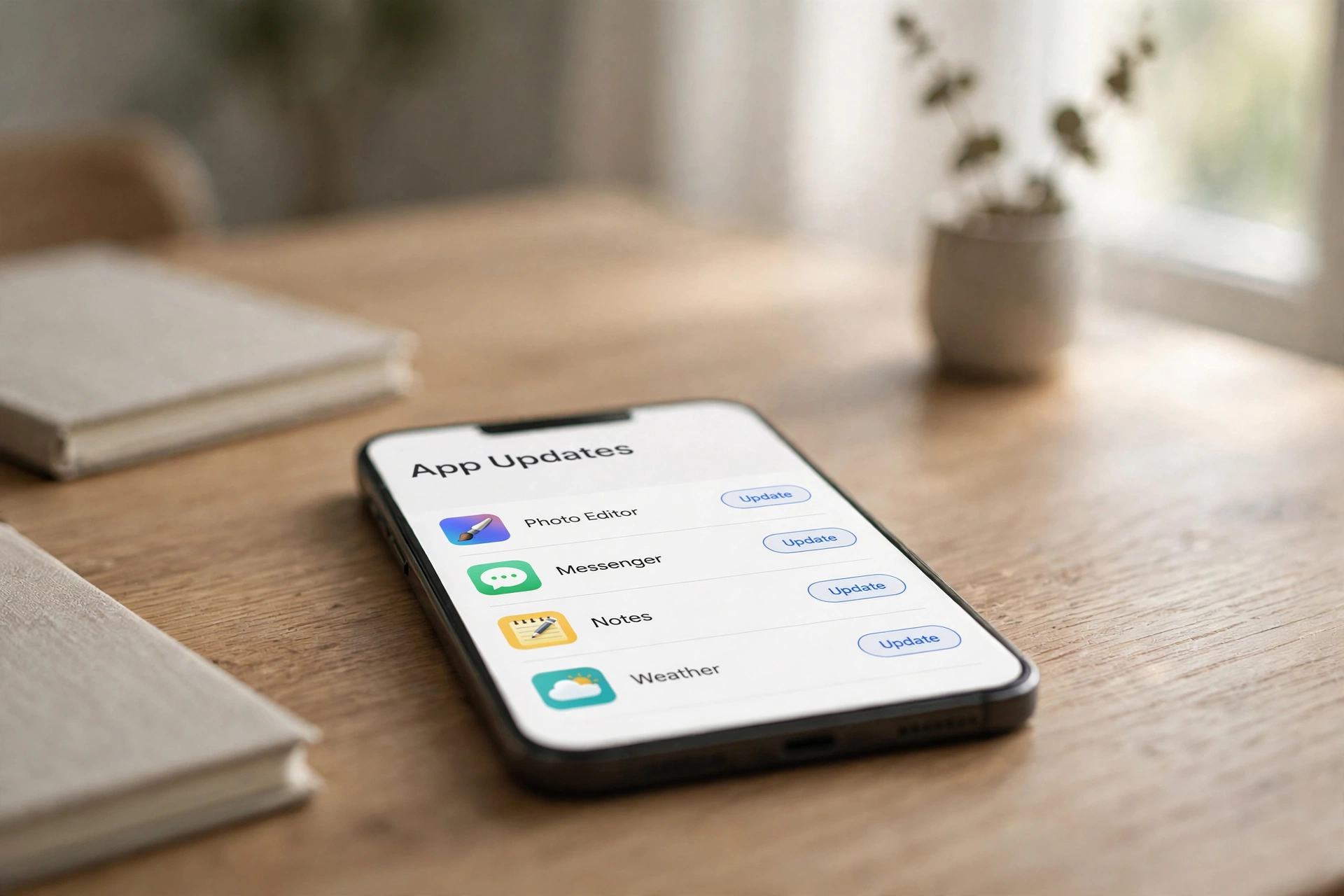
Everyone knows this screen. You open the App Store or Play Store and there it is: a list of apps waiting to update, sometimes a dozen or more, with that patient Update All button glowing at the top. You tap it, the little circles spin, and within a day or two the list is full again. It can feel like your apps are in a permanent state of almost-finished.

There’s a reason updates arrive so often, and it’s not that developers enjoy annoying you. An app update is really several different jobs bundled into one download, and once you know what those jobs are, the constant stream starts to make sense — and you can make smarter decisions about which updates deserve your attention and which can wait.
One download, four different jobs
The word “update” hides a lot. When an app ships a new version, it usually contains some mix of these four things:
Security fixes. This is the most important and least visible kind of update. When a flaw is found in the code that handles logins, payments, or your personal data, the fix goes out as an app update. Nothing about the app looks different — but the hole is closed. This is the update you genuinely don’t want to skip, especially for banking, messaging, and email apps.
Bug fixes. The crash you reported, the button that stopped working, the photo that refused to upload — fixes for all of these ship in updates. Developers collect crash reports and error logs from thousands of phones and patch the most common problems first.
New features. The part of the update you’ll actually notice. A new filter, a redesigned menu, dark mode at long last. Feature updates are the reason some people feel the app keeps “changing things,” but they’re also the reason the app still works well on phones that didn’t exist when it was first written.
Maintenance you never see. Phone operating systems change every year, and apps have to keep up. A surprising amount of update traffic is just an app staying compatible with the latest version of iOS or Android, switching to newer behind-the-scenes tools, or dropping support for old phones it can no longer run on safely.
Why your favourite apps update the most
Notice which apps ask for updates the most often: messaging apps, social media, browsers, navigation. That’s not a coincidence. The apps you use every day are under constant pressure — millions of users, new phone models every few months, competitors adding features weekly. Most large apps now work on a fixed rhythm, shipping small updates every week or two rather than one big update a year.
This rhythm has a real advantage for you: when something breaks, the fix arrives in days, not months. The trade-off is the endless update list. Smaller apps with a narrow job — a level tool, a stopwatch — barely change because they barely need to. Your most-used apps, on the other hand, are running on a treadmill.
There’s one more reason updates keep trickling in: developers rarely release a new version to everyone at once. They push it to a small group of users first, watch for problems, then widen the release. So that update that appeared for you on Thursday may have existed since Monday — you were just in a later wave.
What “bug fixes and performance improvements” really means
Scroll through the release notes of almost any app and you’ll eventually hit the famous line: “Bug fixes and performance improvements.” No details. No list. Nothing.
This isn’t laziness so much as strategy. Writing detailed notes for a dozen tiny fixes costs time, and most people never read them. Some companies also keep security fixes vague on purpose — advertising exactly which flaw was patched tells attackers what was broken. The generic line usually means the team shipped fixes that were too small or too technical to explain, or fixes they’d rather not describe in detail.
The one thing worth knowing: a version bump that says nothing at all can still matter. Security patches hide inside those bland notes more often than people realise, which is why “I don’t need it, nothing changed” is the wrong way to read an update with no description.
The updates you genuinely shouldn’t skip
Most updates can wait until you’re on Wi-Fi and not doing anything important. Two kinds can’t.
Security updates are the obvious one. When researchers or the developers themselves discover a flaw that could let someone read your messages or access your account, the patch is the only protection you have. Messaging, banking, browser, and email apps sit at the top of this list because they hold the most valuable parts of your digital life.
Forced updates are the ones that leave you no choice: open the app and it refuses to run until you update. Banking and payment apps do this most often, and for good reason — they won’t let you move money through a version they know has problems. If an app blocks you at the door, don’t fight it. Update it.
Everything else — new features, design tweaks, minor bug fixes — can be installed whenever it’s convenient. If your favourite game adds three new levels, the old version won’t stop working tonight.
How to make updates stop getting in the way
You don’t have to live with the constant tapping. Both phones give you real control; it’s just buried a menu or two deep.
Let updates happen overnight. On an iPhone, automatic updates are on by default — apps update quietly in the background, and you can confirm in Settings > App Store that the App Updates toggle is switched on. On Android, open the Play Store, tap your profile icon, then Settings > Network preferences > Auto-update apps, and choose “Over Wi-Fi only.” That one setting means updates download while you’re on home Wi-Fi and never touch your mobile data.
Exempt apps you want to manage yourself. Android lets you turn off auto-update for a single app: open the app’s page in the Play Store, tap the three dots in the corner, and untick “Enable auto-update.” Useful for that one app whose redesign you don’t trust yet — though you’ll then need to update it by hand, which you can do from the Play Store’s “Manage apps & device” screen.
Quiet the noise. Part of the annoyance isn’t the updates themselves but the constant nudges about them. If your phone feels like a town crier, it’s worth doing what we suggest in our guide to calmer notification settings — the update prompts are just one stream among many, and most of them can be silenced without missing anything important.
One thing automatic updates can’t handle: built-in apps. On an iPhone, core apps like Safari and Camera don’t update through the App Store at all — they update when you update the phone’s software itself. It’s also why some of the most useful apps on your phone, like the document scanner hiding in your camera or files app, never seem to ask for updates: they’re part of the phone, not a store listing.
So should you hit “Update All”?
Honestly, yes — and then forget about it. Turn on automatic updates over Wi-Fi, let them run overnight, and check manually only for the apps that handle money or sensitive messages. The endless stream of updates is really just the sound of your apps being maintained: security holes being closed, crashes being fixed, and the occasional genuinely nice new feature arriving without you having to do anything.
If you want to go one step further into understanding what’s already on your phone, our Apps & Software section is where we keep the practical guides — the built-in tools most people miss, the settings worth changing, and the stuff your apps do that nobody explains.













Comments 1