


• About
  • Contact
  • Privacy Policy
  • Terms & Conditions
  • Disclaimer
  • Cookie Policy
Superdova.com
Advertisement
  • AI Tools
  • Internet Guides
  • Tech How-To
  • Apps & Software
  • Online Safety
No Result
View All Result
  • AI Tools
  • Internet Guides
  • Tech How-To
  • Apps & Software
  • Online Safety
No Result
View All Result
Superdova.com
No Result
View All Result
Home Tech How-To

Your Bluetooth Earbuds Keep Cutting Out? It’s Rarely the Earbuds

Amit by Amit
September 30, 2026
in Tech How-To
1
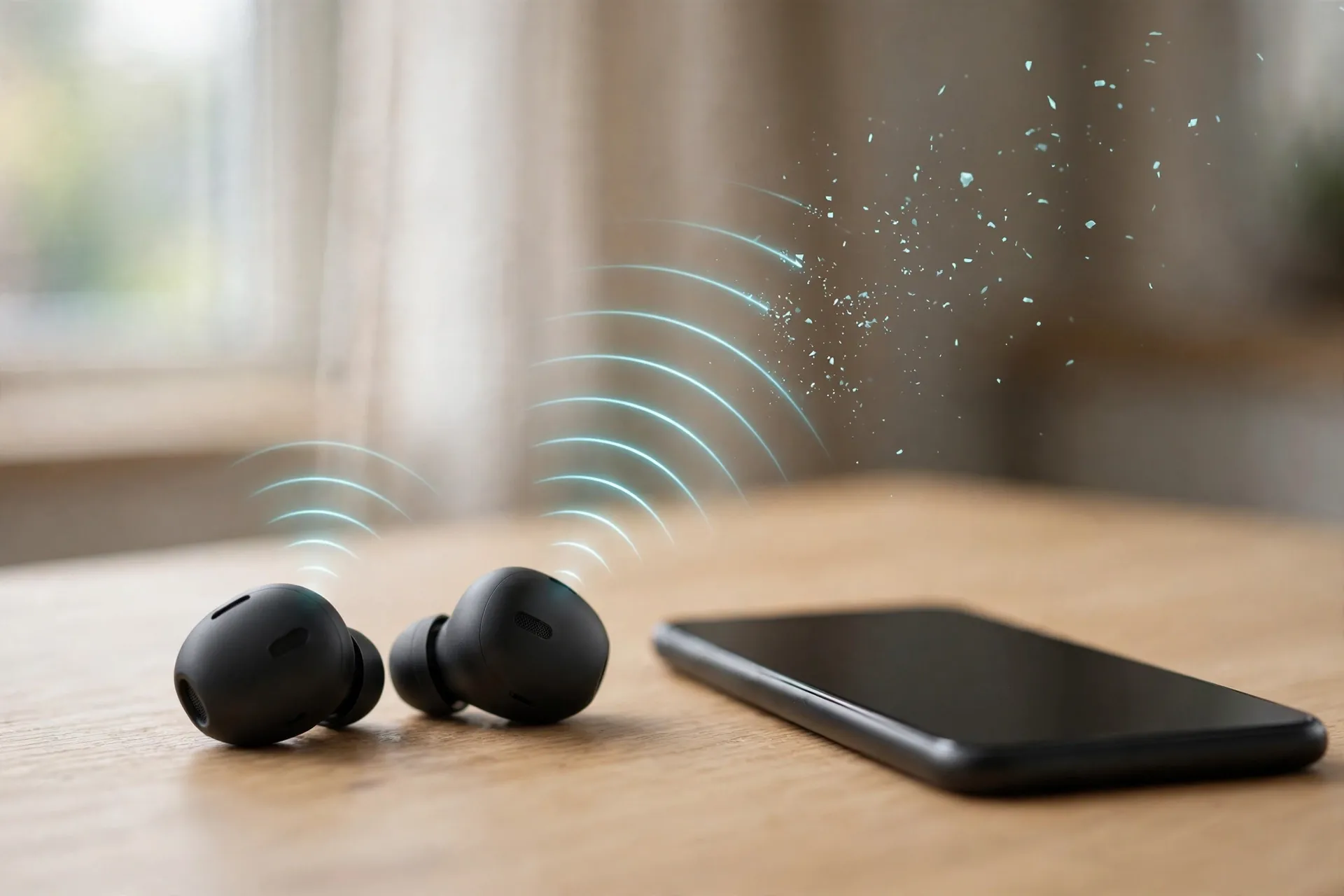
Wireless earbuds on a desk next to a smartphone, with a disrupted signal wave illustrating Bluetooth dropouts
0
SHARES
2
VIEWS
Share on FacebookShare on Twitter

The music stutters. Your voice drops out of the call mid-sentence. You fish the phone out of your pocket, the audio clears up for a minute, and then the dropouts start again. The first instinct is to blame the earbuds — cheap hardware, dying battery, time to buy a new pair.

Most of the time, though, the earbuds are fine. Bluetooth audio is fragile by design: a weak, short-range radio link competing with every other wireless signal in the room. Once you know what actually breaks it, the fixes are mostly five-minute jobs.

Table of Contents

Toggle
  • First, figure out what kind of cutout this is
  • The usual suspects: distance, crowds, and low power
  • The two-device shuffle
  • Quick fixes worth trying first
  • Still cutting out? Re-pair properly
  • On Windows, check the setting that quietly breaks Bluetooth
  • When it really is the earbuds

First, figure out what kind of cutout this is

The pattern is the diagnosis. Audio that cuts out everywhere points to the earbuds themselves or their pairing. Cutouts that only happen outdoors or on a busy train point to interference and distance. Dropouts that only happen on calls can be a codec or device-handoff issue. And if one earbud is consistently worse than the other, that’s usually a hardware clue. Keep your pattern in mind as you work through the rest — it tells you which fix is most likely to stick.

The usual suspects: distance, crowds, and low power

Bluetooth was never built for long range. Most earbuds use a low-power Bluetooth class with an effective range of around ten metres in open air — and that number collapses the moment anything sits between the earbuds and the phone. A body counts as an obstacle. Your phone in a back pocket, a bag slung across your back, or a wall between you and the laptop on your desk is genuinely enough to weaken the signal.

Then there’s the room itself. Bluetooth shares the 2.4 GHz radio band with Wi-Fi, microwave ovens, and many wireless speakers and dongles. In a crowded office, a packed train, or a kitchen with the microwave running, dozens of devices are shouting over the same frequencies. Apple says it plainly in its own Bluetooth troubleshooting guidance: move away from places with heavy Wi-Fi activity, microwave ovens, and wireless speakers — or switch the oven or speaker off — and keep the phone close with no obstructions in between.

And don’t skip the obvious: when earbuds run low on charge, the connection is often one of the first things to suffer. If the cutouts started near the end of the day after hours of use, charge both the earbuds and their case fully before doing anything else.

One useful test, also straight from Apple’s guidance: play audio that’s stored on the device instead of streamed. If downloaded music plays fine while streamed music stutters, the problem isn’t your Bluetooth link at all — it’s the internet connection or the app.

The two-device shuffle

Many modern earbuds can stay connected to two devices at once and jump between them automatically. It’s convenient until your earbuds decide mid-song that the incoming notification on your laptop is more important than the podcast on your phone. If your audio keeps dropping and you have two devices with Bluetooth on nearby, this is a strong suspect. Disconnect the earbuds from the device you’re not using — or turn that device’s Bluetooth off entirely for a test — and see if the cutouts stop.

Quick fixes worth trying first

Start with the cheap ones before touching any settings:

  1. Charge everything. Earbuds and case to full, then test again.
  2. Shorten the distance. Keep the phone in a front pocket or on the desk in front of you, not behind you or in another room.
  3. Restart both ends. Drop the earbuds in their case for ten seconds, then restart the phone too. This clears more stuck Bluetooth states than you’d expect.
  4. Silence the second device. Disconnect or switch off Bluetooth on the laptop or tablet you’re not actively using.
  5. Check for a firmware update. Most earbud brands push firmware through their companion app, and connection-stability fixes are among the most common updates.

Still cutting out? Re-pair properly

A plain “disconnect and reconnect” rarely fixes a sick pairing — the phone holds on to the old connection record. Remove the earbuds completely and pair them fresh. On an iPhone: Settings > Bluetooth, tap the info button next to your earbuds, choose Forget This Device, restart the iPhone, then pair again. On Android: Settings > Connected devices > Connection preferences > Bluetooth, unpair the earbuds, restart the phone, and pair again. (These are the exact steps Apple recommends when audio keeps disconnecting.)

On Windows, check the setting that quietly breaks Bluetooth

Windows is notorious for cutting Bluetooth audio to save power, and the setting responsible is buried. Open Device Manager, expand Bluetooth, right-click your Bluetooth adapter, open the Power Management tab, and uncheck “Allow the computer to turn off this device to save power”. While you’re at it, make sure the taskbar’s Energy Saver mode is off — Microsoft confirms it can interfere with Bluetooth. If that doesn’t settle it, Windows 11 has an automated Bluetooth troubleshooter in the Get Help app that runs its own diagnostics. (Source: Microsoft’s “Bluetooth keeps disconnecting in Windows” support article.)

When it really is the earbuds

Sometimes the hardware is at fault. If the cutouts happen even with the phone inches away after a clean re-pair, or one earbud is consistently much worse than the other, or the problem started after a drop or a splash — that’s a hardware or firmware problem no setting will fix. Check the companion app for firmware one more time, then look up the manufacturer’s warranty or support route. Earbuds bought in the last year or two are often still covered, and it’s worth asking before paying for a replacement.

Most Bluetooth dropouts, though, turn out to be the room, the distance, or a device trying to be helpful in the background. Work through the checks above once, and you’ll usually find the culprit in under ten minutes. If you only fix video calls while you’re at it — the audio’s fine but you look like a blurry ghost — a bad-looking webcam has its own set of fixes. And for more everyday glitches like this one, the Tech How-To section is where they live.


Previous Post

Poor Signal at Home? Wi-Fi Calling Fixes That

Next Post

Accidentally Overwrote a Document? You Can Still Get the Old One Back

Amit

Amit

Next Post
Laptop on a desk with a document open beside a timeline of its older saved versions — illustrating document version history

Accidentally Overwrote a Document? You Can Still Get the Old One Back

Comments 1

  1. Pingback: Microphone Not Working on Calls? Fixes That Actually Work

Leave a Reply Cancel reply

Your email address will not be published. Required fields are marked *

Stay Connected test

  • 24k Followers
  • 99 Subscribers
  • Trending
  • Comments
  • Latest
Photorealistic illustration of a laptop displaying an email inbox with a breach warning, with a cracked red padlock floating above the screen

Your Email Was in a Data Breach? Don’t Panic — Do These Five Things

September 23, 2026
Illustration of a laptop showing ChatGPT's settings panel with the Custom instructions field highlighted

What to Put in ChatGPT’s Custom Instructions (With Examples Worth Copying)

September 22, 2026
Illustration of a golden master key hovering over a glowing inbox icon on a laptop screen, surrounded by shields and padlocks

If Someone Gets Into Your Email, They Get Into Everything

September 22, 2026
Illustration of a smartphone showing an AI chat conversation with a magnifying glass examining the answers, symbolising fact-checking

AI Chatbots Sound Confident Even When They’re Wrong. Here’s How to Check Their Answers

September 23, 2026
Illustration of a smartphone showing an AI chat conversation with a magnifying glass examining the answers, symbolising fact-checking

AI Chatbots Sound Confident Even When They’re Wrong. Here’s How to Check Their Answers

9
Illustration of a golden master key hovering over a glowing inbox icon on a laptop screen, surrounded by shields and padlocks

If Someone Gets Into Your Email, They Get Into Everything

8
Photorealistic illustration of a laptop displaying an email inbox with a breach warning, with a cracked red padlock floating above the screen

Your Email Was in a Data Breach? Don’t Panic — Do These Five Things

6
A home Wi-Fi router sending a glowing wireless signal toward a laptop on a couch, with a data cable running into the wall — illustrating the difference between Wi-Fi speed and internet speed

Your Wi-Fi Speed and Your Internet Speed Are Not the Same Thing

5
A hand holding a smartphone showing a chat screen with the word "online" under a contact's name

Your WhatsApp “Online” Status Isn’t as Private as You Think

October 20, 2026
Flat illustration of a laptop showing a logout symbol with a small brass key beside it, on a blue and grey background

Signed Out Again? Why Websites Keep Logging You Out

October 20, 2026
Woman with earbuds relaxing in an armchair while her phone reads an article aloud, tea on a side table, warm evening light

Too Tired to Read? Your Phone Can Read the Screen for You

October 19, 2026
Photograph of a smartphone lying on a wooden café table, its screen showing a map with a glowing blue location pin, a hand reaching toward it in the background

Lost Your Phone? Ring It, Lock It, or Find It From Any Computer

October 19, 2026

Recent News

A hand holding a smartphone showing a chat screen with the word "online" under a contact's name

Your WhatsApp “Online” Status Isn’t as Private as You Think

October 20, 2026
Flat illustration of a laptop showing a logout symbol with a small brass key beside it, on a blue and grey background

Signed Out Again? Why Websites Keep Logging You Out

October 20, 2026
Woman with earbuds relaxing in an armchair while her phone reads an article aloud, tea on a side table, warm evening light

Too Tired to Read? Your Phone Can Read the Screen for You

October 19, 2026
Photograph of a smartphone lying on a wooden café table, its screen showing a map with a glowing blue location pin, a hand reaching toward it in the background

Lost Your Phone? Ring It, Lock It, or Find It From Any Computer

October 19, 2026
Superdova.com

SuperDova is an independent technology publication covering AI tools, software, internet guides, digital skills and online safety. Our goal is to make technology easier to understand and use.

Follow Us

Browse by Category

  • AI Tools
  • Apps & Software
  • Internet Guides
  • Online Safety
  • Tech How-To

Recent News

A hand holding a smartphone showing a chat screen with the word "online" under a contact's name

Your WhatsApp “Online” Status Isn’t as Private as You Think

October 20, 2026
Flat illustration of a laptop showing a logout symbol with a small brass key beside it, on a blue and grey background

Signed Out Again? Why Websites Keep Logging You Out

October 20, 2026
  • About
  • Contact
  • Privacy Policy
  • Terms & Conditions
  • Disclaimer
  • Cookie Policy

© 2026 SuperDova — Technology, AI & Digital Guides. All Rights Reserved.

No Result
View All Result
  • AI Tools
  • Internet Guides
  • Tech How-To
  • Apps & Software
  • Online Safety

© 2026 SuperDova — Technology, AI & Digital Guides. All Rights Reserved.









