



There’s a specific kind of panic that hits when you watch someone — or yourself — paste over the good draft. Ctrl+Z works for a little while, but if you’ve saved, closed, or kept working since then, undo runs out. And that is usually the moment people start googling in a hurry.

Here’s the calmer news: the document almost certainly kept its own paper trail. Google Docs, Word, and Apple’s apps all quietly save earlier states of your work in the background. If you know where to look, the version from before the mistake is usually still there, waiting to be brought back.
Your apps have been keeping snapshots all along
Version history is not the same thing as autosave. Autosave keeps you from losing your work; version history keeps a record of what your work used to look like. Every so often — when you save, pause, or close the document — the app stores a snapshot with a timestamp, and who made the change if it was shared.
The reassuring part: restoring an old version doesn’t nuke the one you have now. In Google Docs and Word, the version you replace gets folded into the history too, so you’re never really going backwards without a way forwards. It’s less like deleting your progress and more like rewinding with the footage kept.
In Google Docs: the quietest one of all
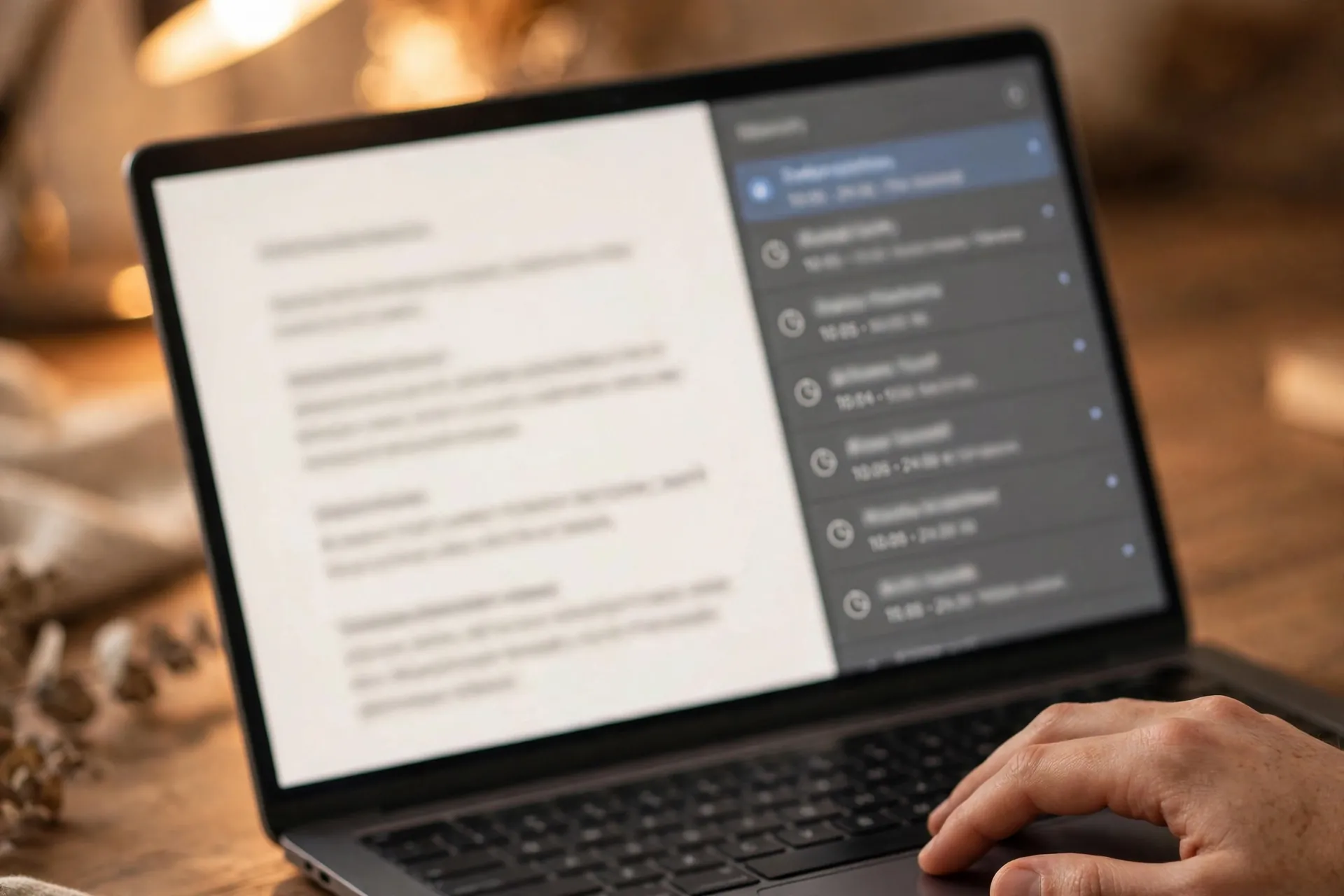
Docs does this without asking and barely mentions it. Open the document, go to File > Version history > See version history — or press Ctrl+Alt+Shift+H (on a Mac, Cmd+Option+Shift+H). A panel opens on the right with every saved state, timestamped, color-coded by contributor if the document was shared.
Click any version to preview it — the document body changes to show that state, with a Show changes toggle at the bottom that highlights exactly what moved. When you’ve found the one you want, hit Restore this version at the top.
One habit worth stealing from people who collaborate a lot: before a big restructure, click the three-dot menu next to any version and choose Name this version. “Before editor’s pass” or “Final-ish draft, Tuesday” is far easier to find than an anonymous 2:41 PM timestamp. And this all works the same way in Sheets and Slides.
In Word: only if your file lives in the cloud
Word’s version history comes with a condition: your document has to be saved to OneDrive or SharePoint. Files that live only on your hard drive don’t get this — the history is a cloud feature, not a Word feature. So if your draft only exists as an attachment you’ve been emailing back and forth, moving it into the cloud properly is the first step before anything else here can help.
With the file open, go to File > Info > Version History. (Alternatively, right-click the file in OneDrive and choose Version History there.) A pane lists the saved versions with dates and authors; open one to view it, and Restore makes it the current document — with the previous current version kept in the history, so nothing is truly lost.
One thing to know: personal OneDrive accounts keep up to 25 versions of a file, according to Microsoft’s community support answers — work and school accounts can keep more, depending on admin settings. That’s generous for day-to-day use, but it means the history isn’t infinite.
On a Mac: it looks like Time Machine, but it isn’t
Apple’s document apps — Pages, Numbers, Keynote, even Preview — have the most dramatic interface of the three. Open the document, choose File > Revert To > Browse All Versions, and you get a Time Machine-style view: your current document on the left, older versions receding to the right, a timeline along the edge for jumping back further.
Click through the old versions with the arrow keys, and when you land on the one you want, hit Restore to make it the current document — or click Done to back out with nothing changed. You don’t need Time Machine set up for any of this; it’s built into macOS itself, and it works because Apple stores only the differences between versions, so the overhead is small. A nice middle option, if you only need a paragraph or two, is to copy text straight out of an old version and paste it into the current one.
What version history can’t rescue
It’s worth being honest about the edges. A version only exists if the app saved one — snapshots are taken periodically and at saves, so a frantic minute of typing followed by closing the window can leave thinner history than you’d hope. Renaming a file or saving a fresh copy usually starts the history over, and sending someone a brand-new attachment means they’re getting a document with no past. The further your document lives from the cloud it was made in, the less safety net there is.
Two habits that make the whole thing more useful
The first is naming. Right before any surgery — a restructure, a merge of two people’s edits, deleting a section “just to see” — save a named version in Docs or at least note the time. The search for the right snapshot takes ten seconds when you know what it’s called and ten minutes when you don’t.
The second is making a real copy before truly risky work. Version history is brilliant, but a separate file with “backup” in its name, saved to a different folder, is the one safety net that survives every edge case — renames, moves, sync glitches and all. It’s the same instinct that makes apps quietly update themselves in the background: the boring, invisible maintenance is what saves you when something goes wrong.
The next time a document gets wrecked — by you or by a well-meaning colleague — skip the panic and check the history first. The old version is probably sitting there, timestamped and waiting, and bringing it back takes about a minute.












