



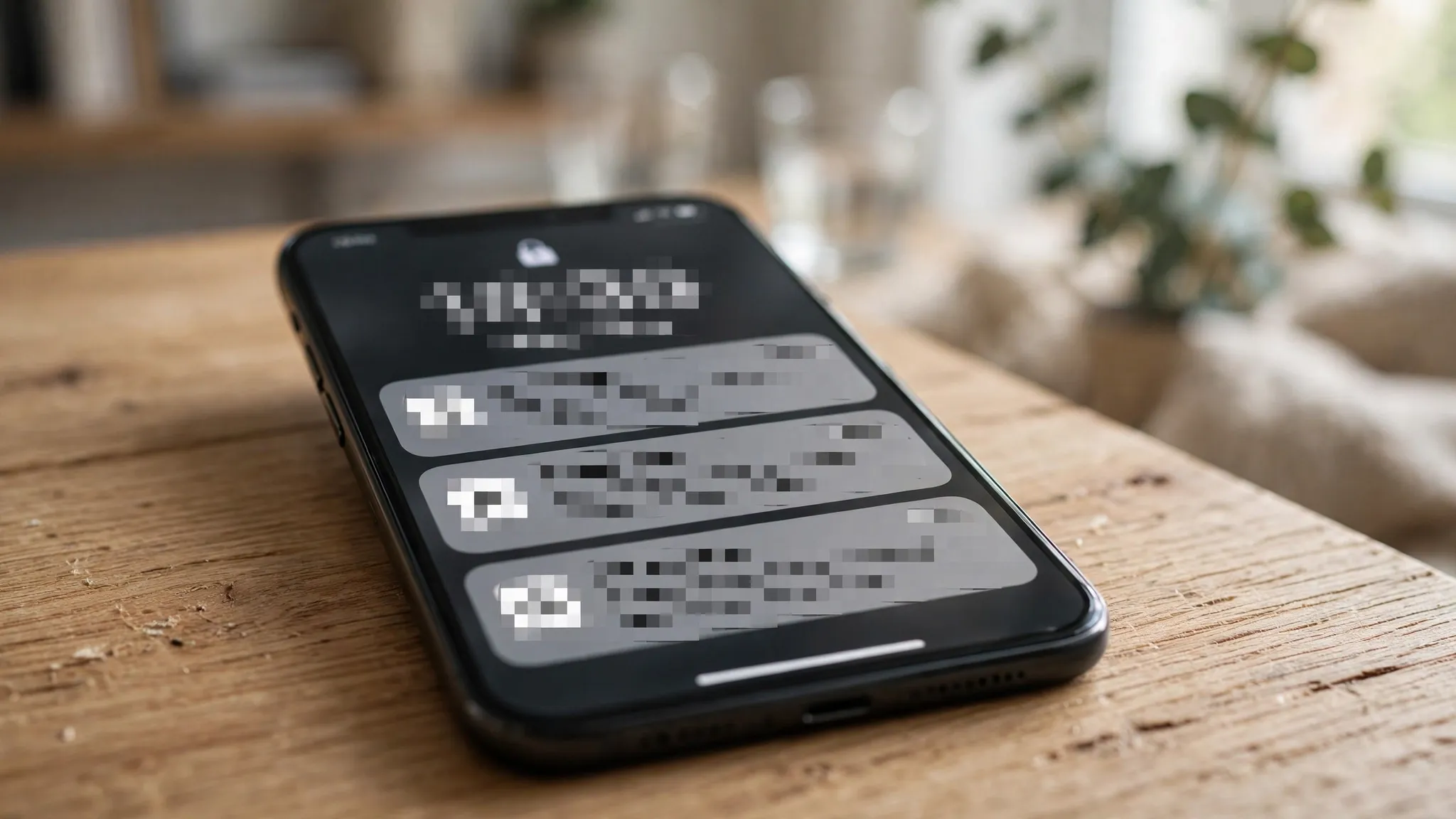
Try a small experiment: set your phone down on a café table, face up, and walk to the counter. Every message, bank alert and one-time password that arrives while you’re gone sits on the lock screen in full — readable by anyone who happens to glance down. You don’t have to imagine the scenario. That is exactly what your phone does out of the box.

What your lock screen hands out for free
The list is longer than most people assume. Text previews from Messages or WhatsApp, including the personal ones. Payment alerts with amounts. Calendar entries with names and locations. Email subjects. Photos someone sends you can show as thumbnails. And then there are the one-time passcodes: SMS codes for logging into your bank or email, displayed in plain sight to anyone near your phone. Pair that with a SIM-swap attack — where a thief takes over your number — and a lock screen full of visible codes is a genuine security hole, not just an embarrassment risk.
There’s a social-engineering angle too. A family-emergency text, name and all, appearing on your screen is exactly the kind of detail a scammer can lift in seconds — and it’s the same playbook behind the AI voice-cloning “grandchild” calls that have been catching people out. The lock screen is a leak; it just leaks slowly.
The iPhone fix takes about thirty seconds
Apple gives you one master switch that covers every app:
- Open Settings and tap Notifications.
- Tap Show Previews.
- Choose When Unlocked or Never.
When Unlocked is the sweet spot for most people. The notification still appears on your lock screen — you’ll know WhatsApp or your bank has pinged you — but the content stays hidden until the phone recognizes your face or fingerprint. On iPhones with Face ID, it’s a seamless glance; on Touch ID models, rest your finger on the Home button and the text fades in. One detail worth knowing: on Face ID iPhones, When Unlocked is already the default, so there’s a chance you fixed this years ago without realizing.
Never is stricter: previews stay hidden even after you unlock, and you’ll need to open the app (or long-press the notification) to read anything. That’s worth choosing for anyone whose phone is regularly visible to others — a shared desk at work, kids who grab the phone, a partner’s prying curiosity.
You can also be surgical about it. Under Settings > Notifications, tap any app — your bank, for instance — and set its own Show Previews separately. Set banking and health apps to Never, leave the news apps showing. The per-app setting overrides the master one.
On Android, the setting is buried one layer deeper
On a Pixel or most other Android phones:
- Open Settings and tap Notifications.
- Tap Notifications on lock screen.
- Turn off Sensitive notifications.
Samsung owners will find it somewhere else: Settings > Lock Screen > Notifications, then choose Hide content. And per app, go to Settings > Apps > [app name] > Notifications and switch off the “show sensitive content on lock screen” toggle. That per-app control is genuinely useful — there’s no reason your weather app needs the same secrecy as your banking app.
Two honest caveats. First, what counts as “sensitive” is decided by each app, not by you, so the odd bit of content can still slip through. If an app handles money, health or confidential work and still misbehaves, the answer is to pull it off the lock screen entirely. Second, Android phones with face unlock reveal notification content the instant you glance at them — the privacy setting becomes decorative. If you want it to actually work, use the fingerprint sensor as your unlock method instead.
One hopeful sign: newer versions of Android have started automatically redacting one-time passcodes on the lock screen. But don’t lean on that — it doesn’t cover older phones, and it certainly doesn’t cover everything else your apps broadcast.
Some apps shouldn’t be on your lock screen at all
Hiding previews is a compromise. For a handful of apps, the bolder move is banning them from the lock screen completely while keeping their notifications everywhere else.
On iPhone: Settings > Notifications, tap the app, and under Alerts, turn off Lock Screen while leaving Notification Center and Banners on. Your bank can still notify you — just never in front of an audience. On Android, the same per-app path (Settings > Apps > [app] > Notifications) lets you change which notifications reach the lock screen for each app.
Which apps deserve this treatment? Banks and payment apps, first. Work email, if it ever carries anything confidential. And any messaging app where conversations you’d rather not explain tend to appear.
The thirty-second fix, in summary
Nothing about your phone’s usefulness changes. You still get every notification, you still see who it’s from, and a glance or a thumbprint reveals the content whenever you want it. The only difference is that the stranger at the next table, the colleague behind your desk and the kid borrowing your phone for a game see exactly nothing. Your lock screen was gossiping about you; now it just says who’s calling, and leaves the rest to you.
It’s one of those small, boring fixes that punches far above its weight — right up there with the rest of our Online Safety guides, one thirty-second change at a time.












