



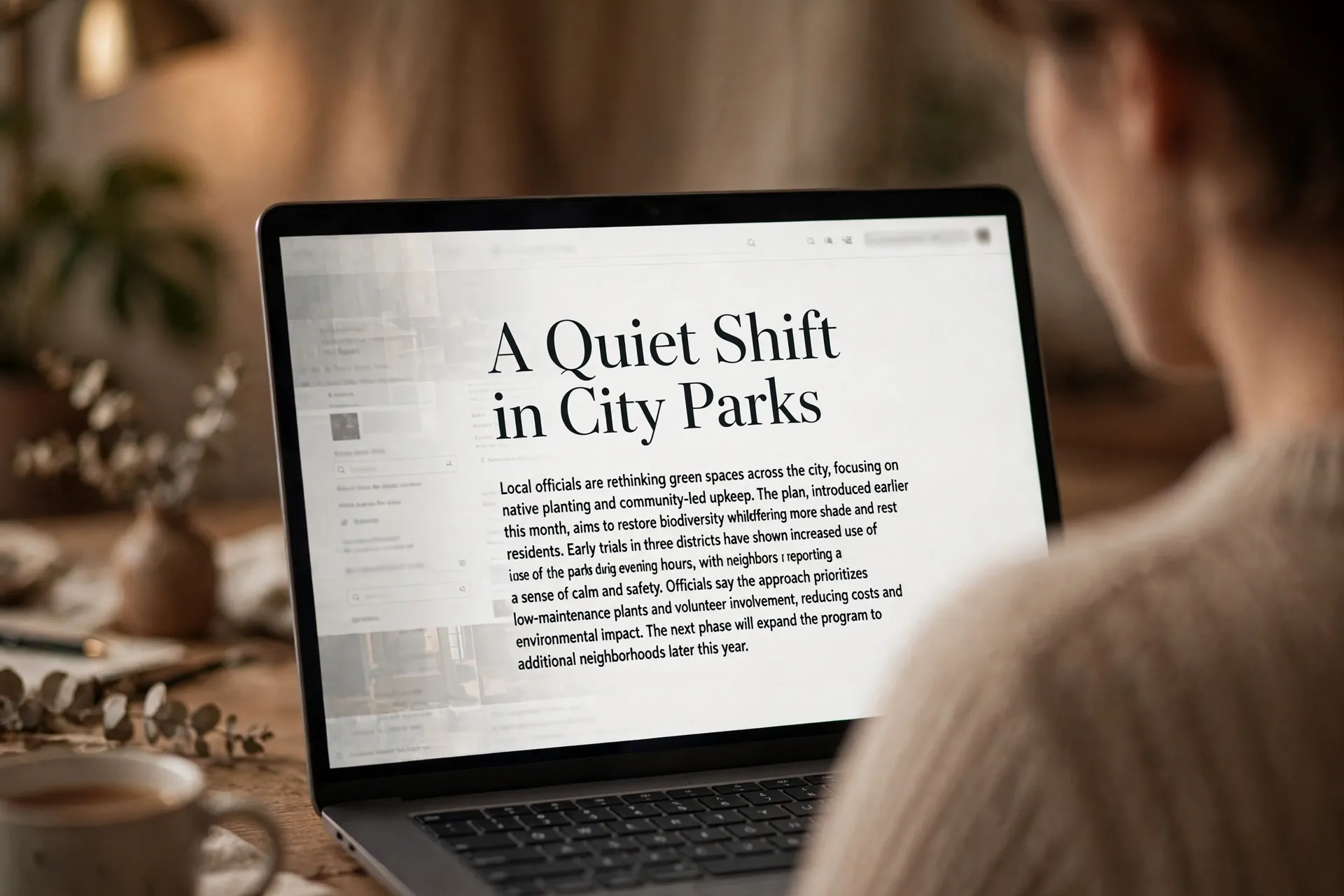
You know the moment: you tap a link to read an article, and before a single sentence has registered, a newsletter pop-up covers the text, an autoplay video starts shouting from the corner, and a banner is asking you to accept seventeen cookies. The article is in there somewhere. Your browser, it turns out, knows how to dig it out for you.

Every major browser ships with a reading view — Safari calls it Reader, Edge calls it Immersive Reader, Firefox calls it Reader View, and Chrome calls it Reading mode. They all do the same thing: they pull the actual article text out of the page and re-set it cleanly — no ads, no pop-ups, no sidebars — with the font, size and background of your choosing. Most people never press the button, because the button is small and the browser never really announces it.
What reading view actually does with a page
Think of it less as a feature and more as a translator. The browser looks at the page, finds the main article, and rebuilds just that part in a plain layout: headline, body text, the important images, links kept clickable. Everything else — the ad slots, the “trending now” rail, the comment section, the cookie wall — gets left behind.
A couple of honest limits before we go further. Reading view only appears on pages the browser recognizes as articles; it won’t show up on a homepage, a shop, or a login screen. It doesn’t remove paywalls — if the article is behind one, the reader view shows you the same locked version. And it’s a per-page switch, not a global setting, with one exception we’ll get to in the Safari section. That’s fine: the point is a calmer version of this page, right now.
In Chrome: the side panel you may never have opened
Chrome’s version lives in the side panel rather than taking over the whole page. Open an article, then go to the three-dot menu at the top right and choose More tools > Reading mode. A panel slides in on the right with the article text, stripped of clutter.
The first time you do this, it’s worth pinning it: at the top of the side panel there’s a Pin to toolbar option, which puts Reading mode one click away from now on. Once the panel is open, the toolbar at its top lets you change the typeface and font size, adjust letter and line spacing, and pick a background colour — handy if you read a lot in the evening. These settings apply only to the reading panel, not to websites in general.
Chrome’s reader arrived later than everyone else’s, and it keeps improving quietly in the background — the same way apps update themselves without much fanfare — so if you haven’t looked at it in a while, it’s worth another click.
In Safari: the one that’s been there longest
Safari’s Reader is the easiest to trigger. On an iPhone or iPad, open an article and look at the left end of the address bar: when a page can be cleaned up, you’ll briefly see “Reader Available” there. Tap the page icon (on older versions, the icon that looks like three lines) and choose Show Reader. The page reformats instantly. On a Mac, click the same spot in the address bar — or just press Shift+Command+R, or choose View > Show Reader from the menu.
Tap the icon again to adjust the look: a few background options including sepia and black, a choice of fonts, and larger or smaller text.
The genuinely useful part is the automatic mode. If there’s a site whose articles you always read this way, you can tell Safari to switch every time. On iPhone, go to Settings > Apps > Safari > Reader; on a Mac, Safari > Settings > Websites, where you can set Reader to turn on automatically for individual sites — or for all sites, if you prefer. Safari syncs the choice through iCloud, so your other devices follow along.
In Edge: the most capable of the bunch
Edge’s Immersive Reader is the one Microsoft built first as an accessibility tool — originally for readers with dyslexia — and it’s the most feature-rich of the four. On an article page, look for the Enter Immersive Reader icon in the address bar (an open book with a small speaker symbol). Click it, or press F9. To get back, click Exit Immersive Reader or press F9 again.
The toolbar at the top is where it earns its name: Text preferences with text size and a long list of themes; Read aloud, which narrates the article with adjustable speed and a choice of voices; Grammar tools, which can split words into syllables and highlight parts of speech; and a translation option. If the icon isn’t showing for a page you’d still like to read this way, select the text you want, right-click, and choose Open in Immersive Reader — it works from the context menu too.
In Firefox: the button that lights up blue
Firefox keeps it simplest. When a page can be viewed as an article, a reader icon appears in the address bar — click it, and the page converts, with the icon turning blue to show the mode is active. Keyboard users can press F9, or Ctrl+Alt+R on Windows and Linux (Command+Option+R on a Mac).
The controls sit along the side of the cleaned-up page: text settings for font, size, content width and line height; light, sepia and dark themes; a Read aloud button that narrates the article; and a Save to Pocket option if you use that read-later service. Clicking the icon again — or just using your back button — returns you to the original page.
When the button refuses to show up
If you can’t find any of these buttons on a particular page, it almost certainly isn’t a bug: the browser didn’t recognize the page as an article. Readers only trigger on pages with a clear block of article text. Homepages, product listings, search results, and comment threads don’t qualify.
There is one genuine workaround, and it’s in Edge: select the text you want to read, right-click, and open it in Immersive Reader directly — the browser doesn’t need to have spotted an article on its own. In the other browsers, if the button isn’t there, the page simply isn’t in a shape the reader can handle, and no extension-free trick will change that.
Also worth knowing: a reading view isn’t a privacy tool. It hides ads and trackers from view, but the page loaded them before the reader stripped them out. It’s a comfort feature, not a shield — one piece of a calmer screen, alongside quieter notifications, not a replacement for real privacy steps.
The next time an article greets you with three pop-ups and a video you never asked for, skip the tab-closing reflex and look for the small button that was waiting all along. The article you came for is still there. This is just the way to read it.













Comments 1