



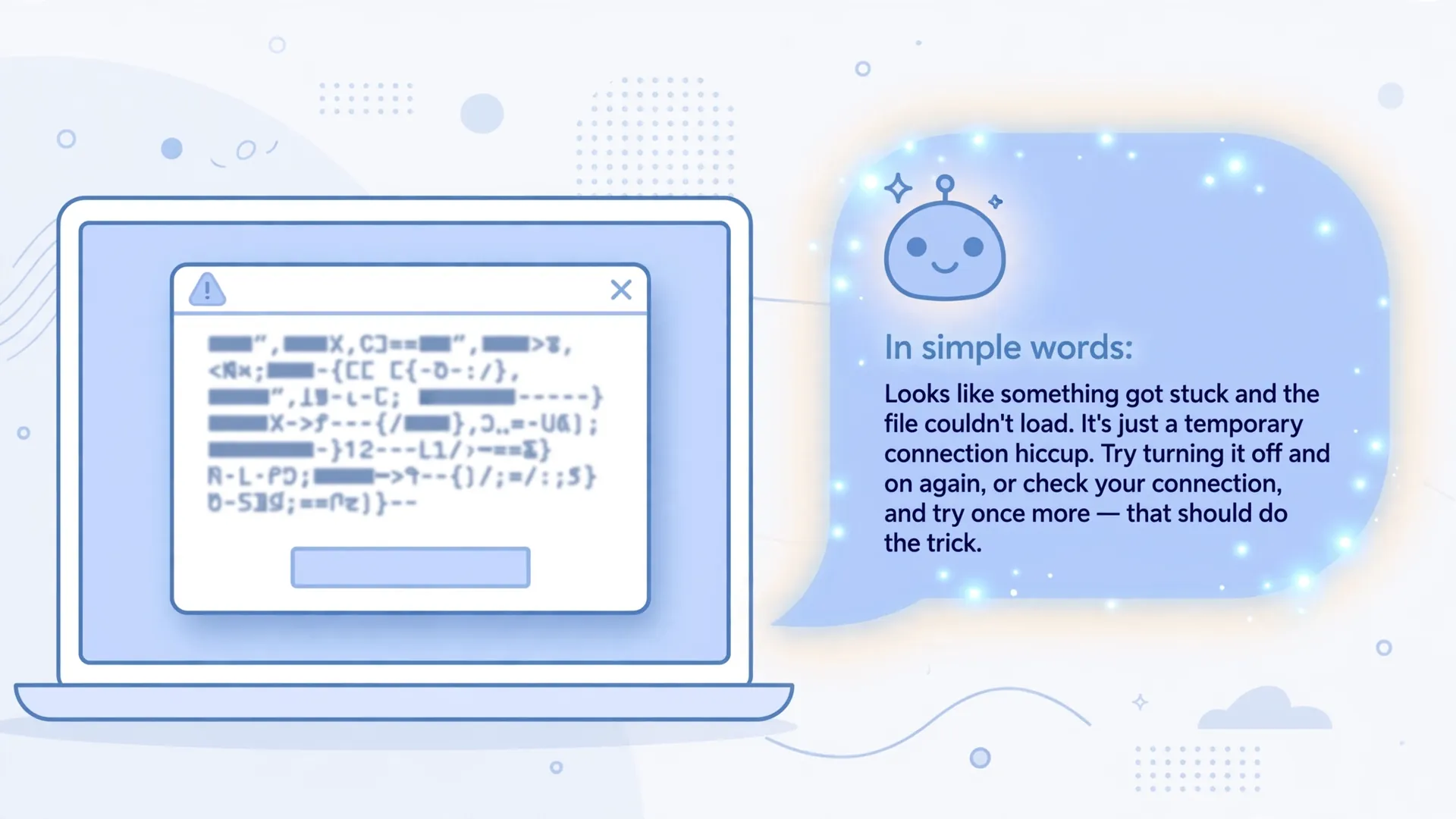
You know the moment. You’re installing something, opening a file, or just trying to get the printer to cooperate, and a box pops up full of words that look like they were written for someone with an entirely different job. “Error 0x80070005.” A paragraph of traceback. Something about a null reference. You read it twice, understand none of it, and do what everyone does: copy the first line into Google.

Sometimes that works. Often it drops you into a forum thread from 2019 where someone with a slightly different problem was told to reinstall Windows. There’s a better reader for that text than you — and it lives in the chatbot you already have open in another tab.
Why a chatbot reads error messages better than a search engine
A search engine matches keywords. It finds pages containing “0x80070005” and has no idea which of the thirty possible meanings applies to your situation. A chatbot reads the whole message the way a person would: it recognises the shape of the error, the program it came from, and the jargon around it. It has absorbed enormous amounts of documentation, manuals, and developer forum threads during training — put simply, it has read more error messages than any human alive.
It also does something Google never does: it explains. Not just what to click, but what the message is actually complaining about, in plain words. “The app tried to save a file and Windows refused permission” is a very different starting point from “Error 0x80070005”.
One honest caveat up front: the chatbot can’t see your computer. It doesn’t know what you changed last Tuesday or which antivirus you installed. It reasons from the text you give it — which is exactly why what you give it matters.
Paste the whole thing, not just the code
The single biggest mistake people make is pasting only the error code. A bare code is often a generic label the software has reused for decades — the lines around it are where the meaning lives: which program threw it, what file or action it mentions, and when it appeared.
Give the chatbot four things and the quality of the answer jumps:
- The full error message. Copy the text if you can — most dialog boxes let you select it, and some let you right-click and copy. If you can’t copy it, a screenshot works too; chatbots can read images now.
- What you were doing. “I was installing the printer driver” narrows thirty possible causes down to three.
- Your setup. Windows 11, a Mac, an Android phone; the app name and roughly which version.
- What you’ve already tried. “I restarted and it came back” saves a round of useless suggestions.
That’s it. You don’t need to understand any of it yourself. Describe what happened the way you’d describe it to a tech-savvy friend, and let the chatbot do the translating. If the error is vague, try letting the chatbot ask you questions first — one round of clarifying questions often beats three rounds of guessing.
Redact before you paste
Error messages sometimes leak personal details. A file path like C:\Users\priyasharma\Documents gives away a name. Logs can contain tokens, session IDs, or internal server names you were never meant to see, let alone share. Take ten seconds to swap anything identifiable for a placeholder — yourname, example.com, xxxxx — before pasting.
This is the same rule that applies to everything you hand a chatbot: it helps to know what happens to your chats once you paste them into one of these tools before you share anything you can’t take back.
Ask for the explanation first, the fix second
Don’t ask for both at once. Start with understanding, then move to action. A prompt like this works well:
“What does this error mean in plain English? I got it on Windows 11 while installing my printer driver. I restarted once and it came back. [paste the error here]”
Once you understand what’s happening, ask for the fix as a separate step: “Walk me through fixing this, starting with the simplest and least risky step.” This does two things: it keeps the explanation honest instead of rushed, and it lets you sanity-check the diagnosis before you start changing settings based on it.
Treat the answer as a hypothesis, not a verdict
The explanation will sound confident — chatbots sound confident even when they’re wrong. The most common slip with error messages is a suggested menu path or setting that doesn’t exist in your version of the software, or a fix written for a different program entirely. Before you follow anything you can’t undo, do a quick cross-check: search the error code together with the chatbot’s suggested cause. If a forum thread or the app’s own help page backs it up, proceed.
And start with the reversible steps. A settings toggle can be untoggled; a driver uninstall or a registry edit can’t always be undone cleanly. If the chatbot’s plan opens with the nuclear option, push back: “Give me the least risky fixes first.”
Three errors to keep away from a chatbot
Most error messages are fair game. These aren’t:
- The scary warning that tells you what to do next. “Your computer is infected — call this number.” “Your files have been encrypted — pay to unlock them.” A real error message never asks you to call a phone number, download a “fix tool”, or pay anyone. If the message is giving instructions that benefit a stranger, close it and treat it as a scam — the fake “virus detected” pop-up is a classic of the genre.
- Errors involving money. A failed payment, a banking app refusing to open, a message about your account being locked — take those to the bank’s official app or phone number, not a chatbot.
- Errors where the fix could destroy data. A drive that’s clicking, an operating system that won’t boot, a phone stuck in a loop. Pasting the error is fine, but don’t run aggressive “fixes” a chatbot suggests on failing hardware — every write risks overwriting what you’re trying to save. Get a real technician.
Error messages were written by programmers, for programmers, and that’s not going to change. But you no longer have to be the programmer to read one. Paste it in, describe what happened in your own words, and let the machine that never learned to be confused do the translating.












