



It usually happens on reset day. The old phone has been wiped — traded in, sold, or sitting in a drawer — and then you try to log into something and the screen asks for a code from your authenticator app. The app is installed on your new phone. The codes aren’t. And that’s the moment you learn the lesson the hard way: those codes never lived in your accounts. They lived on the phone you just erased.

Moving them to a new phone is a ten-minute job. But it only works if you do it before the old phone is gone. So if a new phone is anywhere on your horizon, this is worth doing this week, not on trade-in day.
Why the codes don’t just follow you
Every time you set up two-factor authentication on an account, the website gives your authenticator app a secret — a long string of characters the app uses to generate those six-digit codes. That secret is stored on your phone. Not in your Google or Microsoft account, not with the website itself, and not in any cloud backup by default.
That is deliberate. The code is supposed to prove you physically have the phone. But it has a side effect nobody thinks about until switch day: a fresh install of the authenticator app on a new phone starts completely empty. Signing into everything on the new phone doesn’t bring the codes along — unless you’ve switched on the right backup setting, which is where we start.
First, check whether your app is already backing itself up
Before doing any manual transfer, take sixty seconds on the old phone to see if the app is quietly looking after itself:
- Google Authenticator: tap your profile picture in the top right. If you’re signed into a Google account inside the app, your codes are syncing automatically — Google added this in 2023 — and signing in on the new phone will bring them across. If you’re not signed in, sign in and let the sync finish.
- Microsoft Authenticator: open the menu, go to Settings, and look for Cloud Backup. On Android it backs up to your personal Microsoft account; on iPhone it uses iCloud backup. If it’s off, turn it on now — while the old phone still works.
- Apple’s Passwords app (iPhone, iOS 18 and later): built-in verification codes travel with iCloud Keychain. Check Settings → [your name] → iCloud → Passwords and Keychain, and make sure syncing is on. If it is, there is nothing to transfer at all.
If everything above is already on, your move is nearly done. The sections below cover the manual route — for codes that aren’t synced, for people who never signed in, and for the just-in-case double check.
Moving Google Authenticator codes with a QR scan
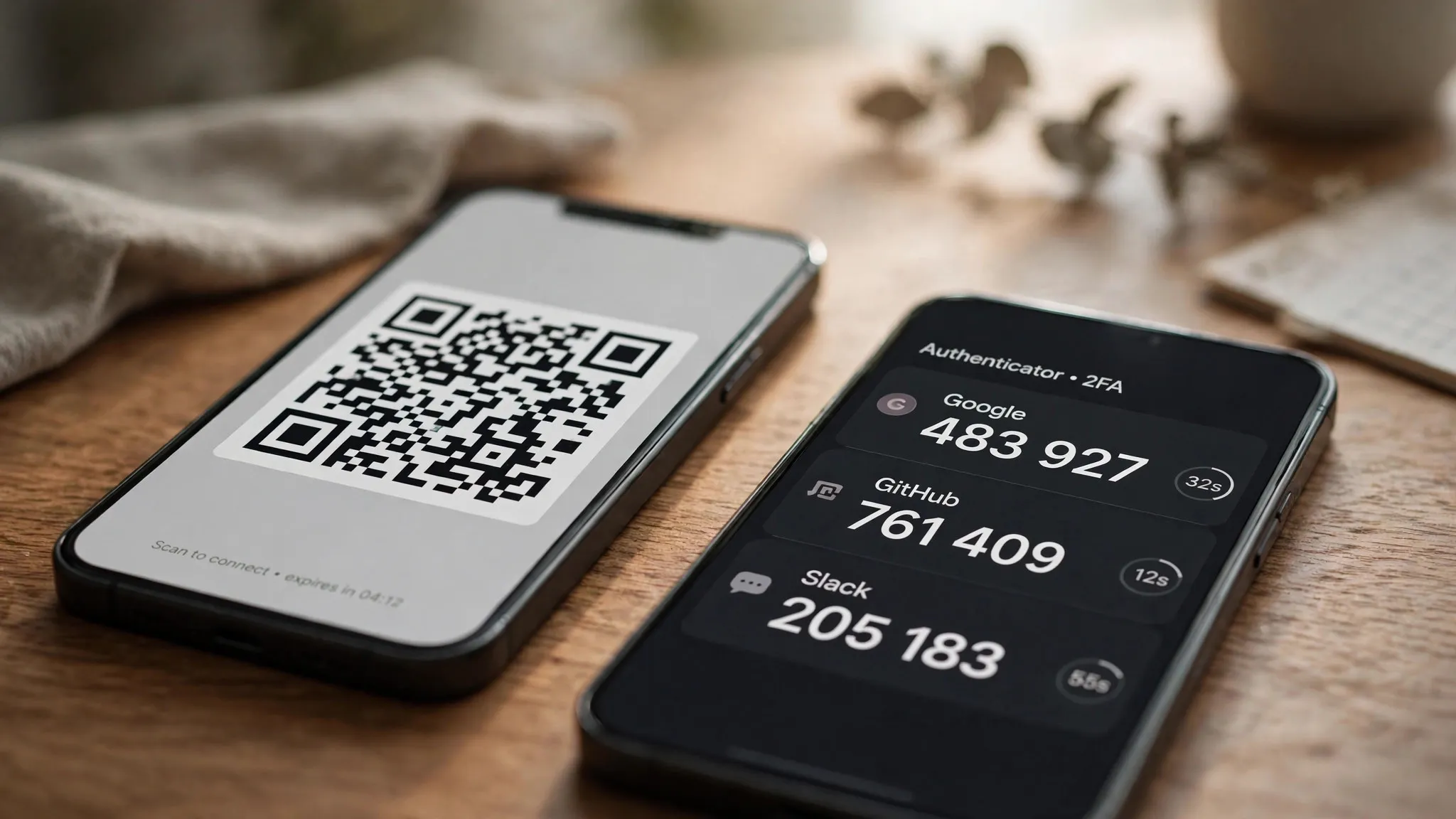
You need both phones on the same table, with the app installed on the new one. On the old phone, open Google Authenticator, tap the menu (three dots), then Transfer accounts → Export accounts. Unlock the phone if asked, select the accounts you want to move, and tap Next. The app will display a QR code — each code covers roughly ten accounts, so scan every code it shows if there are several.
On the new phone, open the app, go to the same menu, and tap Transfer accounts → Import accounts → Scan QR code. Point the camera at the old phone’s screen, then tap Done on both devices. Check that every account now appears with a working code on the new phone before you touch the old one.
Moving Microsoft Authenticator codes
Microsoft doesn’t use a QR scan — it uses its cloud backup. On the old phone, open the app, tap the menu, go to Settings, and make sure Cloud backup is switched on. You’ll sign in with your personal Microsoft account (Android), or it will use iCloud (iPhone). Wait until the backup completes.
On the new phone, install the app and choose the restore option — “Restore from backup”, or signing in to your recovery account. Sign in with the same account and your codes will reappear. Two things worth knowing: this only works between the same platform, iPhone to iPhone or Android to Android — there is no cross-platform restore. And some accounts will show an “Action required” message asking you to sign in again or re-scan their QR code. That’s normal. Get those revalidated before you wipe the old phone.
Treat the export screen like a password
The QR code on your old phone’s screen isn’t a normal QR code — it contains the actual secrets for your accounts. Anyone who scans or photographs it can generate your codes. So do the transfer somewhere private, don’t screenshot the code, and don’t share your screen while it’s showing.
Once you’ve confirmed the codes work on the new phone, remove them from the old one — Google Authenticator prompts you to do this right after the export. This matters most when the old phone is about to be sold or traded in: wipe it properly before it leaves your hands.
Already wiped the old phone? Here’s the way back
If sync or cloud backup was on, there’s nothing to panic about — sign in on the new phone and the codes return. If it wasn’t, you’re in re-enrolment territory. It’s a nuisance, not a disaster:
- Use your backup codes. When you set up two-factor authentication on each account, you were given a set of one-time backup codes — usually a list to print or save. That’s exactly the situation they’re for. One backup code gets you in, and from there you can attach the new phone’s authenticator. If you never saved them, here’s how backup codes work and where to keep them next time.
- No backup codes either? You’ll re-verify each account one by one — email links, SMS codes, or a chat with customer support. Tedious, but it works. Do the important accounts first: your email, your bank, your password manager.
- Think about passkeys for next time. Where sites offer them, passkeys sync automatically across your devices and don’t have this problem at all — no codes to move, and phishing can’t steal them.
The whole transfer takes ten minutes with both phones on the table — and becomes a multi-day chore if you leave it until after the trade-in. Move the codes, confirm they work, then wipe the old phone.












