



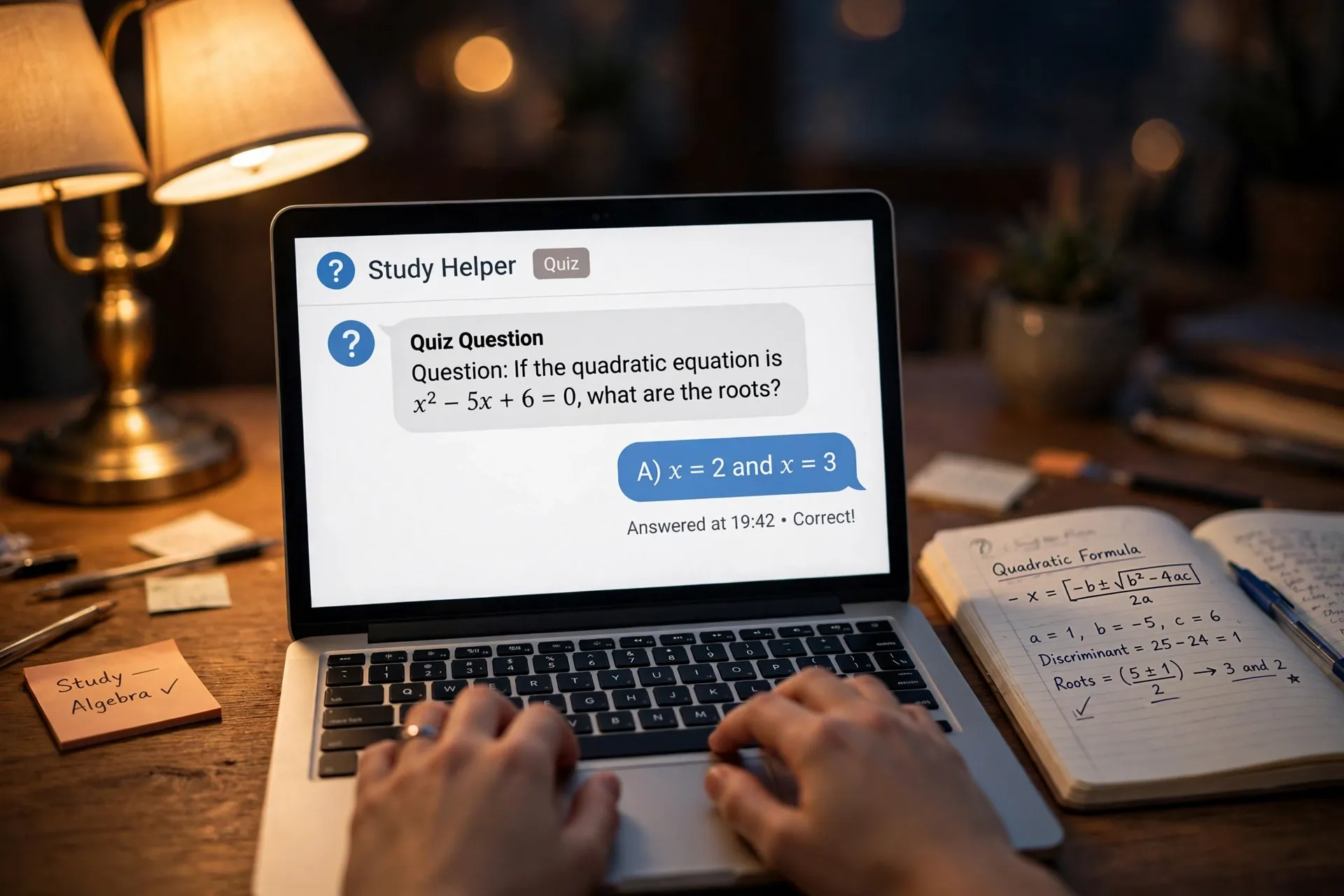
There’s a moment most of us have had with an AI chatbot. You paste in the question from your assignment, your practice test, or that work certification you’re studying for. It answers in seconds. You read the answer, you sort of nod, and you move on. An hour later you couldn’t explain it to anyone.

That gap between getting an answer and actually learning something is exactly what the chatbot is bad at fixing on its own. It’s an answer machine by default — and the thinking, the wrestling, the remembering? That’s the part that was yours to do, and the chatbot quietly did it for you.
The fix doesn’t require a new app. Both ChatGPT and Gemini now have a built-in study setting that changes how the chatbot behaves: instead of handing you the finished answer, it acts like a tutor. And even without that button, one or two sentences of instruction can get you the same kind of help from any chatbot.
Why the instant answer feels like learning but usually isn’t
Reading a good explanation feels satisfying. That’s the trap. The explanation made sense because the chatbot did the organizing, the connecting, and the reasoning. Your brain got to sit back and enjoy the ride.
Real learning is uncomfortably different. It’s trying to recall the answer before checking. It’s getting something slightly wrong and noticing why. Tutoring works because it keeps that struggle in your hands instead of skipping it.
So if you’re using a chatbot to revise for an exam, pick up a new skill for work, or help a teenager with homework, the goal isn’t to extract answers faster. It’s to get the chatbot to slow you down just enough.
ChatGPT’s Study and Learn mode does the slowing down for you
In July 2025, OpenAI added a dedicated Study and Learn mode to ChatGPT. It was built in collaboration with teachers, scientists, and pedagogy experts, and it’s designed around one idea: guiding you step by step instead of solving the problem for you.
It’s available to signed-in users on both the free and paid plans — including ChatGPT’s free tier — and you’ll find it under the Tools menu as “Study and learn.” Once it’s on, the tone of the conversation changes noticeably:
- Ask it a homework problem and it won’t give you the solution. It will ask what you already know and walk you through the first step.
- It adapts its questions to your level as it figures out what you’re comfortable with.
- It refuses to just hand over answers — reviewers found it answering requests for solutions with a friendly version of “nice try, let’s work through it.”
- You can switch back to normal mode at any point, so nothing is locked in.
It’s worth being realistic about that last point: the mode works because you choose it. If the temptation to switch back and just grab the answer is too strong, no setting will save you. But as a default for revision sessions, it’s a genuine improvement over the ordinary chat.
Gemini has its own version: Guided Learning
Google launched Guided Learning for Gemini in August 2025, built with educators on top of its LearnLM research into how AI can support learning. The approach is similar — Socratic questions instead of instant answers — with a few Google-flavored touches:
- It breaks a topic down and starts by asking what you already think about it, then builds from your answers.
- Responses can include diagrams, images, and embedded YouTube videos when those help.
- It quizzes you along the way when you ask it to, checking what actually stuck.
Whichever chatbot you already use, check whether its study mode is switched on next time you sit down to learn something. It’s the rare setting that’s worth leaving enabled.
What a proper tutoring session looks like
Whether you use the built-in mode or plain instructions, a good chatbot study session has a shape to it. Start by telling it three things:
- The topic. Be specific — “photosynthesis” is vague; “the light-dependent reactions of photosynthesis” gives it something to work with.
- Your level. “Explain like I’m a GCSE student” and “I have a degree in this, quiz me hard” produce completely different sessions.
- What you want. Understanding a concept, working through problems, or being quizzed on what you’ve already studied.
Then let it ask you questions, and answer them honestly. Guessing is fine — that’s the point. When you get something wrong, that’s where the learning happens: the chatbot explains why, in terms of the mistake you actually made, which a textbook never does. If your revision chats start piling up across subjects, it’s worth organizing them into projects so each topic’s sessions stay together. And when your study material is a stack of documents rather than questions, a tool that answers only from your files makes the better study companion.
No study button on your chatbot? Two sentences fix that
Not every chatbot has a dedicated study mode. But the tutoring behaviour is mostly just instructions, and you can give those instructions yourself. A prompt like this works surprisingly well:
“Act as my tutor for [topic]. Don’t give me the full answer. Ask me one question at a time, starting easy and getting harder. When I answer, tell me if I’m right or wrong and explain why before asking the next question.”
A couple of variations are worth keeping in your pocket:
- “Explain [concept] simply, then ask me one question to check I got it.” Good for the first pass through new material.
- “I’m going to explain [concept] in my own words. Correct my mistakes and tell me what I missed.” Explaining is one of the strongest ways to learn — the chatbot becomes your audience.
- “Quiz me on [topic] with ten questions. Mix easy and hard ones. At the end, tell me what I should revise.” Perfect the night before a test.
These work because they change the chatbot’s job description. It’s no longer an answer engine; it’s a conversation partner with rules. Most chatbots — ChatGPT, Gemini, Claude, Copilot — will follow these instructions without needing any special mode. It’s the same principle behind letting the chatbot ask you questions first, applied to studying instead of everyday answers.
Sometimes the quick answer is exactly what you need
Let’s not overstate this. Not every interaction with a chatbot is about learning. When you’re debugging code at midnight, translating a sentence, looking up the format for a formal letter, or finding a recipe — the answer is the product. Nobody benefits from a Socratic dialogue about semicolons when the deadline is in an hour.
The rule of thumb: if the goal is to understand, use tutor mode. If the goal is to do, take the shortcut and don’t feel guilty about it. The problem was never that chatbots give answers — it’s that we started using answers for both jobs.
One honest warning: the tutor can still be wrong
Study modes don’t change the one flaw that matters most: chatbots can state incorrect things with total confidence. OpenAI itself cautions that Study mode can still make mistakes. When a chatbot tutors you, there’s a small chance it teaches you something wrong with great authority.
So treat the chatbot as a patient practice partner, not the textbook. Cross-check important facts against your course material or an official source — especially before an exam. And if the chatbot’s explanation conflicts with what your teacher or textbook says, trust the teacher and the textbook.
The good news is that the core insight here doesn’t depend on the chatbot being perfect. A slightly imperfect tutor who makes you think will still teach you more than a perfect answer you only read.












