



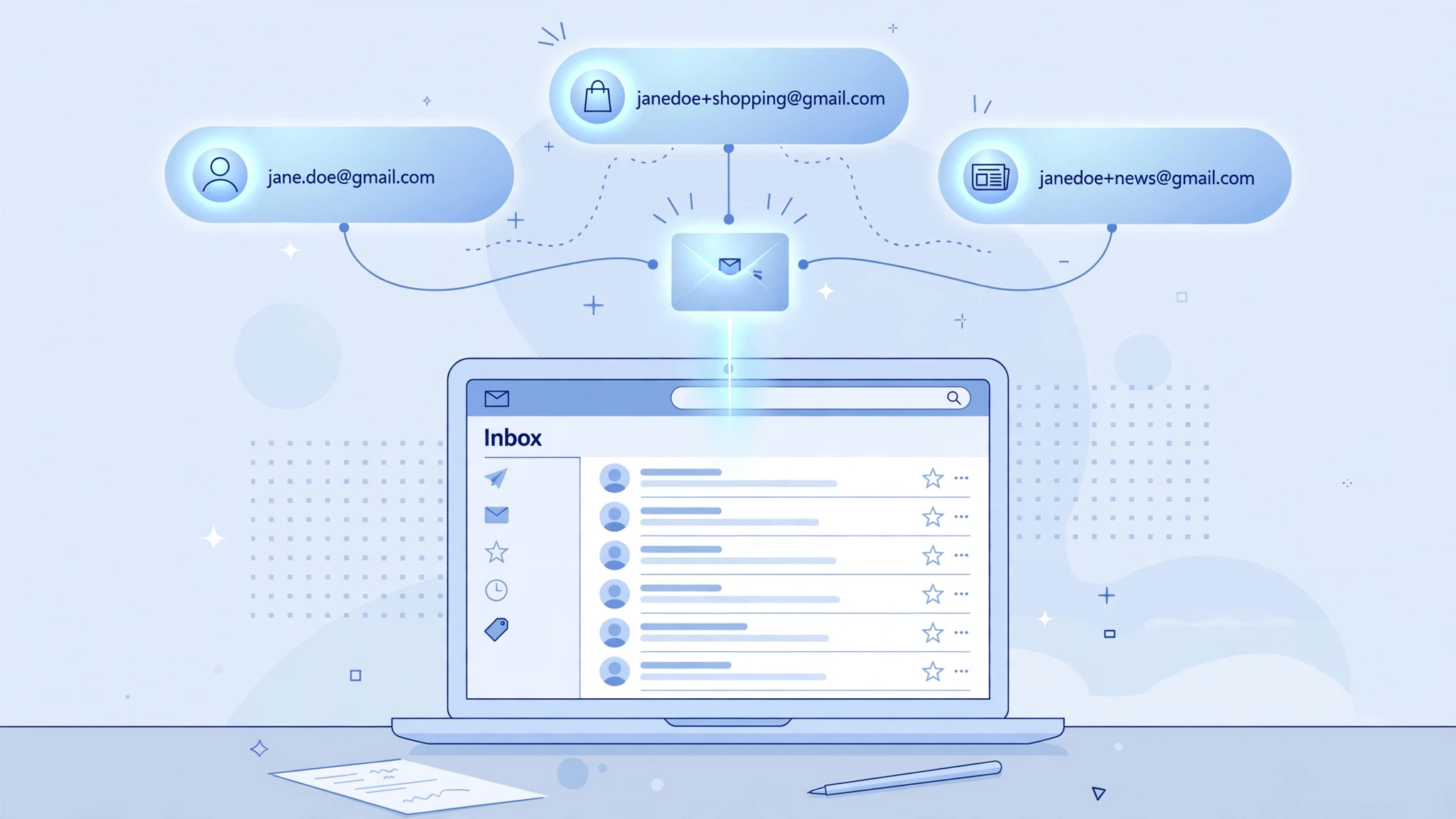
If your Gmail address is janedoe@gmail.com, you don’t actually own one address — you own a small family of them. jane.doe@gmail.com is yours. j.a.n.e.d.o.e@gmail.com is yours too. So is janedoe+anythingyouwant@gmail.com, for every possible “anything”. All of them land in the same inbox, no setup required. Google documents both behaviors, and they’ve worked this way for years.

These aren’t hacks or loopholes. They’re quiet features of how Gmail handles addresses, and they’re genuinely useful — for signing up to services, sorting your mail automatically, and tracing where your spam actually comes from. Here’s how each one works and where they break.
Dots don’t change a thing
Gmail ignores dots in the username part of an address. Google’s own help page puts it plainly: dots don’t matter in Gmail addresses. If your address is janedoe@gmail.com, then jane.doe@gmail.com, ja.ne.doe@gmail.com, and every other dotted arrangement belong to you, and mail sent to any of them arrives in your inbox.
This also means nobody else can claim your address with a dot variation. Try to register jane.doe@gmail.com when janedoe@gmail.com already exists and Google refuses — the username is taken. Dotted versions of your mail still land only with you, so there’s no privacy leak: nobody sees your mail because of a dot.
One exception matters: if your address is a work or school account on Google Workspace with a custom domain (like you@yourcompany.com), dots do count there. This quirk only applies to consumer @gmail.com addresses.
Oddly, this also explains a common mystery: getting email meant for someone else. If you receive a message clearly addressed to another Jane Doe, the sender didn’t type a dot version of your address — they typed your address by mistake. Dots are never the reason you got someone else’s mail; a typo is. Google’s advice is to tell the sender they have the wrong address, and to report anything suspicious as spam or phishing.
The plus sign turns one address into unlimited labels
The second trick is even more useful. Gmail ignores everything after a + in the username. So janedoe+shopping@gmail.com, janedoe+newsletters@gmail.com, and janedoe+bank@gmail.com all deliver to the same janedoe@gmail.com inbox. The part after the plus is just a label that travels with the message — Gmail delivers it, and you can see exactly which variation was used in the To field.
This is the part worth internalizing: the label can be anything. Letters, numbers, underscores, several words. You could sign up for a hundred different services with a hundred different addresses and never create a second account. Nothing to configure, no extra inbox, no new password.
Three ways this is actually worth using
First, sign up for services with a labeled address. When you register on a site, use janedoe+thatsite@gmail.com instead of the plain address. Two things come of this. If you later get spam addressed to janedoe+thatsite, you know exactly which site leaked or sold your address. And if you ever need to filter everything from that service, the label makes it trivial.
Second, give newsletters their own door. A variation like janedoe+news@gmail.com for every newsletter subscription means all your subscriptions arrive wearing the same label. Pair that with a filter (more on that below) and they file themselves away without ever touching your main inbox — no more “unsubscribe” guilt.
Third, create distinct signups that feel separate. Some services only let you register one account per email address, and most treat janedoe+site1 and janedoe+site2 as different addresses. Handy for test accounts. Just note the flip side: because sites can’t always tell them apart from your real address, this is also how people quietly bypass one-account-per-email rules. It works, but don’t be surprised when a site wisens up and blocks plus addresses at the form.
If the site you just signed up for is new to you, it’s also worth a minute to check what you actually agreed to when you clicked “Sign in with Google” — the alias trick handles your address, but the permissions a signup asks for are a separate decision.
Pair it with a filter and your inbox sorts itself
The real payoff comes from combining a labeled address with a Gmail filter. In Gmail, open Settings → See all settings → Filters and Blocked Addresses → Create a new filter. In the To field, enter your labeled address — for example, janedoe+news@gmail.com — then choose what happens: skip the inbox, apply a label, mark as read, archive it, or any combination.
Once that’s saved, every message sent to that variation gets handled before you ever see it. Newsletters land in their label and skip the inbox. Receipts go to a “Receipts” label. A store you ordered from once can be silenced the moment it starts sending promotions — one filter, done forever.
This pairs well with Gmail’s search: you can use the same to: search operator directly in the search bar to pull up everything sent to a given variation at any time. If you haven’t explored what the search bar can do beyond keywords, it does far more than keywords.
Where the trick breaks
The honest part: this doesn’t make you anonymous. Anyone who bothers can strip the plus label and recover your real address, so don’t use it as privacy armor — a spammer who knows the trick just deletes everything after the plus. For genuine privacy habits, the things that matter are still keeping your actual email account locked down, since it’s the master key to everything else.
A few forms won’t accept plus addresses at all. Some older signup forms treat the + as an invalid character and reject the address outright, in which case you just use the plain address. And while dots are free on consumer Gmail, remember they count on work and school Workspace domains — don’t assume a dotted version of your work address reaches you.
Finally, neither trick creates a separate account. Every variation is the same inbox, the same Google account, the same 15 GB of storage. The aliases multiply your addresses, not your space.
The simple rule of thumb: dots are cosmetic, the plus sign is a labeling system, and together they turn one Gmail address into as many distinct contact points as you need — with no extra account to babysit. Next time a signup form asks for your email, give it the address you actually want to manage, not the one you already have.












