


• About
  • Contact
  • Privacy Policy
  • Terms & Conditions
  • Disclaimer
  • Cookie Policy
Superdova.com
Advertisement
  • AI Tools
  • Internet Guides
  • Tech How-To
  • Apps & Software
  • Online Safety
No Result
View All Result
  • AI Tools
  • Internet Guides
  • Tech How-To
  • Apps & Software
  • Online Safety
No Result
View All Result
Superdova.com
No Result
View All Result
Home Internet Guides

Your Router’s Blinking Lights Are Trying to Tell You Something

Amit by Amit
September 30, 2026
in Internet Guides
0
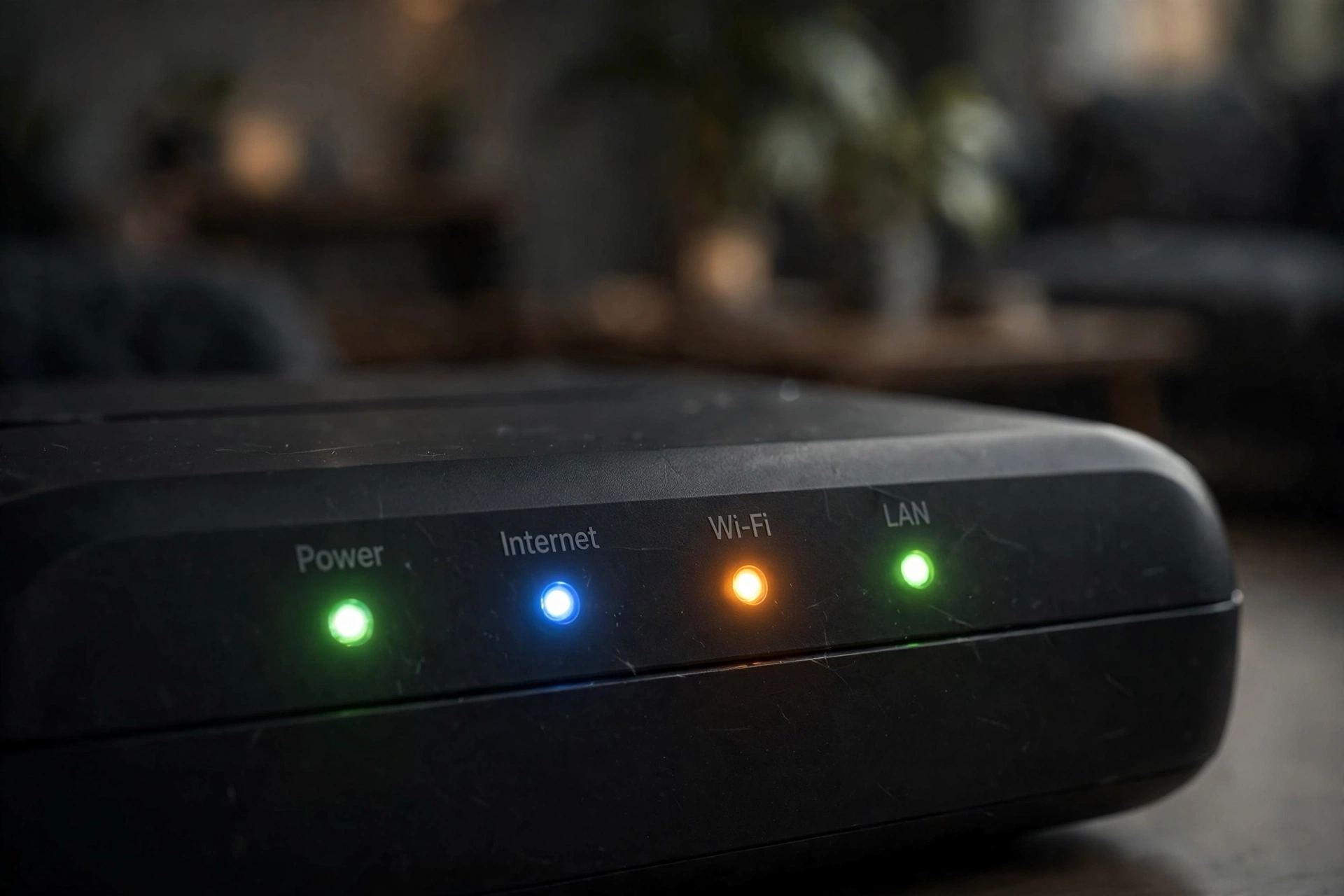
Close-up of a home router's front panel with glowing green, blue and amber LED lights labelled Power, Internet, Wi-Fi and LAN
0
SHARES
3
VIEWS
Share on FacebookShare on Twitter

The internet dies in the middle of something important. You walk over to the router, and it’s putting on a little light show — some lights steady, some blinking, and one doing something you’re fairly sure it has never done before. Your first instinct is to unplug it. Wait. Those lights are the router’s way of talking to you, and reading them takes about ten seconds. Often that’s all you need to know where the problem actually is.

Table of Contents

Toggle
  • Mostly, blinking is good news
  • A quick tour of the usual lights
  • When the whole message is one colour
  • The red light on the little fibre box
  • Reading the lights like a checklist
  • If the light show bothers you

Mostly, blinking is good news

Here’s the part nobody tells you: a healthy router is a flickering router. As a rule of thumb, a steady light is reporting a status and a blinking light is reporting activity. So the Wi-Fi light flickering as your phone syncs photos, or the internet light flashing while you stream — that’s data moving. That’s the machine doing its job.

Never restart a router just because a light is blinking. The only blink patterns worth worrying about are the specific ones this article covers below, usually involving red, amber that never clears, or lights that are completely dead.

A quick tour of the usual lights

Router labels vary, but most traditional routers carry the same cast of characters:

Power. Should be steady, usually white or green. If it’s off, the router has no power (check the plug and the switch). If it’s red, there’s a hardware fault — that’s a replacement conversation, not a settings one.

Internet / DSL / WAN. This is the big one: the router’s connection to your broadband provider. On older routers it’s labelled DSL (a hangover from phone-line broadband); on newer ones, Internet or WAN. Solid means connected. Off means there’s no line connection at all. Blinking during startup usually means it’s negotiating with the exchange — give it a minute.

Wi-Fi / WLAN. Confirms the Wi-Fi radios are on and broadcasting. Some routers have one per band, labelled 2.4 GHz and 5 GHz. If it’s off, Wi-Fi may simply be disabled — many routers have a physical Wi-Fi button that’s embarrassingly easy to press by accident.

LAN 1–4. These mirror the ethernet ports on the back. A lit port means a cable is plugged in and talking; a flicker means data is flowing through it. Genuinely useful: if a wired device “can’t connect,” this light tells you in one glance whether the cable or the device is at fault.

WPS. Only relevant for the couple of minutes after you press the WPS button to pair a device without typing the password. Flashing means pairing is in progress; it goes back to sleep on its own.

USB. Some routers have a USB port for storage or a mobile dongle. Lit means a device is attached. If you’ve never plugged anything in, its absence means nothing.

When the whole message is one colour

A growing number of routers — BT’s Smart Hub series is the best-known example — have collapsed everything into a single front light that changes colour. BT’s own help page spells it out: blue means the hub is working and connected, green means it’s starting up, flashing orange means it’s connecting, and solid orange means the hub is on but has no internet. Red means there’s a problem, and no light at all means the power is off or the lights have been switched off in settings.

Other providers have their own colour schemes, but the idea is identical: one colour, one meaning, and the manual (or the provider’s help page) is the decoder ring. If you have this kind of hub, bookmark that page — you’ll need it about twice a year.

The red light on the little fibre box

If you’re on full-fibre broadband, there’s a second box to know about: the ONT, the small white box the fibre cable runs into. On it, the light to watch is LOS — loss of signal. A red blinking LOS light means the fibre signal isn’t reaching the box at all. Here’s the important bit: rebooting your router will not fix this. Check that the fibre cable isn’t bent, pinched or crushed (fibre hates tight corners), and if the red blink persists, that’s a call to your provider, because the fault is on the line, not in your house.

Reading the lights like a checklist

Next time something goes wrong, walk the chain before you restart anything:

  1. Power solid? If not, it’s a plug or socket issue. Check the switch before anything else.
  2. Internet/DSL light? Off entirely means the line isn’t reaching the router — check the cable to the phone socket or fibre box, not the Wi-Fi settings.
  3. Stuck on amber or orange? The router is talking to the line but not getting internet. Check all cables are seated properly, then restart — and give it the full two to four minutes. A router’s startup sequence takes longer than anyone’s patience; BT notes its hubs can take about four minutes to fully sync.
  4. Wi-Fi light off? Wi-Fi is probably disabled — check for a physical button or the wireless settings.
  5. All lights normal but devices can’t connect? The problem is on the device side, not the router. Restart the phone or laptop, not the box.

Work through that list and you’ve either found the problem or you’ve narrowed it down enough that a support call takes five minutes instead of forty.

If the light show bothers you

Some routers are brighter than a Christmas tree, and bedroom routers in particular can light up the whole room at night. Most modern routers let you switch the LEDs off, dim them, or set a night schedule in the settings — usually under advanced or LED settings. It’s purely cosmetic; turning the lights off changes nothing about how the router works. Just remember you’ve done it, or the next time something breaks you’ll wonder why the box has gone dark.

The takeaway is really a habit: glance at the lights before you reach for the power cable. Ten seconds of reading saves ten minutes of rebooting everything in the house — and the next time a support agent asks “what are the lights doing?”, you’ll actually know.


Previous Post

Stuck on a Spreadsheet Formula? Let AI Write It for You

Next Post

Your Laptop Doesn’t Have to Sound Like a Hair Dryer

Amit

Amit

Next Post
Flat illustration of a laptop on a desk with red heat waves rising from its side vents and a glowing thermometer icon above the keyboard

Your Laptop Doesn't Have to Sound Like a Hair Dryer

Leave a Reply Cancel reply

Your email address will not be published. Required fields are marked *

Stay Connected test

  • 24k Followers
  • 99 Subscribers
  • Trending
  • Comments
  • Latest
Photorealistic illustration of a laptop displaying an email inbox with a breach warning, with a cracked red padlock floating above the screen

Your Email Was in a Data Breach? Don’t Panic — Do These Five Things

September 23, 2026
Illustration of a laptop showing ChatGPT's settings panel with the Custom instructions field highlighted

What to Put in ChatGPT’s Custom Instructions (With Examples Worth Copying)

September 22, 2026
Illustration of a golden master key hovering over a glowing inbox icon on a laptop screen, surrounded by shields and padlocks

If Someone Gets Into Your Email, They Get Into Everything

September 22, 2026
Illustration of a smartphone showing an AI chat conversation with a magnifying glass examining the answers, symbolising fact-checking

AI Chatbots Sound Confident Even When They’re Wrong. Here’s How to Check Their Answers

September 23, 2026
Illustration of a smartphone showing an AI chat conversation with a magnifying glass examining the answers, symbolising fact-checking

AI Chatbots Sound Confident Even When They’re Wrong. Here’s How to Check Their Answers

9
Illustration of a golden master key hovering over a glowing inbox icon on a laptop screen, surrounded by shields and padlocks

If Someone Gets Into Your Email, They Get Into Everything

8
Photorealistic illustration of a laptop displaying an email inbox with a breach warning, with a cracked red padlock floating above the screen

Your Email Was in a Data Breach? Don’t Panic — Do These Five Things

6
A home Wi-Fi router sending a glowing wireless signal toward a laptop on a couch, with a data cable running into the wall — illustrating the difference between Wi-Fi speed and internet speed

Your Wi-Fi Speed and Your Internet Speed Are Not the Same Thing

5
Flat illustration of a laptop showing a logout symbol with a small brass key beside it, on a blue and grey background

Signed Out Again? Why Websites Keep Logging You Out

October 20, 2026
Woman with earbuds relaxing in an armchair while her phone reads an article aloud, tea on a side table, warm evening light

Too Tired to Read? Your Phone Can Read the Screen for You

October 19, 2026
Photograph of a smartphone lying on a wooden café table, its screen showing a map with a glowing blue location pin, a hand reaching toward it in the background

Lost Your Phone? Ring It, Lock It, or Find It From Any Computer

October 19, 2026
A laptop on a wooden desk displaying a battery charging indicator at 76 percent

Your Laptop Battery Barely Lasts Anymore? Check Its Health First

October 18, 2026

Recent News

Flat illustration of a laptop showing a logout symbol with a small brass key beside it, on a blue and grey background

Signed Out Again? Why Websites Keep Logging You Out

October 20, 2026
Woman with earbuds relaxing in an armchair while her phone reads an article aloud, tea on a side table, warm evening light

Too Tired to Read? Your Phone Can Read the Screen for You

October 19, 2026
Photograph of a smartphone lying on a wooden café table, its screen showing a map with a glowing blue location pin, a hand reaching toward it in the background

Lost Your Phone? Ring It, Lock It, or Find It From Any Computer

October 19, 2026
A laptop on a wooden desk displaying a battery charging indicator at 76 percent

Your Laptop Battery Barely Lasts Anymore? Check Its Health First

October 18, 2026
Superdova.com

SuperDova is an independent technology publication covering AI tools, software, internet guides, digital skills and online safety. Our goal is to make technology easier to understand and use.

Follow Us

Browse by Category

  • AI Tools
  • Apps & Software
  • Internet Guides
  • Online Safety
  • Tech How-To

Recent News

Flat illustration of a laptop showing a logout symbol with a small brass key beside it, on a blue and grey background

Signed Out Again? Why Websites Keep Logging You Out

October 20, 2026
Woman with earbuds relaxing in an armchair while her phone reads an article aloud, tea on a side table, warm evening light

Too Tired to Read? Your Phone Can Read the Screen for You

October 19, 2026
  • About
  • Contact
  • Privacy Policy
  • Terms & Conditions
  • Disclaimer
  • Cookie Policy

© 2026 SuperDova — Technology, AI & Digital Guides. All Rights Reserved.

No Result
View All Result
  • AI Tools
  • Internet Guides
  • Tech How-To
  • Apps & Software
  • Online Safety

© 2026 SuperDova — Technology, AI & Digital Guides. All Rights Reserved.









